Settings
The Settings page is the tenant configuration surface. A left-side navigation lists every section; the right pane renders the selected section's editor. Most sections are admin-only; the Profile section is available to every user.
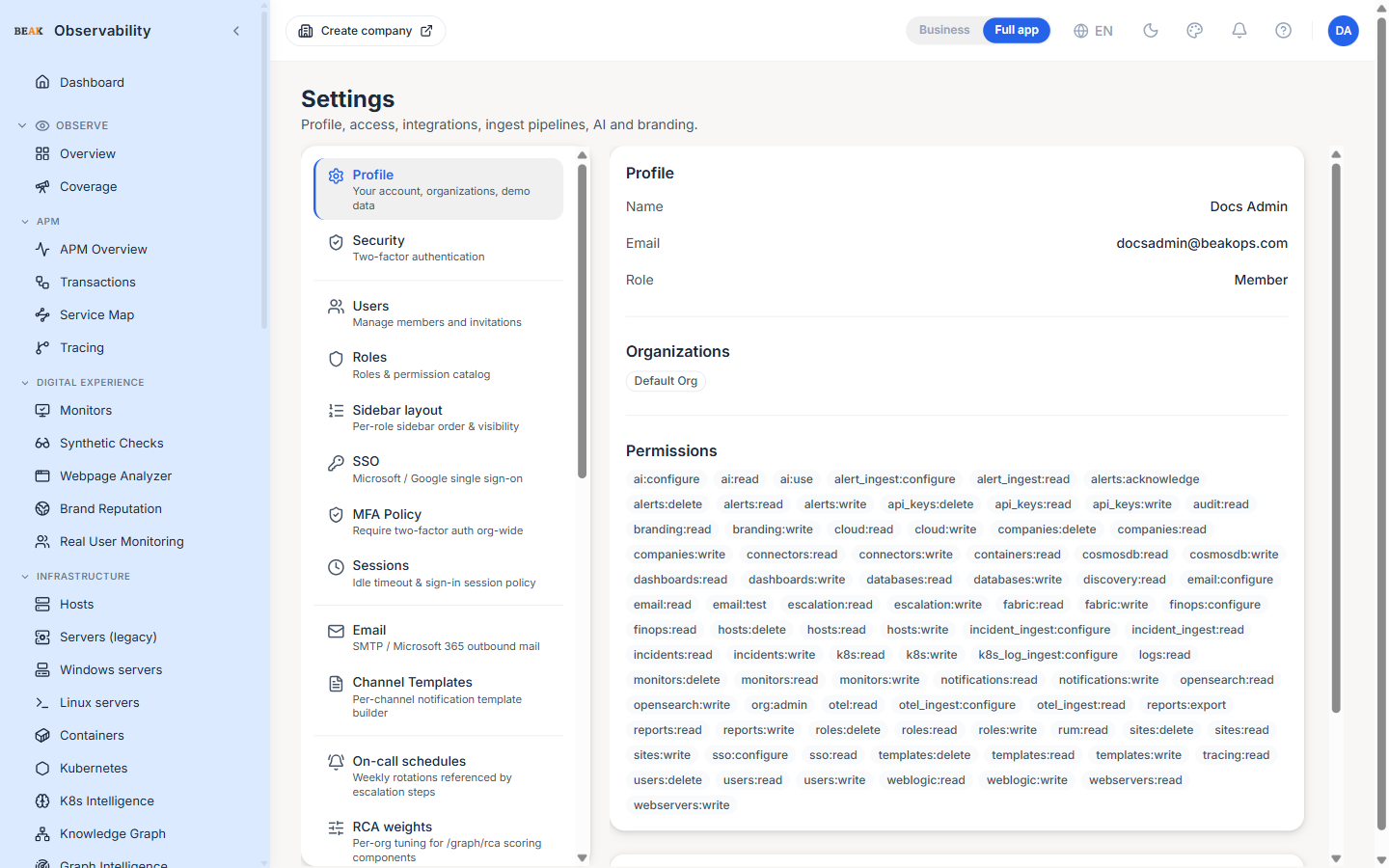
Sections
Settings is grouped into themes:
Account
- Profile — Your account details, the organizations you belong to, and demo-data tools
Access
- Users — Manage members and invitations
- Roles — Roles and the permission catalog
- Sidebar layout — Per-role sidebar order and visibility (the saved order applies on top of the default sidebar)
- SSO — Microsoft / Google single sign-on
- Security — Enrol and manage your own two-factor authentication (2FA / TOTP) for sign-in
- MFA Policy — Require two-factor authentication org-wide, so every member must enrol 2FA before access
- Sessions — Sign-in session policy: idle timeout, absolute session lifetime, concurrent-session limit and persistent-login behaviour
Communications
- Email — SMTP / Microsoft 365 outbound mail configuration
- Channel Templates — Per-channel notification template builder
Operations
- On-call schedules — Weekly rotations referenced by alert escalation steps
- RCA weights — Per-org tuning for the RCA scoring components
- Maintenance windows — Topology-aware silencing for planned work
- Service ownership — Dynamic team mapping with pin overrides
- Team routing — Route alerts to the owning team's channels, with per-team noise budgets
- SLOs — Define service-level objectives and track error-budget burn
- Action policies — Govern remediation actions — auto-run, require approval, or deny
Ingest pipelines
- Alert Ingest — Inbound alerts from Splunk, Datadog and other external sources
- OTel Ingest — OpenTelemetry traces, metrics and logs
- Incident Ingest — Inbound incidents from PagerDuty, Jira, ServiceNow, Opsgenie, Statuspage
Multi-company & multi-site ingest
An Alert Ingest or Incident Ingest API key created without a company (an "org-scoped" key) can push to any company in the organization by naming the target company — and optionally a site — on each request. One integration can then attribute alerts and incidents to the right company/site without a separate key per scope.
- Company header (preferred) —
X-Company-ID: <company-id> - Company query parameter (fallback) —
?company_id=<company-id> - Site header (preferred) —
X-Site-ID: <site-id> - Site query parameter (fallback) —
?site_id=<site-id>
When both a header and a parameter are supplied, the header takes precedence. The company must belong to the key's organization and the site to that company, otherwise the request is rejected. Omitting the site records the row against the company with no site — it stays visible under the scope picker's All sites option.
Note: A key created with a company (or site) stays locked to it and ignores any
X-Company-ID/X-Site-IDheader orcompany_id/site_idparameter on the request. Use an org-scoped key for multi-company or multi-site ingest.
The same company and site scoping also applies to the read lists — the ingested-alerts list on the Alerts page and the received-incidents list both filter by the selected company and site.
Retrieve & update ingested records
Ingested alerts and incidents can be fetched and updated with the same ingest API key, so an AI agent — or any integration — can pull history and write triage results back. Send the key in the X-API-Key header.
- List —
GET /api/v1/alert-ingest/alerts,GET /api/v1/incident-ingest/incidents - Fetch one —
GET /api/v1/alert-ingest/alerts/{id},GET /api/v1/incident-ingest/incidents/{id} - Update one —
PUT /api/v1/alert-ingest/alerts/{id},PUT /api/v1/incident-ingest/incidents/{id}
{id} accepts either the UUID or the human AL-… / INC-… display id. The Alert Ingest key scope already grants read and update of alerts; the Incident Ingest scope does the same for incidents. Finer-grained read-only and write scopes are also accepted.
The alerts list also accepts an event_source query parameter — an exact match against the upstream source system embedded in the alert's custom_data.source. This is distinct from source (the Beak provider channel, e.g. generic / manageengine): an integration that funnels many upstream systems through one channel can stash the real system id in custom_data and filter on it here. For example GET /api/v1/alert-ingest/alerts?event_source=GUI_gestioneventos.
A PUT applies only a fixed set of fields — any other field in the body is ignored, so a record can never be mass-assigned:
- Alert —
status,severity,acknowledged_at,resolved_at,snoozed_until,custom_data,note(appends a triage note), andresolution_note. - Incident —
status,severity,priority,assignee,service_name,title,description,acknowledged_at,resolved_at,closed_at,custom_data,rca_narrative, andresolution_note.
Note: A
resolution_noteis required whenever aPUTtransitions a record toresolved(status: "resolved") — a missing or blank note is rejected with422. It records why the alert or incident was closed and is shown on the resolved record.
Note: Every read and update is scoped to the key's organization — and to its company (and site), for a bound key — so a request can never reach another tenant's, company's, or site's records.
Retrieve & update non-ingested records
Rule-fired alerts (the internal alert engine) and rule-engine incidents can also be reached by an API key, using the same X-API-Key header:
- List —
GET /api/v1/alerts(the unified feed — rule-fired and ingested),GET /api/v1/promoted-incidents - Fetch one —
GET /api/v1/alerts/{origin}/{id}(originruleorexternal),GET /api/v1/promoted-incidents/{id} - Update one —
PUT /api/v1/alerts/{origin}/{id},PUT /api/v1/promoted-incidents/{id}
These require the alerts:read_internal / alerts:write_internal and incidents:read_internal / incidents:write_internal scopes (or the * super-scope). {id} accepts the UUID or the display id. The PUT whitelist:
- Alert —
status,severity,acknowledged_at,resolved_at,snoozed_until,note(append), andresolution_note. For an external-origin alert,severity_text/severity_number/custom_dataare also accepted. - Incident —
status,severity,title,summary,acknowledged_at,resolved_at,closed_at, andresolution_note.
Note: The dedicated resolve endpoints
POST /api/v1/alerts/{origin}/{id}/resolveandPOST /api/v1/alert-groups/{id}/resolverequire aresolution_notein the body (a blank note is a422). As with thePUTpaths, resolving without a note is not allowed.
Note: A rule-fired alert's status and a rule-engine incident's lifecycle are recomputed by the evaluation engine, so a status forced through
PUTmay be overwritten on the next evaluation cycle. Acknowledge / resolve / snooze and notes are stable.
Intelligence
- AI Settings — LLM provider, API key, model selection and per-tenant limits
- FinOps — Cost product integration and deep links
Branding
- Branding — Platform name, logo, login-screen appearance
Company Settings
Per-company overrides for platform behaviour, scoped to the company selected in the top-bar scope picker (admin-only). Switch companies in the picker to configure each one. Each override is three-state: an explicit value, or Inherit — fall back to the organization-wide default for that setting when the company hasn't set its own.
- AI incident promoter — Inherit (use the org-wide default), Enabled, or Disabled. Controls whether this company's recurring / critical rule, Kubernetes and forecast alerts are auto-promoted into incidents. The org-wide default is off, so an inheriting company's criticals stay on the Alerts page until it (or the org default) opts in — see the promoter note on the Incidents page for the full behaviour. The tab shows the resolved effective value, so you can see what Inherit currently falls back to.
Platform Settings
Org-wide runtime tunables (admin-only) — retention windows, OpenSearch configuration and similar knobs — that are hot-reloaded, so a change takes effect without a restart.
Access policy
The access-policy sections control authentication and session security for the tenant.
Security
Security is each user's personal two-factor authentication and password section. With 2FA enabled, every sign-in asks for a 6-digit code from your authenticator app; the page shows your enrolment date, when a code was last used, and how many of your 10 backup codes remain. It offers three actions:
- Regenerate backup codes — Issues a fresh set of 10 codes and invalidates every previous code (used or not); requires your current 6-digit code.
- Disable two-factor authentication — Turns MFA off after you enter a current code (your backup codes are deleted too). If the org's MFA Policy requires 2FA you can't disable it yourself — an admin must reset your MFA or change the policy.
- Change password — Updates your sign-in password (current password required); not available when you sign in via SSO.
MFA Policy
MFA Policy is the organisation-wide control behind Security — a single Require two-factor authentication switch. When it is on, every user who signs in with email + password must enrol in MFA before reaching the dashboard and cannot disable their own MFA until the policy is turned off. SSO users authenticate through their identity provider's MFA and are not affected by this switch.
Sessions
Sessions defines the sign-in session policy enforced for every user in the organisation, both in the browser and on the server:
- Idle timeout (minutes) — Signs the user out after this many minutes with no mouse / keyboard / scroll activity; background data refresh does not count as activity.
- Absolute session lifetime (hours) — Forces re-login after this many hours regardless of activity; set to
0to disable the hard cap. - Warning countdown (seconds) — How many seconds before the idle timeout to show the "you'll be signed out" warning; must be shorter than the idle timeout.
- Max concurrent sessions per user — Caps how many devices / browsers a user can be signed in on at once; the oldest session ends when the limit is exceeded. Set to
0for unlimited. - Keep users signed in across browser restarts — When off, closing the browser ends the session; when on, the session resumes until it times out.
Save changes applies the policy; Reset reverts unsaved edits.
Reliability & routing
These sections shape how alerts reach teams and how reliability is tracked and remediated.
Team routing
Team routing maps a team (resolved by the ownership resolver) to a notification channel. When it is enabled, a firing alert's owning team is paged on its channel in addition to the rule's own channels. Each mapping takes a Team name, a Channel, and a Max pages / hour budget (0 = unlimited) that caps how often the team is paged; saved mappings appear in a table below. A Preview routing tool shows where a page for a given service would route, along with the ownership-resolution trail behind it.
SLOs
SLOs sets an availability objective per service. The error budget is 100 − objective; the runner computes the burn-rate (1× burns exactly at budget) and the budget remaining from the service's measured error rate. Each SLO takes a Service, an Objective %, a Window (days) and an optional p95 target (ms), and the objectives table then tracks budget left and current burn per service. These objectives feed the SLO and error-budget views on the Graph Intelligence and Predictions & Intelligence surfaces.
Action policies
Action policies govern how each kind of automated remediation is applied from an incident. Every remediation kind — Restart pod, Scale up, Scale down, Rollback, Config change, Documented runbook and Manual / other — has its own governance setting. Unset kinds default to requires approval: nothing is ever auto-applied unless you explicitly opt a kind in, so low-risk fixes can self-heal while the rest keep a human in the loop.
Navigation
The URL carries the active section as /settings/<section>. Sharing a link to a specific section just works. The list of sections shown to a non-admin user is filtered to those the user has permission to view — Profile is always visible.
Lazy Loading
Each section's editor is loaded only when it's selected. Switching between sections is responsive even when the editors are heavy (e.g. the Roles catalog).
Best Practices
- Set up SSO and Roles before adding human users — invitations work either way, but pre-existing role assignments keep new members away from the default
Read-onlyrole. - The Sidebar layout editor is the right place to hide menu entries you don't use — hiding here is cleaner than asking the team to ignore them.
- Configure On-call schedules before writing escalation policies — the policies reference schedules by ID and a missing schedule will mute the escalation step.
- The Branding section is global; changes affect every user immediately. Test in a non-production tenant first if your customers see the login screen.
Related Pages
- Alerts — Notification channels and escalations that consume on-call schedules
- Connectors — Per-source setup that complements tenant ingest settings
- Admin — API keys, audit log and SSO at the admin level