Administration
The Administration page is the tenant-level admin surface. Three tabs cover the most common admin tasks: managing API keys, reviewing the audit log, and configuring SSO.
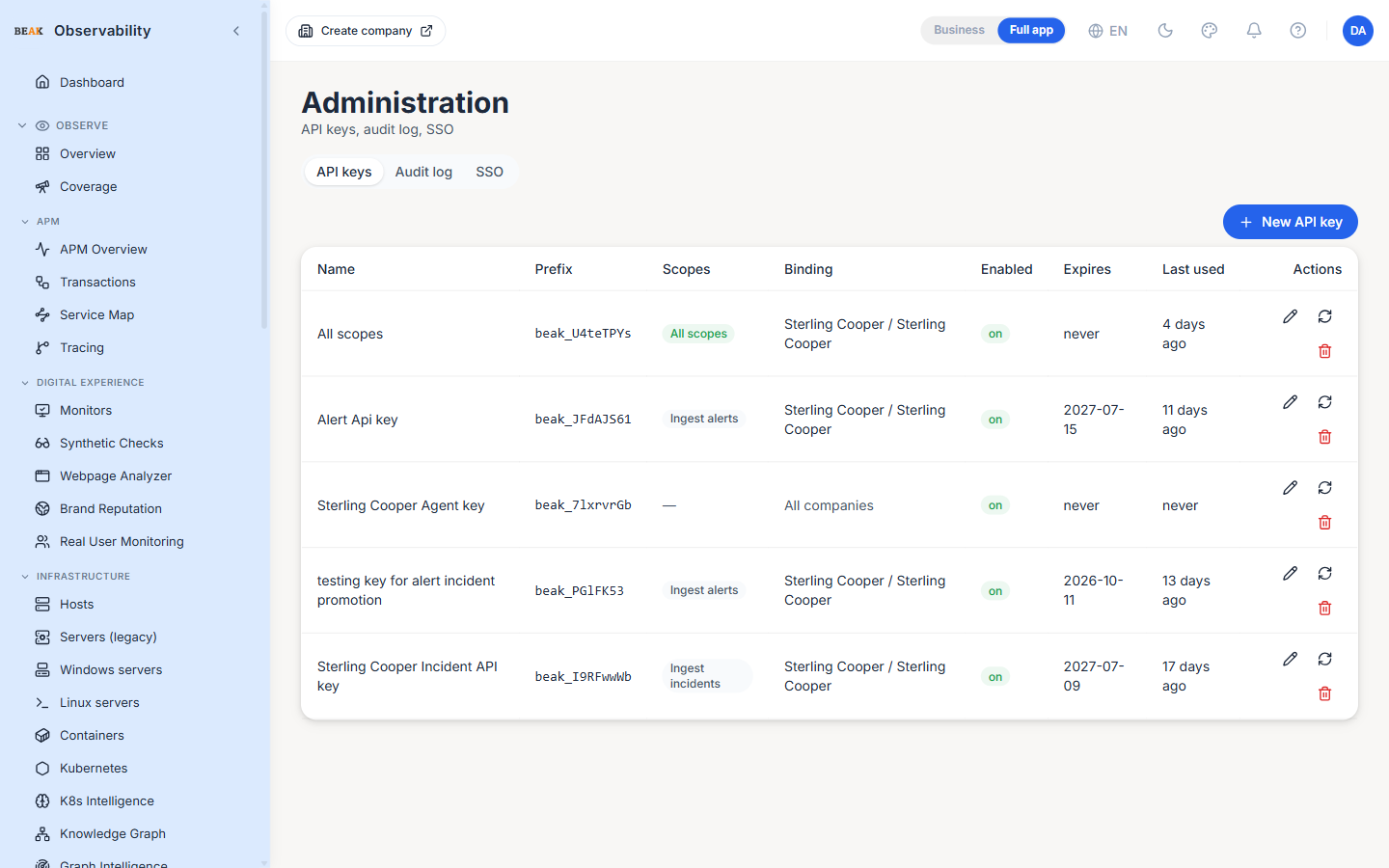
API Keys
The API Keys tab lists every key issued for the tenant. Each row shows:
- Name — Display name given at creation time
- Prefix — The first few characters of the key (useful for audit cross-reference; the rest is never shown after creation)
- Scopes — The permissions granted to the key (an
All scopesbadge when the key holds the*super-scope) - Binding — The company (and site) the key is pinned to, or
All companiesfor an org-wide key - Enabled —
on/offchip - Expires — The key's expiry date, or
never - Last used — Relative time since the key last authenticated
Creating a key
The + New API key button opens a dialog with:
- Name — a display name.
- Scopes — a grouped checklist of permissions (Alerts / Incidents / Telemetry). Tick exactly what the key needs, or flip All scopes to grant the
*super-scope (grants everything — prefer explicit scopes). The list is driven by the backend, so it always reflects the scopes the platform supports. - Expiry —
Never,30 days,90 days, or1 year. - Company / Site — an optional binding. Leave as All companies (org-wide) for a key that can reach every company, or pick a company (and optionally a site) to pin every read and write the key authorises to that scope. A bound key ignores any company/site a caller supplies.
The full key value is shown exactly once, immediately after creation — copy it then. A warning at the top of the success dialog says so explicitly.
Editing, regenerating and revoking
Each row has three actions:
- Edit (pencil) — change the name, scopes, expiry, binding, or enabled state. Editing does not change the secret.
- Regenerate (refresh) — rotate the secret. The current key stops working immediately, and the new value is shown once. Use this if a key may have leaked.
- Revoke (trash) — delete the key after a confirmation prompt.
Note: Scopes map to what a key can call. Ingest scopes (
ingest:alerts,ingest:incidents, …) cover pushing data in and the ingested read-back;alerts:read/alerts:writeandincidents:read/incidents:writecover the ingested records;alerts:read_internal/alerts:write_internalandincidents:read_internal/incidents:write_internalcover the non-ingested (rule-fired alerts and rule-engine incidents). See Settings → Retrieve & update records.
Audit Log
The Audit tab lists every privileged action on the tenant — user changes, role changes, integration changes, key creations and revocations. Each row carries the actor, the action, the affected entity, the source IP, and the timestamp.
Use the audit log for security reviews and incident post-mortems.
SSO
The SSO tab configures the tenant-level SSO settings — Microsoft, Google, and custom OIDC / SAML providers. Per-section forms collect the issuer URL, client ID, client secret, and the claim mappings.
Note: Per-user SSO bindings live under Settings → Users. Use the Admin SSO tab for tenant-level provider configuration and Settings → Users for per-user identity ties.
Sub-Pages
Two related admin surfaces have their own pages:
- Companies — Companies sit under the tenant; each can have multiple sites
- Sites — Sites sit under a company and own operational data
Best Practices
- Treat new API keys as if they were passwords — copy and store them in the team's secret manager immediately after creation. The full key value is never re-shown.
- Rotate API keys on a cadence that matches your security policy; the
Last usedcolumn makes it easy to spot keys that are safe to revoke. - Filter the Audit log by actor and entity when investigating a specific change — the table can be large in mature tenants.
- Configure SSO before opening the tenant to a wider user base — once SSO is enforced, members log in via the provider rather than with email + password.