General Settings
The General Settings tab is the landing page of Global Settings. It groups platform-wide behaviour toggles — login security and endpoint-inventory ingest — with a platform-overview snapshot of the CMDB and M365 integration status and an Application Info card.
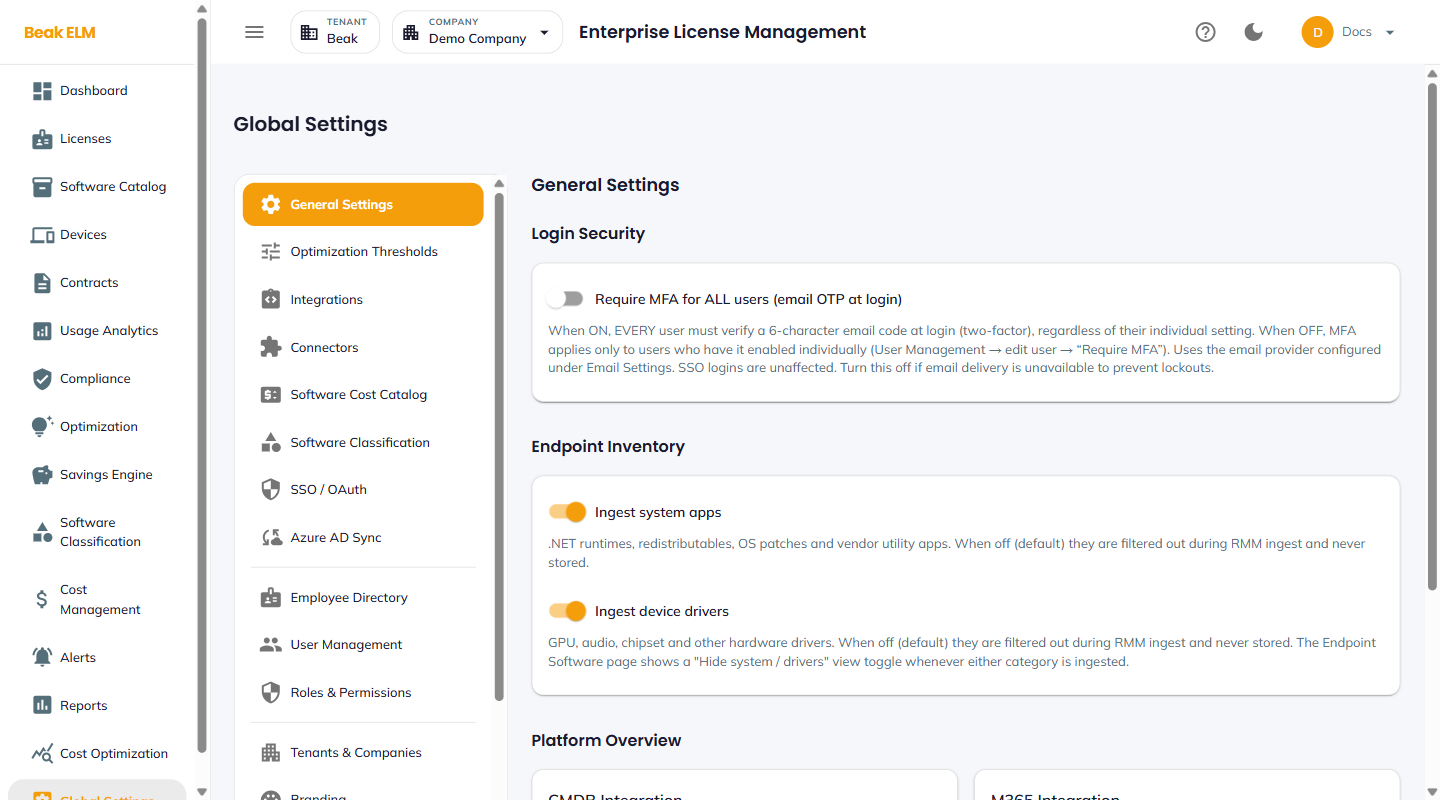
Login Security
- Require MFA for ALL users (email OTP at login) — When on, EVERY user must verify a 6-character email code at login (two-factor), regardless of their individual setting. When off, MFA applies only to users who have it enabled individually — set per user under User Management → edit user →
Require MFA. Uses the email provider configured under Email Settings. SSO logins are unaffected. Turn this off if email delivery is unavailable to prevent lockouts.
The toggle is a global override rather than a master switch: turning it off does not disable MFA for users who have it enabled on their own account.
Endpoint Inventory
Two ingest toggles control what the RMM endpoint-inventory ingest stores — both off by default.
- Ingest system apps —
.NETruntimes, redistributables, OS patches, and vendor utility apps. When off, they are filtered out during RMM ingest and never stored. - Ingest device drivers — GPU, audio, chipset, and other hardware drivers. When off, they are filtered out during RMM ingest and never stored.
Note: The Endpoint Inventory page offers
Hide system / driversandHide Microsoftview toggles on top of these settings — these settings decide what is stored, those toggles decide what is shown.
Platform Overview
Two integration status cards summarize the highest-leverage data sources.
| Card | Field | Description |
|---|---|---|
| CMDB Integration | Status | Configured or Not Configured |
| Sync | Enabled or Disabled | |
| Base URL | Backend URL of the BeakITSM instance | |
| M365 Integration | Status | Configured or Not Configured |
| Sync | Enabled or Disabled | |
| Base URL | Backend URL of the M365Lite service |
For full configuration of either, open Integrations.
Application Info
A single-row card with platform identity:
- Platform — Display name (e.g.
Beak ELM) - Version — Build version (e.g.
1.0.0) - Backend — Stack (
FastAPI + PostgreSQL) - Connectors — Count of available connectors (e.g.
41 available)
Use this card to confirm which version is deployed when filing a support ticket.
Best Practices
- If either CMDB or M365 status reads
Not Configured, treat that as the highest-priority setup task — most ELM modules degrade without at least one of these data sources. - Before opening a support ticket, capture the
Versionvalue from the Application Info card so the support team can pin the report to a specific release. - Use this page as the starting point for any new admin onboarding — it answers "what's connected" in one screen.
Related Pages
- Integrations — Configure CMDB and M365 sync
- Connectors — All available vendor connectors
- Branding — Set the platform name and tagline shown here