Email Settings
The Email Settings tab configures the email provider Beak ELM uses to deliver every notification — alert emails, password reset links, scheduled report deliveries, and SSO welcome messages. Two providers are supported (SMTP or Microsoft 365), and a two-step Test Email flow validates credentials and end-to-end delivery before saving.
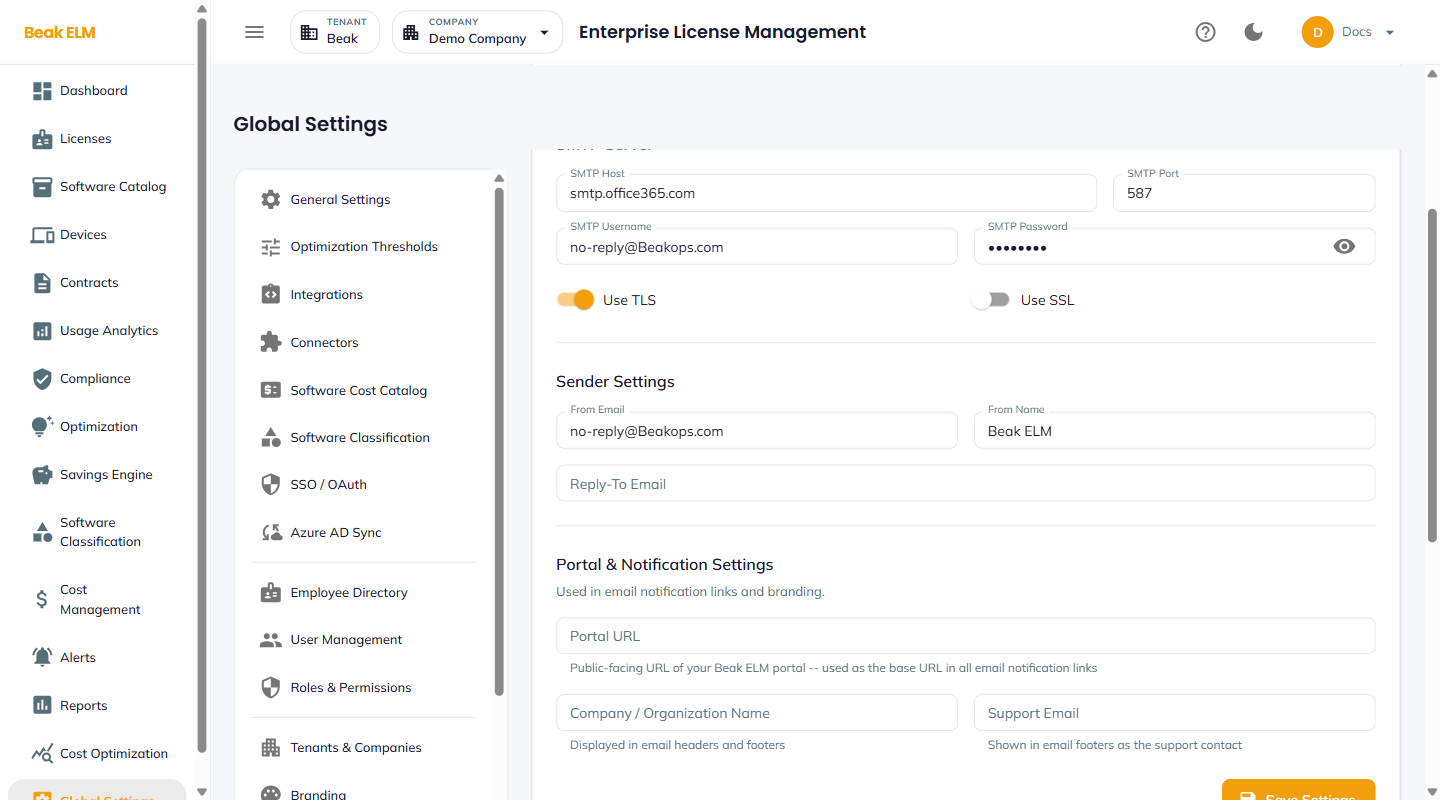
Email Provider Configuration
A master Email Enabled toggle in the top right turns email delivery on or off platform-wide.
The Email Provider radio selects between two providers:
- SMTP — Standard SMTP server (any provider — Office 365 SMTP, SendGrid, Postmark, custom relay)
- Microsoft 365 — Native Microsoft 365 send-as integration (uses Graph API)
SMTP Server
When SMTP is selected, configure the SMTP server.
| Field | Description |
|---|---|
| SMTP Host | Hostname of the SMTP server |
| SMTP Port | Port (typically 587 for STARTTLS or 465 for implicit TLS) — defaults to 587 |
| SMTP Username | SMTP user (often the From mailbox) |
| SMTP Password | SMTP password or app-specific token |
| Use TLS | Toggle for STARTTLS encryption (recommended on port 587) |
| Use SSL | Toggle for implicit TLS encryption (typically port 465) |
Use TLS and Use SSL are mutually exclusive — pick one based on your provider's port.
Sender Settings
| Field | Description |
|---|---|
| From Email | The From: header on outbound mail |
| From Name | The display name on outbound mail (e.g. Beak ELM) |
| Reply-To Email | Optional reply-to address |
Portal & Notification Settings
Fields used in email notification links and branding.
| Field | Description |
|---|---|
| Portal URL | Public-facing URL of your Beak ELM portal — the base URL in all email notification links |
| Company / Organization Name | Displayed in email headers and footers |
| Support Email | Shown in email footers as the support contact |
Test Email Configuration
A two-step validation flow runs at the bottom of the page so you don't ship bad credentials to production. It uses the current form values, so there is no need to save first.
- Step 1 — Validate Credentials —
Test Connectionprobes the SMTP server (or Microsoft 365 token) and confirms the host accepts the supplied credentials, without sending any email - Step 2 — Send Test Email — Delivers a test message to a recipient address you specify, end-to-end through the configured provider
Run both steps in order before clicking Save Settings — silent SMTP failures are the most common reason alerts don't reach recipients.
Best Practices
- Use
Microsoft 365provider if your tenant already runs M365 — it avoids storing an additional SMTP credential and inherits Microsoft's deliverability reputation. - For SMTP, prefer port
587withUse TLSover port465withUse SSL— implicit TLS is increasingly deprecated by mail providers. - Use a dedicated mailbox (e.g.
notifications@yourcompany.com) rather than a personal account — easier to rotate credentials and avoids personal-mailbox quota issues. - Run the two-step
Test Emailflow immediately after a save and again after any password / token rotation. The Step 1 / Step 2 split lets you isolate "credentials wrong" from "delivery / DNS / SPF" issues. - Check the SPF / DKIM / DMARC alignment of the
Fromdomain — alert emails delivered to spam are functionally undelivered.
Related Pages
- Email Templates — Per-event email content
- Alerts — Notifications delivered via this provider
- Branding — Platform name used in
From Nameand email body