SSO / OAuth
The SSO / OAuth tab configures Single Sign-On for Beak ELM. Two providers are supported out of the box — Microsoft (Azure AD) and Google. Each can be independently enabled, with optional auto-create provisioning on first login.
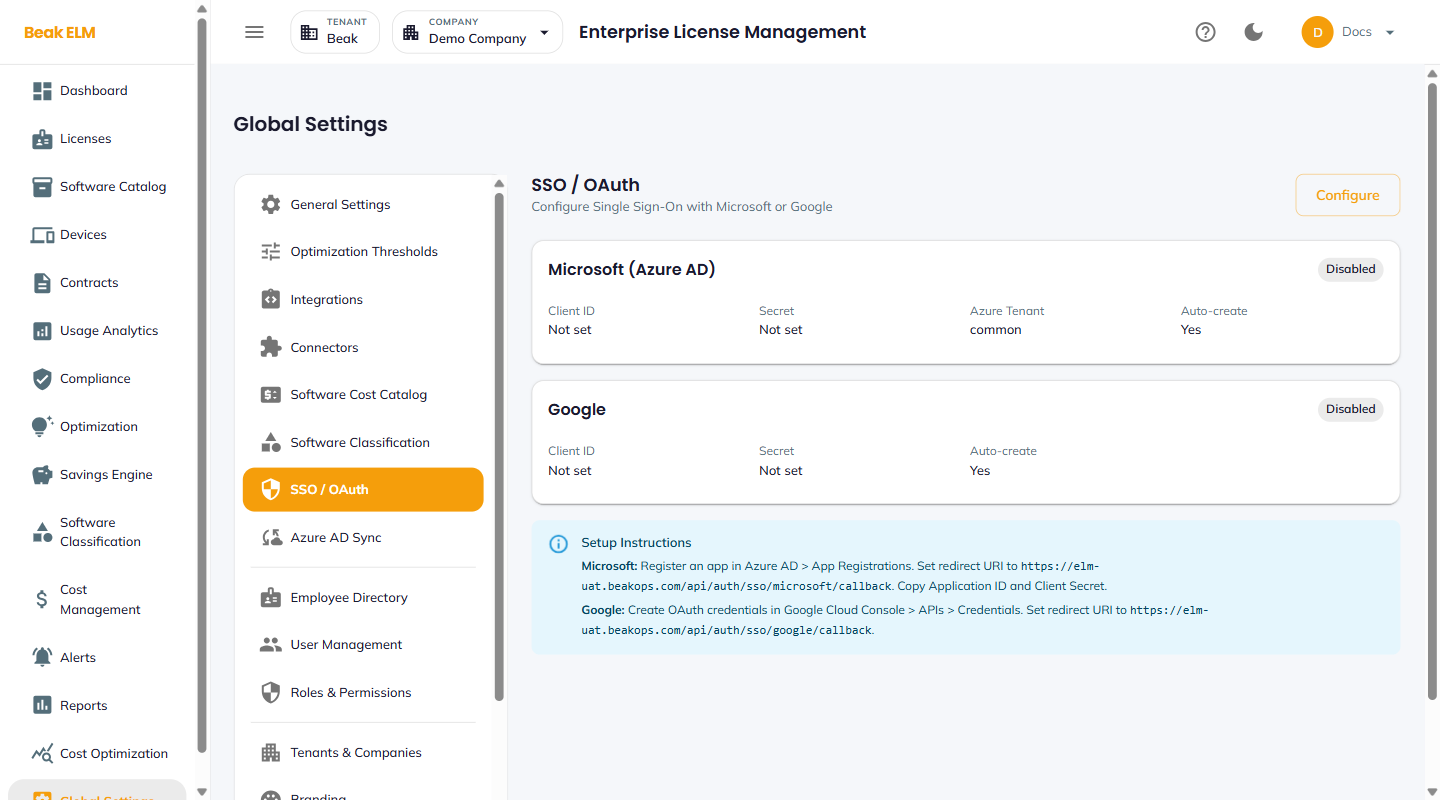
Microsoft (Azure AD)
| Field | Description |
|---|---|
| Status | Disabled or Enabled |
| Client ID | Application ID from Azure AD App Registration |
| Secret | Client secret from Azure AD |
| Azure Tenant | common for multi-tenant, or a specific tenant ID |
| Auto-create | Yes to provision users on first login, No to require pre-existing user records |
Google
| Field | Description |
|---|---|
| Status | Disabled or Enabled |
| Client ID | OAuth client ID from Google Cloud Console |
| Secret | OAuth client secret |
| Auto-create | Yes to provision users on first login |
Setup Instructions
The page surfaces a setup-instruction card with the redirect URIs to register with each provider.
- Microsoft — Register an app in
Azure AD → App Registrations. Set the redirect URI tohttps://<your-elm-host>/api/auth/sso/microsoft/callback. Copy the Application ID and Client Secret into the fields above. - Google — Create OAuth credentials in
Google Cloud Console → APIs → Credentials. Set the redirect URI tohttps://<your-elm-host>/api/auth/sso/google/callback.
The Configure button in the top right toggles the form into edit mode.
Best Practices
- Enable
Auto-createonly after configuring Roles & Permissions defaults — auto-created users land with the default role, and a too-permissive default is a security risk. - Pair SSO with Azure AD Sync — SSO authenticates a user, sync provisions them with department, manager, and group membership for accurate department rollups.
- Test both providers from a private browser window after configuration — caching can mask a misconfigured redirect URI.
- Keep the Microsoft secret and Google secret rotated annually; expired secrets break SSO silently.
Related Pages
- Azure AD Sync — Bulk user / department provisioning
- User Management — User records (auto-created by SSO)
- Roles & Permissions — Default role assigned to auto-created users