Branding
The Branding tab is the white-label surface for Beak ELM. Customize the platform name, tagline, login page colors, login page text, and feature highlights so the deployment matches the deploying organization's brand.
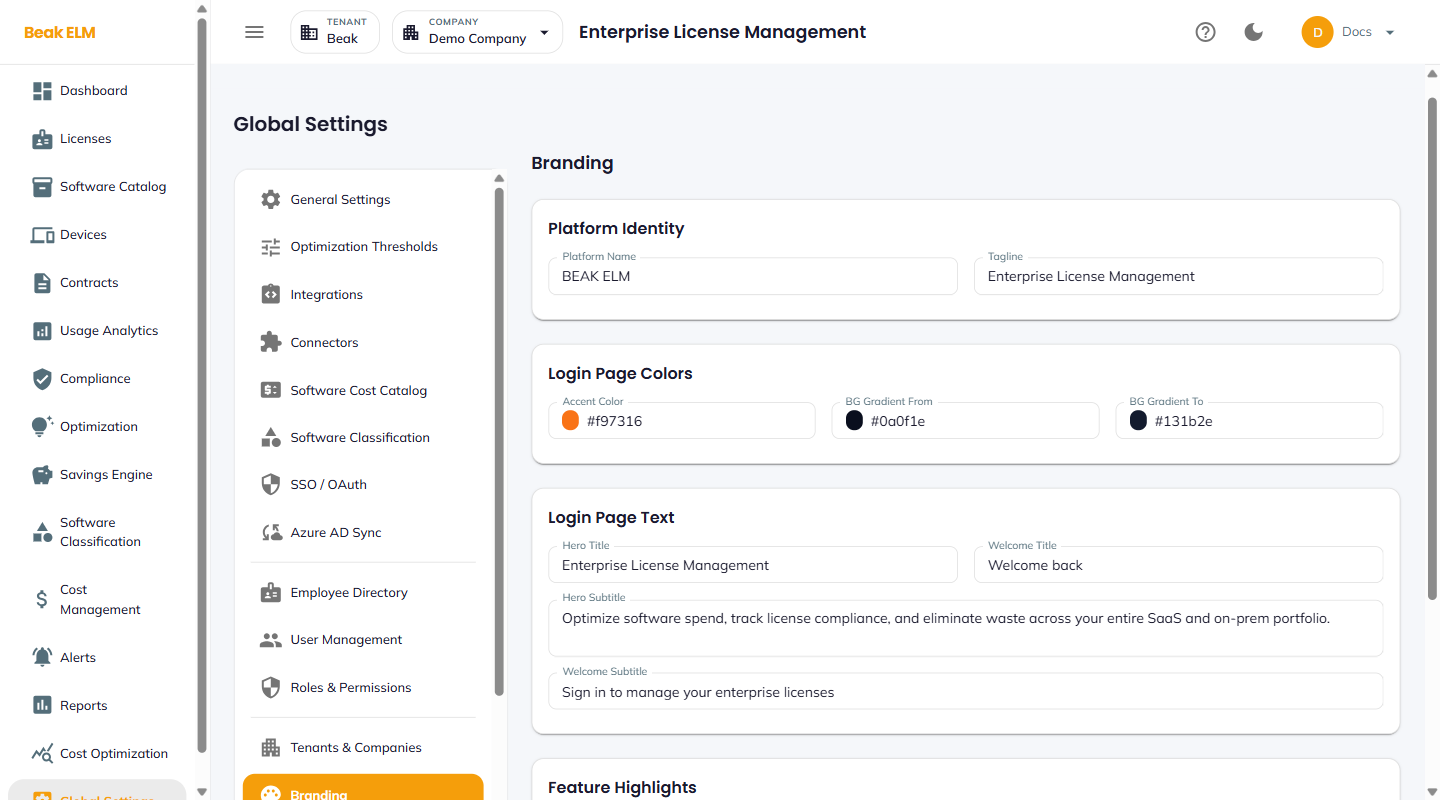
Platform Identity
Sets the name and tagline shown across the application chrome.
| Field | Default | Surfaces |
|---|---|---|
| Platform Name | BEAK ELM | Top-bar title, browser tab, login page |
| Tagline | Enterprise License Management | Top-bar subtitle, login hero |
Login Page Colors
Customize the login page palette.
- Accent Color — Primary brand color (default
#f97316) — buttons, focus rings - BG Gradient From — Top of the login page background gradient (default
#0a0f1e) - BG Gradient To — Bottom of the gradient (default
#131b2e)
Login Page Text
The headline and subhead shown on the login page.
| Field | Default |
|---|---|
| Hero Title | Enterprise License Management |
| Hero Subtitle | Optimize software spend, track license compliance, and eliminate waste across your entire SaaS and on-prem portfolio. |
| Welcome Title | Welcome back |
| Welcome Subtitle | Sign in to manage your enterprise licenses |
Feature Highlights
Up to four feature highlights with title and description, shown as bullet cards on the login page. Defaults include AI-Powered Optimization ("Detect unused licenses, inactive users, and duplicate tools with intelligent cost-savings recommendations") and others.
Best Practices
- Set
Platform NameandTaglinefirst — they propagate through every screen including the General Settings Application Info card. - Use a
BG Gradientthat contrasts well with theAccent Colorso the login page CTA stands out. - Keep
Hero Subtitleto one sentence — long subtitles wrap awkwardly on narrow viewports. - Test branding changes on the login page in an incognito window — the existing session caches the old branding until sign-out.
Related Pages
- General Settings — Platform overview surfaces the platform name
- Email Templates — Email branding variants