Alerts & Notifications
The Alerts & Notifications page is the rules-based notification surface for Beak ELM. Four KPI tiles count unresolved alerts by severity; four tabs surface active alerts, the rule definitions that produce them, the delivery history, and the email recipient settings.
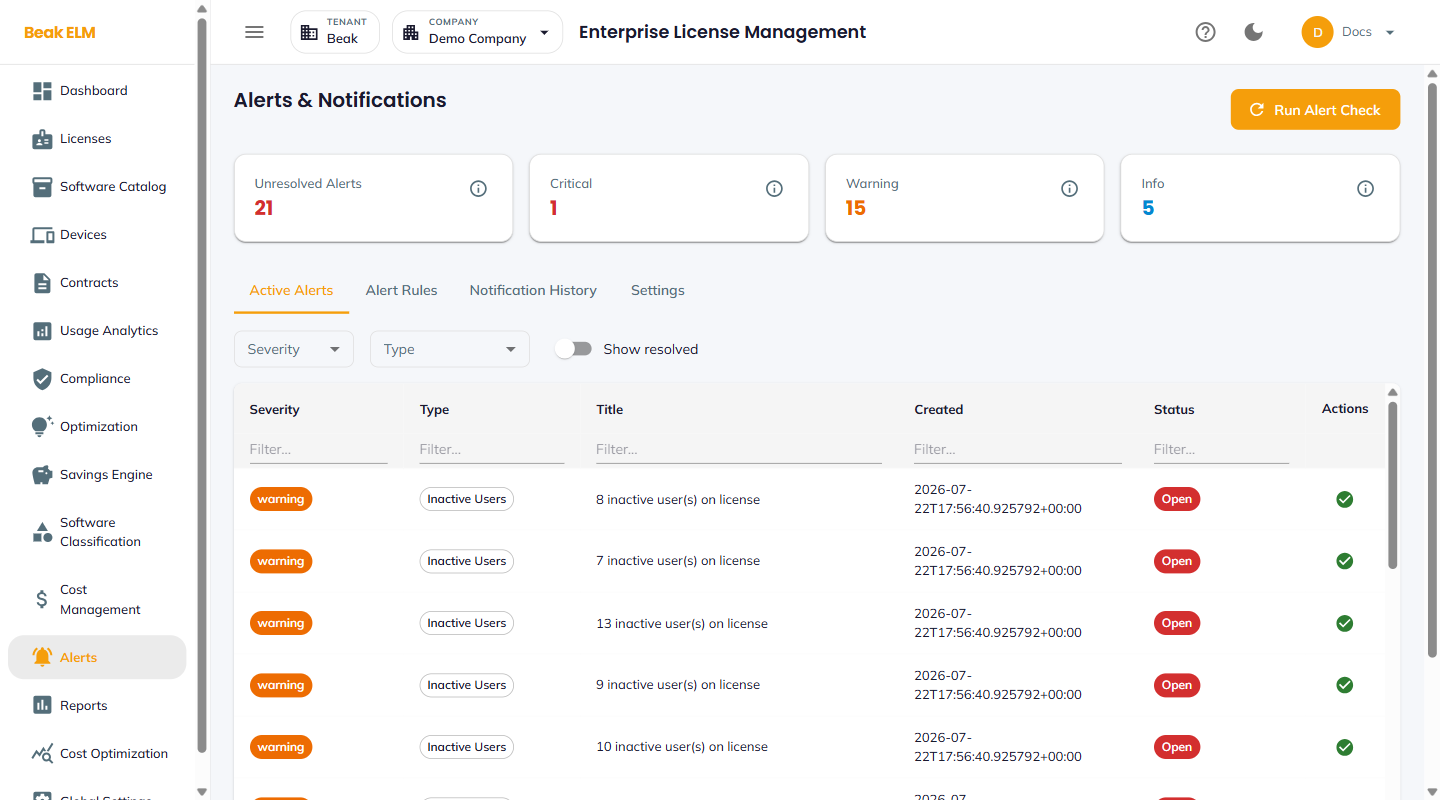
KPI Tiles
- Unresolved Alerts — Total open alerts across all severities
- Critical — Open
criticalalerts (most urgent — e.g. license expiring within 30 days) - Warning — Open
warningalerts (e.g. license expiring within 30–60 days) - Info — Open
infoalerts (e.g. license expiring within 60–90 days)
The Run Alert Check button in the top right re-evaluates every alert rule against current data — use it after a connector sync or rule edit.
Active Alerts
The default tab. A table of every open alert with severity, type, title, creation timestamp, and status.
| Column | Description |
|---|---|
| Severity | critical, warning, or info colored chip |
| Type | Alert category (e.g. Expiring Soon, Over Utilization, Inactive User) |
| Title | Description (e.g. License expiring in 86 days: GitHub Enterprise Cloud) |
| Created | ISO timestamp when the alert first fired |
| Status | Open or Resolved |
| Actions | Resolve (✓), Snooze, or open the underlying license |
Filters above the table allow narrowing by Severity, Type, or toggling Show resolved to include closed alerts.
Alert Rules
The Alert Rules tab lists every rule that produces alerts — rule name, type, enabled flag, notification setting, and last-triggered timestamp — with per-rule edit actions.
Notification History
A chronological log of every alert delivery — recipient, channel, sent timestamp, and delivery status. Use this to verify that the right people are receiving the right alerts and to debug delivery issues.
Settings
The Settings tab tunes the thresholds behind the built-in alert rules. Save Thresholds persists the values; the change applies on the next Run Alert Check.
- License Expiry — Critical / Warning / Info (days) — Days-to-expiry bands that set the severity of expiring-license alerts
- Compliance Gap — Critical (%) — Gap size that escalates a compliance alert to
critical - Spend Threshold (%) — Spend growth that fires a spend alert
- Inactive User (days) — Inactivity window that fires an inactive-user alert
- Low Utilization (%) — Utilization floor that fires an under-utilization alert
Best Practices
- Widen the
License Expirybands if procurement needs more runway — raising theInfowindow (e.g. to 120 days) surfaces renewals a full quarter out. - Review
Notification Historyweekly — a delivery-failed entry often means a recipient has left the company; clean it up before the next cycle. - Pair
Active Alertswith the Compliance Dashboard Active Alerts list — both surface the same renewal alerts but compliance contextualizes them with risk score and gap. - Re-run
Run Alert Checkafter tuning thresholds so the open-alert counts reflect the new bands rather than the last scheduled pass.
Related Pages
- Compliance — Compliance-driven alerts (over / under licensed, expiring)
- Optimization — Optimization recommendations (often drive
Inactive Useralerts) - Contracts — Renewal dates that feed the renewal-window rule
- Email Settings — SMTP delivery configuration
- Email Templates — Per-event template content