General Settings
General Settings is the tenant-level configuration page. It hosts the SWA agent installer, identity fields like company name and timezone, the tracking and idle thresholds that define how the agent captures activity, and the SMTP credentials for OTP email.
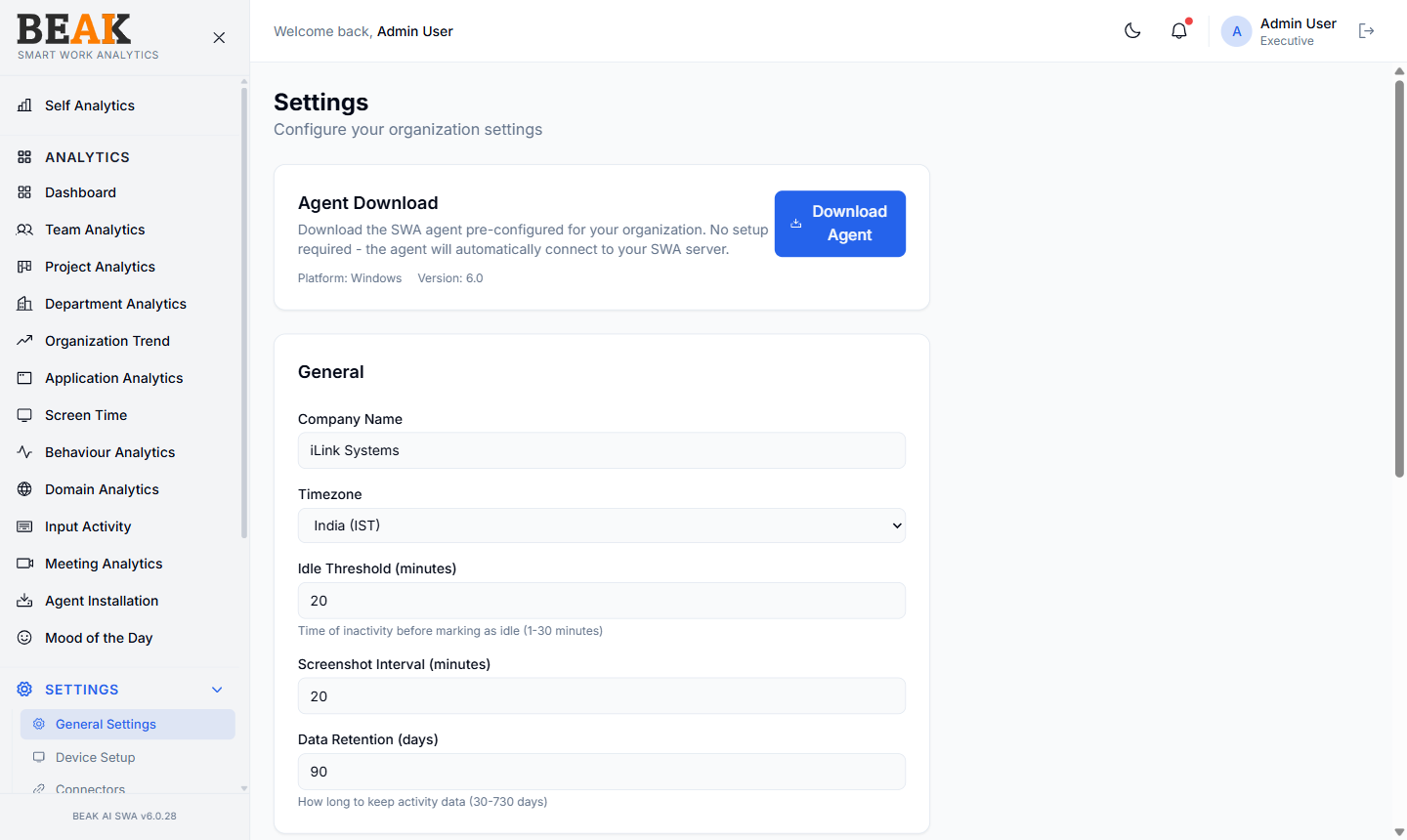
Agent Download
The first card on the page exposes the SWA agent installer:
- Download Agent button — Pulls a Windows installer pre-configured for the current tenant. No manual server URL or API key entry is required — the installer carries the tenant identity.
- Platform — Currently
Windows - Version — Current agent build (e.g.
6.0)
Distribute the installer via Microsoft Intune, Group Policy, SCCM, or any deployment mechanism.
General
The General card holds tenant identity:
- Company Name — Display name shown in the navigation header (e.g.
iLink Systems) - Timezone — Reporting timezone for all analytics (e.g.
India (IST)) - Idle Threshold (minutes) — Time of inactivity before a session is marked
Idle. Range: 1–30 minutes. Default:20. - Screenshot Interval (minutes) — How often the agent captures a screenshot, if screenshots are enabled. Default:
20. - Data Retention (days) — How long activity data is kept before purge. Range: 30–730 days. Default:
90.
Note: Changing
TimezoneorIdle Thresholdretroactively affects how historical data is rolled up — be cautious when adjusting these mid-period.
Tracking
The Tracking card controls which activity types the agent captures. Each toggle is tenant-wide and applies to every agent from the next heartbeat onward:
- Track Applications — Capture foreground application usage. Disabling this stops every application-related view from updating.
- Track URLs — Capture browser URL activity. Disabling this stops Domain Analytics from updating.
- Blur Screenshots — Apply blur to captured screenshots for privacy. Recommended on for shared screens or regulated environments.
- Mood of the Day — Show the daily wellness check-in popup to employees. Disabling this hides the Mood of the Day prompt.
OTP Email SMTP
The OTP Email SMTP card holds the outbound mail credentials used for one-time passwords (login OTPs, account verification).
The card opens with a Use custom SMTP for OTP emails toggle — by default it is off and SWA sends OTP email through the platform-default SMTP configured by the system administrator. Flip the toggle on to override with your own SMTP server; the host, port, username, password, and from-address fields appear once enabled.
Buttons:
- Save SMTP — Persist the SMTP host, port, username, and password
- Test Email — Send a test OTP to verify credentials before enabling them in production
After updating any field on the page, click Save Settings to persist changes.
Best Practices
- After bumping the agent version, verify the Agent Installation page within 24 hours to confirm devices have picked up the new version.
- Set
Data Retentionaccording to your compliance posture — 90 days is the default; regulated industries often need 365 or more. - Test
OTP Email SMTPbefore enabling user-facing OTP flows; a misconfigured SMTP locks users out. - Keep
Idle Thresholdaligned with your actual work patterns — a 5-minute threshold inflates idle time for any role with legitimate think time.
Related Pages
- Agent Installation — Verify deployed agents are healthy
- Device Setup — Map devices to users
- Connectors — Automate device-user mapping
- Roles — Decide who can access settings