Roles
Roles is the RBAC catalog for the tenant. Every user carries a role, and a role's Menu Permissions decide which navigation items the user sees and which analytics they can open. SWA ships with 14 default roles covering the most common enterprise patterns; you can also create custom roles tailored to your organization.
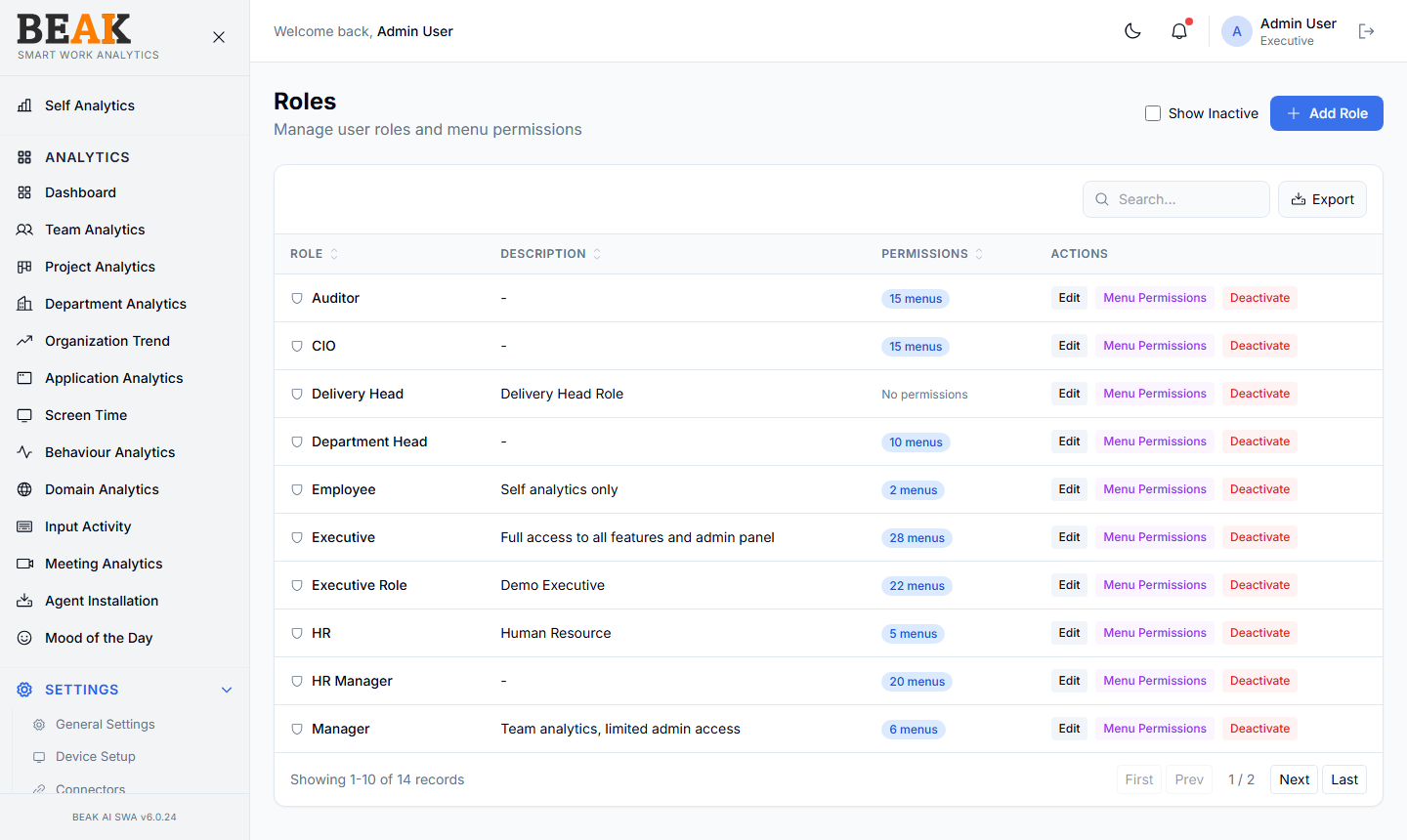
Default Roles
The seeded role catalog (visible in the screenshot above):
| Role | Menus | Description |
|---|---|---|
Auditor | 15 menus | Read-only across analytics — for compliance reviews |
CIO | 15 menus | Full analytics access for the executive level |
Delivery Head | (varies) | Project and team-level rollups |
Department Head | 10 menus | Department-scoped analytics |
Employee | 2 menus | Self analytics only |
Executive | 28 menus | Full access to all features and admin panel |
Executive Role | 22 menus | Demo executive role |
HR | 5 menus | HR-relevant views (Behaviour, Mood, Screen Time) |
HR Manager | 20 menus | Full HR access including admin |
Manager | 6 menus | Team analytics, limited admin |
The number of menus refers to how many SWA navigation items the role can access — both Analytics and Settings combined.
Roles Table
A sortable table with one row per role:
| Column | Description |
|---|---|
| Role | Role name |
| Description | Optional short description |
| Permissions | Number of menus the role can access |
| Actions | Edit, Menu Permissions, Deactivate |
Use Show Inactive to include deactivated roles. Export downloads the table as CSV.
Adding a Role
Click + Add Role to create a new role. Fill in:
- Name — Role display name (must be unique)
- Description — Optional short description
Save to create the role. By default new roles have no menu permissions — assign them via Menu Permissions (below) before assigning the role to users.
Menu Permissions
Click Menu Permissions on any role row to open the permissions editor.
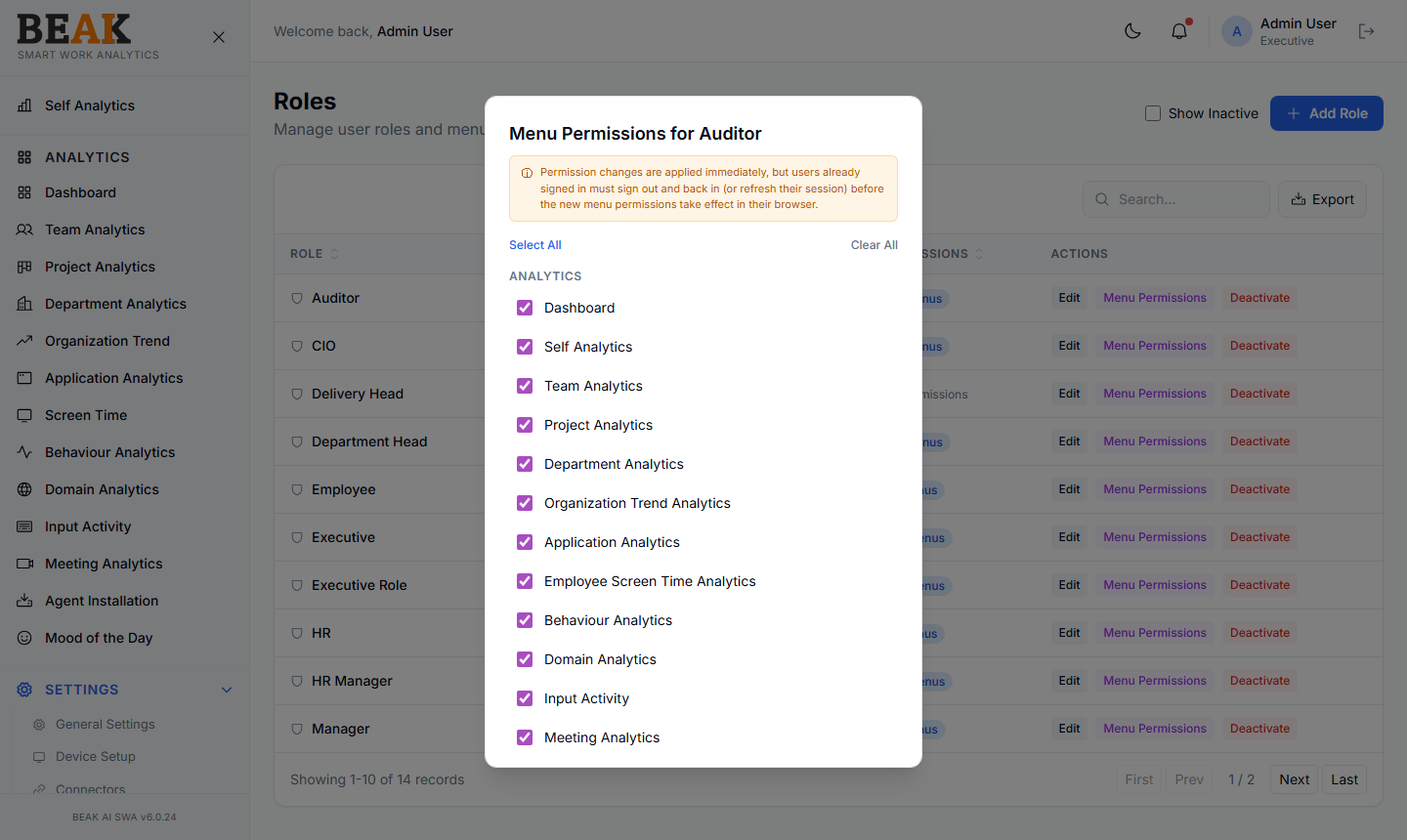
The dialog lists every navigation item in two groups — ANALYTICS and SETTINGS — with a checkbox per menu. Use:
- Select All — Enable every menu in the dialog
- Clear All — Disable every menu
- Per-menu checkboxes — Toggle individual menus
Permission changes are applied immediately, but users already signed in must sign out and back in (or refresh their session) before the new menu set takes effect.
Best Practices
- Don't grant the
Executiverole broadly — its 28-menu access includes every admin action including Users and Roles. Reserve it for a small executive group plus a tenant-admin alias. - Build role naming consistency — match role names to the formal org chart so it's obvious who should have which role.
- Use
Menu Permissionsfor the cleanest role design — keep one role per persona rather than reusing built-in roles with overrides. - Audit roles quarterly — deactivate any role with no assigned users.
- Pair
Roleswith Menu Customization to first hide menus that no role should see, then tailor per-role visibility on top.
Related Pages
- Users — Assign roles to users
- Menu Customization — Tenant-wide menu visibility
- General Settings — Other tenant configuration