Categories
Categories define how every captured application is classified for productivity rollups. Each category carries a Productive / Neutral / Unproductive flag and optional target hours and percentages — driving every chart that distinguishes productive from unproductive time.
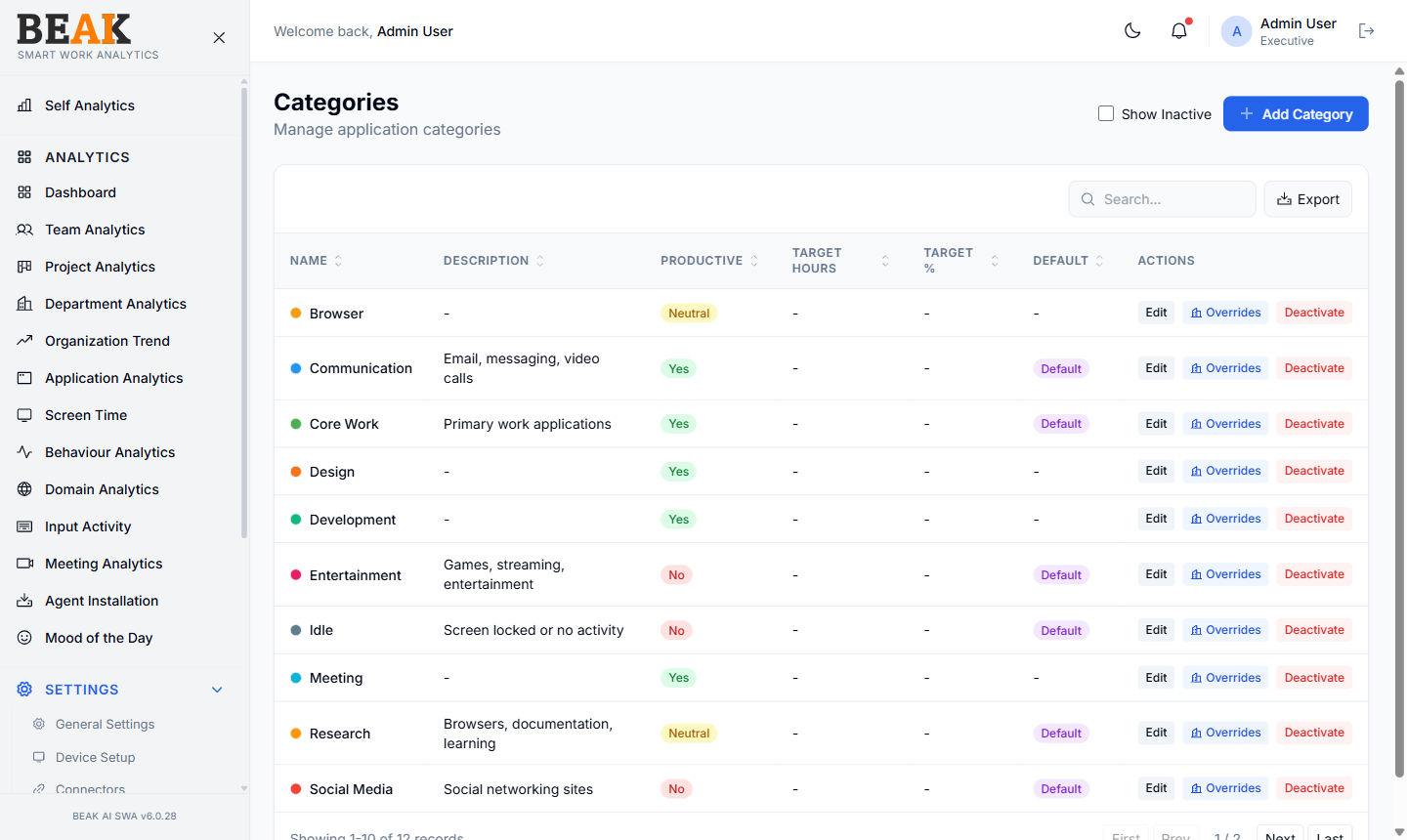
Built-In Categories
SWA ships with 12 built-in categories that cover most enterprise tools out of the box:
| Category | Productive | Description |
|---|---|---|
Browser | Neutral | Generic browser use |
Communication | Yes | Email, messaging, video calls |
Core Work | Yes | Primary work applications |
Design | Yes | Design tools |
Development | Yes | IDEs, source control, build tools |
Entertainment | No | Games, streaming, entertainment |
Idle | No | Screen locked or no activity |
Meeting | Yes | Video meeting platforms |
Research | Neutral | Browsers, documentation, learning |
Social Media | No | Social networking sites |
Each category is also marked Default if it's used as a fallback for newly captured applications without a specific mapping.
Category Table
A sortable, paginated table:
| Column | Description |
|---|---|
| Name | Category display name with a color dot |
| Description | Short description shown across the product |
| Productive | Yes / Neutral / No flag |
| Target Hours | Optional daily target in hours |
| Target % | Optional target as % of work time |
| Default | Default badge if used as the fallback for new apps |
| Actions | Edit, Overrides, Deactivate |
Use the Show Inactive checkbox to view deactivated categories alongside active ones.
Per-Department Overrides
The Overrides action on each category row opens a panel where the category's Productive flag and target hours can be overridden for a specific Department. Use this when a category that is productive for one team is unproductive for another — e.g. Social Media is Unproductive by default but should count as Productive for the marketing department.
Each override carries a department reference and the overriding values; the tenant-wide defaults remain unchanged for departments without an explicit override.
Adding a Category
Click + Add Category to open the Add Category modal. Fill in:
- Name — Display name (must be unique)
- Description — Optional short description
- Productive —
Yes/Neutral/No - Target Hours — Optional
- Target % — Optional
- Default — Mark as the fallback for new applications
Save to persist the category. New applications captured by the agent will be auto-classified into the Default category until manually moved.
Best Practices
- Resist the urge to create too many categories — 10–15 is the sweet spot. Beyond that, charts become noisy.
- Set realistic
Target Hoursfor productive categories — e.g.Core Work: 5 hours/dayis a credible target;7 hourswill show every team in red. - Mark only one category as
Default— multiple defaults lead to inconsistent classification. - Review the
Uncategorizedrows in Application Analytics and Domain Analytics monthly and assign them to the right category.
Related Pages
- Applications — Per-application category mapping
- Domain Categories — Domain classification
- Application Analytics — Productivity breakdown by category