Menu Customization
Menu Customization controls which navigation items are visible to every user in the tenant — regardless of their role. Use it to hide modules your organization isn't using yet, or to declutter the sidebar for a specific deployment.
How It Works
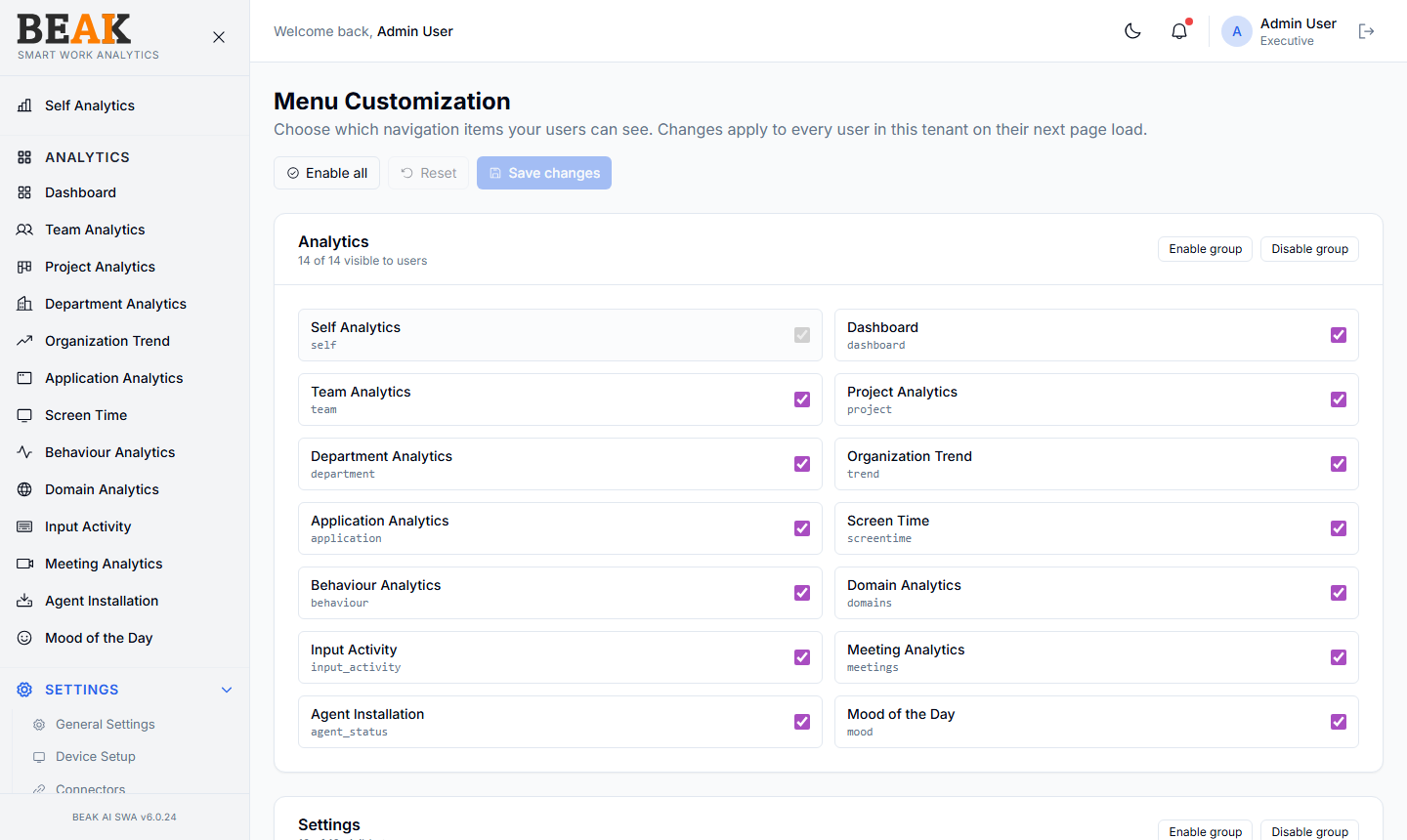
The page lists every navigation item in two groups — Analytics and Settings — with a checkbox per item. A checked item is visible to users; an unchecked item is hidden globally.
Note: Changes apply on each user's next page load — already-signed-in sessions continue to see the previous menu set until the next refresh. The page header shows
Choose which navigation items your users can see. Changes apply to every user in this tenant on their next page load.
The header indicators (e.g. 14 of 14 visible to users) tell you at a glance how many items are currently enabled in each group.
Group Controls
Each group has a header with two buttons:
- Enable group — Check every item in the group
- Disable group — Uncheck every item in the group
Useful when rolling out the product in phases — disable the entire Settings group during initial pilot, then re-enable when admins are trained.
Page Controls
The top of the page exposes three actions:
- Enable all — Check every item across all groups
- Reset — Revert any unsaved changes back to the last saved state
- Save changes — Persist the current selection. Disabled until at least one change has been made.
Menu Customization vs Role Permissions
Menu Customization is tenant-wide — it applies to every user regardless of role. Role Menu Permissions layer per-role restrictions on top.
The effective set of menus a user sees is Menu Customization ∩ Role Menu Permissions — the user must have the menu enabled both at the tenant level and on their role.
In practice, use Menu Customization to hide entire modules you don't need (e.g. hide Mood of the Day if your organization isn't running mood capture yet) and use Roles to restrict by persona.
Best Practices
- Hide menus that are not in use — every visible-but-empty page increases the support burden.
- Reset before save when experimenting —
Resetrestores the saved state, which is safer than reloading the page. - After hiding a menu, communicate the change in advance — a vanishing nav item with no explanation is the most common SWA support ticket.
- Use the group controls (
Enable group/Disable group) for sweeping changes — clicking one checkbox at a time is error-prone.
Related Pages
- Roles — Per-role menu permissions
- Users — User assignment
- General Settings — Tenant configuration