Self Analytics
Self Analytics is the personal landing page for every SWA user. It shows productivity insights captured by the SWA agent on the user's own device and is always visible regardless of role — Employee accounts that have no other analytics permissions can still see their own data here.
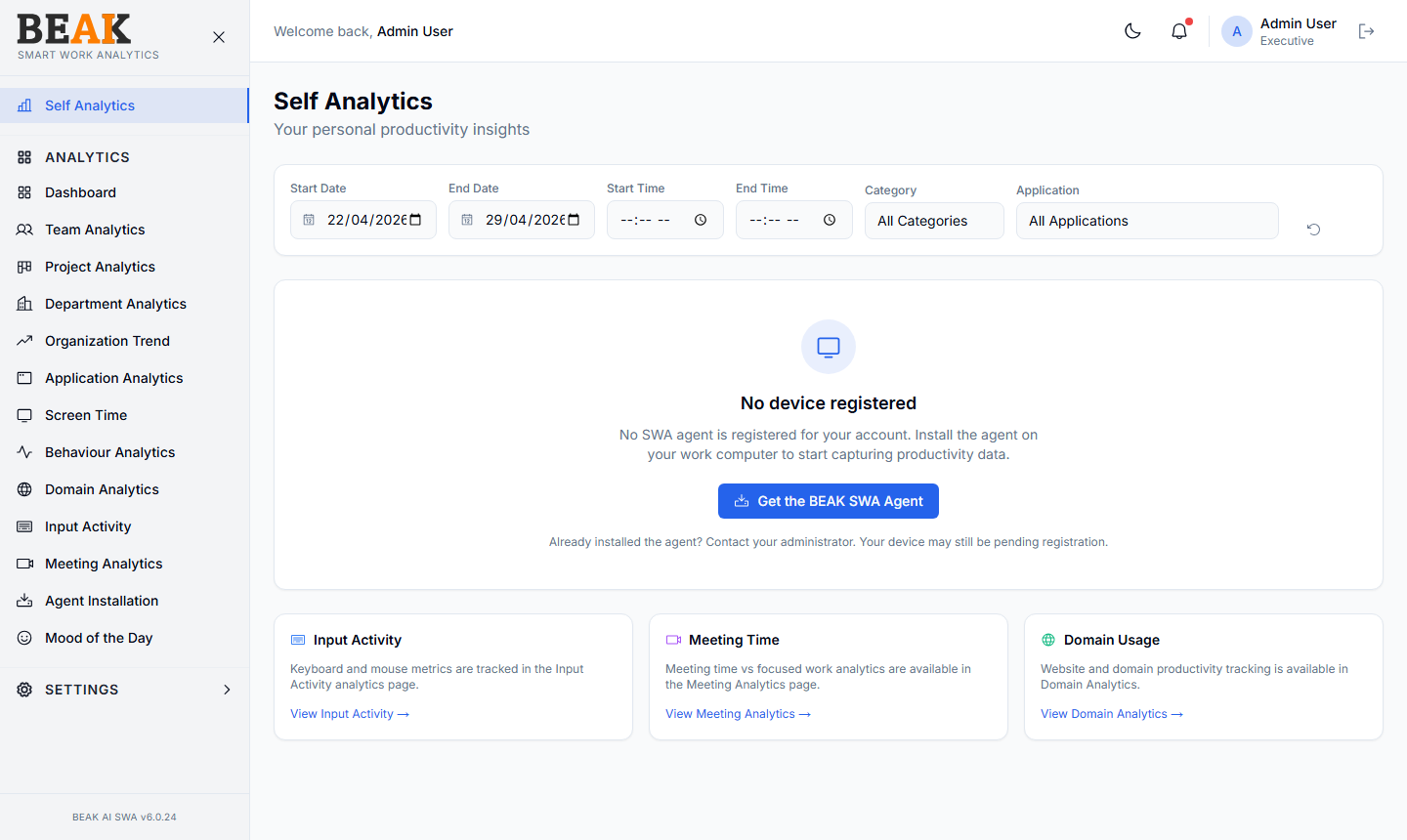
Page Header & Filters
A persistent date and filter bar drives every chart on the page:
- Start Date / End Date — Defaults to the last 7 days
- Start Time / End Time — Optional intra-day window
- Category — Filter to a specific productivity category (e.g.
Core Work,Communication) orAll Categories - Application — Filter to a single application or
All Applications - Reset — The circular arrow icon resets all filters to defaults
No Device Registered State
If the signed-in user has no SWA agent installed and registered to their account, the page shows a No device registered placeholder with a Get the BEAK SWA Agent button. The button links to the agent installer pre-configured for the current tenant.
The placeholder also reminds the user that if they have already installed the agent, registration may still be pending — in which case the device will appear in Agent Installation with a Pending status.
Quick Links
The lower section of the page surfaces three quick-link cards that route to the corresponding analytics views:
- Input Activity — Keyboard and mouse pulse metrics → Input Activity
- Meeting Time — Meeting vs focused-work analytics → Meeting Analytics
- Domain Usage — Website and domain productivity tracking → Domain Analytics
Each card briefly explains what data is available there so a new user can navigate without hunting through the sidebar.
When Data Is Present
Once the agent is installed and reporting, the empty-state placeholder is replaced by the user's personal productivity widgets — including their daily screen time breakdown, productive vs idle vs unproductive split, top applications, and top domains for the selected window. Filters, time range, and category remain consistent with other analytics views.
Best Practices
- Pin
Self Analyticsas the start page so users see their own productivity first thing in the morning. - Use the date filter to compare the current week vs the previous week and track personal improvement.
- If the page shows
No device registereddespite the agent being installed, check Agent Installation to confirm the device shows the correct user mapping.
Related Pages
- Agent Installation — Verify the agent is registered against your account
- Input Activity — Detailed keyboard and mouse metrics
- Meeting Analytics — Meeting vs focus analysis
- Domain Analytics — Website usage breakdown