Workspaces
Workspaces is the home of workspace reporting — the research and project environments running inside your cloud estate. It tracks how much of your licensed capacity is in use, what each workspace costs, who owns it, and where every request sits in its approval lifecycle.
Note: The workspace reports used to sit inside Reports. They now have their own Workspace entry in the sidebar. Existing
/reports/tre-*links redirect here and keep their query string, so saved links and bookmarks still resolve.
Before You Start
Workspace data comes from a connection to your research-environment inventory — it is not discovered from cloud billing alone.
- Add a connection — Go to Companies → your company → Credentials → Workspaces and add a workspace connection, or upload an Excel export.
- Correlate cost — In the same place, under Resource-group correlation, set the rule that maps a workspace to its Azure resource group, then choose Re-correlate now to apply it to workspaces already synced. The rule is per company. Until a workspace is correlated to cloud spend, its counts stay accurate but its money columns read
$0.00. - Set the capacity baseline — Total workspaces available and Default request duration live on the Workspace tab in Settings, and are what Active Capacity and new requests measure against.
- Keep it current — Workspace sync runs inside the scheduled collection job. You can also trigger it on demand from Scheduler or Sync Jobs.
Viewing this section needs the workspaces.view permission — see Roles.
Note: Costs across this section are monthly run-rates derived from the selected period's spend, de-duplicated by resource group so subscription totals sum to the grand total.
The Workspace Hub
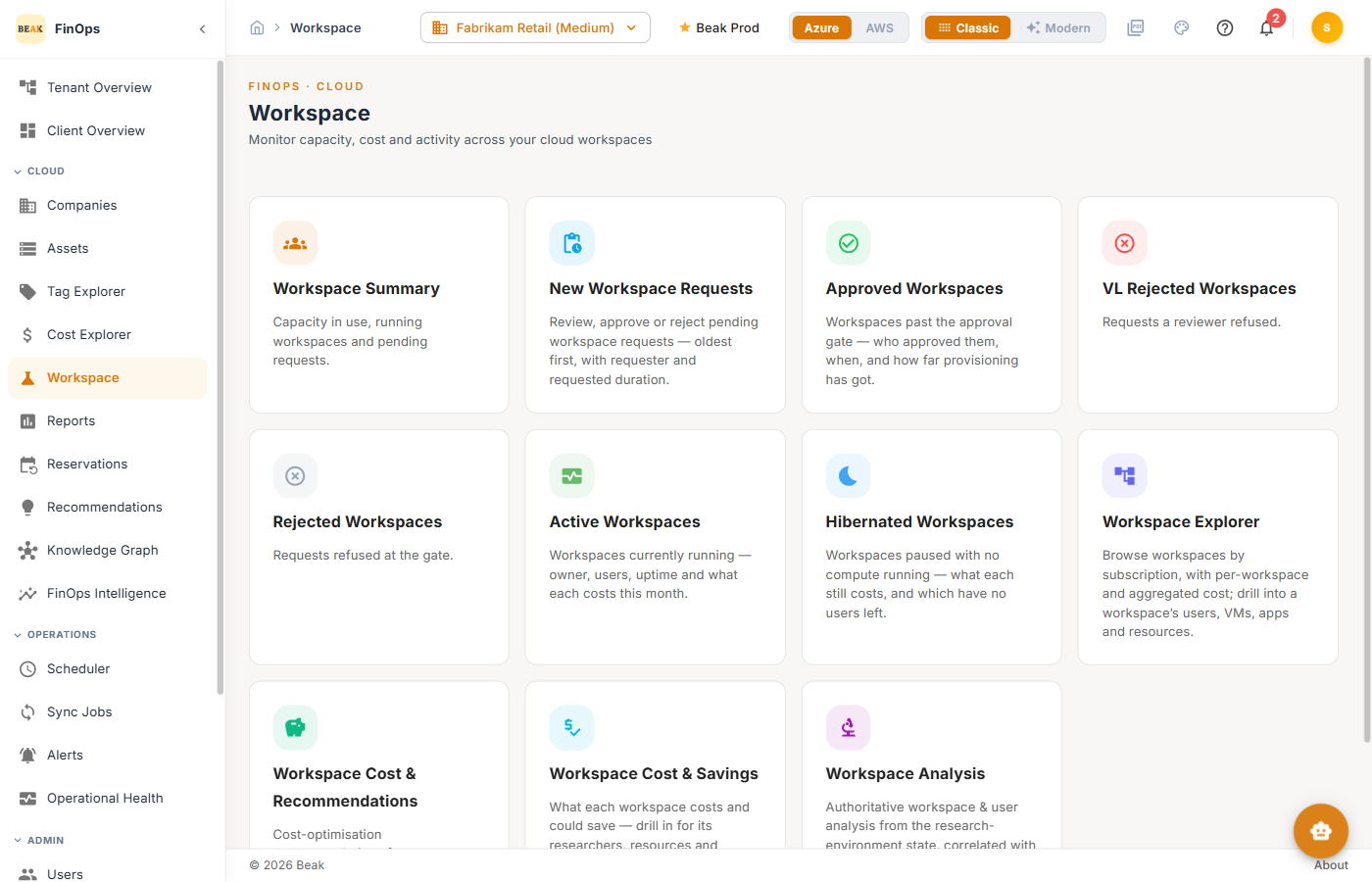
The landing page is a tile for each report. Every report opens with a Back button that returns here.
- Workspace Summary — Capacity in use, running workspaces, and pending requests
- New Workspace Requests — Review, approve, or reject pending requests
- Approved Workspaces — Requests past the approval gate, and how far provisioning has got
- VL Rejected Workspaces — Requests a reviewer refused in Beak
- Rejected Workspaces — Requests refused at the research-environment gate
- Active Workspaces — Workspaces currently running
- Hibernated Workspaces — Workspaces paused with no compute running
- Workspace Explorer — Browse workspaces by subscription and drill into one
- Workspace Cost & Recommendations — Cost-optimization actions across the workspace estate
- Workspace Cost & Savings — What each workspace costs and could save
- Workspace Analysis — Workspace and researcher analysis correlated with cloud cost
Workspace Summary
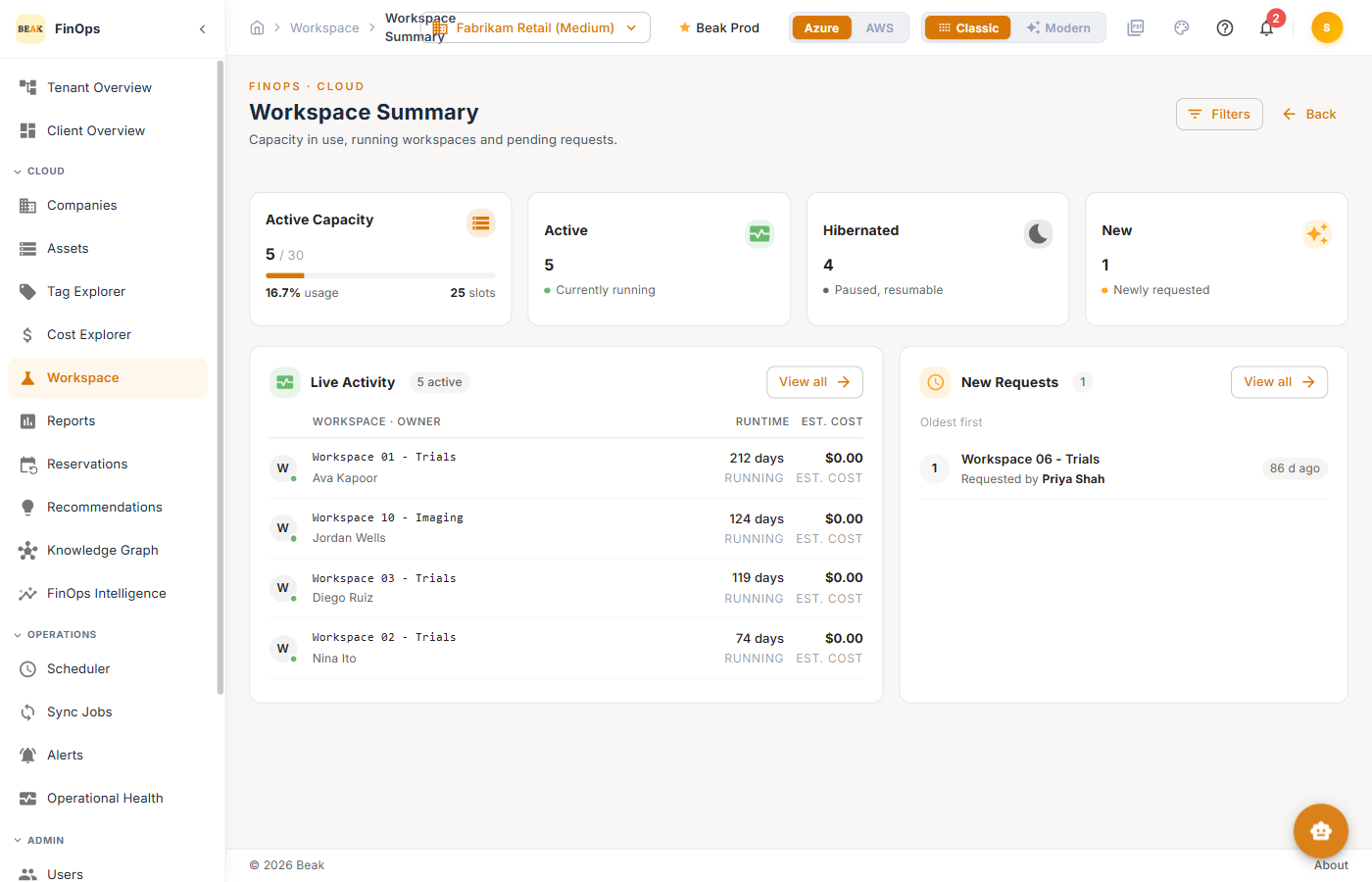
The overview of the workspace estate: how much capacity is committed, what is running now, and what is waiting on a decision.
Tiles
- Active Capacity — Workspaces in use against your licensed slot count, with percentage used and slots remaining
- Active — Workspaces currently running
- Hibernated — Workspaces paused but resumable
- New — Newly requested workspaces awaiting review
Panels
- Live Activity — The running workspaces with owner, runtime, and estimated cost. View all opens Workspace Activity.
- New Requests — Pending requests, oldest first. View all opens New Workspace Requests.
Use Filters to narrow the page to a single subscription. The subscription is held in the URL, so it survives a drill-down and back, and the link can be shared with the same scope.
New Workspace Requests
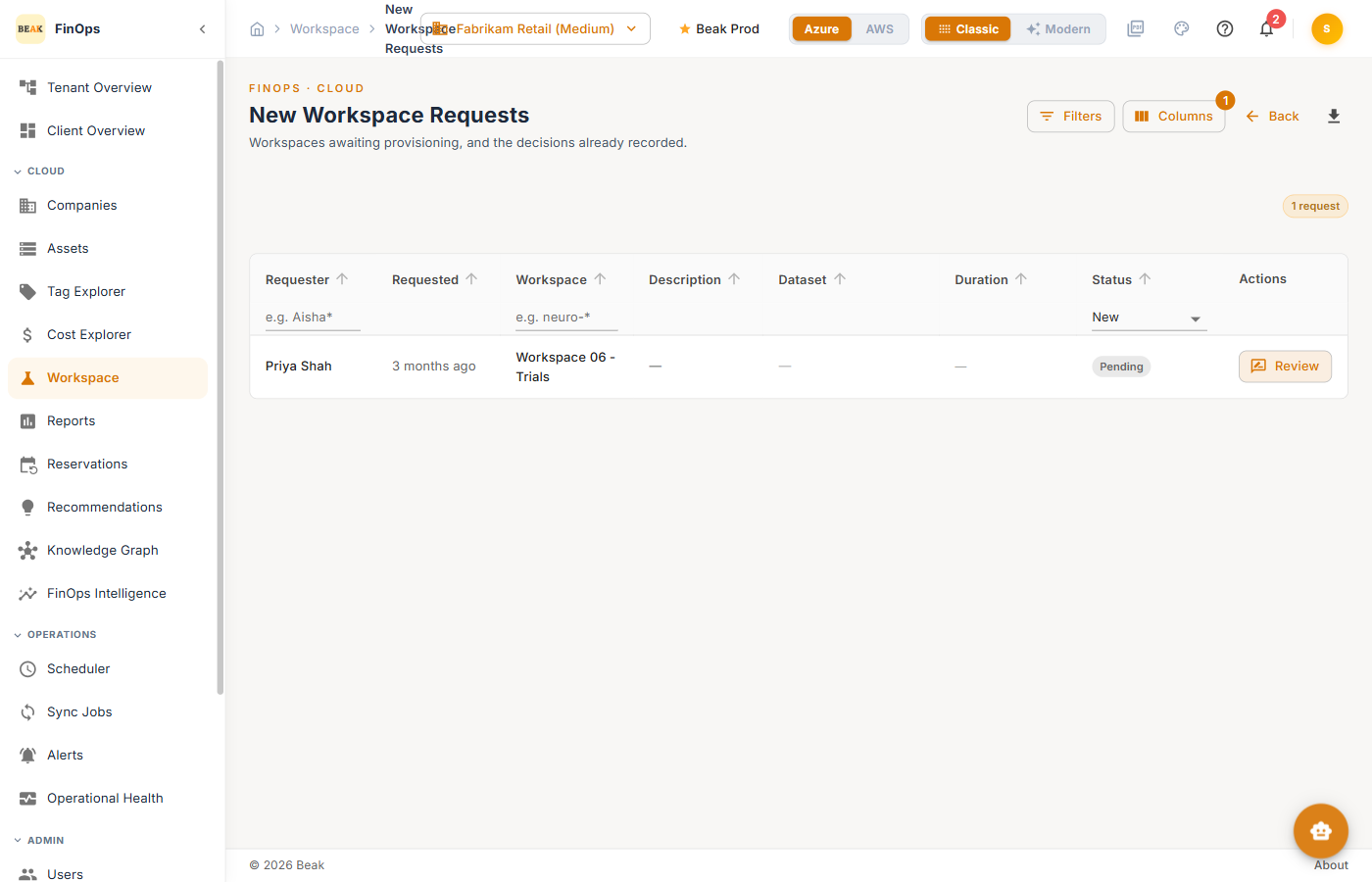
The review queue: workspaces awaiting provisioning, and the decisions already recorded.
| Column | Description |
|---|---|
| Requester | Who asked for the workspace |
| Requested | How long the request has been waiting |
| Workspace | Requested workspace name |
| Description | Free-text justification supplied with the request |
| Dataset | Dataset the workspace is for |
| Duration | How long the requester asked to keep it |
| Status | Pending until a reviewer decides |
| Actions | Review opens the decision dialog |
Requests are listed oldest first. Type into the Requester or Workspace filter to match by name — both accept * (any characters) and ? (single character) wildcards. The Status dropdown switches between request states.
Reviewing a Request
Choose Review on a row to open the decision dialog, then approve or reject the request. Approving records the approver and the approved duration, and the workspace moves to Approved Workspaces; rejecting moves it to VL Rejected Workspaces. Every decision notifies the follow-up channels configured in Settings.
Approved Workspaces
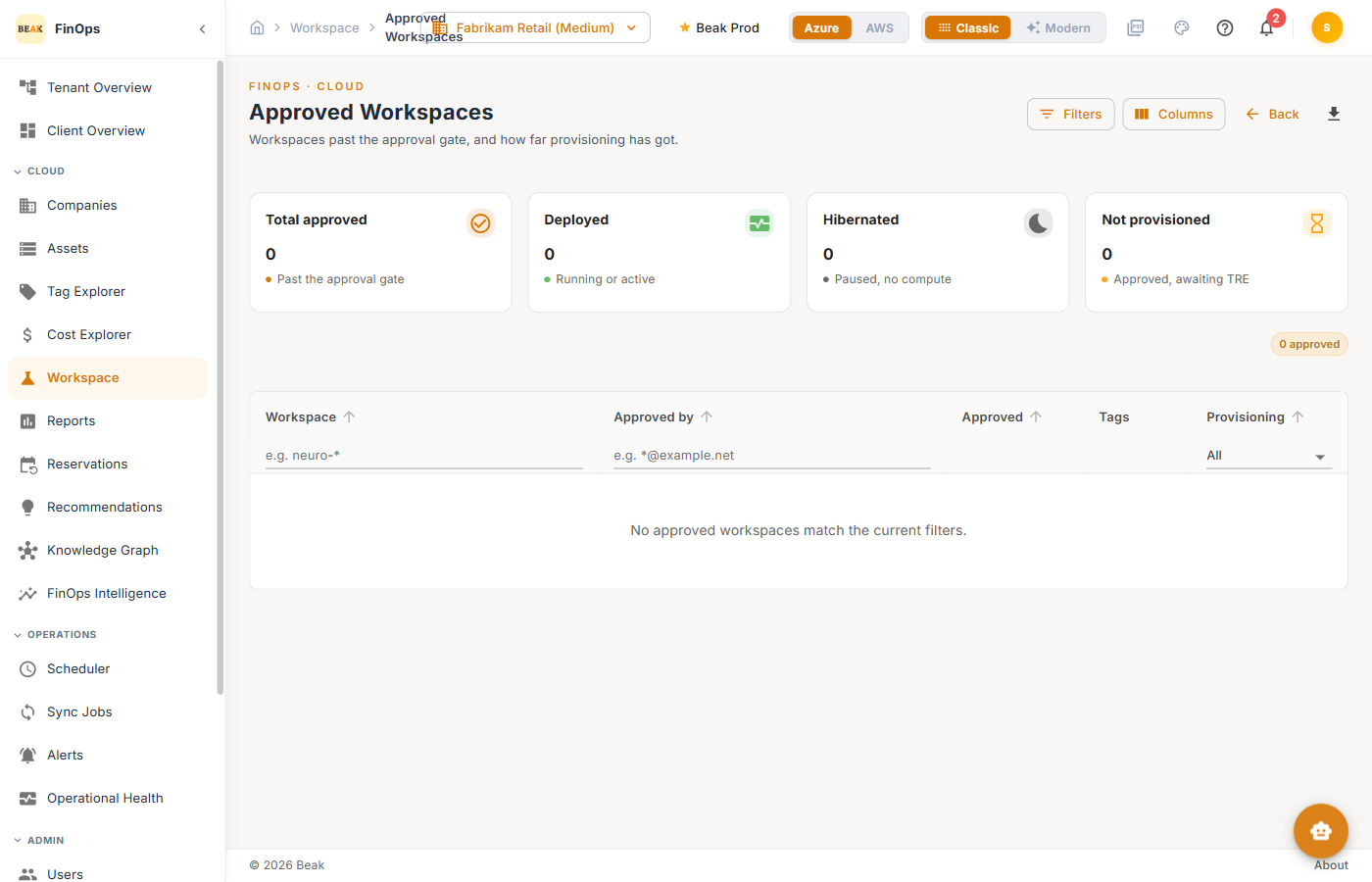
Requests that cleared the approval gate — who approved them, when, and how far provisioning has progressed. Use it to spot approvals that were never actually deployed.
Active Workspaces
Workspaces currently running, and what they cost this month.
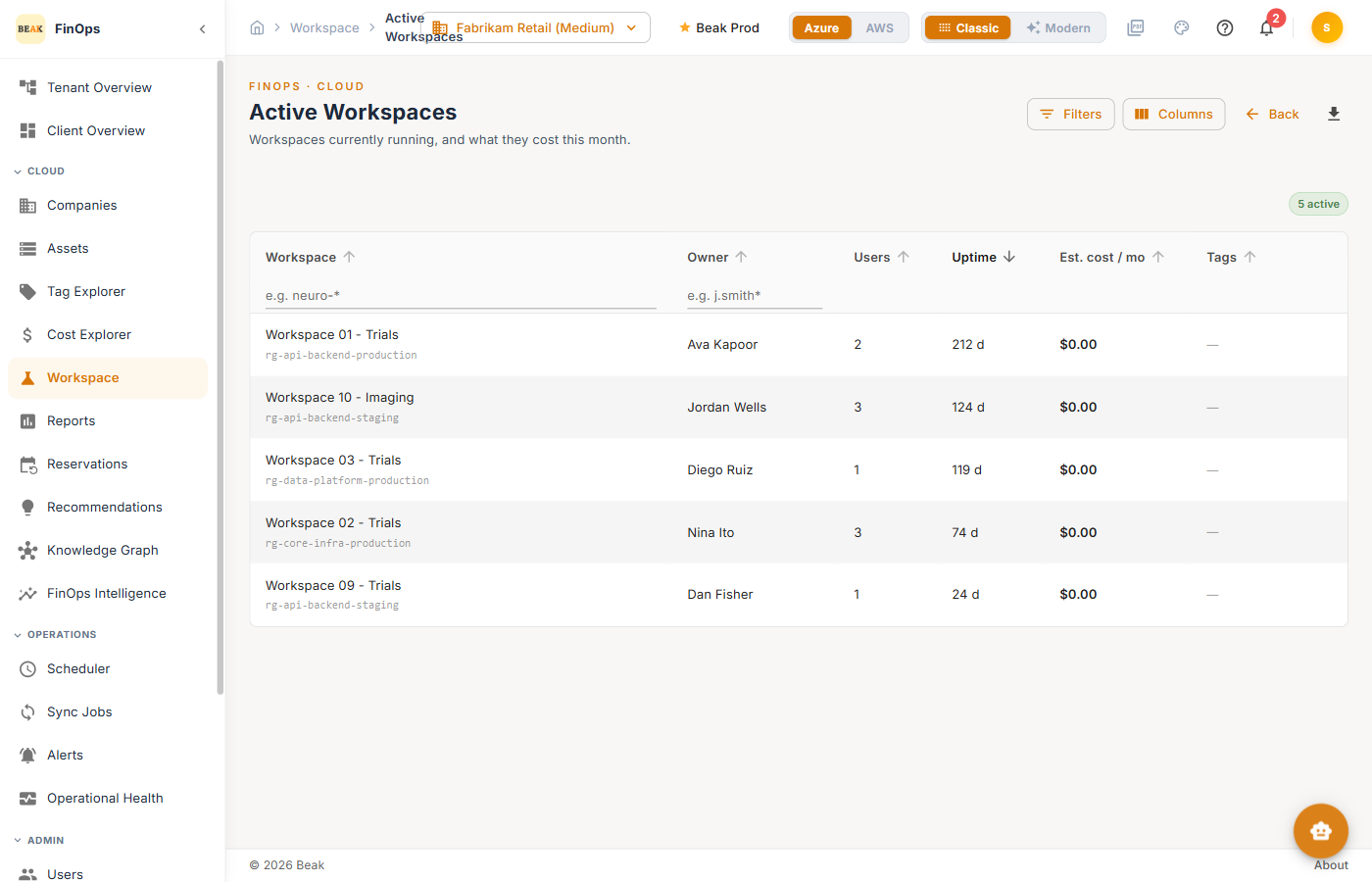
| Column | Description |
|---|---|
| Workspace | Workspace name, with its resource group beneath |
| Owner | Researcher who owns the workspace |
| Users | Users with access |
| Uptime | Days the workspace has been running |
| Est. cost / mo | Monthly run-rate for the workspace |
| Tags | Tags carried by the workspace |
A long uptime with few users is the classic candidate for hibernation.
Hibernated Workspaces
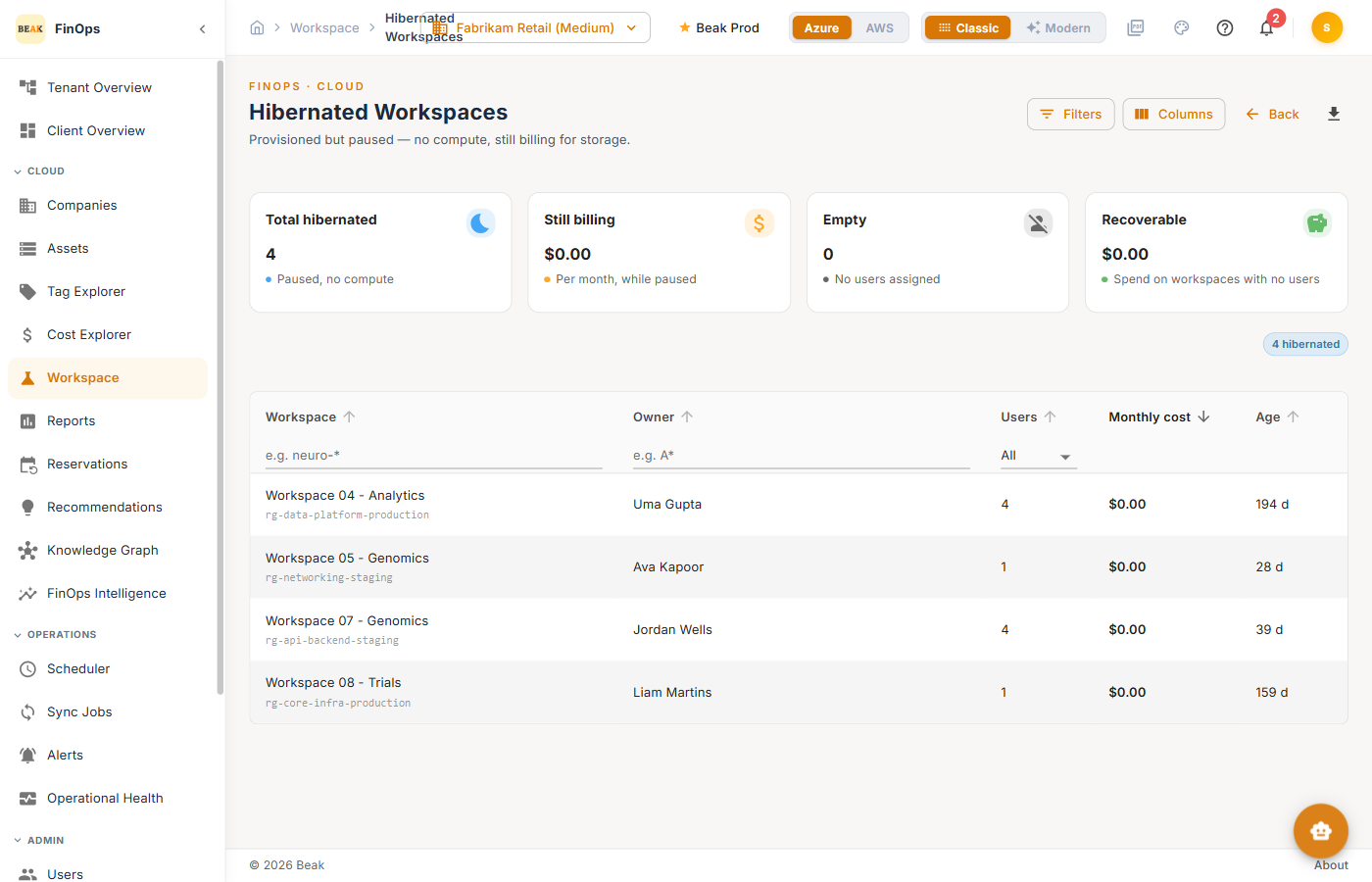
Workspaces paused with no compute running. Hibernation stops compute charges but storage and reserved IPs usually keep billing, so this report shows what each paused workspace still costs and which have no users left — the strongest signal that a workspace should be deleted rather than kept.
Rejected Workspaces
Rejections are split across two reports by who refused the request, because the two answer different questions.
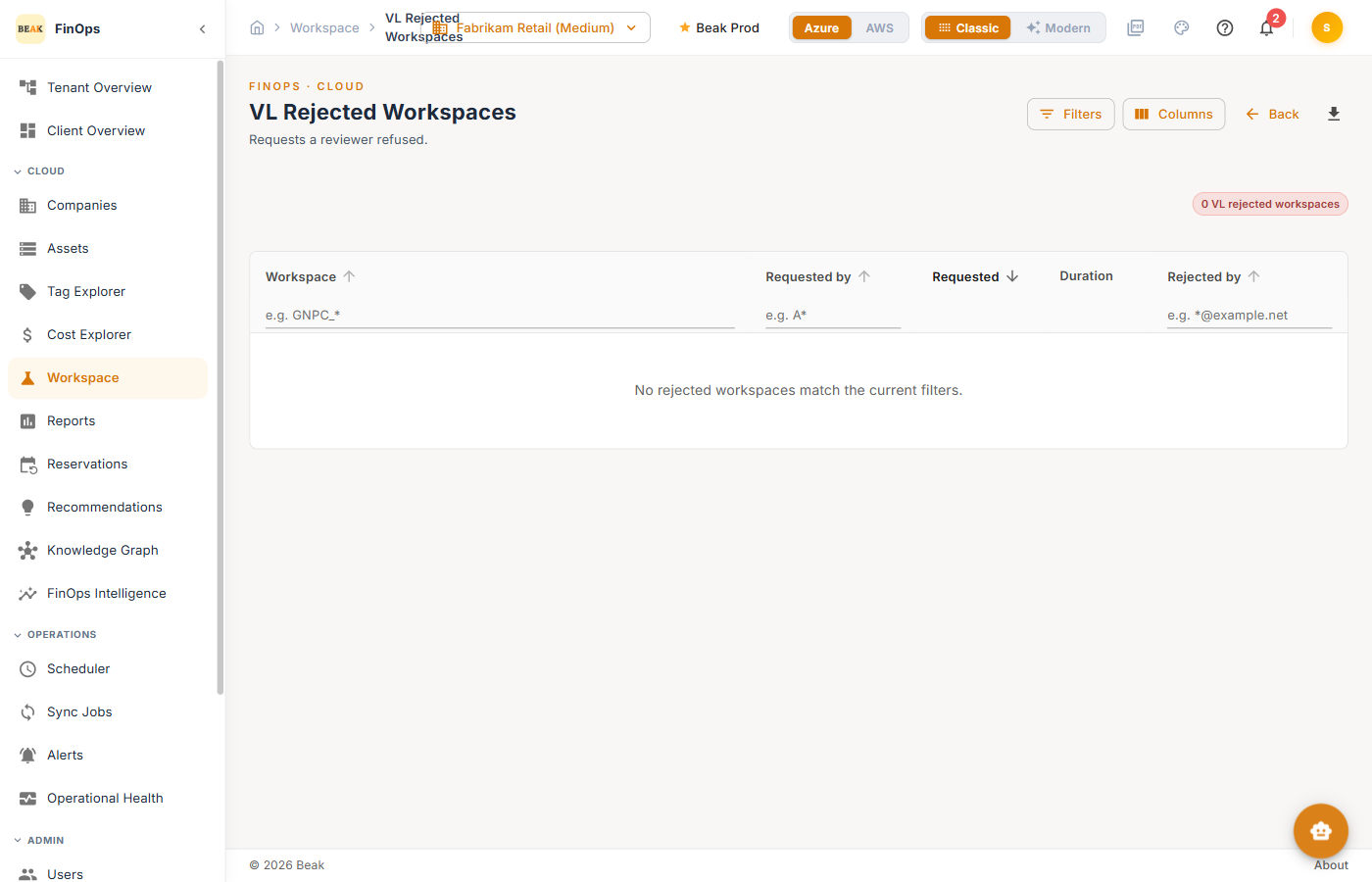
- VL Rejected Workspaces — A reviewer refused the request in Beak. The workspace was never approved, but nothing in the cloud was touched, so these rows can still correspond to resources that exist. This report carries a Rejected by column naming the reviewer.
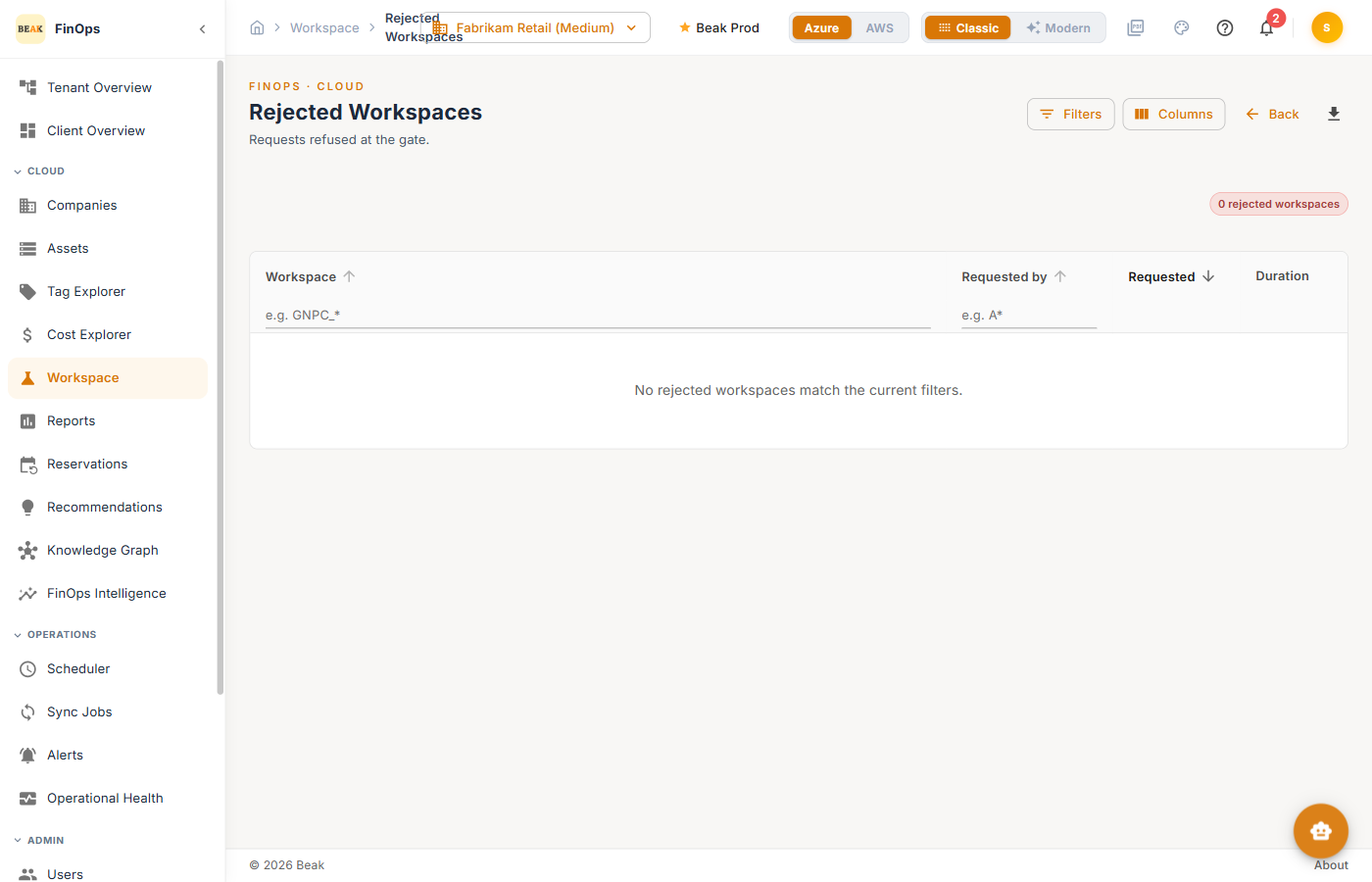
- Rejected Workspaces — The research environment refused the request at the gate. Nothing was ever built, so these cost nothing. No decider is recorded, so there is no Rejected by column.
Note:
VLis the product's own label for the Beak-side approval, and comes from the approval record carried in the workspace source data. Both dashboards appear under those exact names in the sidebar and in exported filenames.
The two together account for every rejected request, and their counts add up to the Rejected figure elsewhere in the section.
Workspace Activity
The full workspace roster with usage and activity, and the export point for the estate.
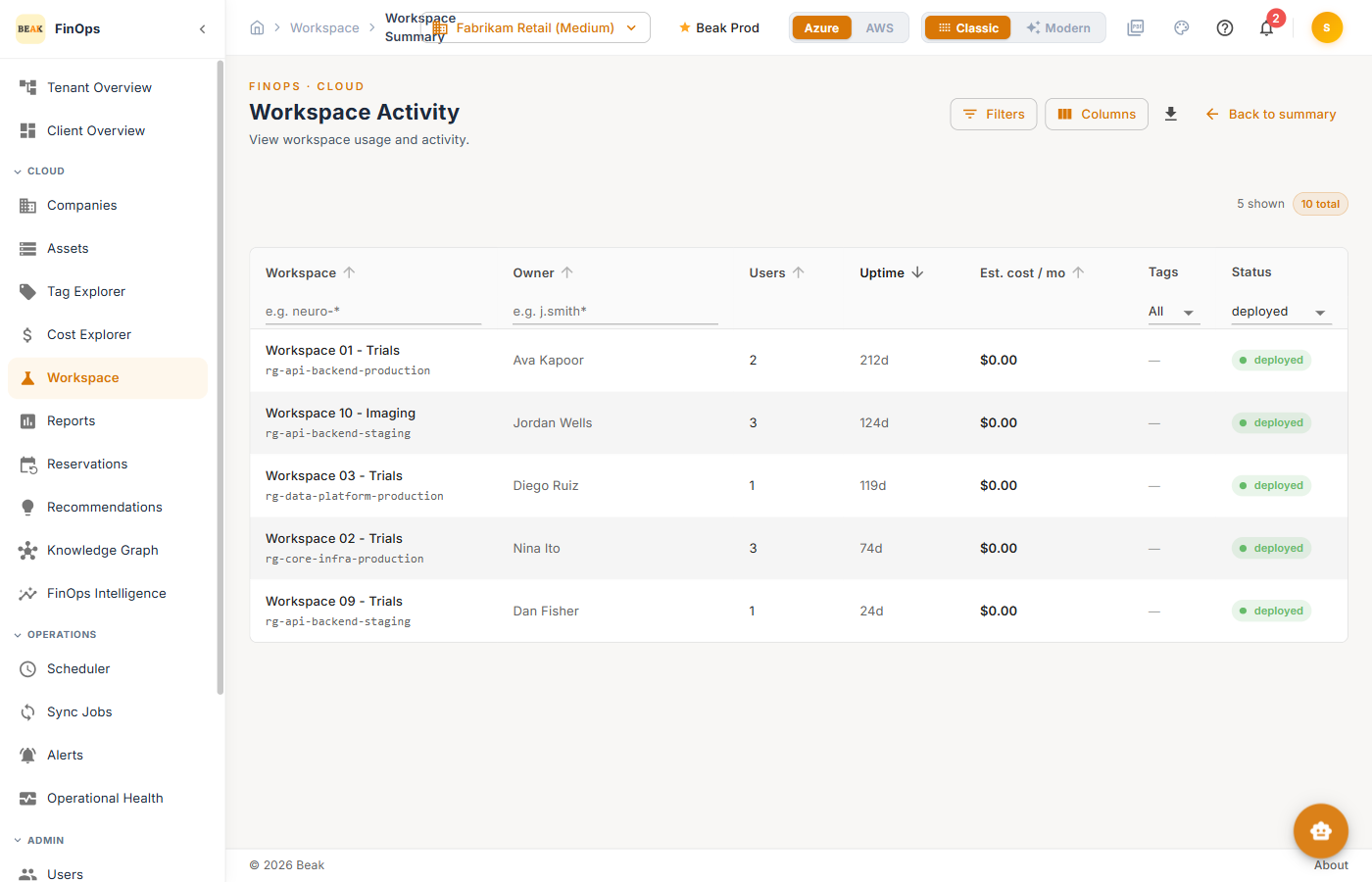
Filter by workspace name, owner, tag, and status. The counter above the table shows how many rows the filters match against the estate total. Columns chooses which columns are shown, and the download icon exports either the filtered rows or the whole data set.
Workspace Explorer
Browse workspaces grouped by subscription, with per-workspace and aggregated cost, then click a workspace to see its users, VMs, apps, and resources.
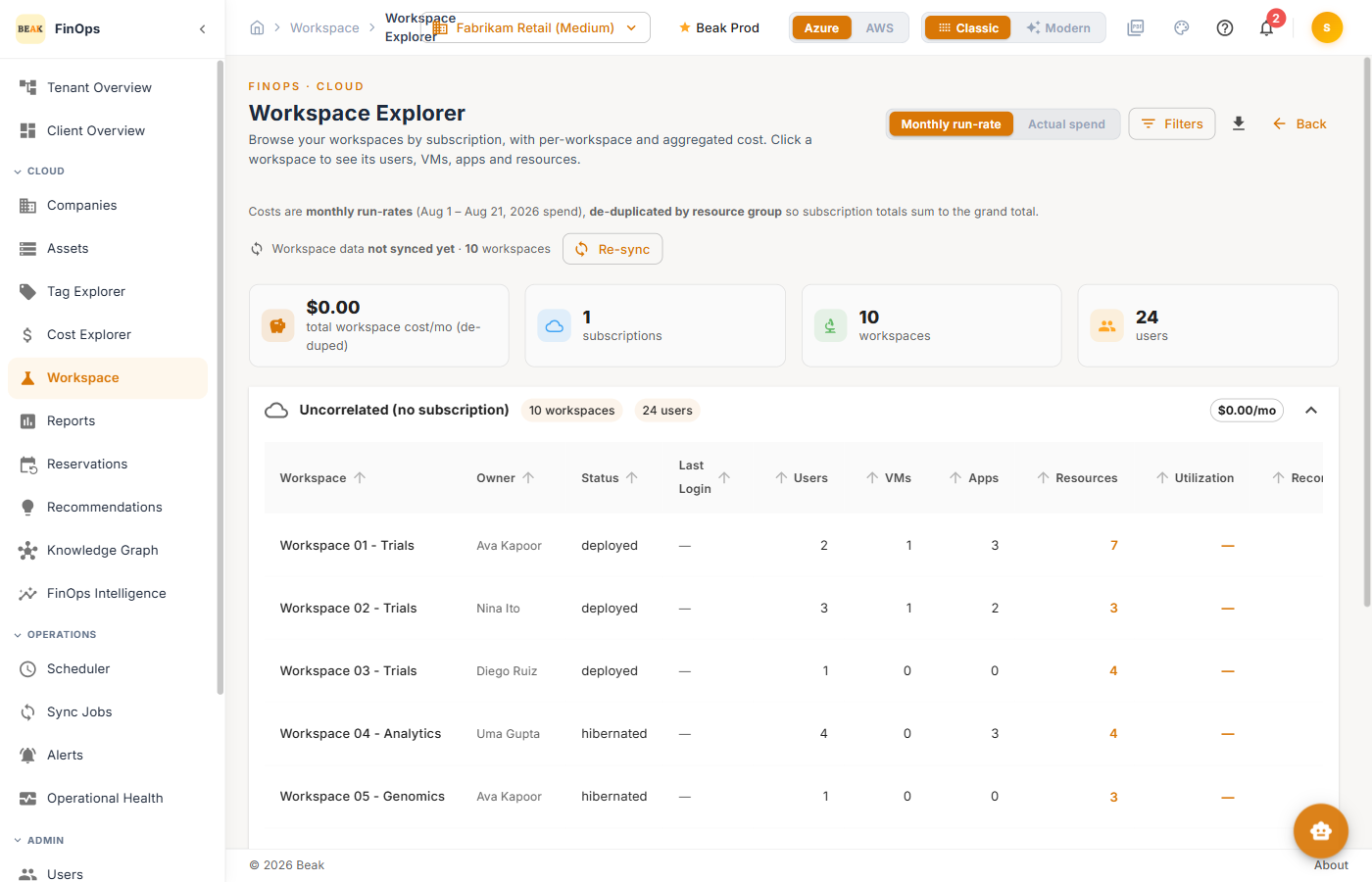
- Monthly run-rate / Actual spend — Switch between the normalized monthly rate and the actual spend for the period
- Subscription groups — Each group totals its workspaces; workspaces the correlation rule has not matched are grouped under
Uncorrelated (no subscription) - Re-sync — Appears when the workspace inventory is behind, and refreshes it in place
| Column | Description |
|---|---|
| Workspace | Workspace name |
| Owner | Researcher who owns it |
| Status | deployed, hibernated, and other lifecycle states |
| Last Login | Most recent sign-in across its users |
| Users / VMs / Apps / Resources | Counts attached to the workspace |
| Utilization | Average utilization across its compute |
| Recommendations | Open cost-optimization actions |
Workspace Cost & Savings
What each workspace costs and what could be reclaimed. Open a row to expand it into the researchers, resources, and utilization behind the figure.
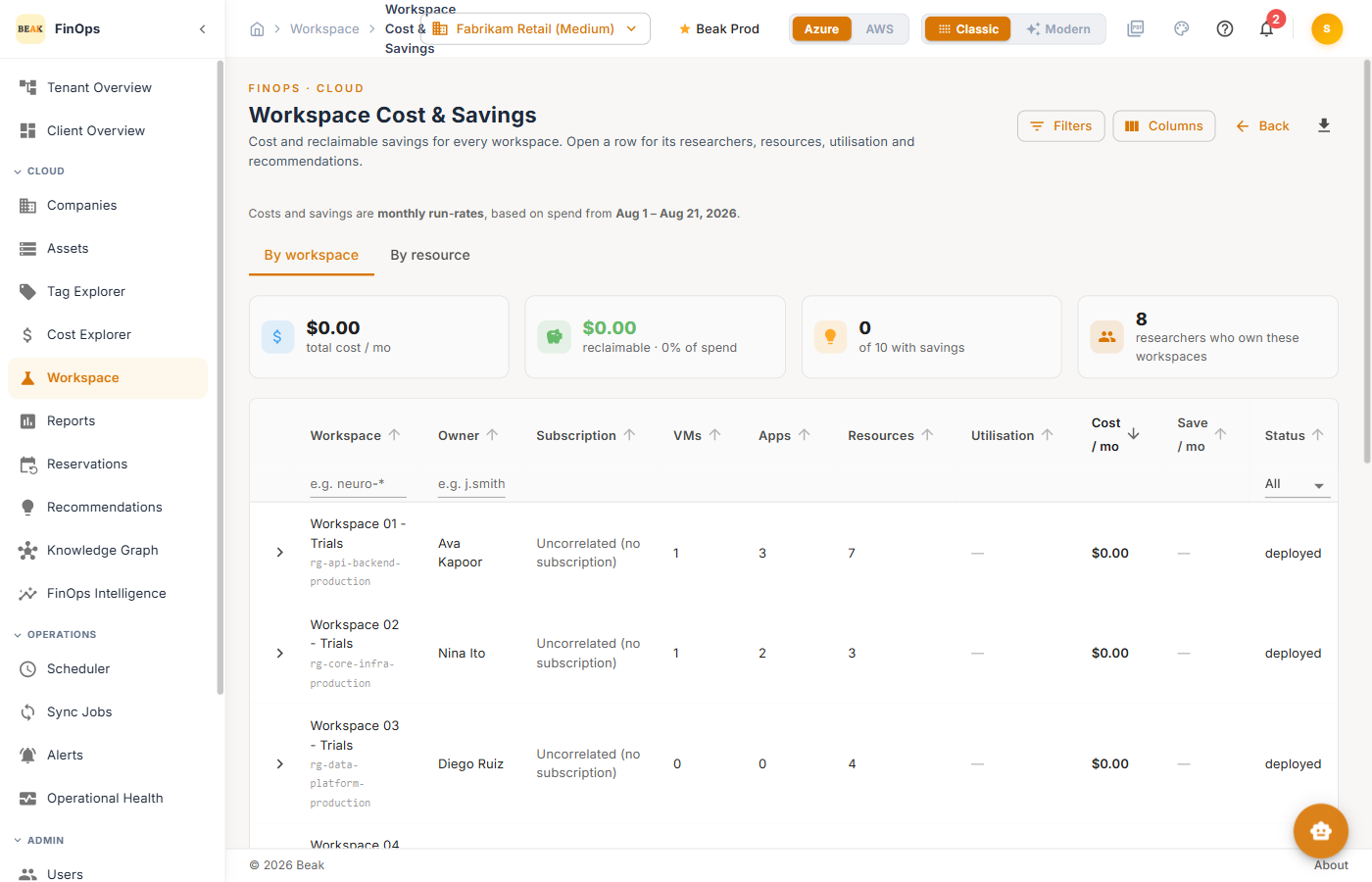
Tabs
- By workspace — One row per workspace, expandable to its resources
- By resource — The estate-wide resource list, sortable and searchable
Tiles summarize total cost per month, reclaimable spend and what share of spend that is, how many workspaces have savings available, and how many researchers own them.
Workspace Cost & Recommendations
Cost-optimization recommendations across the workspace estate, grouped by the action they call for.
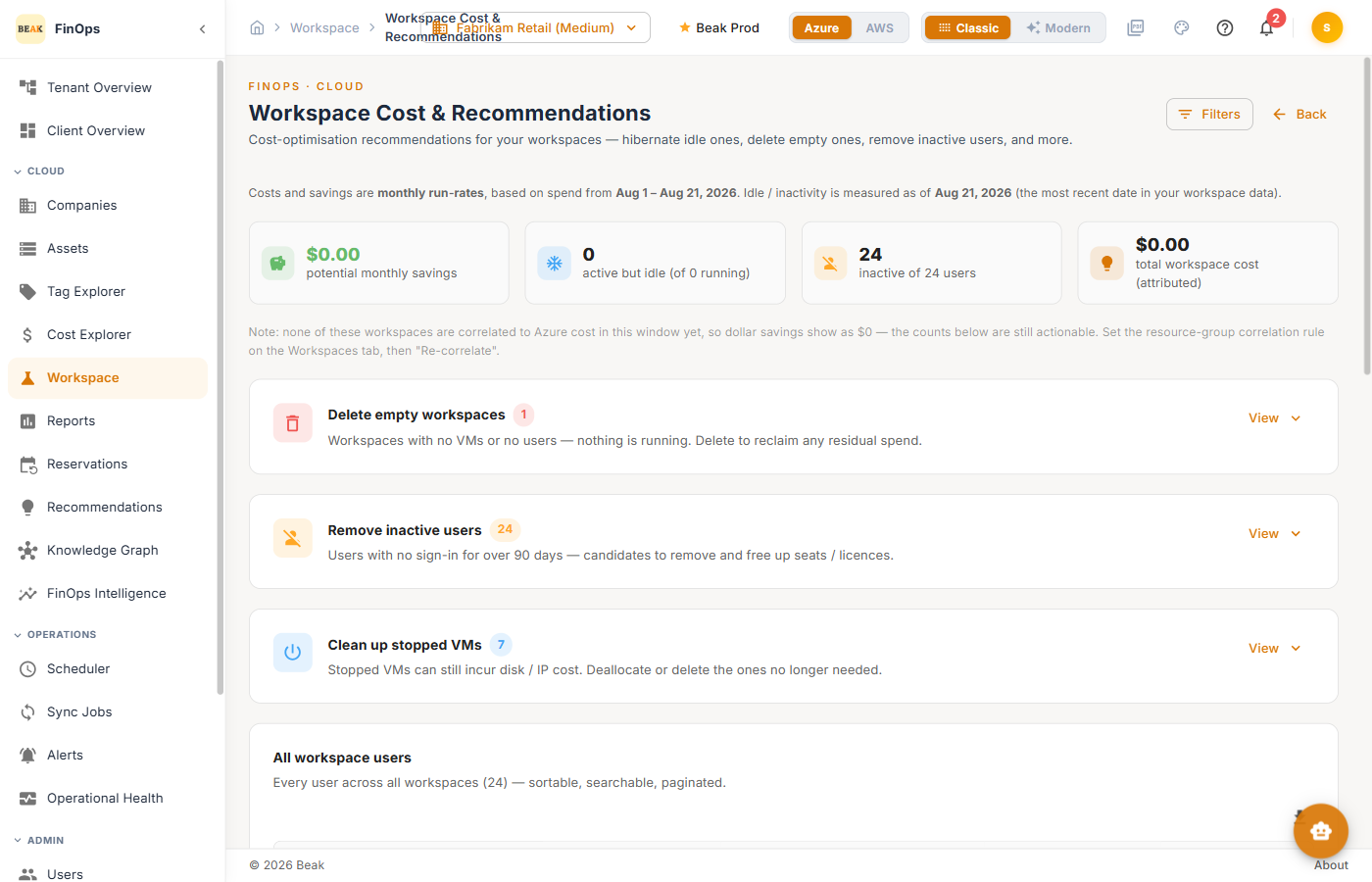
- Delete empty workspaces — Workspaces with no VMs or no users, where nothing is running
- Remove inactive users — Users with no sign-in for over 90 days, freeing seats and licences
- Clean up stopped VMs — Stopped VMs still incurring disk and IP charges
Each group expands with View to list the affected workspaces or users. An All workspace users section below lists every user across all workspaces, sortable, searchable, and paginated.
Note: Idle and inactivity are measured against the most recent date in your workspace data, not today's date — so a stale sync shifts the window.
Workspace Analysis
The authoritative view of the workspace estate taken from the research-environment's own state and correlated with cloud cost. Use it when Explorer and the lifecycle reports disagree.
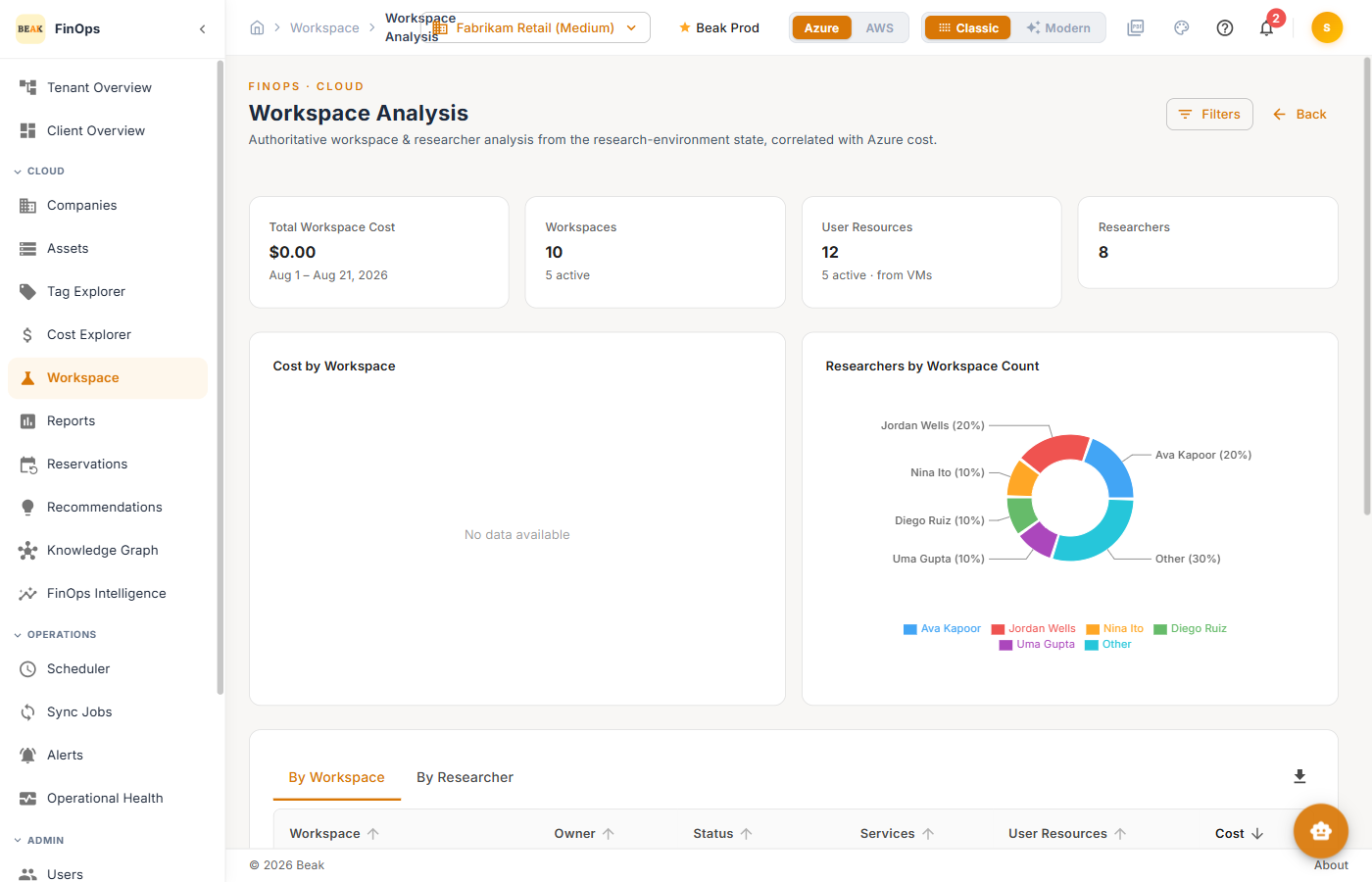
Tiles cover total workspace cost for the period, workspace and active counts, user resources drawn from VMs, and the number of researchers.
Charts
- Cost by Workspace — Where workspace spend concentrates
- Researchers by Workspace Count — How workspace ownership is distributed across researchers
Tabs switch the table between By Workspace and By Researcher.
Best Practices
- Correlate before you judge cost — Uncorrelated workspaces report
$0.00. Confirm the resource-group rule is set before drawing conclusions from the money columns. - Work the request queue oldest first — The queue is ordered that way deliberately; a request left pending still holds no capacity, but the researcher is blocked.
- Treat hibernated-with-no-users as delete candidates — Hibernation removes compute charges only. A paused workspace nobody owns is pure residual spend.
- Check uptime against users — A workspace running for hundreds of days with one or two users is the highest-yield hibernation candidate.
- Re-sync before reporting — Idle and inactivity windows are measured from the most recent workspace data, so a stale sync quietly understates them.
Related Pages
- Reports — The cost, savings, and inventory report catalog
- Cost Explorer — Spend analysis across the whole estate
- Companies — Where workspace connections and the resource-group correlation rule are configured
- Settings — Workspace capacity defaults and notification channels
- Scheduler — Scheduling the collection job that syncs workspaces
- Sync Jobs — Monitoring workspace sync runs