Settings
Settings is where you configure account and application preferences for your tenant — single sign-on, cross-product integration, the AI Assistant, alerting, and the thresholds that drive recommendations. Settings is organized into tabs.
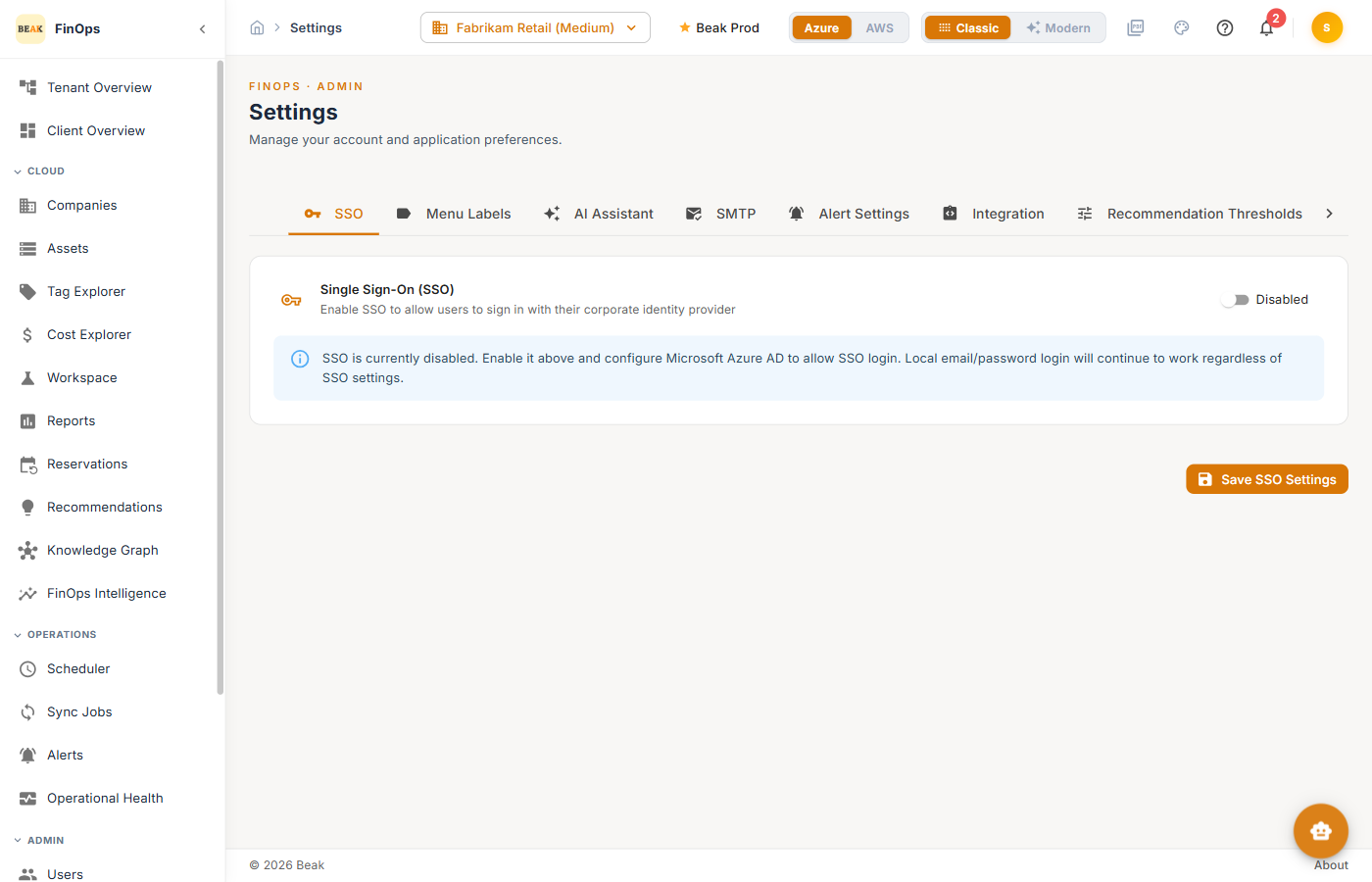
Tabs
- SSO — Enable single sign-on with a corporate identity provider
- Menu Labels — Rename navigation labels to match your organization's vocabulary
- AI Assistant — Configure the LLM provider that powers the AI Assistant
- Alert Settings — Defaults for the alerting engine
- Integration — Accept sign-in hand-offs from sibling Beak products
- Recommendation Thresholds — Tune when recommendations are triggered
- Executive View — Preferences for the Modern executive layout
- Workspace — Capacity baseline and request defaults for Workspaces
- Security — Security preferences
SSO
The SSO tab enables sign-in with a corporate identity provider (Microsoft Azure AD). When disabled, local email/password login is used. Enable it, then supply the Client ID, Client Secret, Azure Tenant ID, and a Default Role for SSO Users, and click Save SSO Settings.
Note: Local email/password login continues to work regardless of the SSO setting.
Integration
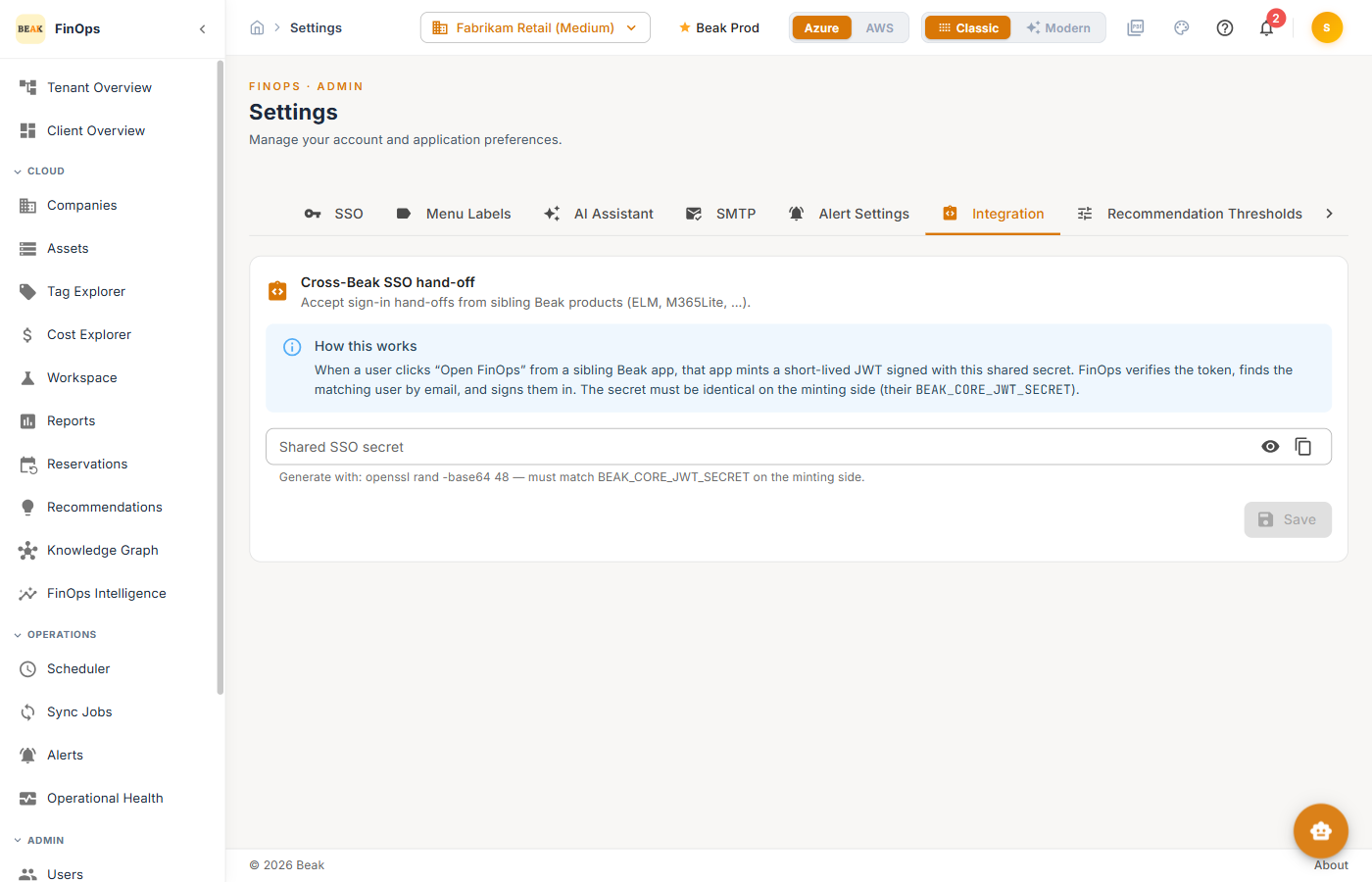
The Integration tab configures cross-Beak single sign-on hand-off — letting a user click "Open FinOps" from a sibling Beak product (ELM, M365 Lite, …) and be signed in automatically. It uses a shared secret that must match on both sides.
AI Assistant
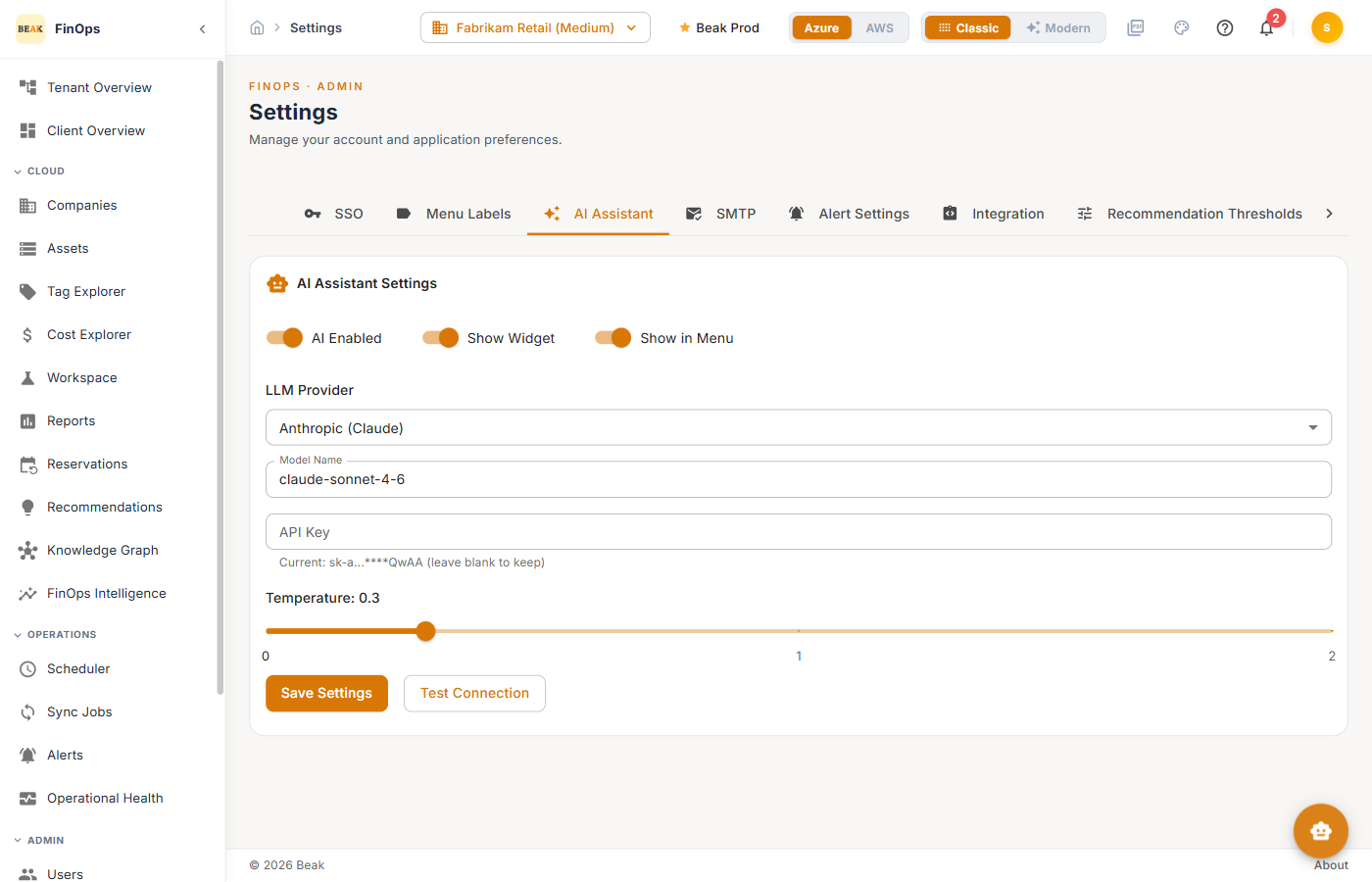
The AI Assistant tab connects the assistant to a language-model provider. Pick a provider (Azure OpenAI, OpenAI, or Anthropic), set the model name, and paste the API key. Once saved, the AI Assistant becomes available.
Recommendation Thresholds
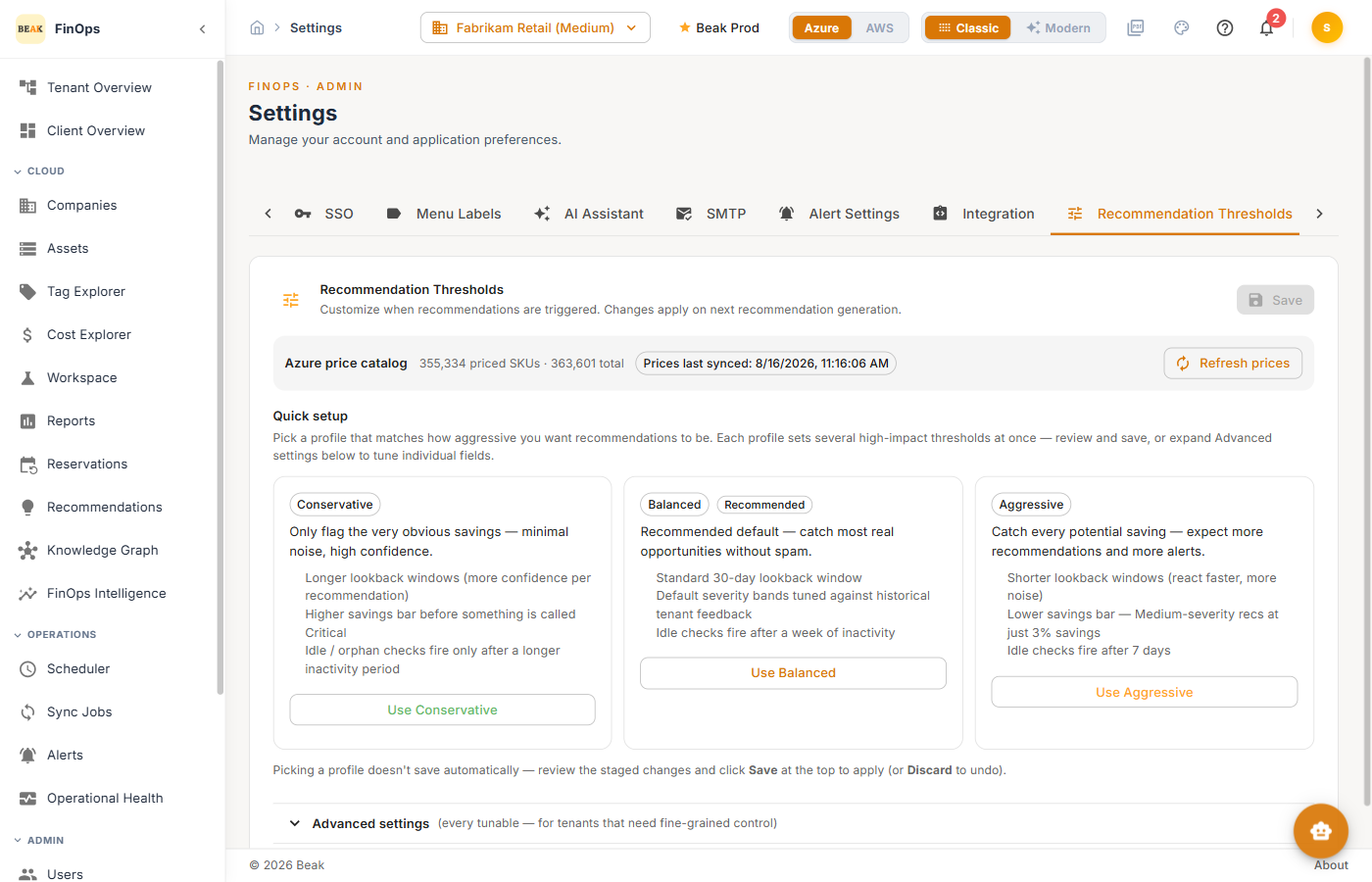
The Recommendation Thresholds tab controls how aggressively recommendations are generated. Pick a Quick setup profile — Conservative, Balanced (recommended default), or Aggressive — to set several high-impact thresholds at once, or expand Advanced settings to tune individual fields. Changes apply on the next recommendation generation.
Workspace
The Workspace tab holds the baseline values that Workspaces measures against — the Workspace Summary and New Workspace Requests both read from them.
Workspace defaults
- Total workspaces available — The pool you have procured. Active Capacity on the Workspace Summary reports usage against this number, so leaving it unset leaves that tile without a denominator.
- Default request duration — The length, and its unit, pre-filled on a new workspace request.
Follow-up Notification Channels below it chooses where approve and reject decisions are announced.
Note: The rule that maps a workspace to its Azure resource group is not here — it is per company, under Companies → your company → Credentials → Workspaces → Resource-group correlation. That rule is what populates the cost columns across the Workspaces section; see Companies.
Best Practices
- Start with Balanced thresholds — It catches most real opportunities without excessive noise; move to Conservative or Aggressive only if the volume is wrong for your team
- Rotate the SSO secret — Generate the shared integration secret securely and rotate it periodically
- Record changes — Every settings change is captured in Audit History
Related Pages
- Users — User accounts
- Roles — Permissions
- AI Assistant — Conversational analytics
- Workspaces — What the Workspace defaults feed
- Audit History — Change log