Companies
A company represents an organizational entity within your tenant. Each company holds its own cloud credentials (Azure and/or AWS), and all cost, asset, and recommendation data is scoped to a company. The Companies page is where you create and manage them.
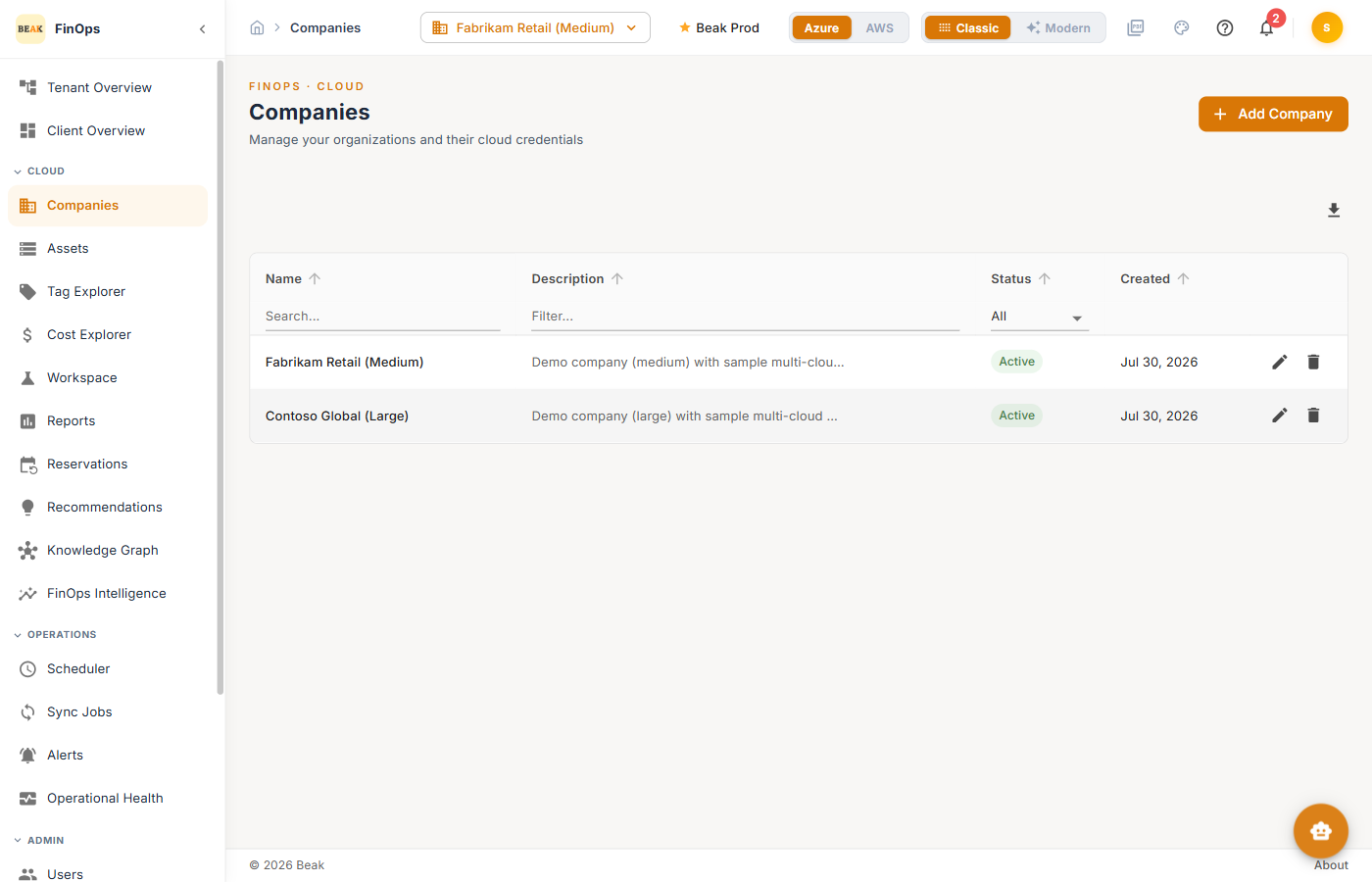
Companies List
| Column | Description |
|---|---|
| Name | The company's display name |
| Description | A short description |
| Status | Active or inactive |
| Created | Date the company was created |
Use Search and Filter to locate a company, and the row actions to edit or delete one.
Adding a Company
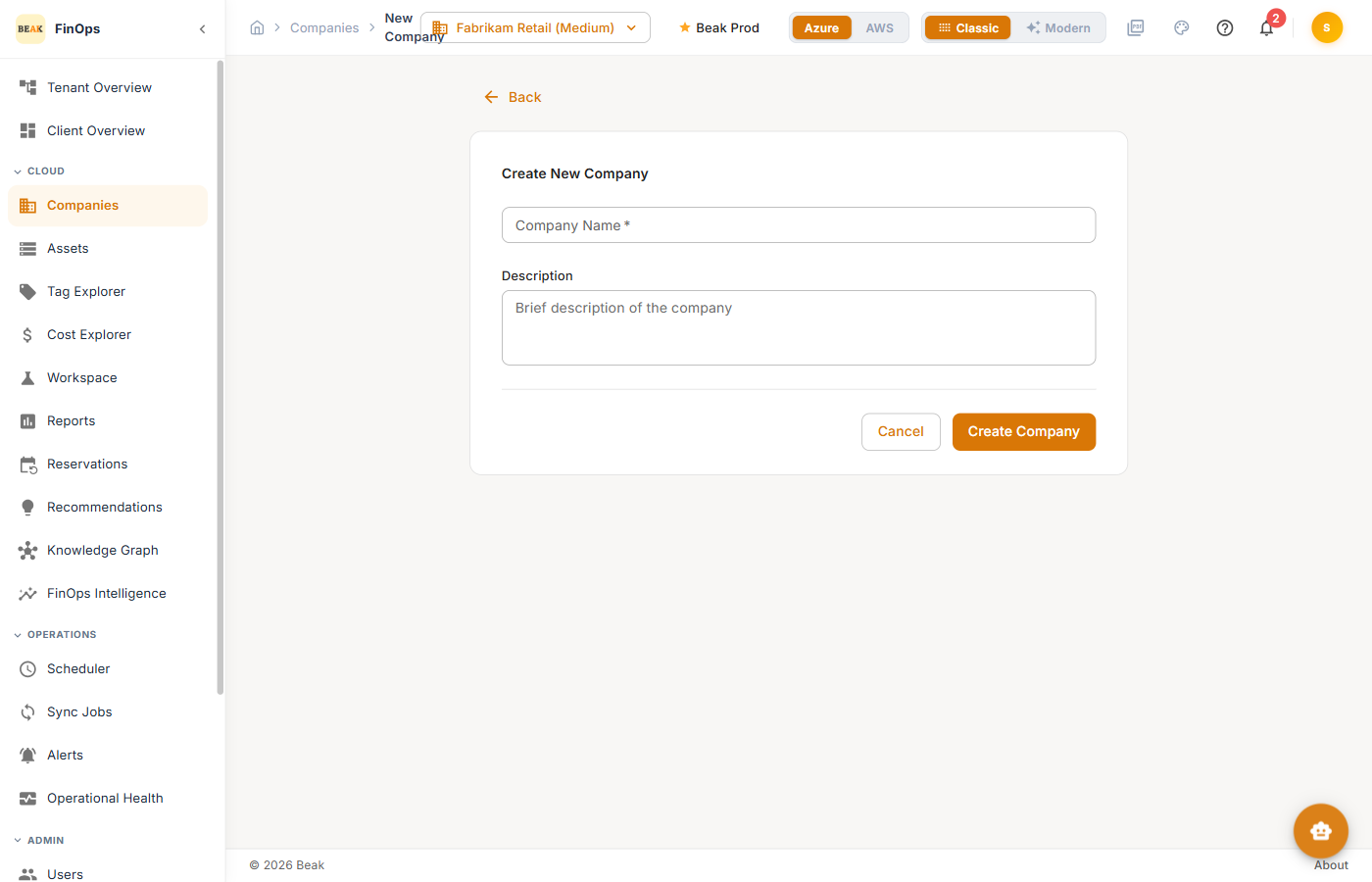
Click Add Company to open the create dialog, then supply a name and description.
Company Details
Click a company to open its details — a summary of credentials, subscriptions, and assets, plus tabs for credentials and workspaces.
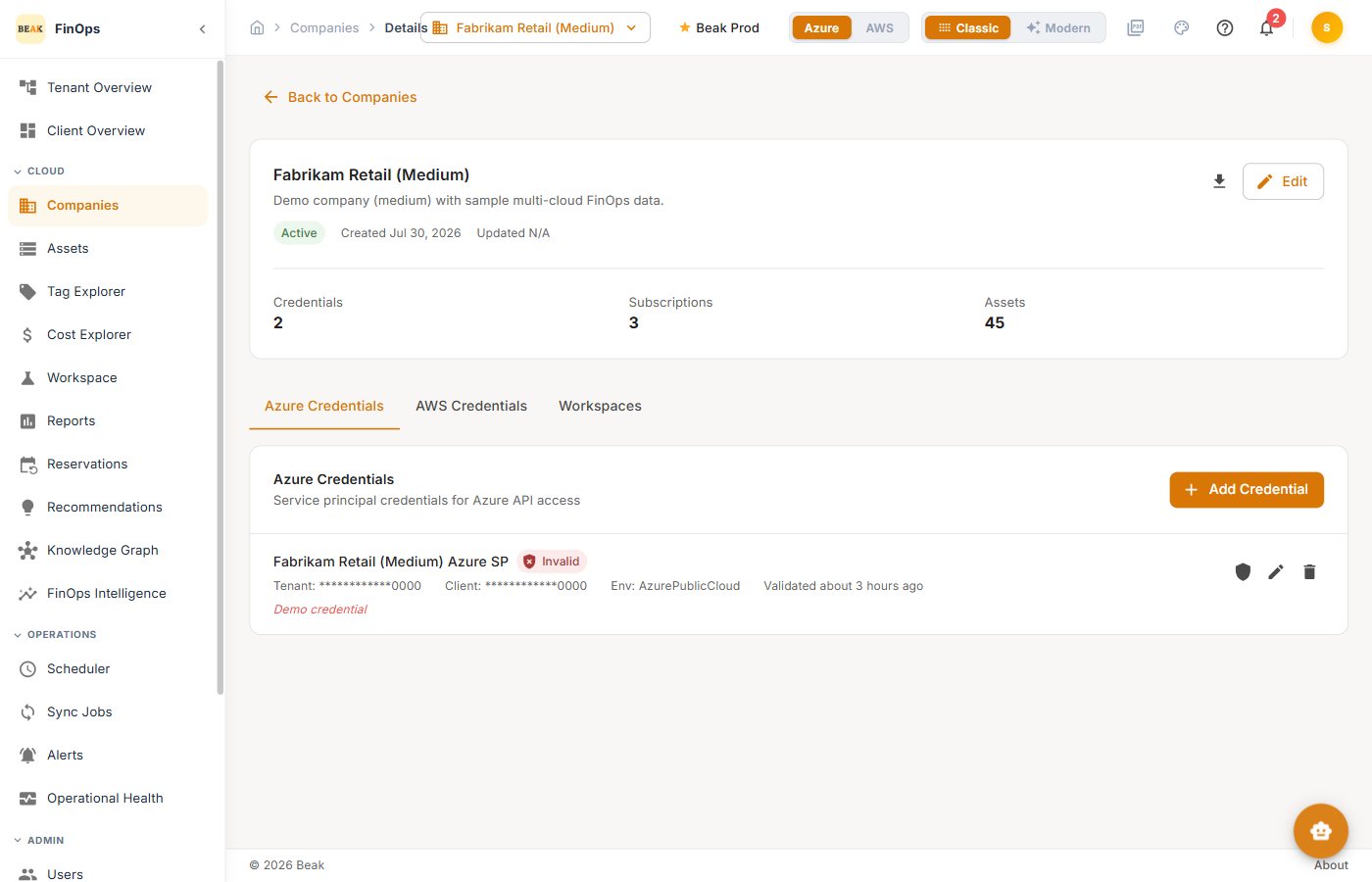
Azure Credentials
The Azure Credentials tab holds service principal credentials for Azure API access (Tenant ID, Client ID, Client Secret, and environment). Click Add Credential to register one. Beak FinOps validates the credential and reports how many account groups it covers.
AWS Credentials
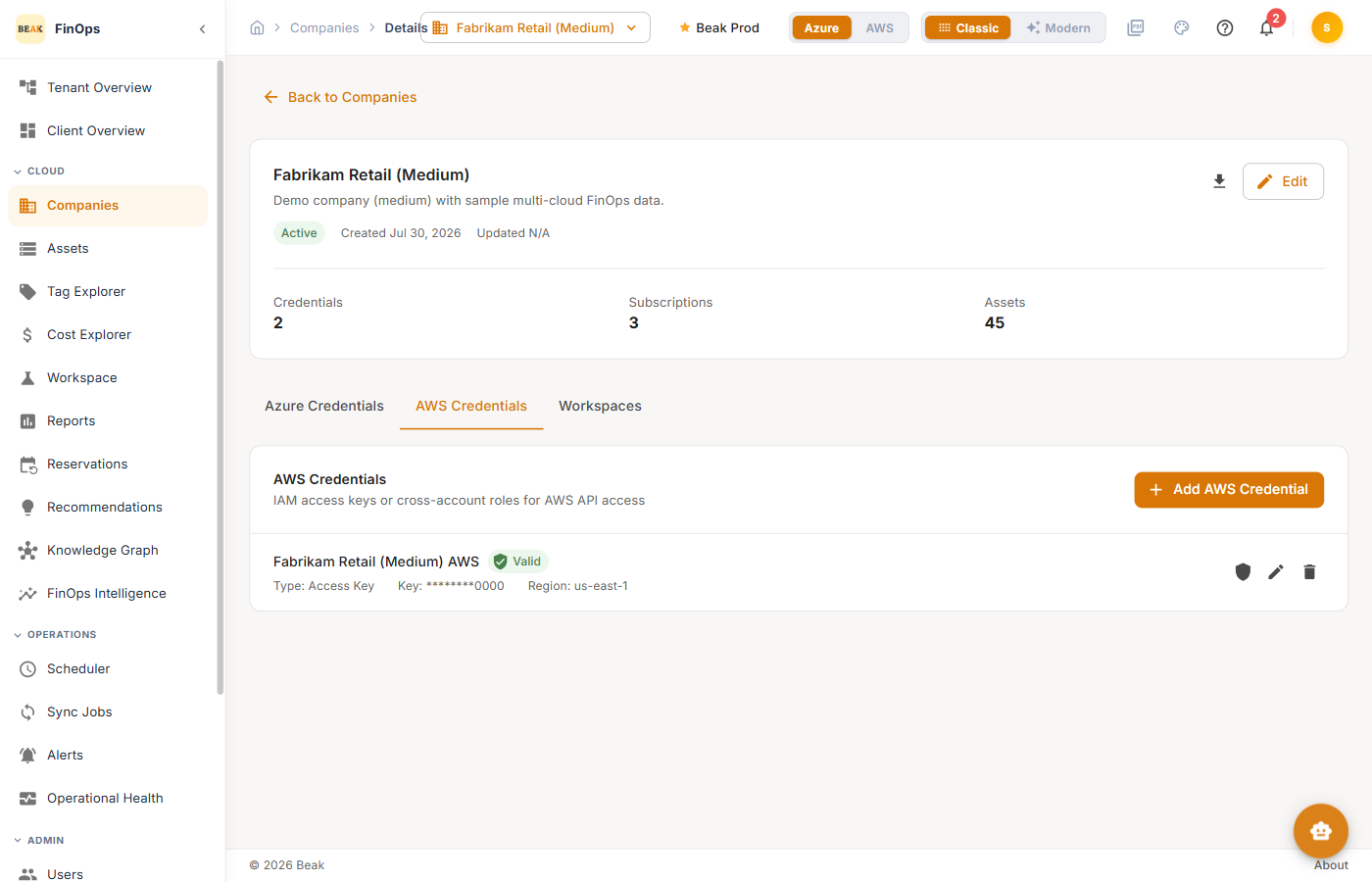
The AWS Credentials tab holds AWS access credentials for the company. A company can carry both Azure and AWS credentials to enable multi-cloud cost analysis.
Workspaces
The Workspaces tab is where the company's workspace estate is connected and mapped to cloud cost. Everything under Workspaces reads from what is configured here.
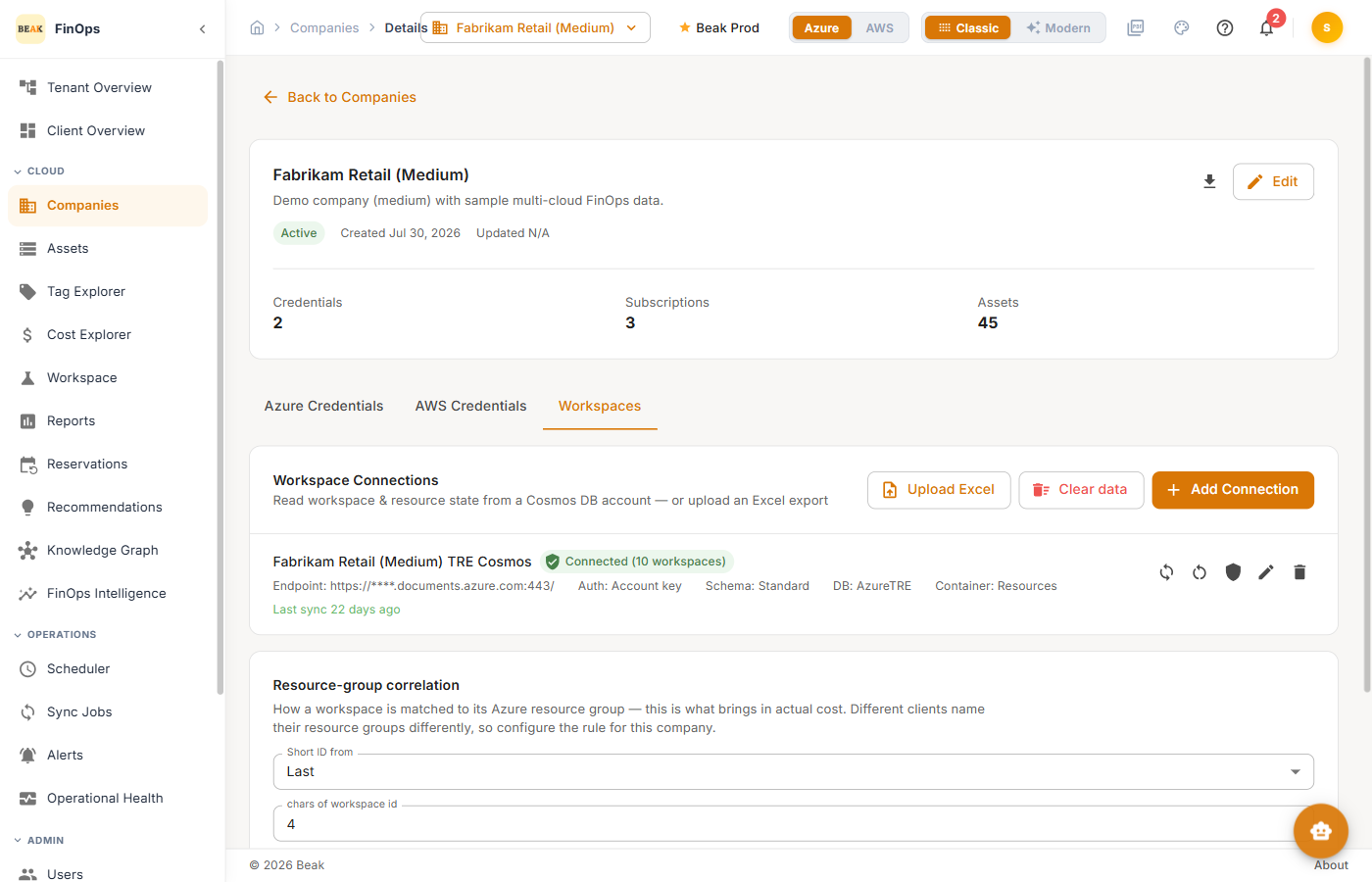
Workspace Connections
Workspace and resource state is read from a Cosmos DB account, or uploaded from an Excel export.
- Add Connection — Register a Cosmos DB source. Each connection shows its endpoint, authentication method, schema, database, and container, along with a connected status, the number of workspaces found, and when it last synced.
- Upload Excel — Load workspace state from an exported file instead of a live connection
- Clear data — Remove the workspace data collected for this company
Row actions on a connection let you sync it, test it, edit it, or delete it. Scheduled syncing is configured on the Scheduler.
Resource-group correlation
This is the rule that matches a workspace to its Azure resource group, and it is what brings actual cost into the workspace reports. Because organizations name resource groups differently, the rule is set per company.
- Short ID from — Take the workspace's short identifier from the
LastorFirstcharacters of its workspace id - chars of workspace id — How many characters that short identifier uses
- Resource group match — How the short identifier is matched against resource-group names
Save the rule, then choose Re-correlate now to apply it to workspaces that have already been synced; it reports how many of them matched a resource group.
Note: Until a workspace is correlated, it still appears in the reports with accurate counts, but its cost columns read
$0.00and it is grouped underUncorrelated (no subscription)in Workspace Explorer.
Best Practices
- One company per organizational entity — Keep separate business units in separate companies for clean cost attribution
- Use least-privilege credentials — Grant the service principal and AWS credentials only the read access cost collection needs
- Validate after adding — Confirm a credential validates and covers the expected accounts before relying on its data
- Rotate secrets — Rotate cloud credentials periodically and update them here
Related Pages
- Assets — Resources discovered per company
- Workspaces — What the workspace connection and correlation rule feed
- Scheduler — Schedule data collection per cloud
- Operational Health — Per-company sync health
- Tenants — The organizations that contain companies