Sync Jobs
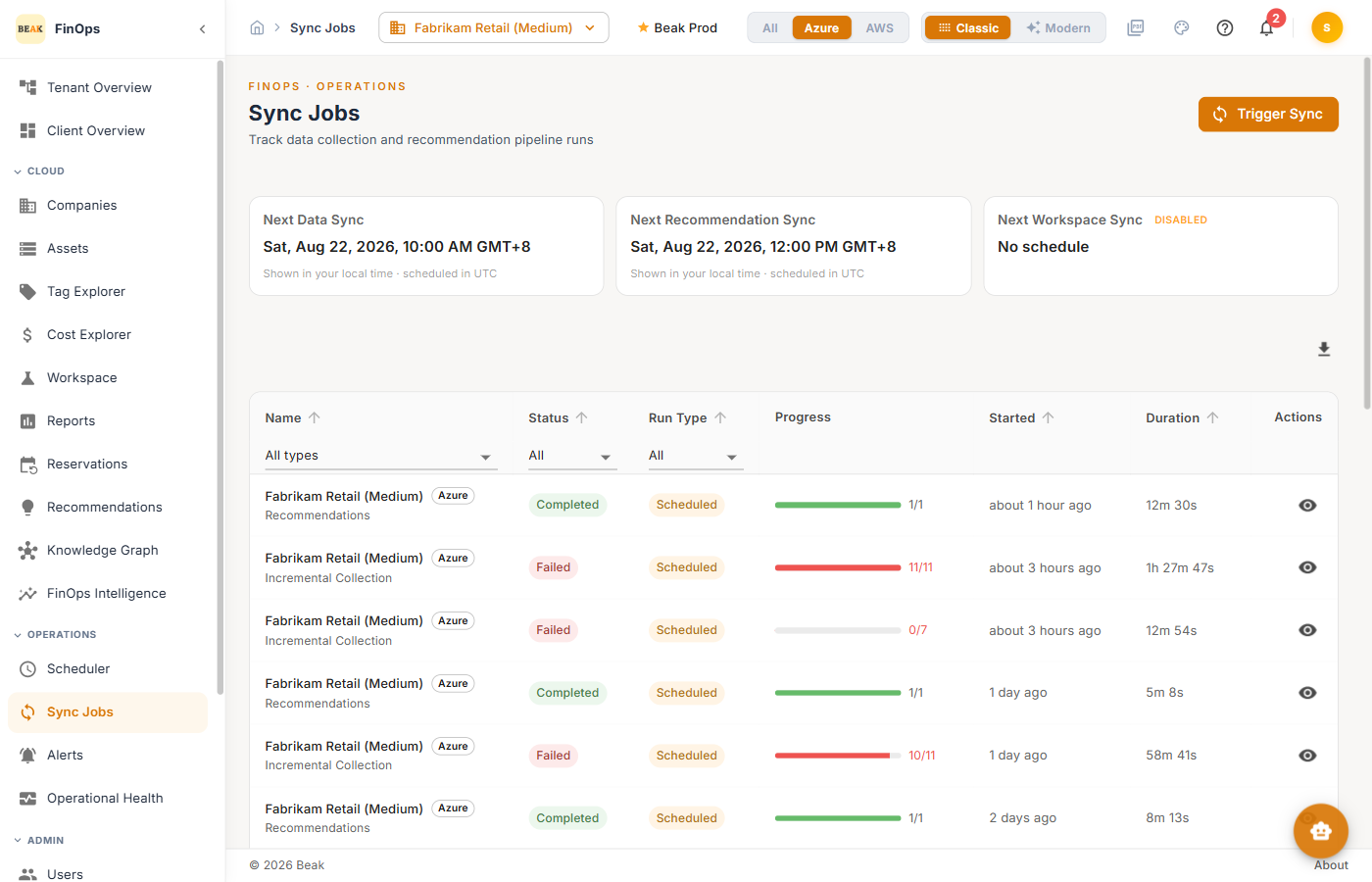
Sync Jobs tracks every data-collection and recommendation-pipeline run — scheduled or ad hoc — so you can confirm data is fresh and diagnose failures. It shows the next scheduled runs and a history of past ones.
Next Runs
Three cards show the Next Data Sync, Next Recommendation Sync, and Next Workspace Sync times (shown in your local time; scheduled in UTC). Configure these on the Scheduler.
A card reads DISABLED with No schedule when that pipeline has none set — expected for Workspace Sync until a workspace connection exists. See Workspaces.
Triggering a Sync
Click Trigger Sync to run a collection on demand. Choose the subscriptions and date range to collect, then start it.
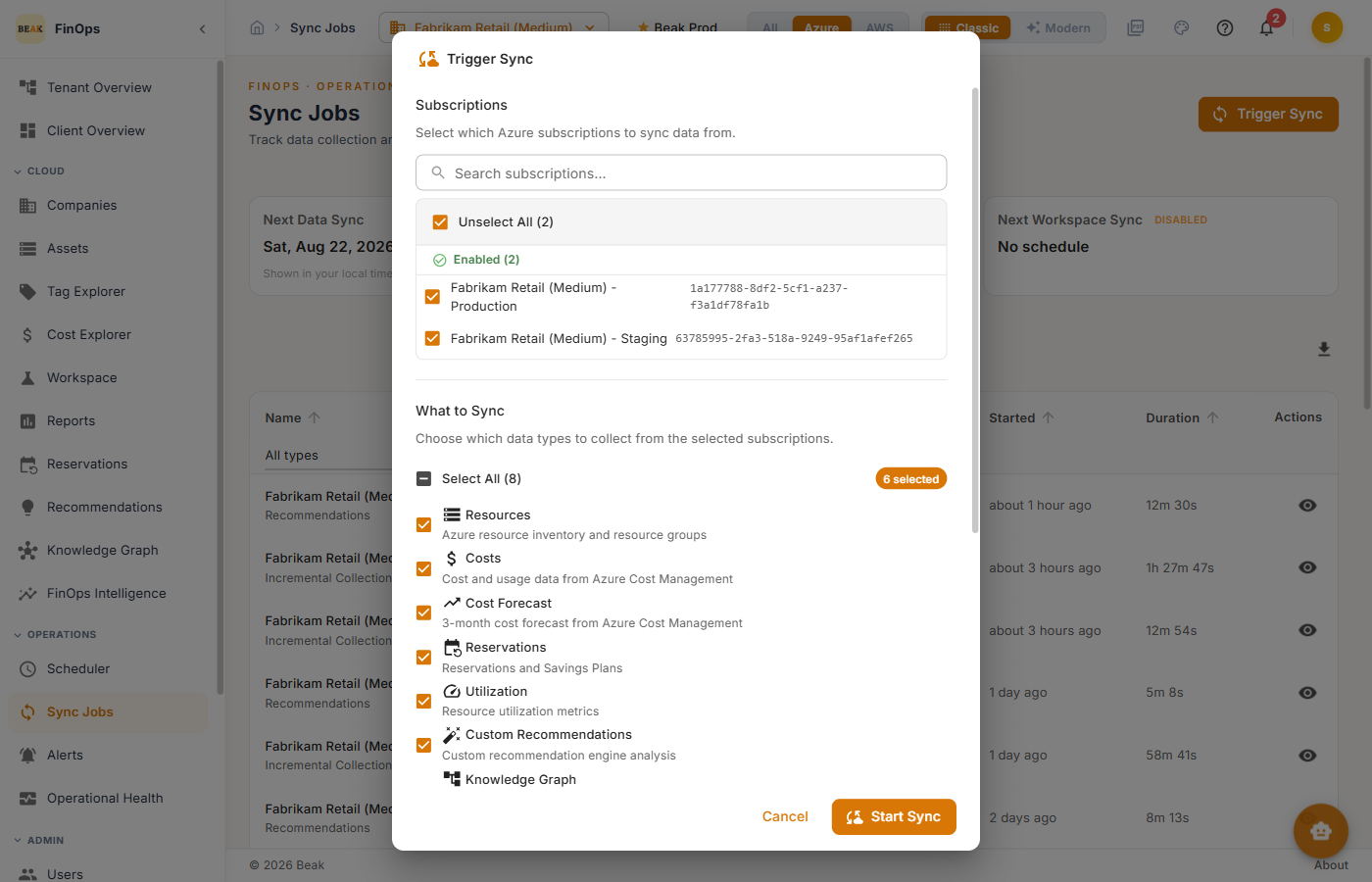
Use the All / Azure / AWS filter to scope the job list by cloud.
Sync Jobs Table
| Column | Description |
|---|---|
| Name | Company and job type (Full Collection, Recommendations, …) |
| Status | Completed, Failed, or in progress |
| Run Type | Scheduled or Ad hoc Sync |
| Progress | Step completion |
| Started | When the run began |
| Duration | How long it took |
| Actions | Row actions |
Sync Job Details
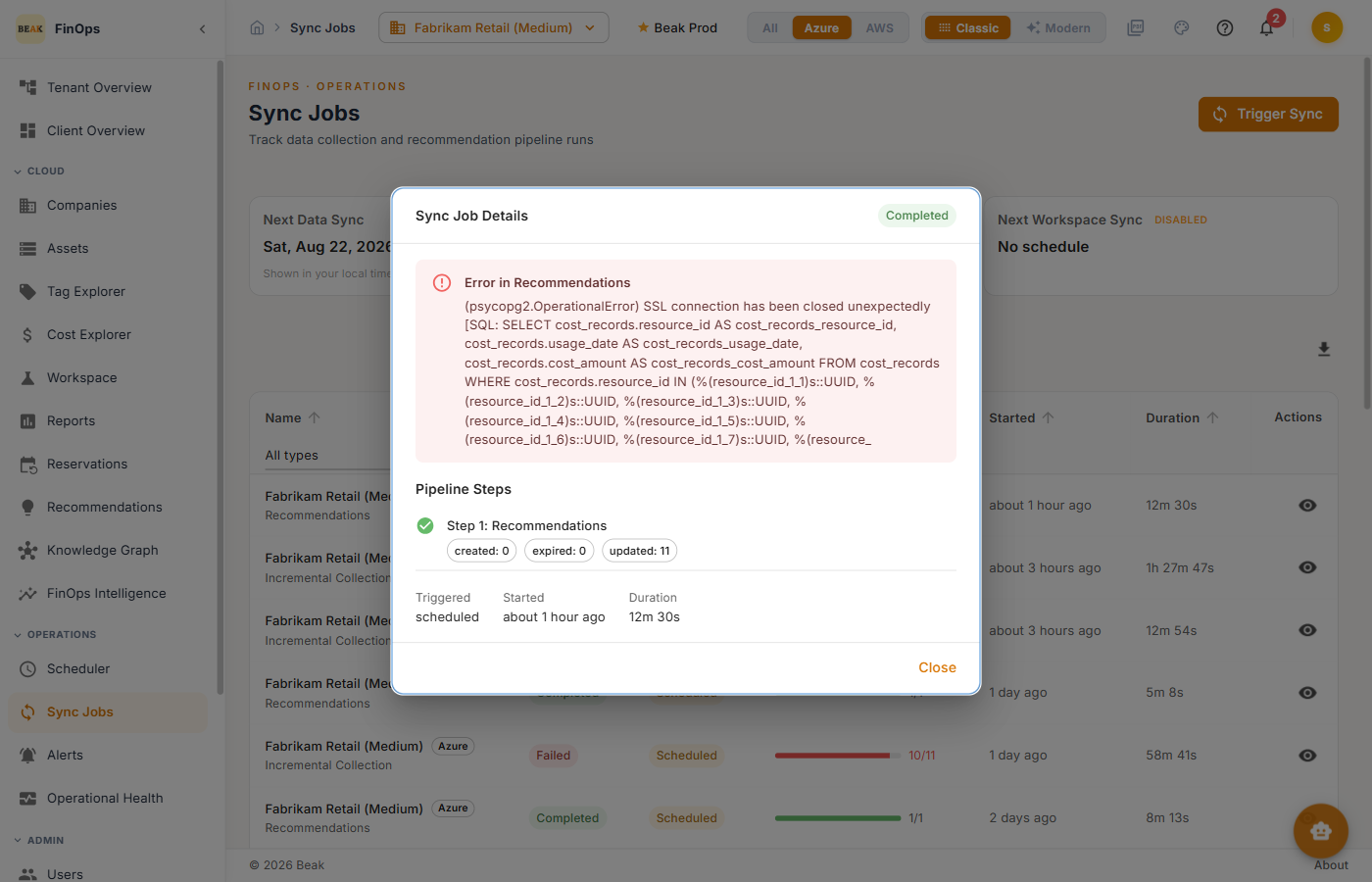
Click a row to open its details — the run's status, steps, and any errors.
Best Practices
- Check after schedule changes — Confirm the next-run times reflect any Scheduler edits
- Investigate failures promptly — A failed Full Collection means stale cost and asset data until the next run
- Prefer scheduled runs — Use ad hoc syncs for one-offs; rely on the Scheduler for steady freshness
Related Pages
- Scheduler — Configure recurring runs
- Operational Health — Fleet-wide sync freshness
- Companies — Credentials that syncs depend on