Roles
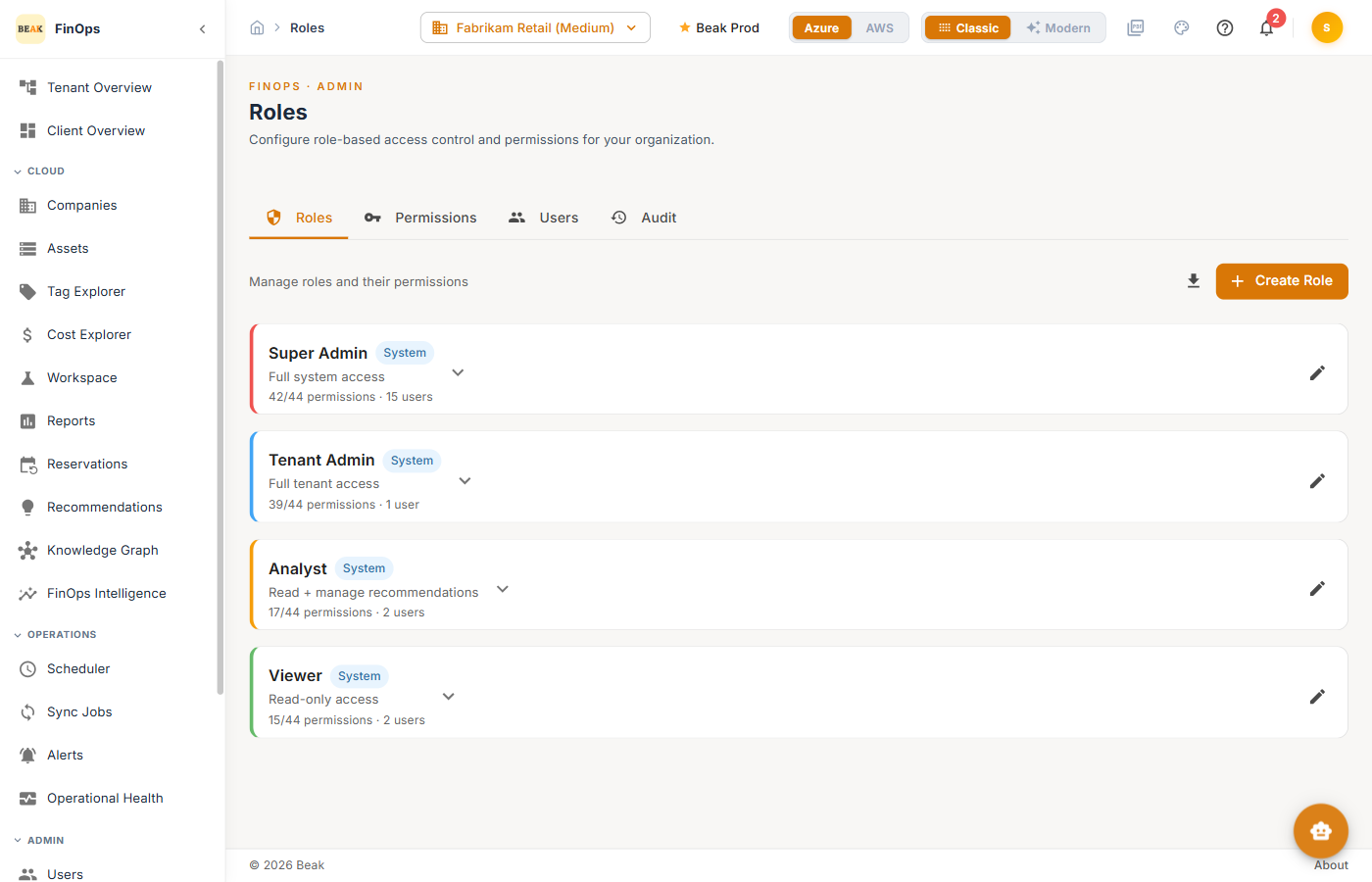
Roles control what each user can see and do across Beak FinOps. Every user is assigned one role, and each role grants a subset of the platform's permissions. Four built-in system roles cover the common cases, and you can define custom roles for anything in between.
Permissions
The Roles page requires the View roles and permissions permission. Creating or editing roles requires Create/edit/delete roles and permissions, granted to Super Admin by default.
Tabs
The Roles page is organized into four tabs:
- Roles — The role cards, with permission count and the number of users assigned to each
- Permissions — The full permission matrix, grouped by category
- Users — Users grouped by their assigned role
- Audit — Role and permission changes over time
Built-in System Roles
Four roles ship by default. Each carries a System badge and cannot be edited or deleted.
- Super Admin — Full system access (all 41 permissions)
- Tenant Admin — Full tenant access (36 of 41 permissions)
- Analyst — Read access plus manage recommendations (16 of 41 permissions)
- Viewer — Read-only access to dashboards and data (14 of 41 permissions)
Creating a Role
Click + Create Role to open the Create Custom Role dialog.
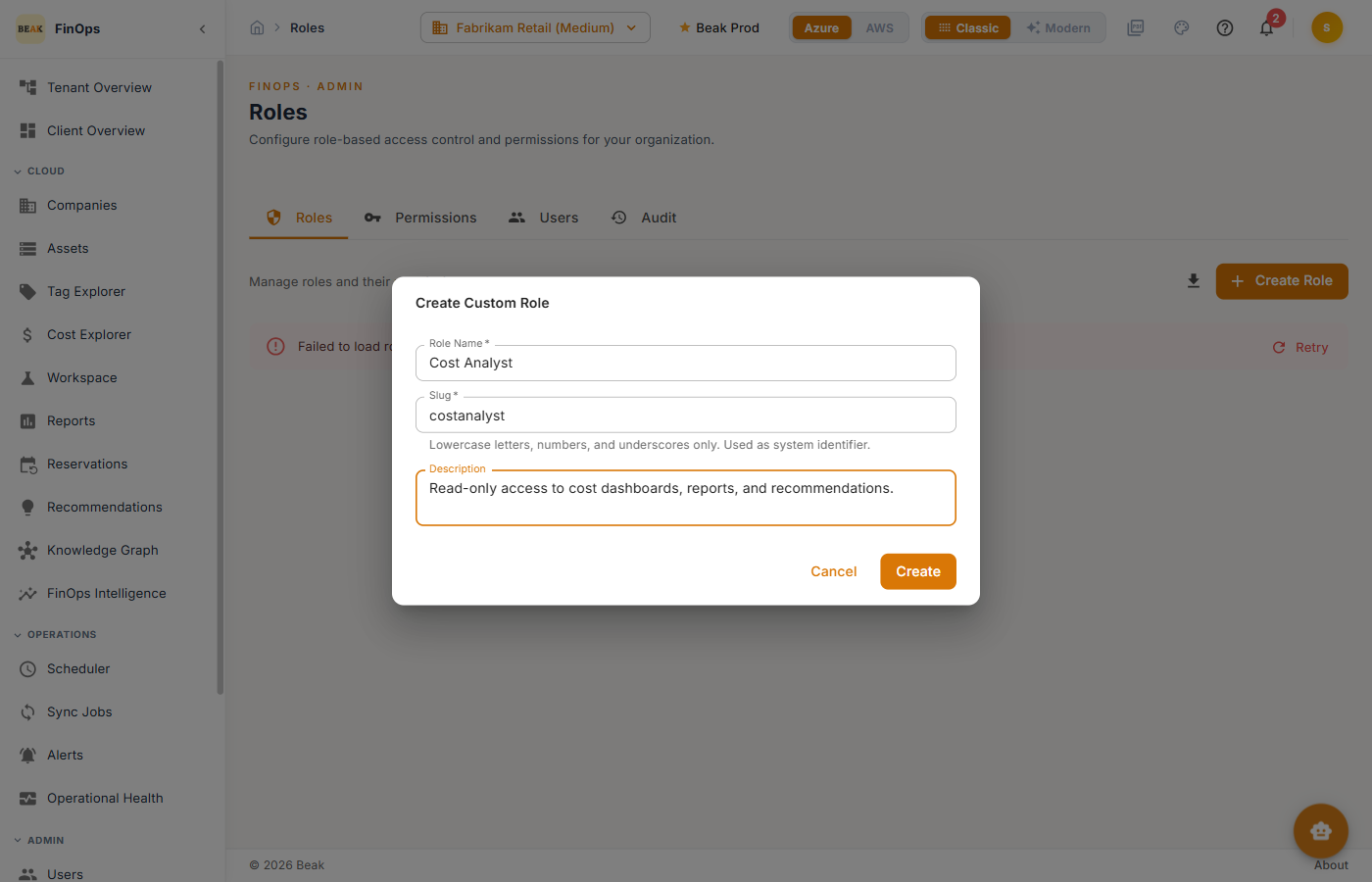
Provide a Role Name, a Slug (auto-generated from the name and used as the role's identifier), and an optional Description, then select the permissions to grant and click Create.
Role Permissions
Open the Permissions tab to review the full matrix. Permissions are grouped by category:
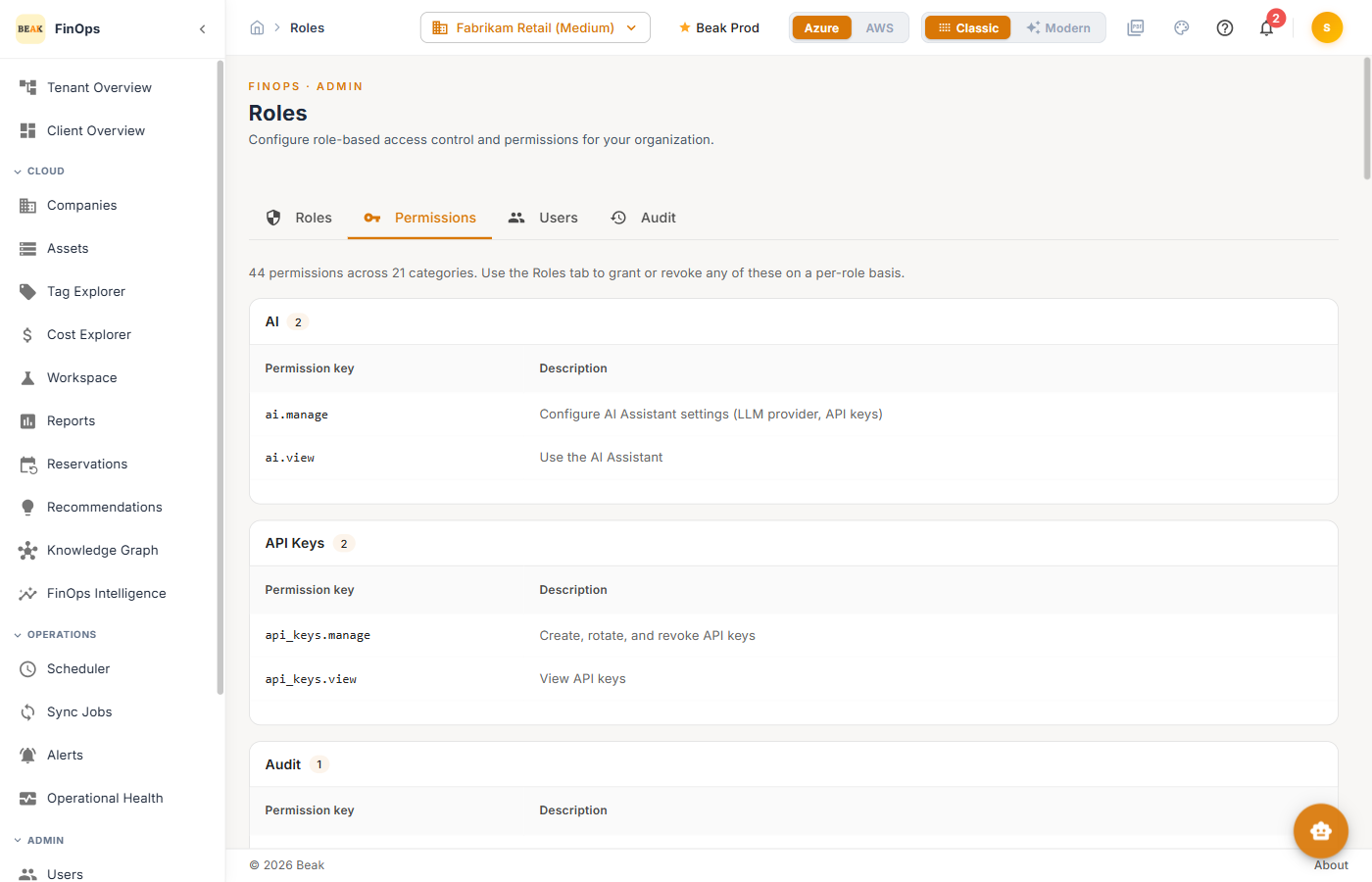
- Dashboard — View dashboards
- Companies — View companies, Create/edit/delete companies
- Resources — View resources, Manage resources
- Cost Explorer — View cost data, Export cost reports
- Recommendations — View recommendations, Manage recommendations
- Reservations — View reservations, Manage reservations
- Scheduler — View and manage scheduler configuration
- Sync — View sync jobs, Trigger and manage syncs
- Settings — View and manage settings
- Users — View users, Create/edit/delete users
- Roles — View roles and permissions, Create/edit/delete roles
- Credentials — View and manage cloud credentials
Note: System roles cannot be modified or deleted. Create a custom role when you need a permission set that differs from the built-in options.
Best Practices
- Principle of least privilege — Grant each role only the permissions its users need
- Use Analyst for day-to-day users — It covers recommendation management without exposing administrative functions
- Custom roles for specialized teams — Define custom roles when the built-in set doesn't match a team's responsibilities
- Audit changes — Use the Audit tab (and Audit History) to review who changed a role and when
Related Pages
- Users — User accounts and role assignments
- Audit History — Configuration and permission change log
- Settings — SSO and tenant configuration