Contracts
The Contracts page is the register of every signed agreement that governs one or more licenses. Each row captures the contract number, vendor, type, start / end / renewal dates, annual value, and status. Renewal dates flow into the alerting engine as expiring-license alerts on the Compliance and Alerts pages.
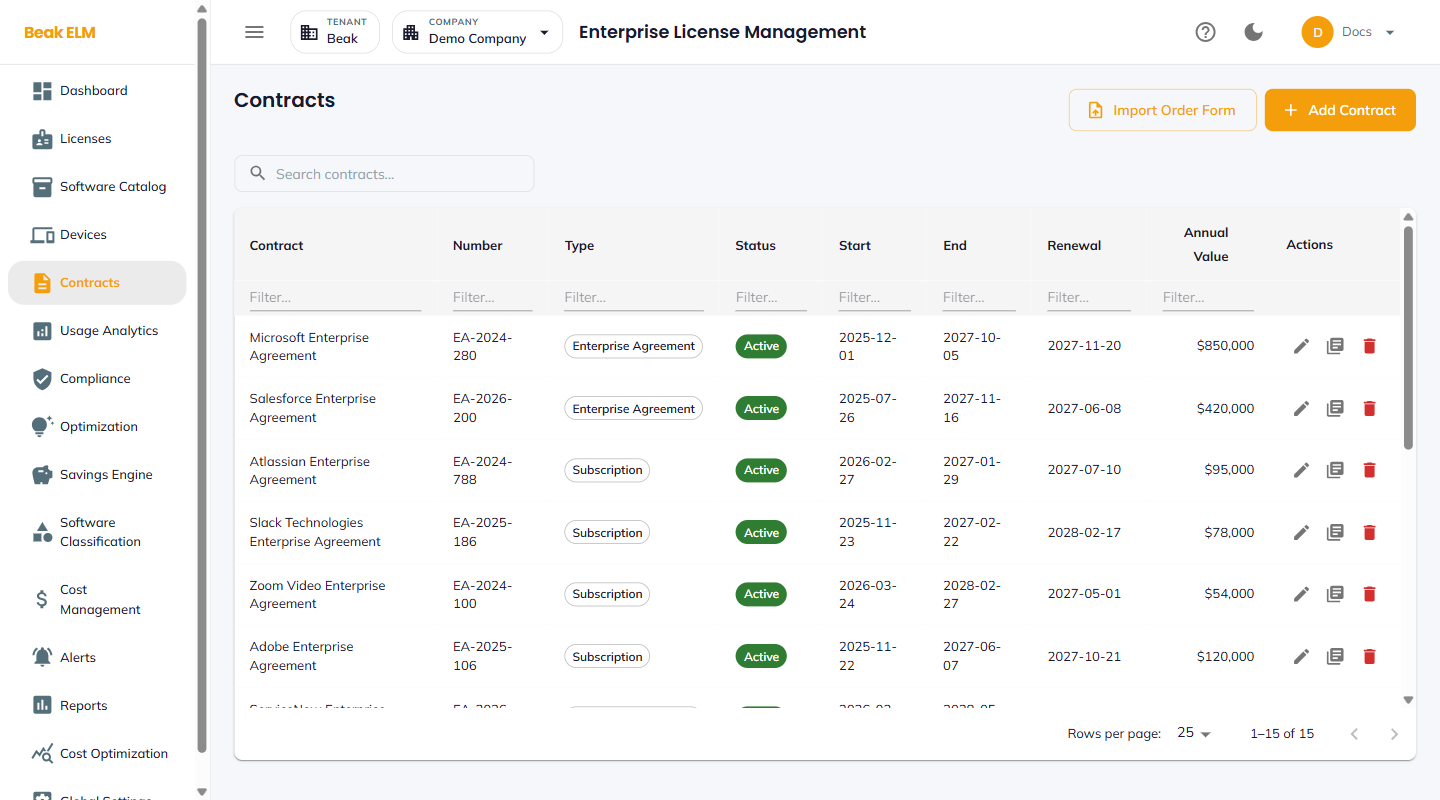
Filters
- Search — Free-text match on contract name or contract number
- Column filters — A
Filter…box under each column header narrows the table by that column's values
Filters compose — the search box and any number of column filters apply together.
Table Columns
| Column | Description |
|---|---|
| Contract | Display name of the agreement (e.g. Salesforce Enterprise Agreement) |
| Number | Contract number from the vendor (e.g. EA-2024-431) |
| Type | subscription or enterprise agreement |
| Status | active, expired, or pending |
| Start | Contract start date |
| End | Contract end date |
| Renewal | Renewal date — drives the renewal-window alert |
| Annual Value | Yearly contract value in USD |
| Actions | Edit (pencil), Duplicate, and Delete (trash) |
Import Order Form
The Import Order Form button uploads a vendor order form and creates the corresponding contract record from it — use it to register a signed agreement without re-keying the commercial terms.
Add Contract
The Add Contract button opens a Create Contract dialog. The dialog leads with an order-form upload and asks for only the two fields needed to create the record.
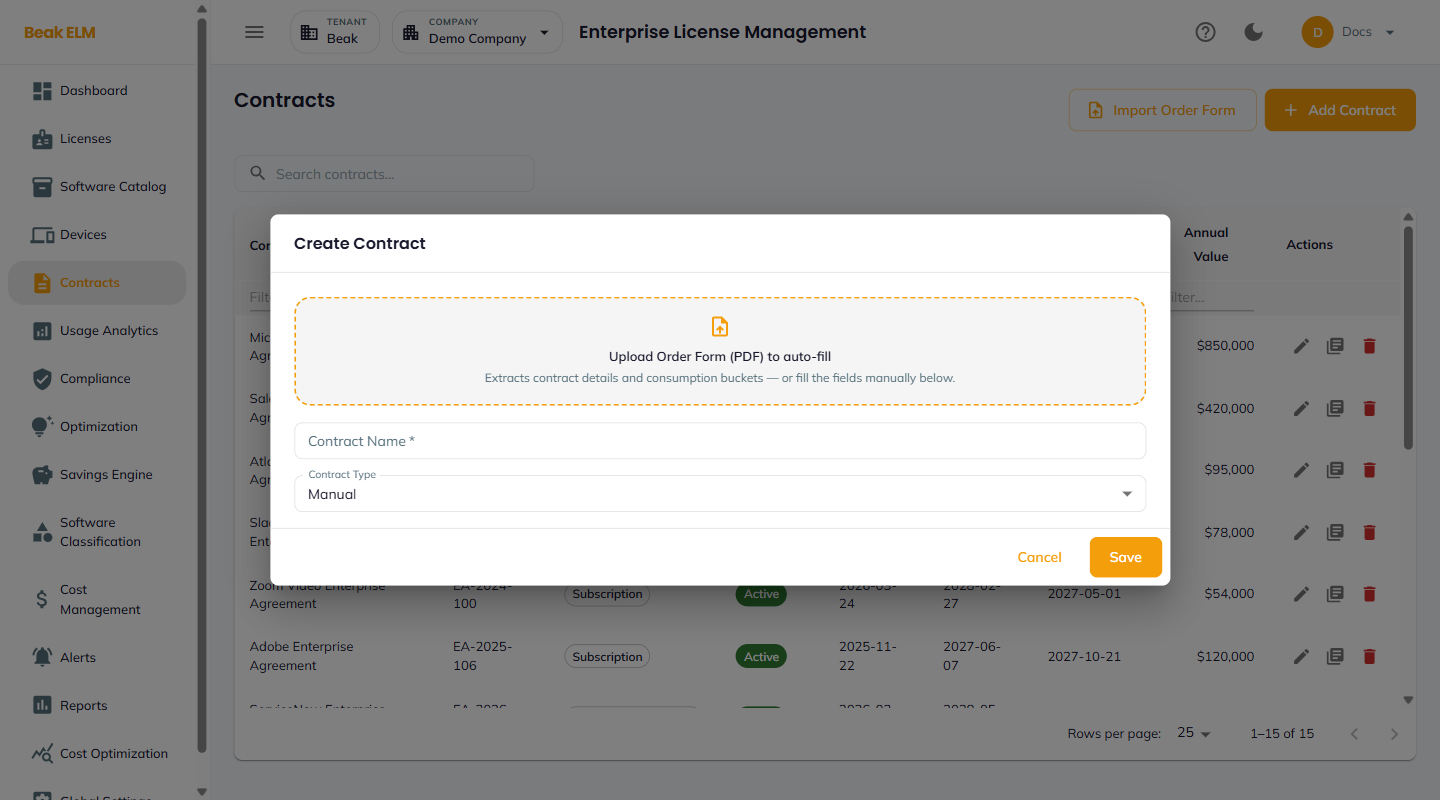
| Field | Notes |
|---|---|
| Upload Order Form (PDF) to auto-fill | Drop zone — extracts contract details and consumption buckets from the order form. Fill the fields manually instead if you have no PDF |
| Contract Name | Required — display name |
| Contract Type | How the record was created; Manual for a hand-entered contract |
Save creates the record. Commercial terms — vendor, dates, values, payment terms — are either extracted from the uploaded order form or added afterwards with the row's Edit (pencil) action.
Note: Contracts also arrive here without being created by hand. Approving a title in Software Classification generates a draft contract for the active company.
Best Practices
- Set
Renewal Date60–90 days ahead ofEnd Dateso the Alerts engine has a runway for procurement to act. - Keep
Annual Valueaccurate even for multi-year contracts — the dashboardAnnual SpendandCost Managementrollups use this field directly. - Bind every license on the Licenses page to a contract once that contract is signed — orphan licenses skew the audit trail.
- Use
Auto Renew = falsefor contracts you intend to renegotiate or replace, so they surface in the renewal alert flow rather than auto-extending.
Related Pages
- Licenses — License records governed by these contracts
- Compliance — Expiring-license alerts driven by contract renewal dates
- Alerts — Renewal and expiry notifications
- Cost Management — Annual value rolled up by vendor and category