License Inventory
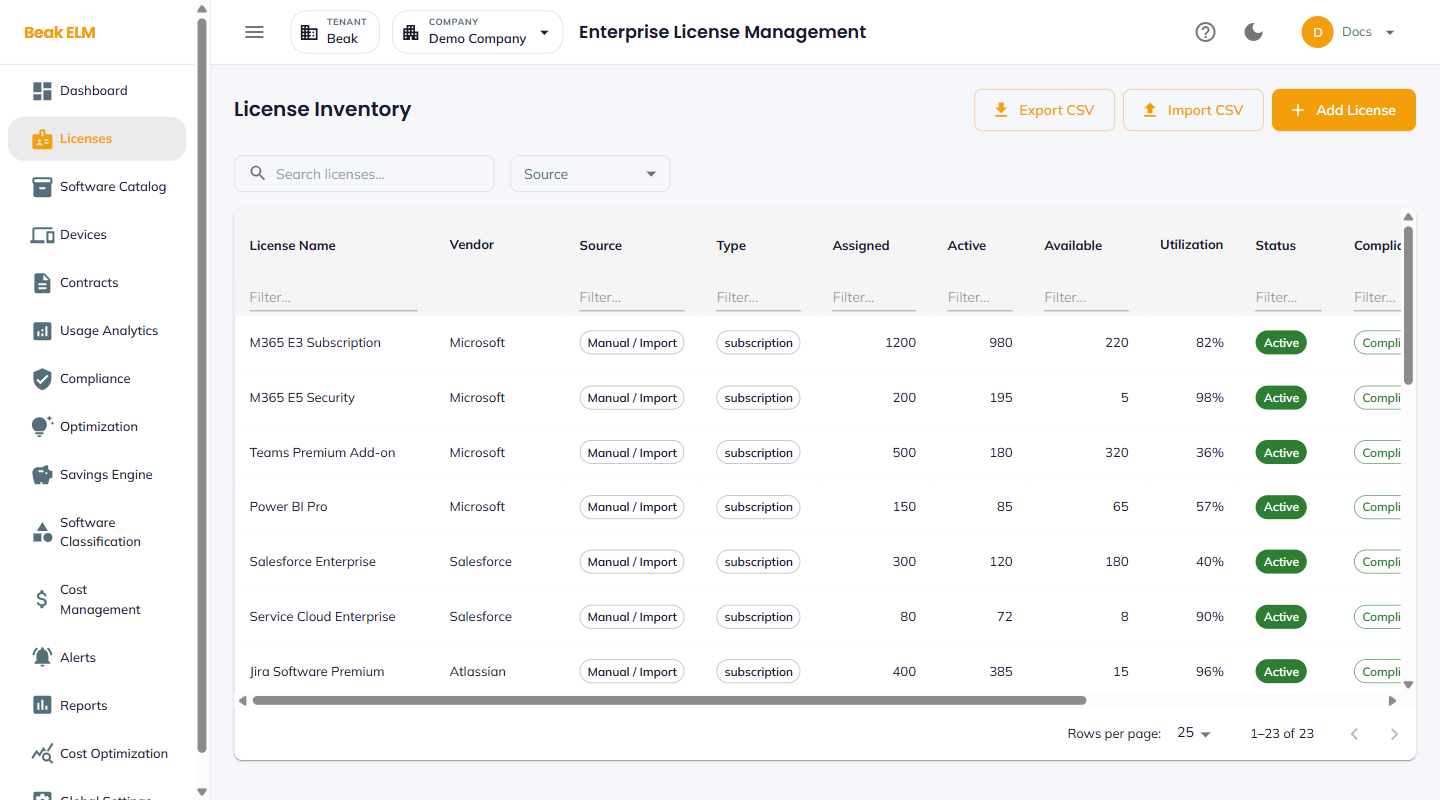
The Licenses page is the canonical inventory of every software entitlement held by the active company. Each row is one license — a SaaS subscription, perpetual install, or named-user agreement — with its vendor, data source, assignment, activity, compliance, and monthly cost. Inline filters, search, and full row-level edit make this the working surface for license owners.
Filters
- Search — Free-text match on license name
- Source — Filter by the data source that produced the record (e.g.
Manual / Import, a connector) - Column filters — A
Filter…box under each column header narrows the table by that column's values
Filters compose — applying the Source filter and a column filter narrows the table to rows matching all selections.
Table Columns
| Column | Description |
|---|---|
| License Name | Display name of the license (e.g. M365 E5 Security) |
| Vendor | Publisher the license is bound to (e.g. Microsoft, Salesforce) |
| Source | Where the record came from — Manual / Import or a connector |
| Type | License type — subscription, perpetual, enterprise agreement |
| Assigned | Seats / installs currently assigned |
| Active | Seats / installs with recent activity |
| Available | Assigned − Active headroom on the entitlement |
| Utilization | Active / Assigned as a percent |
| Status | Active, Expired, or pending |
| Compliance | Compliant, Over Licensed, or Under Licensed |
| Cost/License | Monthly cost per seat / install |
| Total Monthly | Monthly cost for the license overall |
| Actions | Edit (pencil) and Delete (trash) row actions |
The table paginates at 25 rows per page by default. Click any column header to sort.
Add License
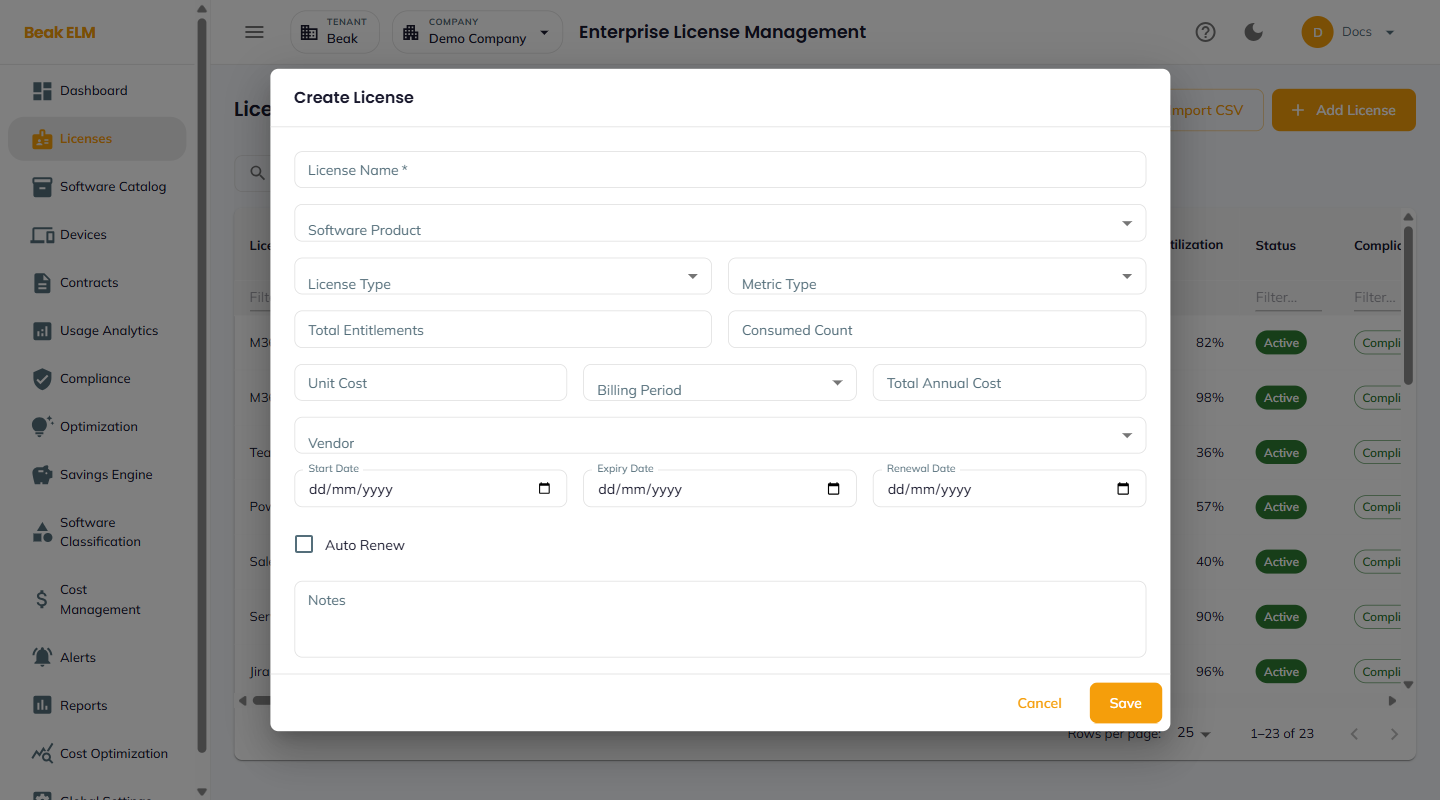
The Add License button in the top right opens a Create License dialog with every field needed to create a new license record.
| Field | Notes |
|---|---|
| License Name | Required — display name shown across the platform |
| Software Product | Bound to a Software Catalog entry |
| License Type | subscription, perpetual, enterprise agreement |
| Metric Type | Per-user, per-device, per-core, etc. |
| Total Entitlements | Number of seats / installs purchased |
| Consumed Count | Optional — current consumption (otherwise calculated from connectors) |
| Unit Cost | Cost per seat / install per billing period |
| Billing Period | monthly, annual, etc. |
| Total Annual Cost | Either entered directly or computed |
| Vendor | Bound to a publisher (Microsoft, Adobe, etc.) |
| Start Date / Expiry Date / Renewal Date | License lifecycle dates |
| Auto Renew | Boolean — whether the license auto-renews |
| Notes | Free-text comments |
Import & Export CSV
- Import CSV — Accepts a bulk upload of license records. Use this to seed the inventory from a spreadsheet or to migrate from another tool. The expected CSV columns mirror the Add License fields — license name, type, entitlement, consumption, unit cost, vendor, dates, etc.
- Export CSV — Downloads the current inventory (respecting active filters) for offline review or distribution.
Row Actions
- Edit (pencil) — Opens the license record in an edit dialog with every field from Add License
- Delete (trash) — Removes the license record after a confirmation dialog
Edit is the primary surface for true-ups, renewal updates, and contract-binding adjustments.
Best Practices
- Keep
Vendoraligned with the Software Catalog publisher so vendor rollups in Cost Management match exactly. - Treat
Over Licensedas a near-term action item — surface it in Optimization and reclaim seats before the next renewal. - For enterprise agreements with multiple bundled products, create one license per product line so utilization can be tracked at the right grain.
- Use
Import CSVfor the initial seed; rely on connectors and edit-in-place for ongoing maintenance.
Related Pages
- Software Catalog — The product the license is bound to
- Contracts — Agreements that govern these licenses
- Compliance — How
Complianceis calculated and surfaced - Optimization — Recommendations to reclaim or right-size