Agent Registry
The Agent Registry is where you register and manage every AI agent that operates within Beak AI Security's enforcement perimeter. Each agent profile defines its allowed scopes, behavioral risk threshold, and optionally a cryptographic identity key used for attestation and tamper detection.
It is the single inventory of governed agents, whatever estate they came from — agents registered directly against Beak sit beside agents onboarded from Microsoft Agent 365. The Source column names the estate and the identifier that estate knows the agent by, so an Agent 365 agent shows the Entra service principal object ID you would search for in the portal. Filter by source to see one estate at a time.
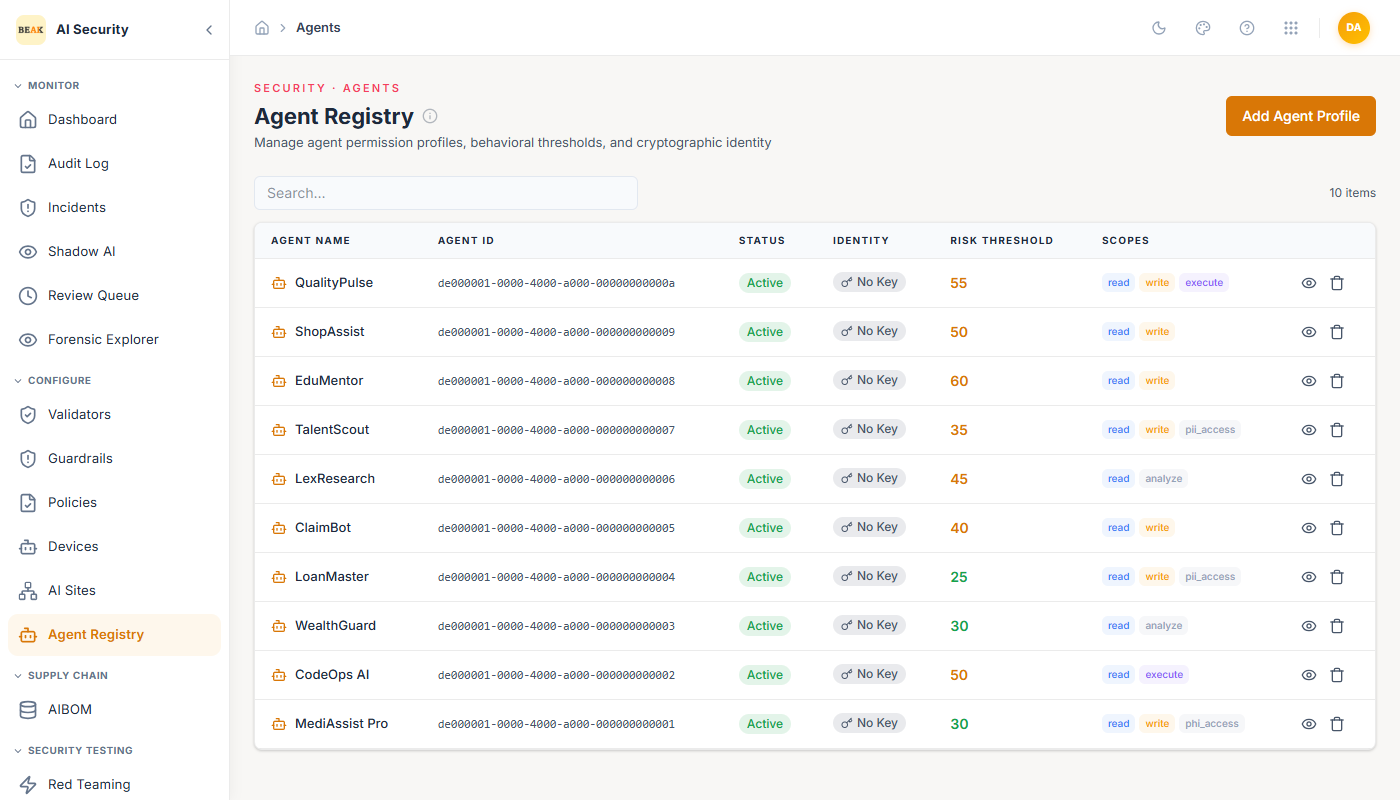
Agent List
The registry lists all registered agents with the following columns:
- Agent Name — A human-readable identifier for the agent.
- Source — Which estate the agent came from (
Beakfor one registered here,Agent 365for one onboarded from Microsoft), with that estate's own identifier beneath it. - Governance — Whether Beak has adopted the agent:
Governed,Discovered, orExcluded. The list showsGovernedby default; use the Governance filter to see candidates a sync has found but nobody has adopted. - Coverage — What actually enforces for the agent:
Inference,Tool hook only, orObserved only. See Coverage below. Filter by it to find agents nothing is enforcing for. - Agent ID — A slug-formatted unique identifier used in API calls and audit records.
- Status —
Active,Inactive, orSuspended.Inactiveis common now that agents arrive from external estates: a candidate is inactive until adopted, and adopting one mirrors whether the source estate has the agent enabled rather than assuming it should be live. - Identity — Cryptographic key status. Shows
No Keyif no attestation key has been assigned, or a key reference if one exists. - Risk Threshold — A numeric value (0–100) that defines the maximum risk score an interaction can reach before the agent's policy triggers a review or block. For example, a threshold of 55 means interactions scoring above 55 are escalated.
- Scopes — The capability badges that define what the agent is permitted to do:
read,write, and/orexecute.
Warning: Status and Governance answer different questions. Status says whether an agent Beak governs may act right now. Governance says whether Beak governs it at all. A
Discoveredagent cannot authenticate no matter what its Status reads — it is not yet one of yours.
Coverage — what actually enforces
Governance says Beak is allowed to act on an agent. Coverage says whether there is a call path that can. They are separate, and an agent can be Governed with coverage of Observed only — adopted, and with nothing enforcing for it.
Inference— The agent's model calls travel through Beak, so prompts and completions are inspected before the model sees them and before the answer is returned. This is the coverage a Beak-routed agent has, and the coverage an Anthropic organization has through Inference hooks.Tool hook only— Beak is called by Copilot Studio's external security option when the agent invokes a tool. That is the tool boundary and nothing else: the agent runs in Microsoft's cloud, its prompts and completions never reach Beak, and no prompt-level policy can apply to it. Tool calls are checked; conversations are not.Observed only— The agent is in the inventory and nothing enforces for it. Discovery found it, or it was registered by hand, but no traffic path exists.
Coverage is only ever raised by a path Beak has actually been called on — never by what an external platform reports about itself. An agent listed in Power Platform stays Observed only until it calls Beak, because being listed is not evidence that anything is enforcing.
Coverage answers what Beak has been called on. The agent's governance tier answers what its integration makes possible — the ceiling. The two are read together: a managed agent with Observed only coverage is one whose integration allows full inspection and whose traffic is not currently taking that path. For the boundaries behind each plane, and how an agent on any framework registers itself, see Governing an Agent from Any Platform.
Warning: Onboarding an agent does not change its coverage, and adopting a
Tool hook onlyagent does not begin inspecting its prompts. To reachInferencecoverage, the agent's model calls have to route through Beak. If you need prompt-level enforcement for a Copilot Studio agent, that is a change to how the agent is deployed, not a setting here.
Finding Agents
Agents reach the registry three ways. All three produce the same kind of row, so an agent found by one is not treated differently from an agent found by another.
- Discovery — Select Discover agents and pick a platform to enumerate its agents with your own credential: Copilot Studio, Amazon Bedrock, Salesforce Agentforce, A2A, Azure AI Foundry Agent Service, Google Vertex AI Agent Engine, Amazon Bedrock AgentCore or iGentic. Each needs its integration configured in Integrations; without one, the menu tells you which to add. The same list is offered on the onboarding wizard's Already discovered step under Not listed yet?. Everything discovery finds arrives as a candidate. Every platform with a saved credential is also enumerated in the background, so an agent that first reached Beak through a hook picks up its display name without anyone clicking Discover.
- First contact — An agent that calls Beak is recorded the first time it does, whether or not anyone has enumerated it. This is the only way an agent Beak cannot enumerate appears at all.
- Runtime and Agent 365 sync — Agents Beak runs, and agents onboarded from Microsoft Agent 365, are projected in by their own syncs.
Searching for an agent
The search box matches an agent's name, the Beak id the registry knows it by, the id it carries in its home estate, and its identity id — the BEAKIAM principal. All four resolve on the server, so a search covers every agent rather than the page on screen.
The identity id matters more than it looks: it is the id an Agent governance screen, an audit row or a tool-call refusal message shows you, and it is the only id an externally enrolled agent has. It was previously the one id the search could not resolve, and it returned an empty page — which reads as "no such agent" rather than "not a field I search".
Discovered agents grant nothing. They arrive Discovered and Inactive with no scopes, and an agent that is not Governed cannot authenticate — so appearing in the registry never authorizes anything on its own. Adoption is always a decision someone makes, and it is that decision — not the agent's origin — that grants it scopes. See What an agent is granted when it becomes governed.
Note: Discovery finds every agent in the environments you configured, which on a large tenant can be a lot of candidates at once. They are filtered out of the default view; switch the Governance filter to
Discoveredto work through them.
Onboarding and Excluding Candidates
A Discovered row offers two actions:
- Onboard — Adopts the agent into the governed inventory. Policies and tool authorization begin applying to it, and its Status moves to
Active. Its coverage does not change — see the warning under Coverage. - Exclude — Records that you do not want the agent governed. This is durable: a later sync that still reports the agent will not bring it back, and it stops occupying your review queue every time discovery runs. Onboarding it later is still possible.
Both actions ask for confirmation, because both are decisions about a shared registry rather than a view preference.
Onboarding requires the agents:create permission — the same permission that governs adopting an Agent 365 agent. Excluding requires agents:update.
Adding an Agent Profile
Click Add Agent Profile to register a new agent. Provide:
- Agent Name — A descriptive name matching the agent's role or deployment context.
- Agent ID — A unique slug identifier (auto-generated or manually specified).
- Status — Set to
Activeto begin enforcement immediately. - Risk Threshold — The score ceiling for this agent. Lower thresholds are stricter; higher thresholds allow more borderline interactions through.
- Allowed Scopes — Select the capabilities this agent requires:
read,write,execute. Apply least-privilege — grant only what the agent needs.
Agent Detail — the Agent Passport
Clicking any row — or the eye icon on it — opens that agent's Agent Passport: the full record on one screen, covering who is accountable for the agent, what it can reach, where it runs, what it is permitted to do, its measured risk, how long its registration is valid, and what it has actually done.
This replaces the small detail modal the registry used to open. That modal held a partial copy of the agent's detail while the rest lived on the risk, governance and Agent 365 screens; the passport is the whole record and the only place it is assembled. Key management — Generate, Rotate and Revoke — moved there with it.
The panel described below is part of the passport's What happened section, and is documented here because it is equally reachable from the Audit Log. That section's other panels — the decision counts and the agent's recent action log — are documented on the Agent Passport page.
Governance Decisions
Each row is one moderation decision recorded against this agent — the action taken (allow, log, warn, redact or block), what triggered it, and which surface the traffic came from. A summary of the actions appears above the list.
Two things about this panel are worth knowing:
- It sits beside the agent's authority on purpose. The line above the list shows the agent's governance state and granted scopes, because a decision only means something next to what the agent was permitted to do — a block against a read-only agent tells you something different from a block against one holding
admin. - The counts cover the window shown, not all history. When the list is truncated, a note says so. This keeps the totals from silently disagreeing with the rows beneath them.
An agent that Beak does not govern shows Not registered rather than a governance state. An agent that is registered but has never been called shows No decisions recorded for this agent yet — that is a normal state, not a failure to load.
Note: Decisions are recorded against the agent only for traffic that carried an agent identity. Calls that reached the gateway without one are governed at team granularity and appear in the Audit Log rather than here.
Allowed Scopes
A scope is what an agent may do when it calls a tool. Beak checks the agent's scopes on every tool call and refuses any the scopes do not cover, so this is the field that decides whether an agent can do its job at all.
The four scopes are ranked, not independent — a scope satisfies every requirement at or below it:
| Scope | What it allows |
|---|---|
read | Look things up — fetch records, read state. |
write | Create and change records. |
execute | Run tools that do work. Required by any tool that does not declare a scope of its own, which is most of them. |
admin | Everything, including tools that administer other agents or the platform. |
Because the ladder is ranked, an agent holding execute can also read and write. The editor tells you which lower scopes your selection already covers, so you do not have to tick them individually.
Editing an agent's scopes
Select the shield icon on a governed agent's row. This opens Agent authorization, which shows both of the layers that decide what an agent may do:
| Layer | What it decides | Where it is stored |
|---|---|---|
| Tool access | What the agent may do when it calls a tool. Checked on every tool call. | The registry profile |
| Credential ceiling | The most a minted credential can carry, and the set an autonomy grant is drawn from. Never consulted when a tool call is authorized. | The agent's identity |
The dialog says which one to change: a refused tool call is always tool access. Changing the credential ceiling will not lift a scope_insufficient refusal.
Both layers were previously editable, but in two different screens with similar names, and nothing on either screen said which was which — so an agent refused on a tool call was routinely "fixed" in the wrong place. They are now in one dialog, reachable from here and from the Agent governance page.
For tool access, tick the scopes the agent needs and select Save tool access:
- The set you save replaces the current one rather than being added to it.
- A later sync will not undo your change: syncs refresh only the descriptive fields the source estate owns.
- The shield icon is highlighted when an agent holds no scopes at all. Such an agent is governed and looks live in every view, but every tool call it makes is refused — worth checking if an agent reports being refused for something it should be allowed to do.
- The change takes effect on the agent's next tool call. It is no longer possible for a saved grant to sit inert while the old one is still enforced.
- Requires
agents:update.
The credential ceiling section lists each scope a credential can carry with an explanation of what it allows, and is described under Setting an agent's scopes. It is unavailable for an agent that has no identity yet — there is no principal to mint a credential for — and the dialog says so rather than showing an empty box.
What an agent is granted when it becomes governed
Becoming governed grants read, write and execute — whichever way the agent got there: adopted from a discovery candidate, promoted after first contact, or projected in by the Runtime or Microsoft Agent 365 sync. There is one onboarding flow and one grant, so an agent Beak runs itself is treated no differently from one discovered in another estate.
Two things this does not do:
- It never overwrites scopes that are already set. Only an agent holding none is granted the default, so narrowing an agent survives a re-adopt and every later sync.
- It does not apply to a profile you add by hand. Adding an agent profile uses the scopes you select in the form, which start at
read.
Apply least privilege from here: if an agent only reads data, take write and execute away.
Cryptographic Identity
The cryptographic identity section enables hardware- or software-based attestation for an agent:
- Key Status — Whether a signing key has been assigned to the agent.
- Attestation — Verification that the agent binary or model has not been tampered with.
- Rotate — Issues a new key for the agent (the old key is invalidated).
- Revoke — Immediately invalidates the agent's key. A revoked agent cannot authenticate until a new key is assigned.
Note: Cryptographic attestation is optional but strongly recommended for production agents that handle sensitive data or high-stakes decisions. Without a key, the
Identitycolumn showsNo Keyand audit records cannot be cryptographically attributed to a specific agent instance.
Risk Threshold Tuning
The risk threshold is the primary behavioral control for each agent. It interacts directly with the enforcement policy:
- Interactions with a risk score below the threshold that still pass all validators →
on_allowaction (typicallylog). - Interactions with a risk score above the threshold →
on_revieworon_denyaction depending on policy config.
A newly deployed agent should start with a conservative threshold (e.g., 40–50) and be tuned upward as you validate its behavior in the Forensic Explorer.
Best Practices
- Register every agent — even internal or low-risk ones — so that all AI interactions appear in the Audit Log and are traceable to a specific agent identity.
- Apply the minimum required scopes. An agent that only needs to read data should not have
writeorexecutescopes. - Use cryptographic keys for agents that process regulated data (healthcare, financial, legal) to support non-repudiation requirements.
- Suspend agents rather than deleting them when taking them offline — deletion removes the agent's history from the registry view.
- Work the
Discoveredfilter after each discovery run rather than leaving candidates to accumulate. A candidate enforces nothing, so a backlog of them is a backlog of ungoverned agents. - Filter by
Observed onlycoverage periodically. Those agents are in your inventory and nothing is enforcing for them — which is a different problem from an agent you have not adopted, and easier to miss.
Related Pages
- Integrations — Power Platform and Copilot Studio configuration
- Policies
- Guardrails
- Audit Log
- Forensic Explorer