Endpoint Devices
The Endpoint Devices page sits under the Security · Devices eyebrow and is the authoritative registry of every browser that has been paired to your tenant through the Beak AI extension. Each row represents one browser installation — its display name, the underlying platform and OS, the extension variant and version it is running, its current pairing status, and the timestamp of its most recent heartbeat. The page is the operational control point for issuing new activation codes and for invalidating device tokens when a user leaves the organisation or a device is decommissioned.
Pairing works through a short-lived activation code: an administrator issues a single-use code from this page, the user pastes it into the Beak extension popup, and the extension exchanges it for a long-lived scoped token. From that moment the device appears in this list and begins sending a heartbeat every fifteen minutes. Revoking tokens forces the user to re-pair using a fresh code.
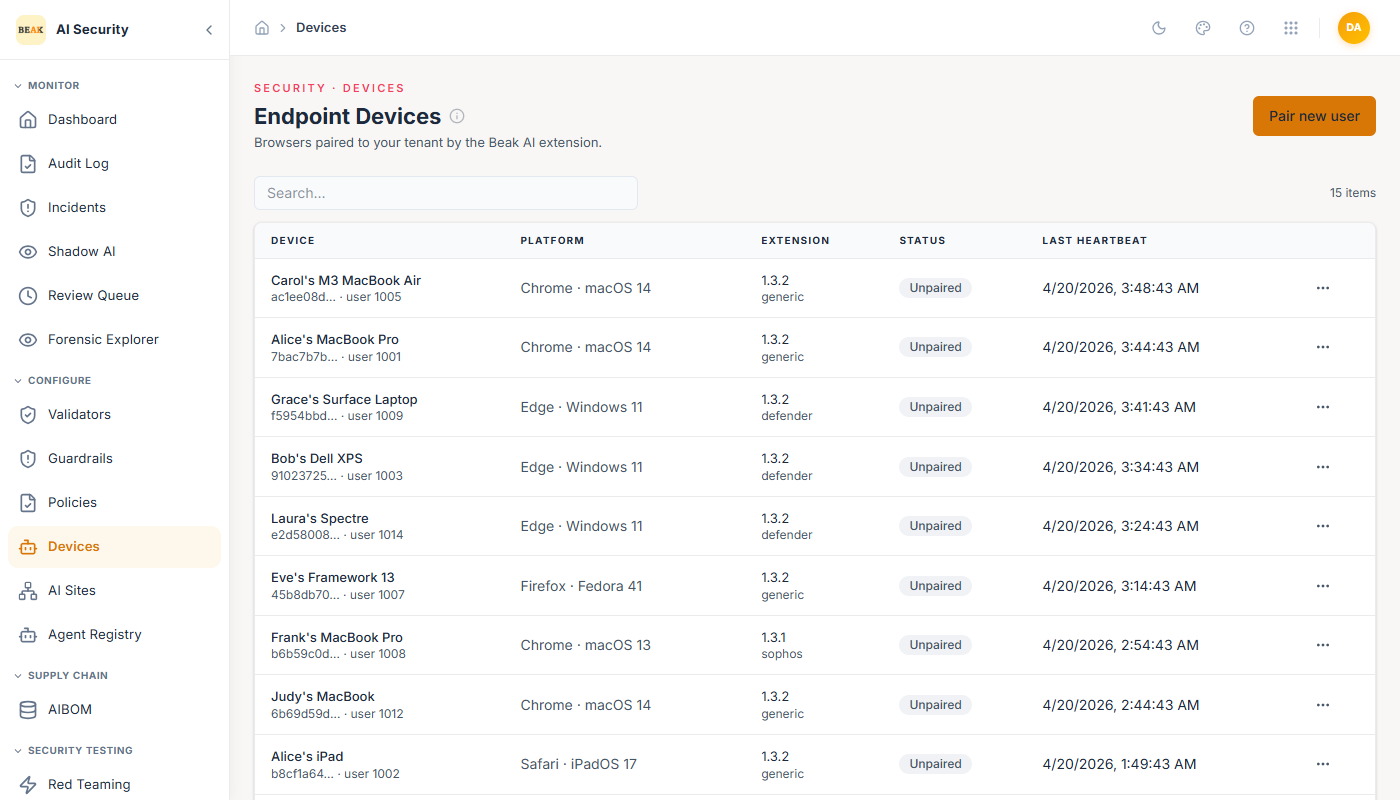
Page Header and Toolbar
The page header carries the Endpoint Devices title, the subtitle "Browsers paired to your tenant by the Beak AI extension," and a contextual tip explaining the activation-code pairing flow. The primary action button, Pair new user, opens the Pair User Dialog.
Devices Table
The devices table lists every registered browser endpoint. The columns are:
- Device — The device display name in bold, with the truncated device UUID and the associated user ID shown beneath it in a secondary tone.
- Platform — Browser name and operating system, joined by a centre dot (for example
Chrome · Windows). Displays—when neither field is populated. - Extension — Extension version number with the extension variant (
generic,defender, orsophos) shown below. - Status — A colour-coded badge reflecting the device's pairing and activity state. The four possible values are:
active— The device has an active token and has reported recently.stale— The device has a token but has not sent a heartbeat within the expected window.unpaired— The device record exists but all tokens have been revoked; the user must re-pair.revoked— The device has been administratively revoked.
- Last heartbeat — Timestamp of the most recent heartbeat, formatted in the browser's local timezone. Displays
—when no heartbeat has been recorded yet. - Actions — A context menu (three-dot icon) per row. The single item,
Revoke tokens, is enabled only when the device has at least one active token; the count of active tokens is shown in parentheses. Selecting it opens the Revoke Confirmation Dialog.
Pair User Dialog
Clicking Pair new user opens a modal dialog that walks through two steps.
Step 1 — Issue code. The administrator fills in:
- User ID — The numeric tenant user ID for the person being paired.
- Extension variant — Which extension build the user has installed. The three options are
Generic,Microsoft Defender, andSophos.
Clicking Issue code calls the activation-code API. If the user ID is invalid, a toast notification appears prompting correction.
Step 2 — Share code. On success the dialog switches to a read-only view showing the generated activation code in a large monospace display. A copy-to-clipboard button sits inline. The code's expiry timestamp, the user ID it was issued for, and a single-use label are shown beneath. The administrator shares the code with the user through a secure channel; it is displayed only once. Clicking Done closes the dialog and resets the form.
Revoke Confirmation Dialog
Selecting Revoke tokens from a device's action menu opens a confirmation dialog with the title "Revoke device tokens." The description reads: "All active tokens for this device will be invalidated. The user must re-pair with a new activation code to continue scanning." Two buttons are presented — Cancel to dismiss without action, and Revoke (styled as a destructive action) to confirm. After confirmation the device's status transitions to unpaired and its active-token count drops to zero.
Best Practices
- Pair new devices promptly — Issue activation codes only when you are ready for the user to pair immediately; codes are single-use and time-limited, so avoid issuing them speculatively.
- Choose the correct extension variant — Match the variant to the user's deployment method:
genericfor self-service load-unpacked installs,defenderfor Microsoft Intune-managed fleets, andsophosfor Sophos Central-managed endpoints. - Monitor stale devices — Devices showing a
stalestatus are still authenticated but have stopped reporting; investigate whether the user has uninstalled the extension or the endpoint is offline before revoking. - Revoke on offboarding — When a user leaves the organisation, revoke their device tokens here in addition to any IdP-level deprovisioning to ensure the extension can no longer authenticate to the tenant.
- Cross-reference with Shadow AI — A device that has not sent a heartbeat recently will not appear in the Shadow AI usage report; use the Last heartbeat column to identify gaps in coverage.
Related Pages
- Overview — High-level product overview for Beak AI Security.
- AI Sites — Catalog of AI services the extension recognises; sanctioned-status settings directly shape the Shadow AI report.
- Shadow AI — Per-application usage aggregates derived from scans sent by paired devices.
- Incidents — Individual scan events and DLP policy decisions recorded by paired extensions.
- Settings — Extension download packages, deployment instructions, and silent-activation configuration.