Incident Management
Incidents represent unplanned interruptions or degradations in the quality of IT services. BEAK ITSM provides an ITIL-aligned incident management workflow with structured triage, impact assessment, SLA tracking, and root cause linkage — enabling teams to restore normal service operation as quickly as possible.
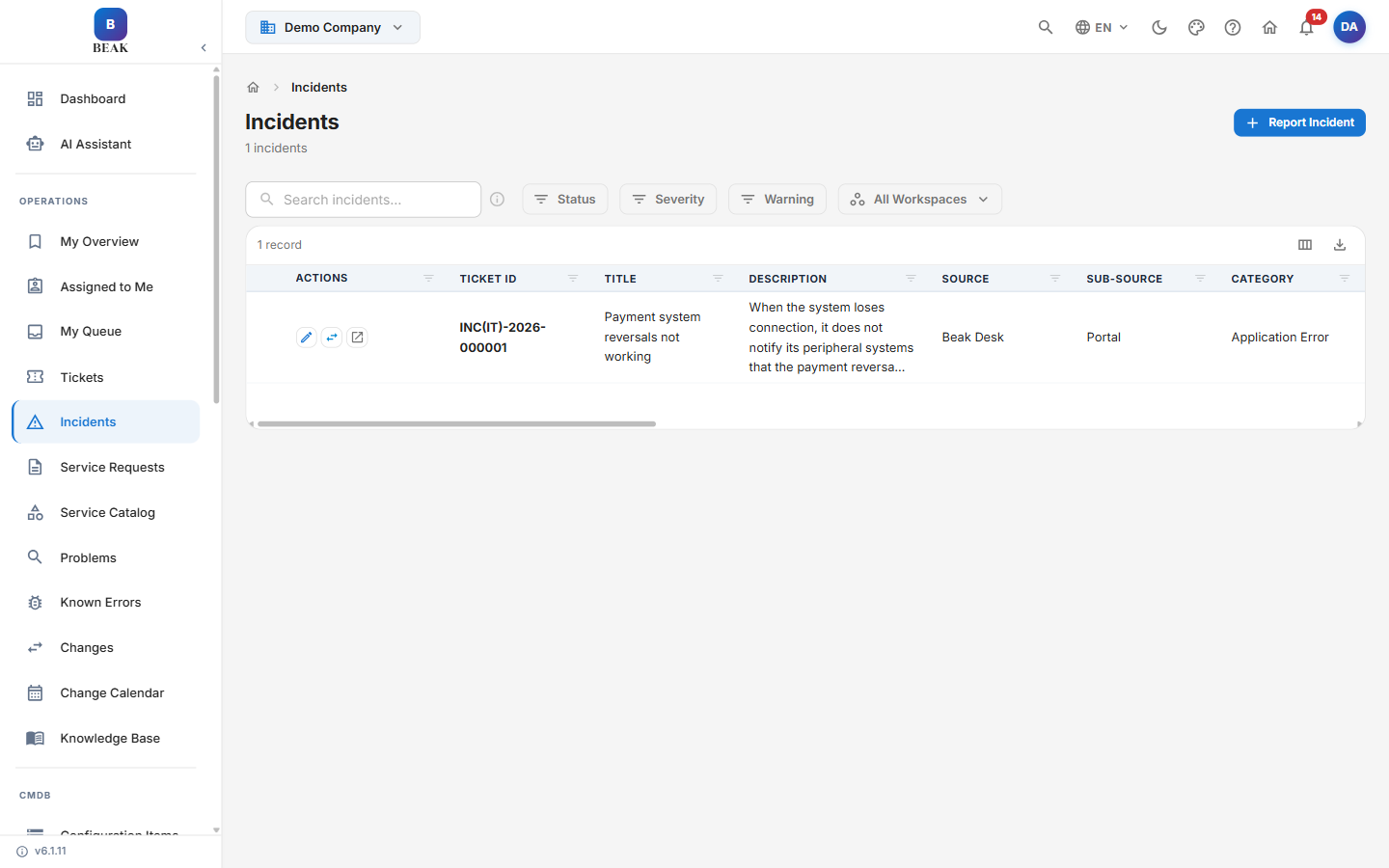
Incident List View
The Incident List provides a consolidated view of all reported incidents. The header shows the Incidents title and a count of records. Each row represents one incident and includes the following columns:
| Column | Description |
|---|---|
| Actions | Row-level action controls |
| Ticket ID | Unique incident identifier in INC(IT)-YYYY-XXXXXX format |
| Title | Short description of the service interruption |
| Description | Summary of the reported issue |
| Source | Channel the incident was reported through |
| Sub-Source | Originating sub-channel within the source |
| Category | Functional classification of the incident |
| Sub-Category | Secondary classification within the category |
| Status | Current lifecycle stage (New, Assigned, In Progress, Pending, Resolved, Closed) |
| Severity | Severity level: Critical, High, Medium, Low, or Unknown |
| Impact | Organizational scope of the disruption |
| SLA Overdue Time | Time elapsed past the SLA target |
| Response SLA Breached | Whether the response SLA target was missed |
| Resolution SLA Breached | Whether the resolution SLA target was missed |
| Assignee | Agent or team responsible for resolution |
| Impacted User | The user affected by the incident |
| Occurred On | When the incident occurred |
| Created By | The user who created the record |
| Last Updated On | Date and time of the most recent update |
| Last Updated By | The user who made the most recent update |
Search and Filters
Use the search bar to find incidents by keyword. Apply filters to narrow results:
- Status — Filter by any lifecycle stage
- Severity — Filter by
Critical,High,Medium,Low, orUnknown - Warning — Filter to surface incidents flagged with a warning condition
- All Workspaces — Filter by workspace or view all workspaces
Reporting a New Incident
Click the Report Incident button in the top-right corner to open the incident creation form.
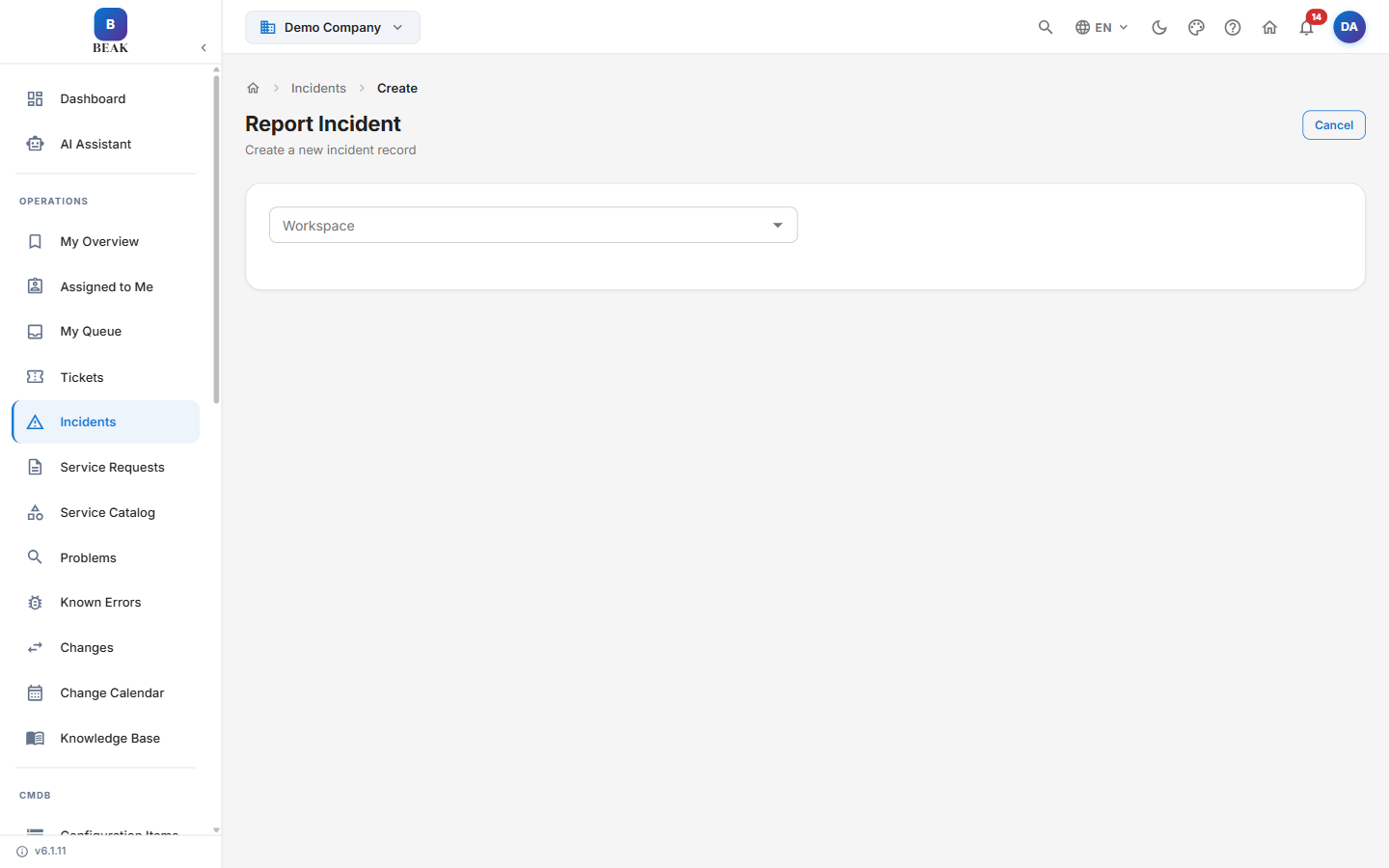
Reporting an Incident
1. Open the Incident Form
Click Report Incident. The form initially displays only the Workspace dropdown — selecting a workspace reveals the remaining intake fields.
2. Complete the Incident Fields
-
Title* — A concise description of the service interruption (e.g., "VPN connectivity failure for remote users")
-
Description* — Full details including symptoms observed, affected systems, user count, and time of first occurrence
-
Workspace — The team or department context for the incident
-
Category* — The functional area of the failure (e.g., Network Issue, Application Error, Infrastructure, Security)
-
Severity* — The operational impact of the incident:
Severity Definition CriticalComplete service outage affecting all users or a core business function HighSignificant degradation affecting many users; no viable workaround MediumPartial service impact; workaround available but disruptive LowMinor impact on a small number of users; workaround is straightforward -
Priority* — The urgency for resolution:
Critical,High,Medium, orLow -
Impact Level — The organizational scope of the disruption:
Impact Level Definition Enterprise-wideAffects the entire organization DepartmentLimited to one or more departments TeamAffects a specific team IndividualAffects a single user -
Assign To — Search for the agent or team taking initial ownership
-
Requested For / Reported By — Search by name or email to report on behalf of another employee
3. Submit the Incident
Click Report Incident to create the record. It is assigned a unique INC(IT)-YYYY-XXXXXX identifier and enters the queue with a status of New.
Note: Priority in incident management is typically calculated as a matrix of Severity and Urgency. Your administrator can configure the automatic priority derivation rules in Settings.
Incident Lifecycle
The incident lifecycle is more granular than the standard ticket workflow, reflecting the additional triage and coordination steps required during a service disruption.
New → Assigned → In Progress → Pending → Resolved → Closed
New— Incident has been reportedAssigned— Assigned to a support agentIn Progress— Investigation and resolution underwayPending— Awaiting external input or vendor responseResolved— Resolution applied and verifiedClosed— Incident closed after confirmation
Note: The distinction between New and Assigned is intentional. It separates the act of reporting from the act of accepting ownership, which is important for SLA measurement — the response SLA clock starts when the incident is reported and stops when it is assigned.
Incident Detail View
Click any incident ID in the list to open the full Incident Detail page.
Incident Summary Sidebar
The right-hand sidebar provides a snapshot of all key metadata:
- Status — Current lifecycle stage
- Impacted User — The user affected by the incident
- Priority — The resolution priority assigned to the incident
- Severity — Assigned severity level
- Impact — Organizational scope of the disruption
- Urgency — Business urgency for restoration
- Assignee — The agent or team currently responsible
- Queue — The support queue handling the incident
- Category — Functional classification of the incident
- Sub Category — Secondary classification within the category
- Source — Channel the incident was reported through
- Sub-Source — Originating sub-channel within the source
- Created — Date and time the incident was first reported
SLA Status Section
The SLA Status section tracks real-time compliance against your configured targets, split into two clocks:
- Response SLA — Progress toward the response time target, shown as a percentage
- Resolution SLA — Progress toward the resolution time target, shown as a percentage, with a
BREACHEDflag when the target is missed
Color-coded progress bars indicate urgency: green for on track, yellow for approaching breach, and red for breached. A breached clock is flagged explicitly so agents can prioritize at-risk incidents. The full breakdown of response and resolution timers is available in the SLA Details tab.
Tabs in Incident Detail
The Incident Detail page is organized into tabs. Each tab surfaces a specific aspect of the incident's lifecycle and investigation.
Details
Displays the full incident description and all structured fields captured at intake. Review this tab first when picking up an unfamiliar incident to understand the original report context before consulting the activity log. Fields include:
- Title and Description — The reported summary and full detail
- Severity and Priority — Tracked as separate fields, not derived from one another
- Category and Sub Category — Functional classification
- Workspace — The team or department context
- Assigned To — The agent or team currently responsible
- Source and Sub-Source — The reporting channel and sub-channel
- Impact Level — The organizational scope of the disruption (e.g.,
enterprise) - Reopen Reason — Recorded when a resolved or closed incident is reopened
- Pending Reason — Recorded when an incident is moved to
Pending
SLA Details
The SLA Details tab presents the full SLA breakdown for the incident, separated into Response and Resolution clocks. Each clock shows its progress against the configured target and a breach flag when the target has been missed, giving agents a detailed view beyond the summary percentages in the sidebar.
Notes
Record internal observations, escalation decisions, workaround documentation, and vendor communications.
- Add a note using the text editor at the top of the tab
- Mark notes as Private / Internal to restrict visibility to the support team — requesters and stakeholders without agent access will not see internal notes
- All notes display the author name and timestamp for traceability
Note: Document applied workarounds in the Notes tab as soon as they are confirmed. This information is critical for post-incident review and for populating the Known Error Database (KEDB) if the incident is escalated to a Problem record.
Activity
The Activity tab maintains a complete, chronological audit trail of the incident:
- Status transitions with acting agent and timestamp
- Assignment and reassignment history
- Field changes (severity, impact, urgency, category)
- Comments from agents and requesters
- Linked item additions, removals, and status updates
Add a comment at the bottom of the Activity tab to communicate publicly with the requester or stakeholders.
Impact Analysis
The Impact Analysis tab provides a structured space to document and assess the business consequences of the incident:
- Affected Services — Identify the services, applications, or infrastructure components that are degraded or unavailable
- Business Impact — Describe the operational and financial consequences of the outage
Use this tab to build the factual record needed for post-incident review and for communicating impact to leadership during a high-impact incident.
Attachments
Attach supporting evidence to the incident record — error logs, monitoring screenshots, configuration exports, network traces, or vendor correspondence. Files are listed with name, size, uploader, and upload timestamp.
Tasks
Decompose the resolution into discrete, trackable sub-tasks — particularly useful for high-impact incidents involving multiple teams or parallel workstreams.
- Assign individual tasks to specific agents
- Track task completion independently from the overall incident status
- Use tasks to manage coordination steps such as "Engage vendor support," "Apply emergency patch," and "Validate service restoration"
Child Tickets
Create child tickets for subordinate issues discovered during the incident investigation that require independent tracking, a different assignee, or a separate workspace.
- Click + Child Ticket to open the new ticket form with the parent incident reference pre-populated
- Child tickets have their own lifecycle, SLA, and audit trail
- All linked child tickets are listed with ID, title, status, and assignee
Note: Child tickets are distinct from tasks. Use tasks for steps within the current team's resolution workflow; use child tickets when a sub-issue needs to be routed to a different team or managed under a different workspace.
Linked Problems
Associate the incident with related Problem records to build a connected service management picture:
- Link Problem — Connect this incident to an existing Problem record if it is a known recurrence or is being escalated for root cause analysis
- Linked problems appear with their ID, title, stage, and a direct navigation link
- Linking incidents to problems supports trend analysis and helps the problem management team quantify recurring impact
Detail Toolbar
The incident detail page includes two toolbar controls:
- Back — Returns to the Incident List view
- Actions — Opens a dropdown of operations available for the current incident, such as editing fields, reassigning ownership, and progressing the incident through its lifecycle
Best Practices
- Report immediately, refine continuously — Log the incident as soon as it is detected, even with incomplete information. Update the description, severity, and impact fields as the investigation progresses.
- Distinguish severity from urgency — A low-severity issue (e.g., a reporting tool that is slow) can still be high-urgency if an executive presentation depends on it. Set both fields independently and accurately.
- Use Impact Analysis early — Completing the Impact Analysis tab early in a high-impact incident provides leadership with the information needed to make business decisions while the team works on restoration.
- Link related incidents — If multiple users are reporting the same symptom, link their incidents together. This prevents duplicate investigation effort and supports accurate impact counting.
- Escalate to Problem when patterns emerge — If the same incident recurs more than twice within a short period, create a linked Problem record to drive root cause analysis and prevent future occurrences.
- Document workarounds explicitly — A confirmed workaround should be entered into Notes immediately. If the incident is later promoted to a Problem, the workaround becomes a Known Error entry.
- Watch the SLA clocks — Monitor the Response and Resolution SLA timers in the sidebar and SLA Details tab, and act on breach flags promptly to keep incidents on target.
Related Pages
- Ticket Management — For standard service requests and non-incident issues
- Problem Management — Root cause analysis and Known Error Database management
- Change Management — Linking incidents to changes and managing post-change incidents
- SLA Settings — Configure incident response and resolution SLA targets
- Workflows — Automate incident assignment, escalation, and SLA breach notifications