Settings & Configuration
BEAK ITSM provides two configuration areas accessible from the left sidebar: Global Settings for system-wide configuration, and Company Config for company-level settings. Global Settings covers SLA policies, categories, user management, integrations, and all administrative configuration for your instance.
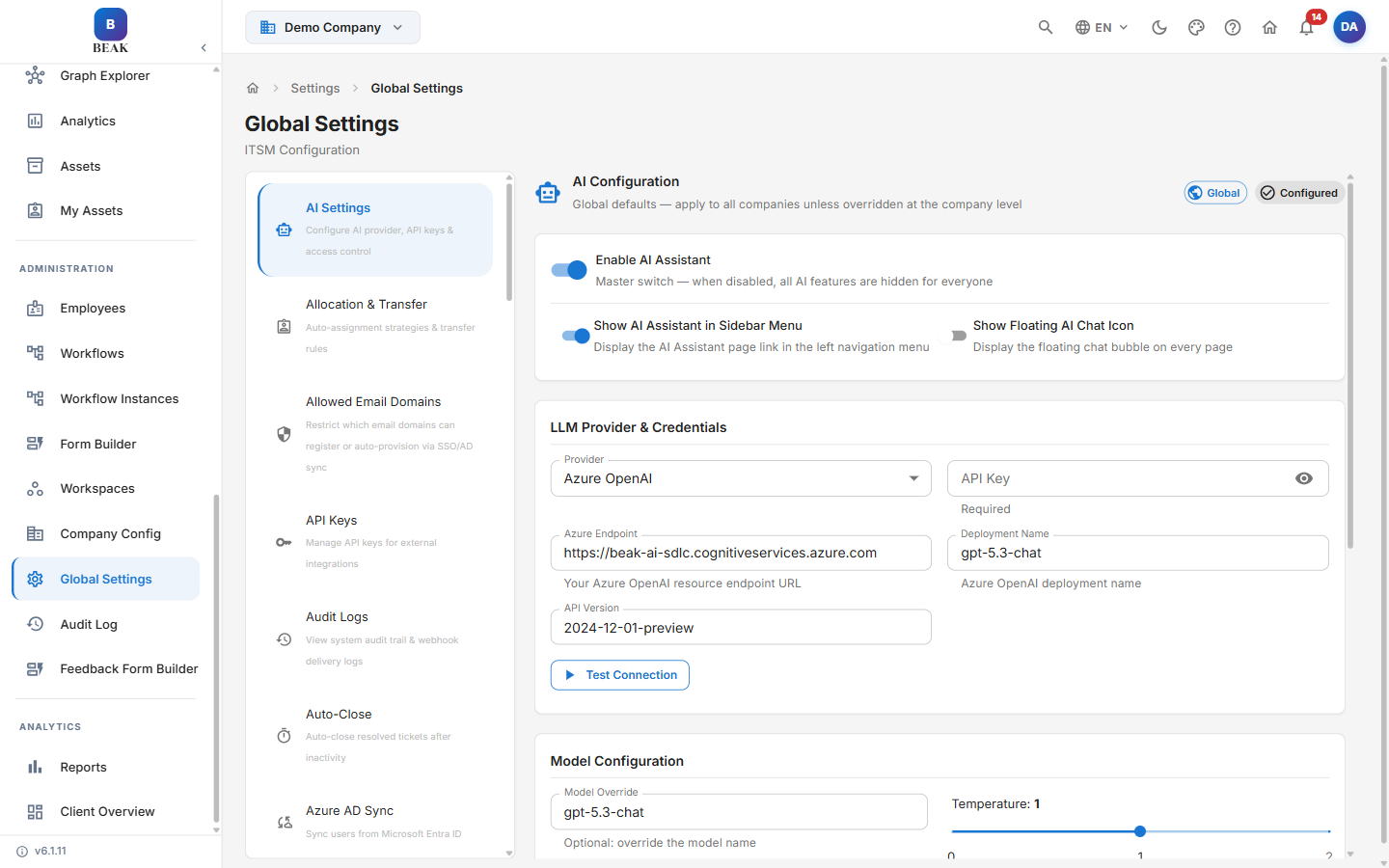
Global Settings Navigation
Global Settings opens on AI Settings. The section list on the left is ordered alphabetically — use it to jump to any area of configuration. The sections are grouped by area below for reference.
Tickets & SLA
- General Settings — System configuration, demo data loading, and ITIL seed data management.
- SLA Configuration — Manage SLA policies, response targets, and resolution thresholds by priority and workspace.
- Target Date Reminders — Configure Target Date overdue notifications as an alternative to SLA-based tracking.
- Business Hours & Holidays — Manage locations, work schedules, and holiday calendars. SLA timers respect configured business hours.
- Ticket Types — Configure system and custom ticket types.
- Scheduler — Schedule one-time or recurring tasks for automatic ticket creation, with optional child tickets.
- Categories & Types — Configure ticket categories and nested subcategories used for routing, reporting, and form resolution. Creating, renaming and deleting them requires the Category: Create, Edit & Delete Categories permission; see Category management permission.
- Priority & Severity — Configure priority and severity values globally and per workspace.
- Ticket ID Prefixes — Configure the ticket ID format per ticket type and workspace (for example,
INC-,CHG-). - Ticket Sources — Configure the source and sub-source channels a ticket can arrive through.
Routing & Workflow
- Queue Management — Manage ticket queues and assignment. Queues group tickets for team-based routing and load balancing.
- Workspace Management — Create and manage the workspaces that scope tickets, dashboards, and SLA tracking per team.
- Allocation & Transfer — Configure auto-assignment strategies and ticket transfer rules.
- Workflow Configuration — Manage workflow statuses and transitions.
- Auto-Close — Auto-close resolved tickets after a period of inactivity.
- Parent / Child Auto-Close — Auto-close parent and child tickets together, in one chosen direction.
- Platform Rules — Configure automated rules to auto-delete, escalate, close, cancel, and more.
- Note Access Control — Control which roles can add and view private notes.
- Resolution & Cancellation — Configure the popup prompting for Solution Type and Comment when tickets are resolved, closed, or cancelled, scoped by tenant, company, or workspace.
- Pagination & Lazy-Load — Choose pagination or infinite scroll for ticket, incident, change, problem, and service-request lists.
Notifications & Email
- Notifications — Configure notification preferences for agents and end users.
- Email Templates — Design email notification templates for ticket events such as creation, assignment, resolution, and SLA breach.
- Email Settings — Configure SMTP and email settings, including inbound email-to-ticket parsing.
Users, Access & Identity
- User Management — Manage users and access. Invite, manage, and deactivate accounts and assign users to workspaces and roles.
- Roles & Permissions — Configure roles and granular permission sets controlling access to modules and actions.
Category management permission
Categories and subcategories are shared across every workspace and are referenced by every ticket, so removing one affects tickets tenant-wide. Changing the category tree therefore requires an explicit permission rather than administrator status alone.
- Permission: Category: Create, Edit & Delete Categories (
manage_categories), granted per role in Settings → Roles & Permissions. - Roles with full access (the built-in admin and superadmin) have it automatically — no action needed.
- Custom roles that list their permissions individually must be granted it. Without it, the Add, Edit and Delete controls in Settings → Categories & Types are hidden and the underlying requests are refused. Viewing categories and selecting them on a ticket are unaffected.
- Hiding a category from specific users and setting display order stay under the separate Category: Manage Visibility & Display Order permission, which every role must be granted explicitly.
- SSO / OAuth — Configure Single Sign-On providers.
- Allowed Email Domains — Restrict which email domains can register or auto-provision via SSO and AD sync.
- Domain Mismatch Log — Review login attempts whose email domain did not match the configured policy.
- MFA Service — Configure the email delivery channel for MFA one-time codes (SMTP or Microsoft 365).
- Azure AD Sync — Sync users from Microsoft Entra ID into BEAK ITSM on a scheduled or on-demand basis.
- Employee Directory — View synced employee profiles and org chart.
- Menu Order — Configure the sidebar menu order per role.
Platform & Integrations
- Branding — Configure platform name, logo, and visual identity.
- Custom KPI Card — Add custom dashboard tiles and reorder or hide KPI cards, separately for the Team and My Work views.
- API Keys — Manage API keys for external integrations.
- Webhooks — Configure outbound webhook notifications.
- Connectors — Manage outbound integrations and custom REST endpoints.
- Audit Logs — View the system audit trail and webhook delivery logs.
- AI Settings — Configure AI provider, API keys, and access control.
- Companies — Manage all companies in this tenant.
- Backup & Restore — Database backup management.
- Data Migration — Import data from legacy ITSM systems.
AI Settings
AI Settings is the section Global Settings opens on. Values set here are global defaults that apply to every company in the tenant unless a company overrides them in Company Config. The header shows whether you are editing the Global scope and whether the provider is already Configured.
AI Configuration
- Enable AI Assistant — Master switch. When disabled, all AI features are hidden for everyone.
- Show AI Assistant in Sidebar Menu — Display the AI Assistant page link in the left navigation menu.
- Show Floating AI Chat Icon — Display the floating chat bubble on every page.
LLM Provider & Credentials
Select the Provider (for example, Azure OpenAI) and supply its credentials — API Key, Azure Endpoint, Deployment Name, and API Version. Use Test Connection to confirm the credentials before saving.
Note: The API key is required before the AI Assistant will respond. Until a connection succeeds, the assistant stays unavailable to users even when the master switch is on.
Model Configuration
- Model Override — Optionally pin a specific model name instead of the deployment default.
- Temperature — Response creativity on a 0–2 scale. Lower is more focused, higher is more creative.
- Embedding Provider — The embedding model used to index knowledge base content (for example, FastEmbed, which runs locally at no cost).
Knowledge Base (RAG) Settings
- Top K Results — How many knowledge base articles to retrieve for each answer.
- Similarity Threshold — Minimum relevance score an article must meet to be used. Higher is stricter.
Access Control
Select which roles can access the AI Assistant — Super Admin, Admin, Manager, Technician, CAB Member, Problem Manager, Viewer, and Requester. Admin and Super Admin always have access.
See AI Assistant for what the assistant can do once it is configured.
Employee Directory
The Employees section (accessible directly from the sidebar under Administration) displays the Employee Directory — a searchable table of all employees in your organization.
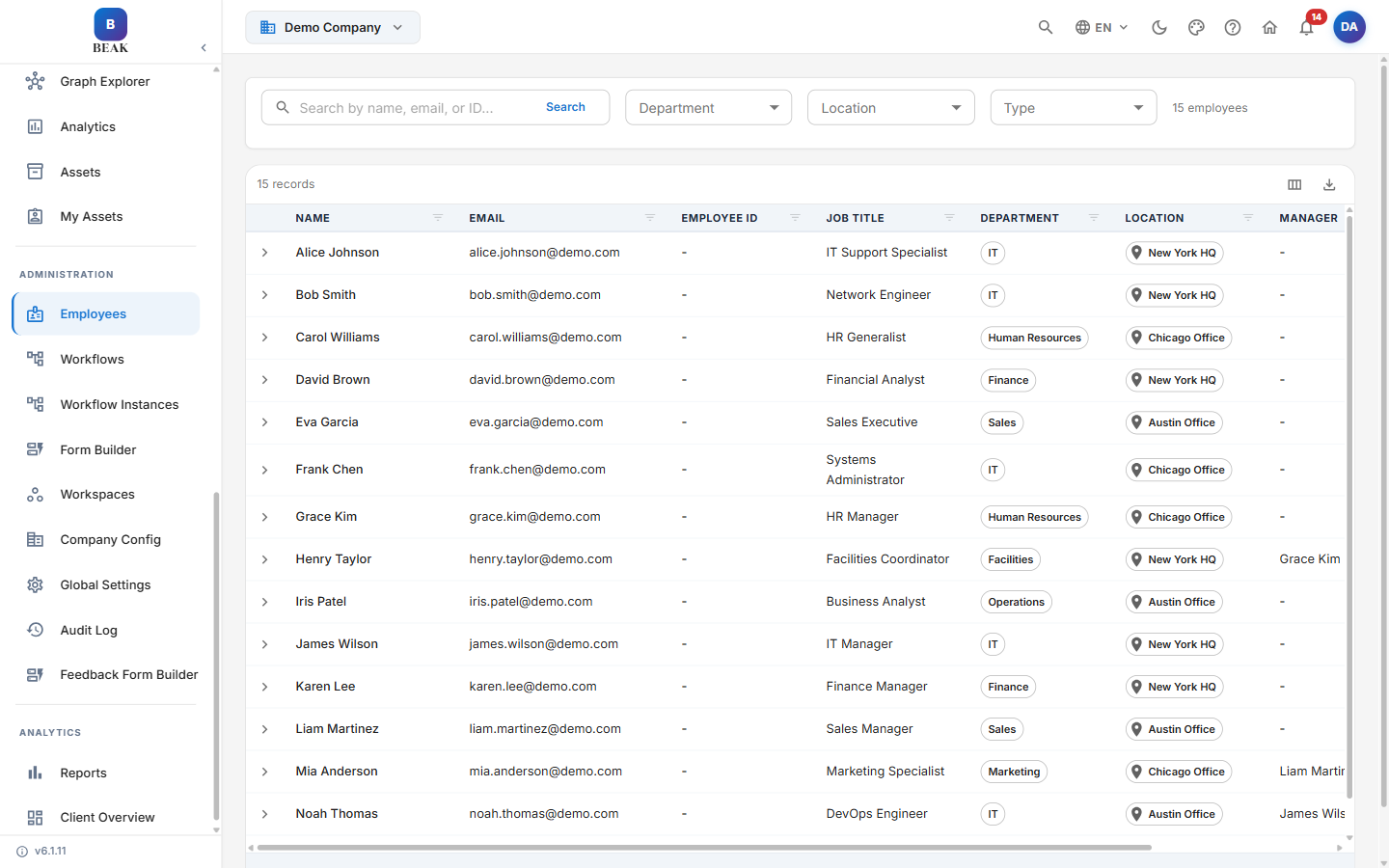
The directory includes the following columns:
- Name — Employee's full name
- Email — Work email address
- Employee ID — Unique identifier from the HR system
- Job Title — Role or position
- Department — Organizational department
- Location — Physical or remote work location
- Manager — Reporting manager
Employees can be filtered by Department, Location, and Type. Use the search field to locate specific employees by name or email.
Note: The Employee Directory is populated via Azure AD Sync or manual entry. When Azure AD Sync is configured, the directory updates automatically on each sync cycle.
Data Seeding
General Settings includes a set of data-seeding tools for populating a new instance with ITIL industry-standard reference data. These tools will not duplicate records that already exist.
Load Demo Data
The Load Demo Data function populates your BEAK ITSM instance with a complete set of ITIL industry-standard reference data, including:
- Sample companies (BeakOps, iLink) and organizational structure
- Pre-configured workspaces (IT, HCM, Facilities, Admin, Travel, Immigration)
- Categories and subcategories covering common ITIL service domains
- SLA configurations
- Email notification templates for ticket lifecycle events
- Workflow definitions
- ITIL-standard form definitions
- Queues
- Roles with standard ITSM permission sets
- Sample user accounts for testing
Note: Loading demo data is recommended for new instances during initial evaluation and configuration. Avoid loading demo data into production instances that already contain live tickets, as it will add records that cannot be bulk-removed.
Current Data Status
The Current Data Status panel shows live counts of seeded objects so you can confirm what already exists before seeding more. Tracked counts include Workspaces, Categories, Subcategories, SLA Configs, Notification Templates, Workflow Statuses, Workflow Transitions, Form Definitions, and Queues.
ITIL Standard Forms
Use Seed ITIL Standard Forms in General Settings to seed ITIL-standard form definitions into the Form Builder without loading the full demo data set. Five forms are seeded:
- Incident Report — Structured incident capture form with impact, urgency, and affected service fields.
- Service Request — Request form with fulfillment details and approval routing fields.
- Request for Change (RFC) — Full change request form including risk assessment, rollback plan, and CAB review fields.
- Problem Record — Root cause analysis form with affected CI and workaround capture.
- General Ticket — Flexible general-purpose support ticket form.
Each form is pre-configured with ITIL-aligned sections, field validation, and required field designations. See Form Builder for details on customizing these definitions.
Standard Workflows
Use Seed Standard Workflows in General Settings to seed pre-built workflow statuses and transition rules for all five modules — Incident, Service Request, Problem, Change, and General Ticket — including approval gates, without requiring manual workflow creation.
Global Controls
Several instance-wide controls are configured from Settings:
- Session Timeout — Set the idle timeout before users are signed out, from 5 minutes up to 24 hours. User activity resets the timer.
- Auto-Refresh Interval — Set how often ticket detail screens automatically refresh, from 5 to 300 seconds.
- Feature Flags — Enable or disable optional capabilities per company. For example, the Pause / On Hold Ticket Feature flag enables pausing tickets and surfaces the Pending / On Hold KPI card.
Data Migration
BEAK ITSM includes a built-in Data Migration tool for importing data from legacy ITSM systems. The migration wizard guides administrators through three steps:
- Load & Preview — Connect to the legacy instance and preview the data to be migrated, including ticket counts, category mappings, and configuration objects.
- Configure — Map legacy categories, statuses, and custom fields to their BEAK ITSM equivalents. Resolve any conflicts flagged during the preview step.
- Confirm & Migrate — Review the final migration plan and execute the migration. The tool transfers tickets, categories, and configurations into the BEAK ITSM instance.
Note: Run the migration in a staging or UAT environment before executing against production. Migration is not reversible once confirmed.