Problem Management
Problem Management identifies the underlying root cause of one or more incidents and works to prevent recurrence. BEAK ITSM provides a structured, ITIL-aligned problem workflow with a dedicated Known Error Database (KEDB) for documenting root causes and workarounds.
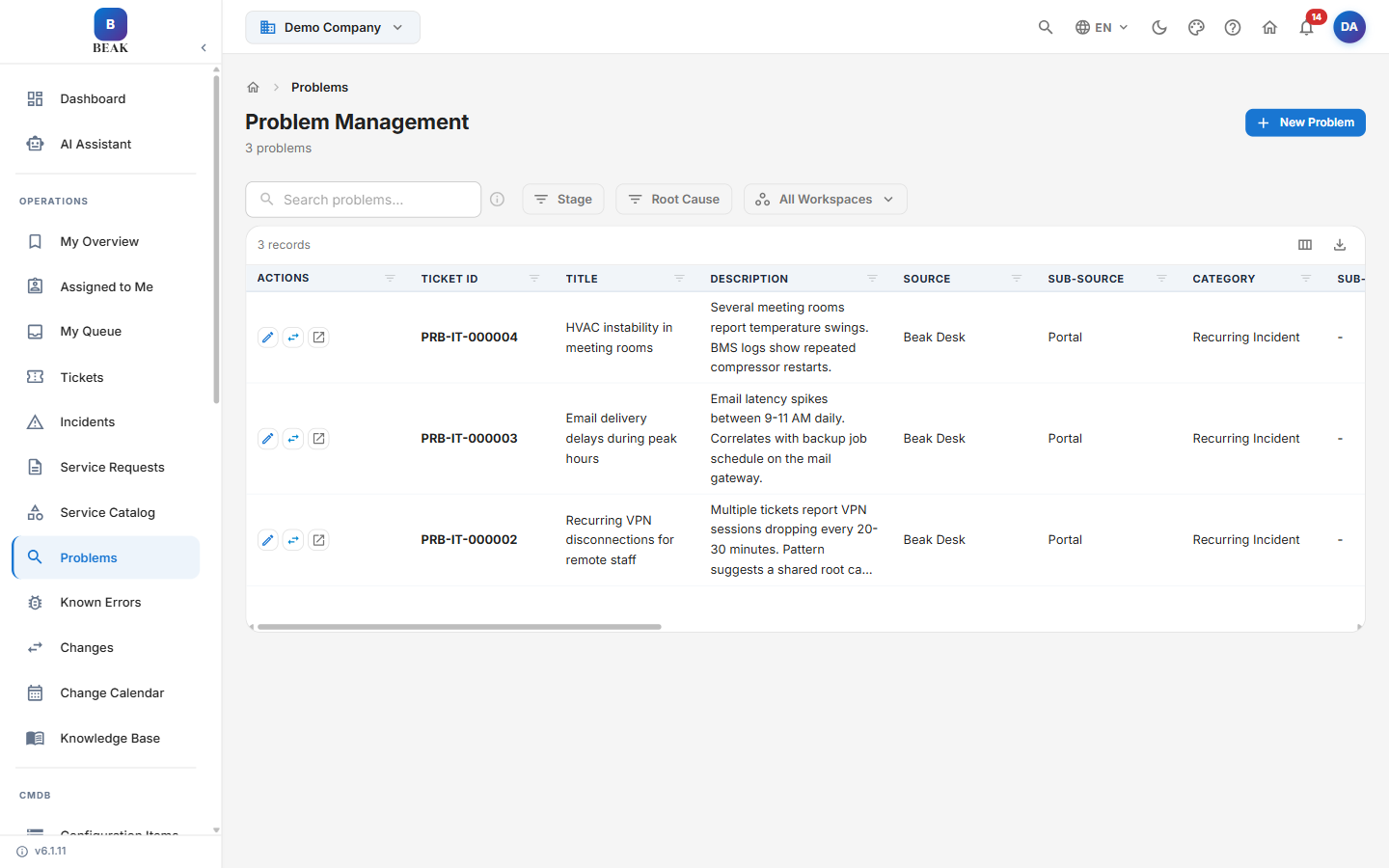
Problem List View
All problems are accessible from the Problem Management section of the sidebar. Unlike incidents, problems track a Stage rather than a status, and surface their identified Root Cause alongside the count of linked Incidents. The list view presents the following columns:
- Actions — Row-level actions for the problem record
- Ticket ID — Unique problem identifier
- Title — Brief description of the problem being investigated
- Description — Summary of the problem
- Source — Channel through which the problem originated
- Sub-Source — More specific origin within the source channel
- Category — Domain classification of the problem
- Sub-Category — More specific classification within the category
- Stage — Current workflow stage (see Problem Lifecycle below)
- Severity — Impact level of the problem
- SLA Overdue Time — Time the problem is past its SLA target
- Response SLA Breached — Whether the response SLA has been breached
- Resolution SLA Breached — Whether the resolution SLA has been breached
- Root Cause — Documented root cause once identified (blank during active investigation)
- Incidents — Count of linked incidents
- Impacted User — The user affected by the problem
- Occurred On — Date the problem was first observed
- Created By — The user who created the record
- Last Updated On — Date the record was last modified
- Last Updated By — The user who last modified the record
Available filters: Stage, Root Cause, All Workspaces
Click New Problem to open a new problem record.
Problem Lifecycle
Problems progress through eleven stages from initial logging through to closure, reflecting the full ITIL problem management workflow:
Logged → Categorized → Investigation → Root Cause → Known Error → Workaround → Resolution Planned → Major Review → Resolved → Trend Analysis → Closed
Logged— The problem record has been created and is awaiting initial categorizationCategorized— The problem has been classified by domain and assigned to an investigation teamInvestigation— Active root cause investigation is underwayRoot Cause— The underlying root cause has been identified and documentedKnown Error— The problem has been promoted to a Known Error with a documented root cause and optional workaroundWorkaround— A temporary workaround has been documented and is available for use by support teamsResolution Planned— A permanent fix has been identified and is scheduled for implementationMajor Review— The problem is undergoing a formal review before resolution can be appliedResolved— The permanent fix has been applied and verifiedTrend Analysis— Post-resolution analysis is underway to identify patterns and prevent recurrenceClosed— All review and trend analysis is complete; the problem record is finalized
Note: A problem transitions to
Known Erroras soon as the root cause is confirmed, even if no fix is yet available. This ensures the KEDB stays current and support teams can apply workarounds immediately.
Creating a Problem
To open a new problem record:
- Click New Problem from the problem list view
- Fill in the required fields:
- Title* — A concise description of the problem (e.g., "VPN disconnections affecting remote users in APAC")
- Description* — Detailed account of the problem, including observed symptoms, affected systems, and any initial analysis
- Workspace — The team or department context for the problem
- Category* — Classify the problem by domain (e.g., Network, Application, Infrastructure, Security)
- Severity* — Select the business impact level:
Critical,High,Medium, orLow
The form includes a second section with additional context fields:
- Related Incidents — Search and link one or more incidents that prompted or are associated with this problem
- Initial Hypothesis — Document the initial theory about the root cause to guide investigation
- Impact Description — Describe the business impact of the problem, including affected users and services
- Submit the record. The problem enters the
Loggedstage by default.
Note: Problems can be created proactively, not just reactively. Teams should log problems when recurring incident patterns are observed, even before a specific root cause is confirmed.
Problem Detail View
Click any problem ID in the list to open the full detail page. The detail view includes a Problem Lifecycle progress bar at the top showing the problem's current stage.
Tabs
The problem detail page includes nine tabs:
- Details — Full problem description and structured fields captured at creation
- Notes — Add internal observations and investigation updates with optional Private note (internal only) visibility
- Root Cause Analysis — Dedicated space for documenting the RCA process, findings, and confirmed root cause
- Known Error — Displays the Known Error record once the root cause is identified, including the documented workaround
- Activity — Complete audit trail of all status transitions, assignments, and field changes
- Attachments — Upload supporting evidence such as logs, diagrams, and vendor correspondence
- Tasks — Break the investigation and resolution into trackable sub-tasks
- Child Tickets — Create linked child tickets for sub-issues requiring independent tracking
- Related Incidents — View and manage all incidents linked to this problem, with direct navigation links
Summary Sidebar
The sidebar displays key metadata:
- Stage — Current lifecycle stage
- Severity — Impact level
- Priority — Resolution urgency
- Assignee — The agent or team investigating
- Assigned Queue — The support queue
- Category — Problem classification
- Created — Date the problem was opened
Known Error Database (KEDB)
The Known Error Database (KEDB) is a dedicated repository for documented known errors and workarounds. It opens at the Known Error Database view (route /itsm/problems/kedb).
The KEDB list view includes the following columns:
- KEDB ID — Unique identifier for the known error record
- Title — Name of the known error
- Root Cause — The identified underlying cause of the error
- Status — Current state of the known error
- Workaround — The documented workaround for the known error
- Problems — Count of linked problem records
- Occurred On — Date the known error was first observed
- Created By — The user who created the record
- Last Updated On — Date the record was last modified
- Last Updated By — The user who last modified the record
Available filters: Status, Workaround
The KEDB serves as the primary reference for support agents resolving incidents related to known errors. When an agent identifies that an incident matches a known error, they can apply the documented workaround immediately — reducing mean time to resolution (MTTR) without waiting for a root-cause investigation.
Note: KEDB entries are created automatically when a problem transitions to the "Known Error" stage. They can also be created or edited manually by problem managers.
Linking Problems to Incidents
Problems can be associated with one or more incidents to surface patterns and measure the business impact of a root cause.
- Link incidents when creating a new problem using the Related Incidents field
- Add or remove incident links from within an existing problem record at any time
- The Incidents column in the problem list shows the current linked count
- Linked incidents display a reference to the parent problem record on their own detail pages
Note: Linking problems to incidents enables trend analysis in Reports & Analytics, including incident recurrence rates and time-to-root-cause metrics.
Best Practices
- Log problems proactively — Do not wait for incidents to escalate. If a pattern is observed, open a problem record early to begin structured investigation.
- Keep KEDB workarounds current — Outdated workarounds slow down incident resolution. Review and update KEDB entries whenever a known error's symptoms or mitigation steps change.
- Link all related incidents — Comprehensive incident linking provides accurate data for trend reporting and helps justify prioritization of problem resolution.
- Document root causes thoroughly — A well-documented root cause accelerates future investigations if a similar problem recurs and provides clear context for post-incident reviews.
- Use Trend Analysis after resolution — After resolving a problem, use the
Trend Analysisstage to identify patterns and implement preventive measures before closing the record.
Related Pages
- Incident Management — Reporting, triaging, and resolving incidents that may be linked to problems
- Change Management — Scheduling fixes identified through root cause analysis
- Reports & Analytics — Problem trends, recurrence rates, and KEDB utilization metrics