Service Requests & Service Catalog
Service Requests allow users to request IT services through a structured self-service catalog. Each request follows a defined approval workflow before fulfillment begins, ensuring accountability and proper authorization across all service types.
Service Catalog
The Service Catalog is titled "Service Catalog — Browse and request IT services" and presents a "How can we help you today?" hero banner at the top of the page. Users can search across all available services or filter by category.
Quick Actions available from the catalog header:
- Report Incident — Open a new incident report for an unplanned disruption or service degradation
- New Ticket — Create a general support ticket outside of the catalog
- Request Change — Submit a formal Request for Change (RFC) to the change management workflow
- Log Problem — Record a recurring or unresolved root-cause issue
Category tabs:
All, Access Management, Software, Hardware, Account Management, Onboarding/Offboarding
The catalog currently lists 25 services available across five categories. Each service card displays the service name, category tag, a short description, the fulfillment team (IT or HCM), and a Request button.
Available Services
The catalog organizes its 25 services into five categories. Each service is fulfilled by either the IT team or the HCM (Human Capital Management) team.
| Service | Category | Fulfillment Team |
|---|---|---|
| New User Access | Access Management | IT |
| Access Modification | Access Management | IT |
| Access Revocation | Access Management | IT |
| Password Reset | Access Management | IT |
| MFA Setup | Access Management | IT |
| Software Installation | Software | IT |
| License Request | Software | IT |
| Software Upgrade | Software | IT |
| Software Removal | Software | IT |
| Configuration Change | Software | IT |
| New Laptop/Desktop | Hardware | IT |
| Monitor Request | Hardware | IT |
| Peripheral Request | Hardware | IT |
| Mobile Device | Hardware | IT |
| Hardware Replacement | Hardware | IT |
| New Account Creation | Account Management | IT |
| Account Deactivation | Account Management | IT |
| Group Membership | Account Management | IT |
| Distribution List | Account Management | IT |
| Shared Mailbox | Account Management | IT |
| New Employee Setup | Onboarding/Offboarding | HCM |
| Employee Transfer | Onboarding/Offboarding | HCM |
| Employee Offboarding | Onboarding/Offboarding | HCM |
| Contractor Onboarding | Onboarding/Offboarding | HCM |
| Contractor Offboarding | Onboarding/Offboarding | HCM |
Note: Onboarding/Offboarding services are fulfilled by the HCM team; all other categories are fulfilled by IT.
Submitting a Service Request
There are two ways to initiate a service request:
- Click Request on any service card in the catalog to open a pre-populated form for that service
- Click Request Service from the service request list view to select a service and fill in all details manually
Fill in all required fields on the request form. Required fields vary by service type but typically include a description of the need, urgency, and any relevant supporting context.
Note: Some service types may present additional fields specific to that category, such as the target system for a Database Access request or the software title for a Software Access request.
Once submitted, the request is logged and routed for approval if the service requires it.
Service Request List View
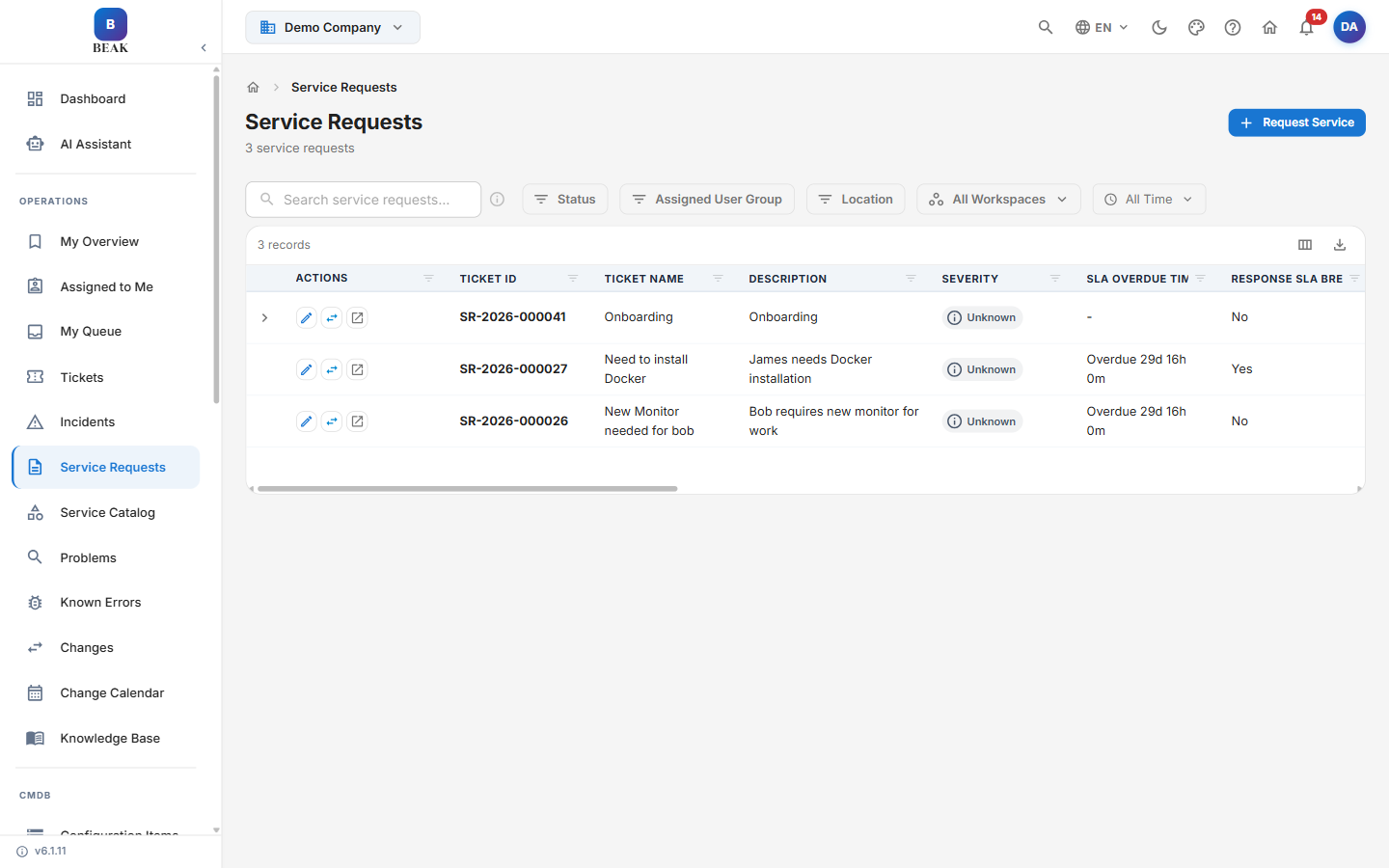
The Service Request list provides a consolidated view of all requests submitted within the workspace, with a record count in the header. Requests use the SR-YYYY-XXXXXX identifier format (for example, SR-2026-000041). The list includes the following columns:
- Actions — Row-level operations for the request
- Ticket ID — Unique request identifier in
SR-YYYY-XXXXXXformat - Ticket Name — Name of the requested service
- Description — Summary of the request
- Severity — Request severity
- SLA Overdue Time — Time the request is past its SLA target
- Response SLA Breached — Whether the response SLA target was breached
- Resolution SLA Breached — Whether the resolution SLA target was breached
- Source — Channel the request came in through
- Sub-Source — Sub-channel detail for the source
- Category — Service classification
- Sub-Category — Service sub-classification
- Ticket Status — Current fulfillment state
- Created By — The user who created the record
- Impacted User — The user affected by the request
- Last Updated On — Date and time of the most recent update
- Assigned User Group — The group the request is assigned to
- Location — The location associated with the request
- Occurred On — Date the request occurred
The list header provides a Request Service button to open a new service request, along with the following filters:
- Status — Filter by ticket status
- Assigned User Group — Filter by the assigned group
- Location — Filter by location
- All Workspaces — Scope the list to a workspace
- All Time — Scope the list to a time range
Note: Fulfillment begins only after the approval workflow completes for service types that require approval.
Service Request Detail View
Click any request ID in the list to open the full detail page. The detail view includes an Approval Progress tracker at the top showing the request's position in the approval workflow:
Submitted → Pending Approval → Approved → Fulfillment → Closed
Submitted— The request has been submitted and is awaiting reviewPending Approval— The request is awaiting approval from designated approversApproved— Approval has been granted; fulfillment can beginFulfillment— The service is being provisioned or deliveredClosed— The request has been fulfilled and closed
Summary Sidebar
The summary sidebar displays key metadata:
- Status — Current fulfillment state
- Approval — Current approval state
- Requested By — The user who submitted the request
- Assignee — The agent handling fulfillment
- Assigned Queue — The support queue
- Category — Service classification
- Submitted — Date and time of submission
SLA Status
- Response SLA % — Percentage of the response time target consumed
- Resolution SLA % — Percentage of the resolution time target consumed
Tabs
The detail page includes the following tabs:
- Details — Full description and structured fields captured at intake
- Notes — Add notes with an option for Private note (internal only) visibility
- Activity — Audit trail of all status transitions, assignments, and field changes
- Attachments — Upload supporting files (maximum 10 files per request)
- Tasks — Break fulfillment into trackable sub-tasks
- Child Tickets — Create linked child tickets for sub-items requiring independent tracking
Actions Menu
The Actions dropdown provides quick operations:
- Edit — Modify the request details
- Assign to Me — Take ownership of the request
- Transfer — Reassign to a different agent or queue
- Close — Close the request after fulfillment
- Cancel — Cancel the request if no longer needed
Approval Workflows
Service requests can require one or more approvals before fulfillment begins. Approval status is tracked independently from the request status, giving teams a clear picture of where a request stands at each stage.
- Approval status reflects whether the necessary approvers have reviewed and responded to the request
- Request status reflects the fulfillment progress once approval is granted
- If a request is Rejected, fulfillment is halted and the requester is notified with the rejection reason
- Approvers are configured per service type in Settings & Configuration
Note: The requester receives notifications at each stage of the approval workflow. Approvers receive an email notification when a request is pending their review.
Related Pages
- Incident Management — Reporting and triaging unplanned service disruptions
- Change Management — Submitting and reviewing infrastructure change requests
- Settings & Configuration — Configuring approval workflows and SLA policies per service