Knowledge Base
The Knowledge Base provides a centralized library of articles, guides, and documentation. It enables self-service resolution, reduces ticket volume, and preserves institutional knowledge across teams and support cycles.
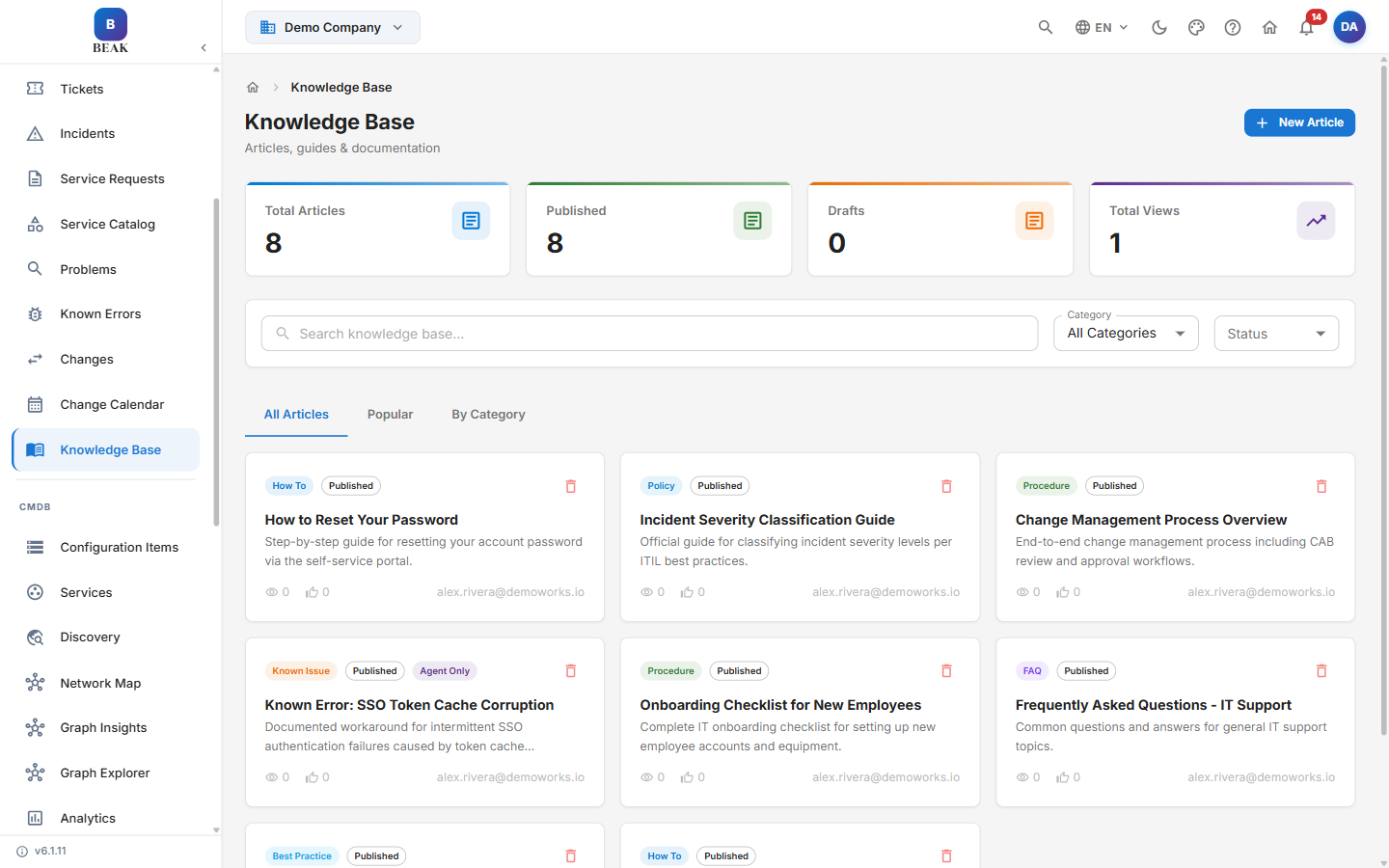
Knowledge Base Dashboard
The Knowledge Base Dashboard gives a top-level view of content health and usage through four summary cards:
- Total Articles — The total count of all articles in the knowledge base, including drafts and published content.
- Published — The number of articles currently live and accessible to end users.
- Drafts — The number of articles in progress that have not yet been published.
- Total Views — The cumulative view count across all published articles, indicating overall usage.
Note: Dashboard metrics help identify whether the knowledge base is growing and whether content is being consumed. Low view counts on published articles may indicate discoverability or relevance issues.
Browsing Articles
The article browser supports three views to suit different browsing needs:
- All Articles — Displays the complete list of articles regardless of status or category.
- Popular — Surfaces the most-viewed articles, useful for identifying high-demand topics.
- By Category — Groups articles by topic for structured browsing.
Search and Filtering
- Search — Full-text search across all article titles and content.
- Category filter — Use the All Categories dropdown to restrict results to a specific topic area.
- Status filter — Filter the list to show Published articles, Drafts, or both.
Each article card displays:
- Category badge — The article type, such as
How To,Policy,Procedure,Known Issue,FAQ, orBest Practice. - Status — The publication state, either
PublishedorDraft. - Agent Only — An optional visibility flag indicating the article is restricted to agents and not surfaced to end users.
- Title — The article name.
- Description — A short summary of the article content.
- Views — The number of times the article has been viewed.
- Helpful count — The number of users who marked the article as helpful.
- Author — The team member who created or last edited the article.
Creating a New Article
- Click the New Article button from the Knowledge Base dashboard or article list.
- Fill in the required fields:
- Title — A clear, descriptive name for the article.
- Category — Select the topic area the article belongs to.
- Content — Write the article body using the rich text editor. Supports headings, lists, tables, code blocks, and inline formatting.
- Tags — Add relevant keywords to improve search discoverability.
- Choose a publish action:
- Save as Draft — Saves the article without making it visible to end users.
- Publish — Makes the article immediately available in the knowledge base.
Note: Articles saved as drafts are only visible to administrators and authors. They do not appear in end-user search results or the Popular and By Category views.
Note: Articles can be flagged Agent Only to restrict their visibility to support agents. Agent Only articles are not surfaced to end users even when published.
Article Lifecycle
Articles move through a two-stage lifecycle:
- Draft — The article is being authored or reviewed. It is not visible to end users.
- Published — The article is live and accessible. It appears in search results, category views, and the Popular tab.
Articles can be moved back from Published to Draft status at any time for editing, updates, or temporary removal from the knowledge base.
Note: Unpublishing an article does not delete it. The article and its view history are retained and can be republished after edits are complete.
Categories
Categories classify each article by content type, making it easier for users to browse and find relevant content without relying solely on search. The available categories are:
- How To — Step-by-step instructions for completing a task.
- Policy — Organizational rules, standards, or governance documents.
- Procedure — Defined processes and operational workflows.
- Known Issue — Documented problems and their workarounds or status.
- FAQ — Answers to frequently asked questions.
- Best Practice — Recommended approaches and guidance.
Assign every article to a category when creating or editing it, and use the Category filter in the article list to browse all content within a single category.
Note: Uncategorized articles are harder to discover through browsing. Assigning a category is strongly recommended for all published content.
Article Metrics
The knowledge base tracks usage at both the individual article level and the aggregate level:
- Per-article views — Visible on each article card in the list view, showing how many times that article has been opened.
- Helpful count — Shown on each article card, indicating how many users found the article useful.
- Total Views — Displayed on the Dashboard, representing the cumulative views across all articles.
- Popular tab — Automatically ranks articles by view count, identifying which topics receive the most attention.
Use these metrics to:
- Identify high-traffic articles that may need more frequent review to stay accurate.
- Detect articles with low view counts that may need better titles, tags, or category placement.
- Spot gaps in coverage by comparing ticket topics against available articles.
Best Practices
- Write clear, specific titles — Titles should describe the problem or task precisely. A title like "How to Reset Your VPN Password" is more findable than "VPN Issues."
- Use categories consistently — Agree on a category taxonomy before creating articles and apply it uniformly. Avoid creating overlapping or redundant categories.
- Keep articles up to date — Schedule periodic reviews of published articles, especially after software updates, policy changes, or infrastructure changes.
- Use tags to improve discoverability — Add synonyms, product names, and common error messages as tags so articles surface in varied search queries.
- Save as Draft first for review workflows — Use Draft status to allow peer review or manager approval before articles are published to end users.
- Review metrics to identify gaps — Compare the topics of frequently submitted tickets against existing articles. High-volume ticket topics with no corresponding article indicate content gaps. See AI Triage & Routing for how ticket categorization can inform knowledge base priorities.