Workspaces
The Workspaces page is an overview and dashboard that lets you segment service delivery by team or business function. Each workspace operates independently with its own ticket queue, categories, SLA policies, and metrics, so the workflows and reporting for one team do not bleed into the visibility of another. Use the Select Workspace control at the top of the page to view a single workspace or aggregate every workspace into a single All Workspaces dashboard.
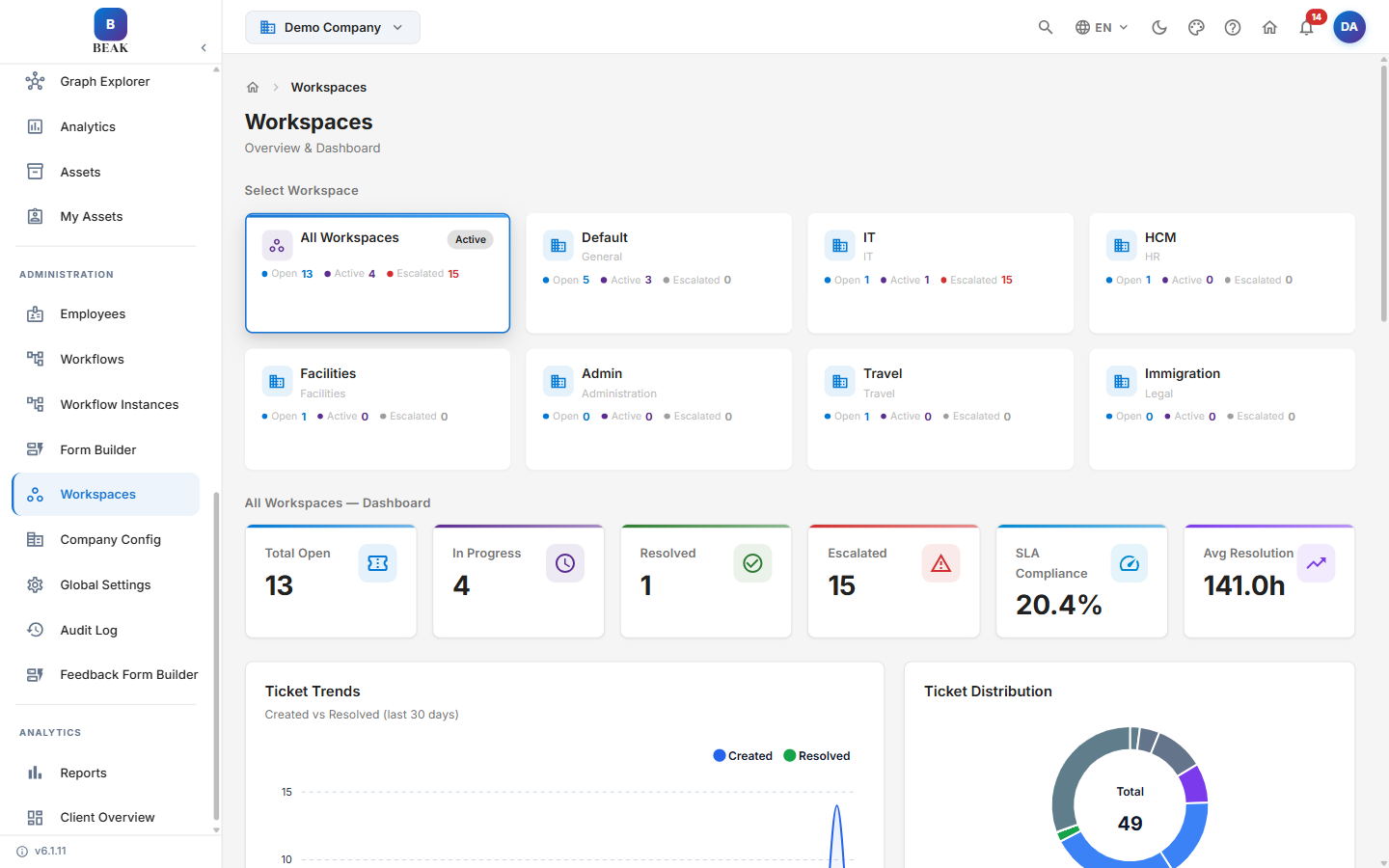
Available Workspaces
BEAK ITSM ships with the following default workspaces. Each workspace shows a name and a type label:
- Default — General-purpose workspace for support tickets not assigned to a specific team (type label: General).
- IT — Dedicated workspace for the IT department, handling infrastructure, hardware, and software support tickets.
- HCM — Human Capital Management workspace for HR-related requests and employee support (type label: HR).
- Facilities — Handles facilities management requests such as office maintenance, access, and equipment.
- Admin — Administration team workspace for internal administrative support requests (type label: Administration).
- Travel — Manages travel-related requests including bookings, approvals, and expense support.
- Immigration — Immigration and legal request handling for employee visa and work permit processes (type label: Legal).
Workspace Selection
The Select Workspace control at the top of the Workspaces page lists every available workspace as a card. Each card displays the workspace name, its type label, and a summary of ticket counts:
- Open — Tickets that are currently open in the workspace.
- Active — Tickets that are actively being worked.
- Escalated — Tickets that have been escalated.
To switch context:
- Click the desired workspace card to load its scoped dashboard.
- Select All Workspaces to aggregate metrics across every workspace into a unified view.
All ticket lists, queues, and reports displayed are scoped to the selected workspace unless you are in the All Workspaces view.
Note: Agents are assigned to specific workspaces. An agent who is not a member of a workspace will not see that workspace's tickets in their queue.
Workspace Dashboard
Selecting All Workspaces displays an aggregate dashboard with the following metrics:
- Total Open — Count of all open tickets across every workspace.
- In Progress — Count of tickets actively being worked on.
- Resolved — Count of tickets resolved within the current reporting period.
- Escalated — Count of tickets that have been escalated.
- SLA Compliance — Percentage of tickets resolved within SLA targets.
- Avg Resolution — Mean time to resolve tickets.
Selecting an individual workspace scopes these same metrics to that workspace. The dashboard also includes:
- Ticket Trends — A time-series view of tickets Created vs. Resolved over the last 30 days.
- Ticket Distribution — A breakdown of tickets across the full status set.
- SLA At-Risk Tickets — A list of tickets approaching their SLA breach threshold.
- Recent Activity — A feed of the latest ticket actions, with a View All link to see the complete history.
Managing Workspaces
The Workspaces page itself is read-only — it is an overview and dashboard. Creating, editing, and deleting workspaces is handled in Global Settings > Workspace Management, and workspaces can also be set up during the Company Setup wizard. From Workspace Management you can:
- Create new workspaces and define their name, description, and default category set.
- Assign team members and agents to a workspace.
- Configure workspace-specific SLA policies that override global SLA defaults.
- Define workspace-level categories and subcategories.
- Deactivate workspaces that are no longer in use without deleting their historical ticket data.