Change Management
Change Management governs all modifications to IT infrastructure, services, and configurations. BEAK ITSM provides an ITIL-aligned change process with formal risk assessment, structured approval workflows through a Change Advisory Board (CAB), and a visual Change Calendar for scheduling coordination.
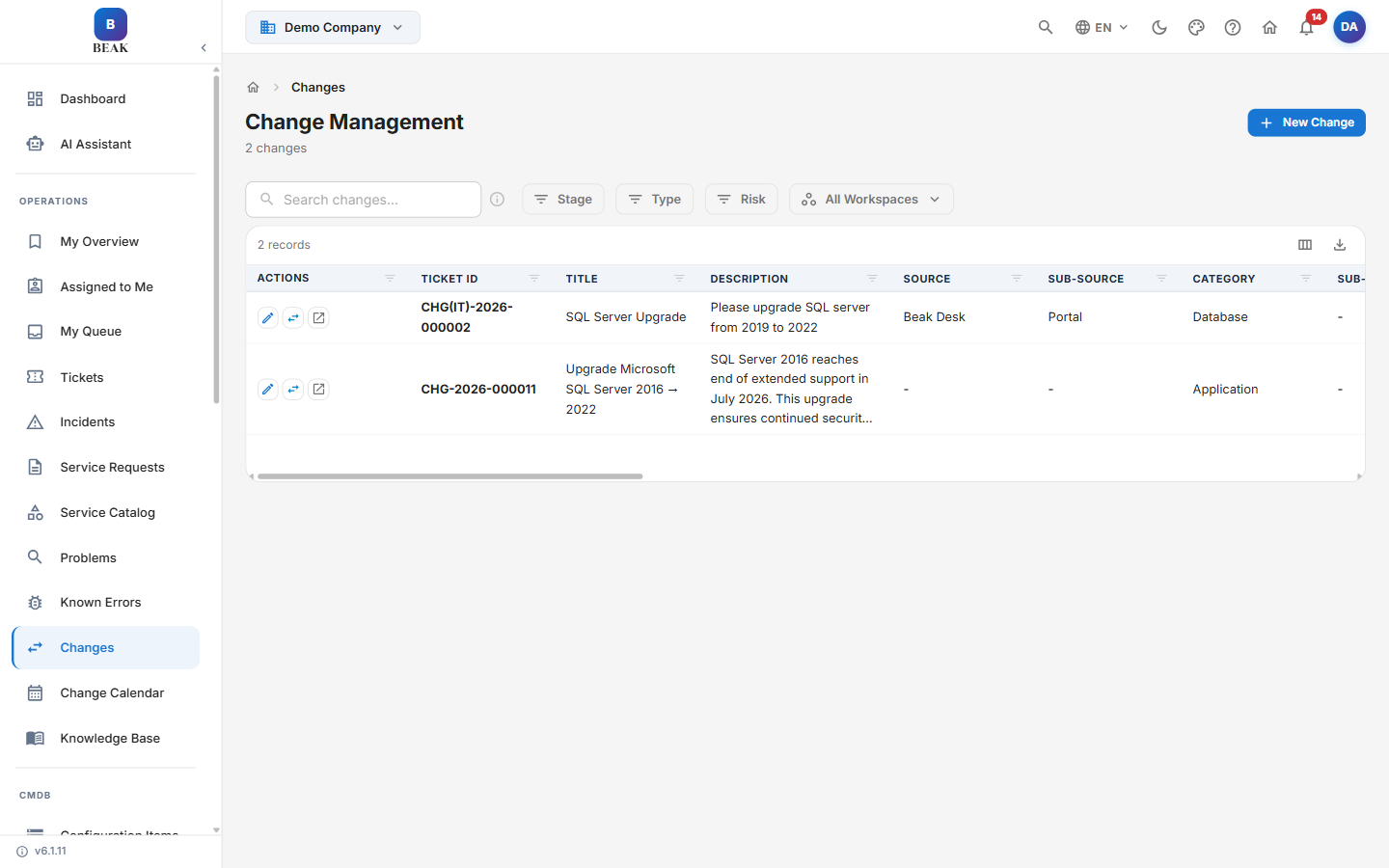
Change List View
All change records are accessible from the Change Management section of the sidebar. The list header shows the Change Management title and a count of records. Columns include:
- Ticket ID — Unique change identifier in
CHG(IT)-2026-000002format - Title — Brief summary of the proposed change
- Description — Short summary of what is changing
- Source / Sub-Source — How the change request originated
- Category / Sub-Category — Change classification by domain
- Type — Change classification:
Normal,Standard, orEmergency - Severity — Assessed severity of the change
- SLA Overdue Time — Time past the SLA target, if breached
- Response SLA Breached / Resolution SLA Breached — SLA breach indicators
- Stage — Current workflow stage in the change lifecycle
- Risk — Assessed risk level:
Critical,High,Medium, orLow - Assignee — The individual responsible for driving the change to completion
- Impacted User — The user affected by the change
- Occurred On — When the change was logged
- Created By — The user who created the record
- Last Updated On / Last Updated By — Most recent update timestamp and author
Available filters: Stage, Type, Risk, All Workspaces
Click New Change to open a new change request.
Change Types
| Type | Description |
|---|---|
| Normal Change | Standard changes requiring full impact assessment, documentation review, and CAB approval before implementation |
| Standard Change | Pre-approved, low-risk changes that follow established, repeatable procedures and do not require full CAB review each time |
| Emergency Change | Urgent changes required to restore service or prevent critical impact; follow an expedited approval path with retrospective CAB review |
Note: Emergency Changes should be used sparingly and only when a delay would result in significant business impact. All Emergency Changes must undergo retrospective CAB review after implementation.
Change Lifecycle
The change detail view shows a Change Lifecycle stepper. Changes progress through the following stages from submission to closure:
Draft → Submitted → Assessment → Approval → Approved → Scheduled → Implementing → Review → Closed
Draft— The change is being prepared and has not yet been submitted for reviewSubmitted— The change request has been logged and is awaiting initial reviewAssessment— The change is being evaluated for impact, risk, resource requirements, and scheduling feasibilityApproval— The change is under formal review and pending an approval decision (including CAB review)Approved— The change has been approved for implementationScheduled— The change is placed on the Change Calendar with a confirmed implementation windowImplementing— The change is actively being executed within the scheduled maintenance windowReview— The change is under post-implementation review to verify outcomes and document lessons learnedClosed— All review is complete; the change record is finalized
A change can also branch to Rejected (the approval decision declines the change) or Failed (implementation did not succeed).
Note: Standard Changes may bypass formal CAB review if a pre-approval template is in use. Emergency Changes follow an expedited path with retrospective CAB review after implementation.
Risk Levels
Each change is assigned a risk level during the Assessment stage. Risk reflects the potential impact to services and the likelihood of unintended consequences.
- Critical — High probability of widespread service disruption; requires the highest level of CAB scrutiny and a comprehensive rollback plan
- High — Significant impact potential affecting multiple systems or user groups; requires detailed impact analysis and mandatory CAB approval
- Medium — Moderate impact limited to specific systems or teams; standard assessment and approval process applies
- Low — Minimal impact with well-understood scope; may qualify for expedited review or Standard Change classification
Note: Risk level is determined by the change owner during submission and may be revised by the CAB during the Approval stage based on additional technical review.
Submitting a Change
To open a new change request:
- Click New Change from the change list view
- Fill in the change fields:
- Title — A concise description of the proposed change (e.g., "Upgrade PostgreSQL from 14 to 16 on prod-db-01")
- Description — Full details of what is changing, why, and what systems are affected
- Workspace — The team or department context for the change
- Category — Classify the change by domain
- Change Type — Select
Normal,Standard, orEmergency - Risk Level — Select the initial risk assessment:
Critical,High,Medium, orLow - Impact Level — The organizational scope of the change
- Assigned To — The owner responsible for the change
- Source / Sub-Source — How the change request originated
- Implementation Plan — Step-by-step description of how the change will be carried out
- Rollback Plan — Detailed steps to revert the change if implementation fails
- Scheduled Date — Proposed implementation date and maintenance window
- Submit the change. The record enters the
Submittedstage and is routed for assessment.
Note: A complete and detailed Rollback Plan is required for all Normal and Emergency Changes before a record can advance to the Approval stage.
Change Advisory Board (CAB) Review
The Change Advisory Board (CAB) is the governing body responsible for reviewing and approving Normal and Emergency Changes before implementation.
The CAB review process works as follows:
- The change owner submits the change and it completes the
Assessmentstage - The record enters the
Approvalstage and is placed on the CAB agenda for the next scheduled review meeting - CAB members review the change on the CAB Review tab, including the implementation plan, rollback plan, risk assessment, and any linked problem or incident records
- The CAB votes to Approve or Reject the change
- Approved changes advance to
Approvedand thenScheduled, appearing on the Change Calendar - Rejected changes move to
Rejectedand return to the change owner with documented reasons; the owner may revise and resubmit
CAB members can be configured per workspace in Settings & Configuration. Notifications are sent to all CAB members when a change enters the Approval stage.
Note: Standard Changes with an active pre-approval template do not require CAB review for each occurrence. The CAB reviews and approves the template itself; individual instances proceed automatically.
Change Detail View
Click any change ID in the list to open the full detail page. The detail view includes a Change Lifecycle progress bar at the top showing the change's current stage.
Tabs
The change detail page includes the following tabs:
- Details — Full change description, implementation plan, rollback plan, and structured fields
- SLA Details — Response and resolution SLA status and timers for the change
- Notes — Add internal observations and coordination updates with optional Private note (internal only) visibility
- Risk Assessment — Dedicated space for documenting the risk analysis, including Risk Level and Impact Level assessments with editable fields
- CAB Review — Records the CAB review process, including reviewer comments, votes, and approval/rejection decisions
- PIR — Post-Implementation Review tab for documenting whether the change achieved its intended outcome, deviations from plan, and lessons learned
- RCA — Root Cause Analysis tab for documenting any issues that arose during implementation and their underlying causes
- Activity — Complete audit trail of all status transitions, approvals, assignments, and field changes
- Attachments — Upload supporting documentation such as architecture diagrams, test results, and vendor approvals
- Tasks — Break the implementation into trackable sub-tasks with independent assignment and completion tracking
- Child Tickets — Create linked child tickets for related work requiring independent tracking
Change Summary
The Change Summary sidebar displays key metadata:
- Stage — Current lifecycle stage
- Impacted User — The user affected by the change
- Type —
Normal,Standard, orEmergency(e.g., Emergency Change) - Risk — Assessed risk level
- Owner — The change owner
- Queue — The assigned support queue
- Category / Sub Category — Change classification
- Source / Sub-Source — How the change request originated
- Scheduled — Planned implementation date
- Created — Date the change was created
- Modified At — Date and time of the most recent update
A separate SLA Status panel shows Response SLA and Resolution SLA state.
Change Calendar
The Change Calendar (route /itsm/changes/calendar) provides a monthly calendar grid showing scheduled changes plotted on their planned implementation dates. Titled Change Calendar — Scheduled changes overview, it gives teams a shared, at-a-glance view of upcoming maintenance activity across the organization.
Key capabilities of the Change Calendar:
- Monthly grid — A full month is displayed as a date grid, with each scheduled change shown on its planned date
- Month navigation — Use the forward and back controls to move between months and review upcoming or past scheduled changes
- Today — Use the Today button to jump back to the current month
- Click-to-view details — Click a change entry on the calendar to open the full change record
- Coordination across teams — Teams across different workspaces can reference the calendar to align their change schedules with organization-wide activity
Note: Only changes with a confirmed
Scheduled Dateappear on the Change Calendar. Records still in earlier stages such asDraft,Submitted,Assessment, orApprovalare not plotted until a date is assigned.
Best Practices
- Complete the rollback plan before submitting — A thorough rollback plan is the most important safeguard for any change. Write it before implementation, not after.
- Schedule changes during low-traffic windows — Use the Change Calendar to identify low-activity periods and avoid scheduling high-risk changes during peak business hours.
- Avoid clustering high-risk changes — Multiple concurrent high-risk changes compound the difficulty of isolating failures. Use the calendar to spread them across separate windows.
- Link related problem records — If a change is being made to resolve a known error, link the relevant problem record to the RFC for traceability between root cause and resolution.
- Conduct post-implementation reviews — Before closing a change record, document whether the change achieved its intended outcome, any deviations from the implementation plan, and lessons learned.
- Use Standard Change templates for repeatable work — Recurring low-risk activities such as certificate renewals or patch deployments should be templated and submitted through the Standard Change process to reduce CAB overhead.
Related Pages
- Problem Management — Linking changes to root cause investigations and known errors
- Incident Management — Identifying incidents caused by failed changes
- Settings & Configuration — Configuring CAB membership, change templates, and approval workflows
- Reports & Analytics — Change success rates, lead times, and emergency change frequency