Workflows
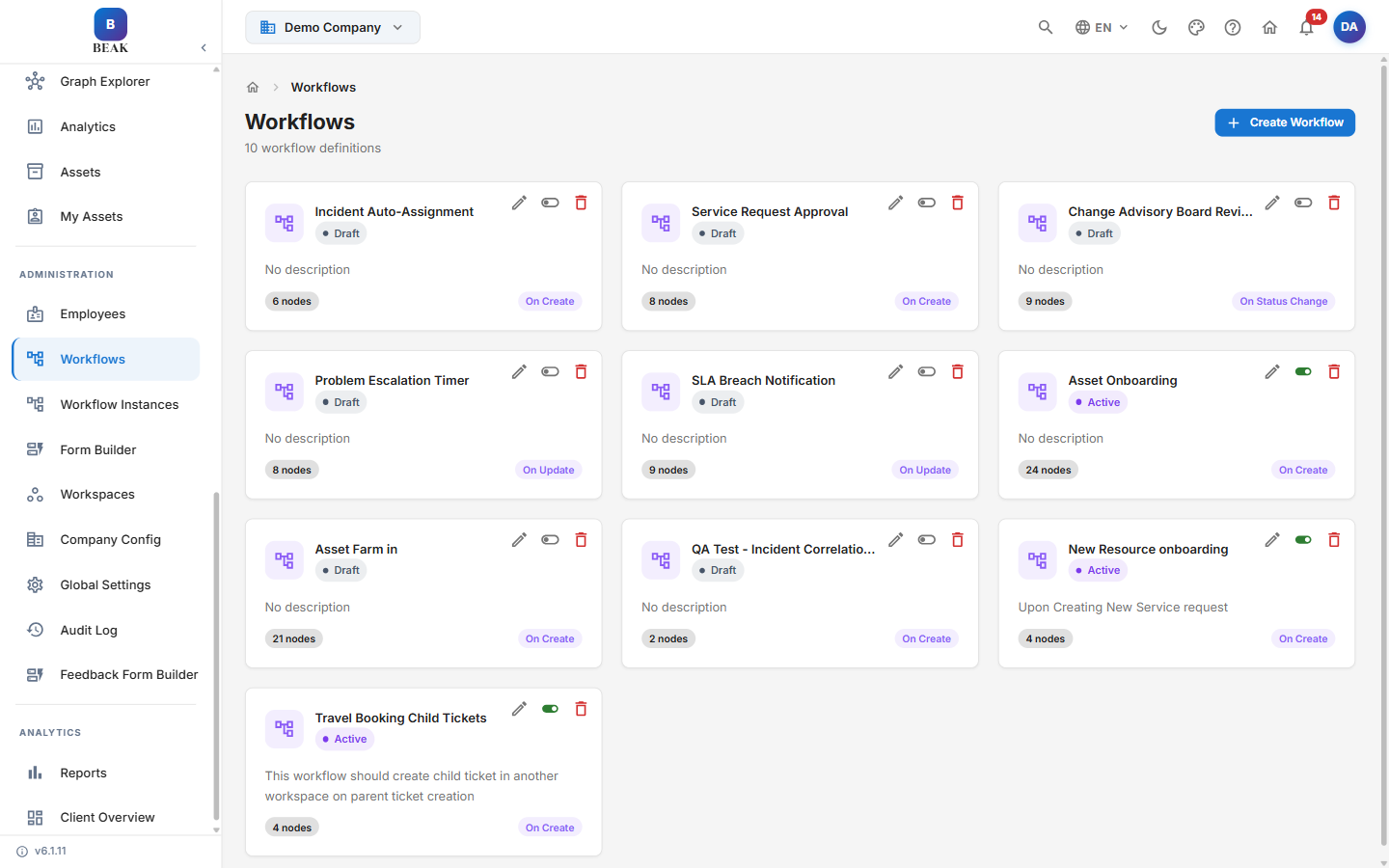
Workflows automate routine ITSM processes, reducing manual intervention and ensuring consistent service delivery. BEAK ITSM includes a set of pre-built workflow definitions that cover the most common ITIL processes, and supports creating fully custom workflows tailored to your organization's requirements. The Workflows page lists all workflow definitions as cards, with a header count of the total definitions and a Create Workflow button.
Workflow Cards
Each workflow is shown as a card that summarizes its configuration at a glance:
- Name — The workflow's display name.
- Status — Either
DraftorActive. - Description — A short summary of what the workflow does, or "No description" when none is set.
- Node count — The number of nodes in the workflow (for example, "6 nodes"). Workflows are built as visual, node-based graphs.
- Trigger — The event that fires the workflow (see Trigger Types below).
Workflow Definitions
BEAK ITSM ships with pre-built workflow definitions, including:
- Incident Auto-Assignment — Automatically assign incidents to the appropriate team or agent based on category, severity, or workspace rules.
- Service Request Approval — Route service requests through one or more approval chains before fulfillment begins.
- Change Advisory Board Review — Trigger a CAB review workflow when a change request status changes, ensuring governance controls are applied to all change records.
- Problem Escalation Timer — Escalate problems that remain unresolved beyond a configurable time threshold, notifying senior support tiers automatically.
- SLA Breach Notification — Send alerts to agents and managers when tickets approach or breach their SLA targets, enabling proactive intervention.
- Asset Onboarding — Automate the onboarding process for new assets, including notifications, assignment, and field population.
- New Resource onboarding — Automate the onboarding steps when a new resource is added to the organization.
- Add notes — Append notes to a record as part of an automated process.
- QA Test - Incident Correlation Probe — A test workflow used to validate incident correlation behavior.
Note: Pre-built workflows are in
Draftstate by default and will not execute until set toActive. Navigate to Workflows from the left sidebar and set each workflow toActiveto enable it.
Workflow Instances
The Workflow Instances section (accessible from the sidebar) shows a live execution log of all workflow runs. Each instance record displays the workflow name, the record it was triggered against, the trigger time, and the execution status. Use this view to monitor workflow activity and troubleshoot failed executions.
Creating a Workflow
To create a custom workflow:
- Navigate to Workflows and click Create Workflow.
- Provide a Name and Description for the workflow.
- Select a Trigger Type that determines when the workflow fires (see Trigger Types below).
- Define Conditions — logical rules that must be satisfied for the workflow to proceed (for example, priority equals Critical, or category equals Network).
- Define Actions — the steps the workflow executes when conditions are met, such as assigning a ticket, sending a notification, or updating a field.
Each workflow is represented as a node-based flow diagram. Nodes are connected in sequence, and branching logic can be applied using condition nodes.
Workflow States
A workflow's status is shown on its card as one of the following:
Draft— The workflow is being designed and has not yet been published. Drafts do not execute against live records.Active— The workflow is published and will execute whenever its trigger conditions are met.
Trigger Types
Each workflow card displays its trigger. The available triggers are:
| Trigger | Description |
|---|---|
| On Create | Fires when a new record is created in the system |
| On Update | Fires when any field on an existing record is updated |
| On Status Change | Fires when a record's status field transitions to a new value |
Note: A single workflow can only have one trigger type. To cover multiple trigger scenarios for the same process, create separate workflow definitions and link them by naming convention.