License Allocation
License Allocation provides visibility into your license pool inventory and enables administrators to manually assign Microsoft 365 licenses to individual users or perform bulk allocation operations. The page displays pool-level capacity at the top, followed by the Manual Allocations table where individual user assignments are managed.
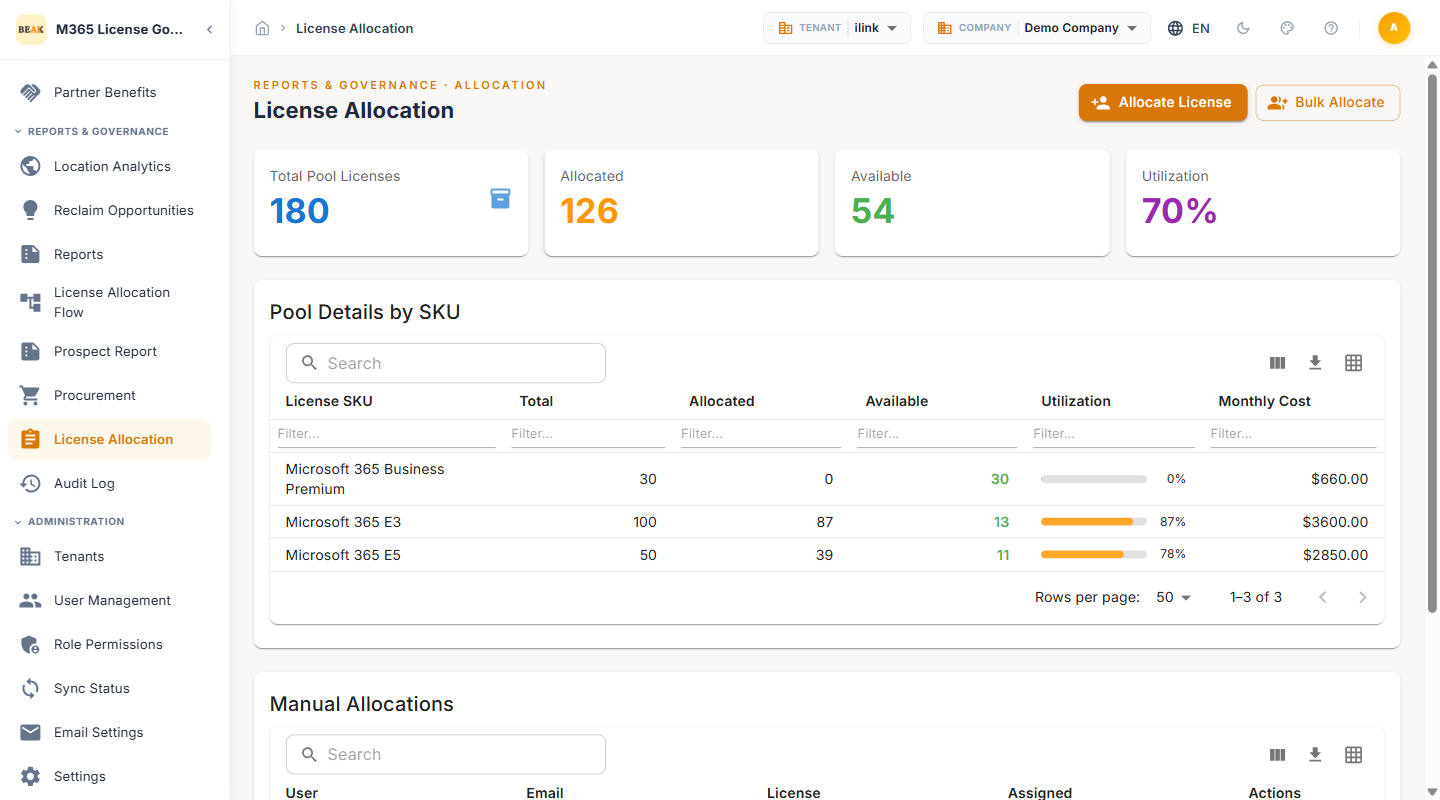
Pool Summary Cards
Four KPI cards at the top of the page provide a real-time view of pool-level license capacity:
- Total Pool Licenses — The total number of licenses available across all configured license pools
- Allocated — The number of pool licenses currently assigned to users
- Available — The number of unassigned pool licenses remaining for allocation
- Utilization — The overall pool utilization rate as a percentage
Pool Details by SKU
Below the summary cards, the Pool Details by SKU table breaks down capacity by individual license SKU:
- License SKU — The M365 license product name (e.g., Microsoft 365 Business Premium, Microsoft 365 E3, Microsoft 365 E5)
- Total — Total seats in the pool for this SKU
- Allocated — Seats currently assigned to users from this pool
- Available — Remaining unassigned seats shown as a green number
- Utilization — A visual progress bar showing the percentage of seats allocated, color-coded by level (green for low, orange for moderate, red for high utilization)
- Monthly Cost — The total monthly cost of all seats in this pool for the given SKU
Note: Pool utilization bars turn red when a pool approaches full capacity. Monitor high-utilization pools and submit procurement requests before pools are exhausted.
Manual Allocations Table
The Manual Allocations table displays all user-level license assignments managed through the platform. Each row represents a single license assignment with the following columns:
- User — The display name of the user receiving the license
- Email — The user's email address or User Principal Name (UPN)
- License — The M365 license SKU assigned to the user (e.g., Microsoft 365 E3, Office 365 E1)
- Assigned — The date and time the license was assigned
- Actions — Available actions including edit or remove the assignment
Allocating a License
To manually assign a license to a user:
- Click the Allocate License button at the top of the page
- Search for the target user by name or email address
- Select the License to assign from the available license inventory
- Confirm the assignment
- The new allocation appears in the Manual Allocations table
Note: License availability is determined by your current pool inventory. If no seats are available for the selected license, the allocation will fail. Check the Pool Details by SKU table to confirm available capacity before allocating.
Bulk Allocation
For scenarios requiring license assignment to multiple users at once, use the Bulk Allocate feature:
- Click the Bulk Allocate button at the top of the page
- Upload a CSV file or select users from the directory
- Choose the License to assign to all selected users
- Review the allocation preview showing affected users and seat availability
- Confirm the bulk operation
Bulk allocation is particularly useful for:
- New department onboarding — Assign licenses to an entire team or department in a single operation
- License migrations — Move groups of users from one license SKU to another as part of an optimization initiative
- Seasonal workforce — Rapidly provision licenses for temporary or contract employees
Note: Bulk operations are logged in the Audit Log with a single parent event and individual child entries for each user affected. Review the Audit Log after bulk operations to verify all assignments completed successfully.
Managing Existing Allocations
Administrators can manage existing allocations directly from the Manual Allocations table:
- Edit — Modify the assigned license for a user, such as upgrading from E1 to E3 or downgrading from E5 to E3
- Remove — Revoke the license assignment, returning the seat to the available pool
- Search and filter — Use the search bar to locate specific users by name or email
Best Practices
- Monitor pool utilization — Check the Pool Details by SKU table before allocating licenses to ensure adequate capacity is available
- Use bulk allocation for efficiency — Avoid manual one-by-one assignment when provisioning more than five users. Bulk operations reduce administrative overhead and ensure consistency
- Submit procurement requests proactively — When a pool reaches 80%+ utilization, submit a procurement request before the pool is exhausted to avoid allocation failures
- Cross-reference with Recommendations — Before assigning premium licenses (E5, E3), review the Recommendations module to ensure the user's workload justifies the license tier
- Audit allocations regularly — Review the Manual Allocations table monthly to identify assignments that may no longer be needed due to role changes or offboarding