Licenses
The Licenses page provides a comprehensive view of your Microsoft 365 license inventory, cost breakdown, user-level assignments, subscription details, and group-based licensing. Use this page to understand your licensing spend, identify optimization opportunities, and track subscription lifecycles.
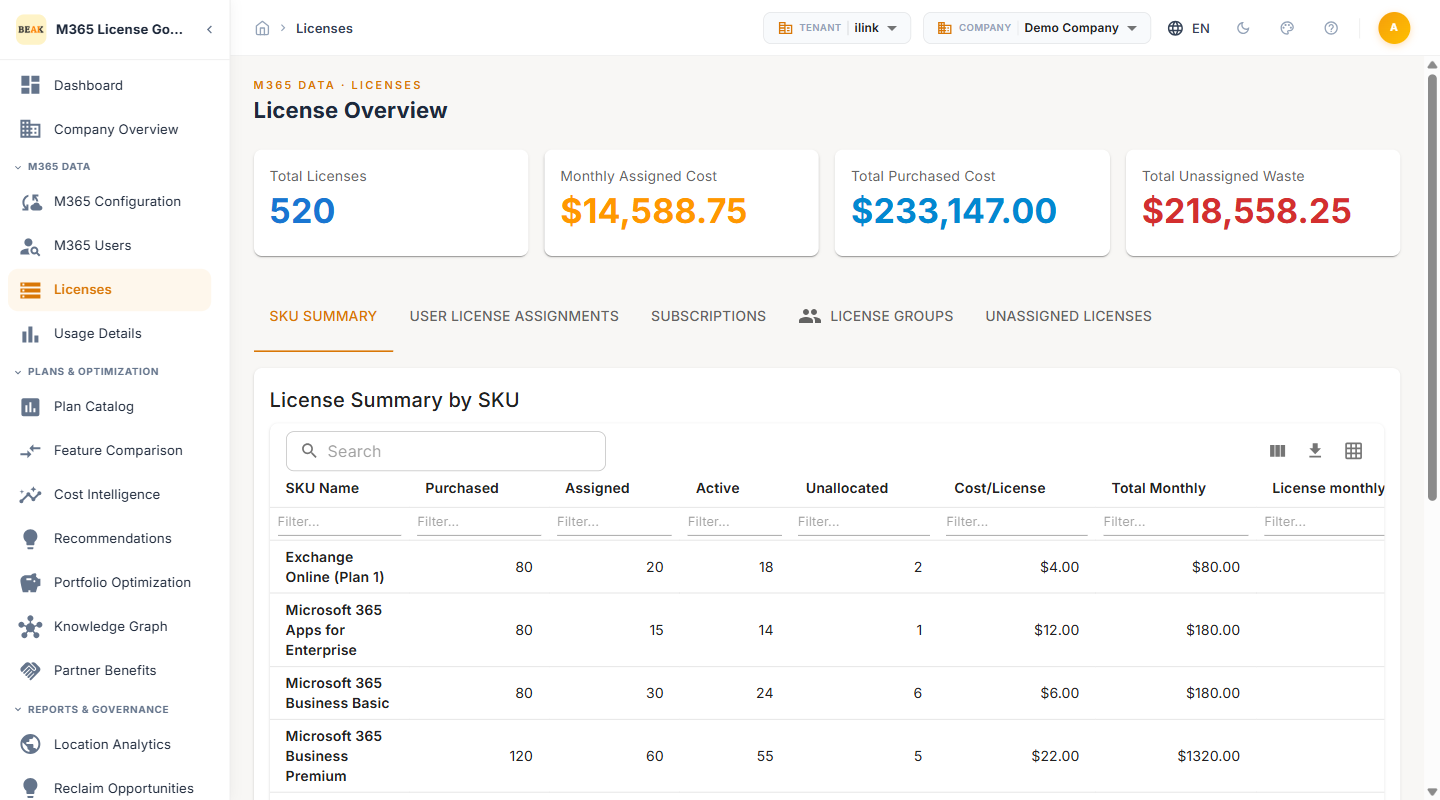
Summary Cards
Two summary cards at the top of the page provide a high-level overview of your licensing position:
- Total Licenses — The total number of M365 licenses across all SKUs in the tenant
- Monthly Cost — The aggregate monthly cost of all assigned licenses
SKU Summary
The SKU Summary tab displays a breakdown of all Microsoft 365 license SKUs in your tenant.
Table Columns
- SKU Name — The name of the Microsoft 365 license product (e.g., Communications Credits, Dynamics 365 Business Central Premium)
- Assigned — The number of licenses currently assigned to users
- Active — The number of assigned licenses with recorded user activity
- Cost/License — The per-unit monthly cost for the SKU (e.g., $100)
- Total Monthly — The total monthly spend for the SKU, calculated as Assigned multiplied by Cost/License (e.g., $5,300/mo)
Key Details
The SKU Summary gives administrators a clear picture of which license products are deployed, how many are actively used versus simply assigned, and where the bulk of licensing spend is concentrated. Comparing the Assigned and Active columns helps identify SKUs with low utilization that may be candidates for downsizing.
User License Assignments
The User License Assignments tab provides a per-user view of individual license assignments.
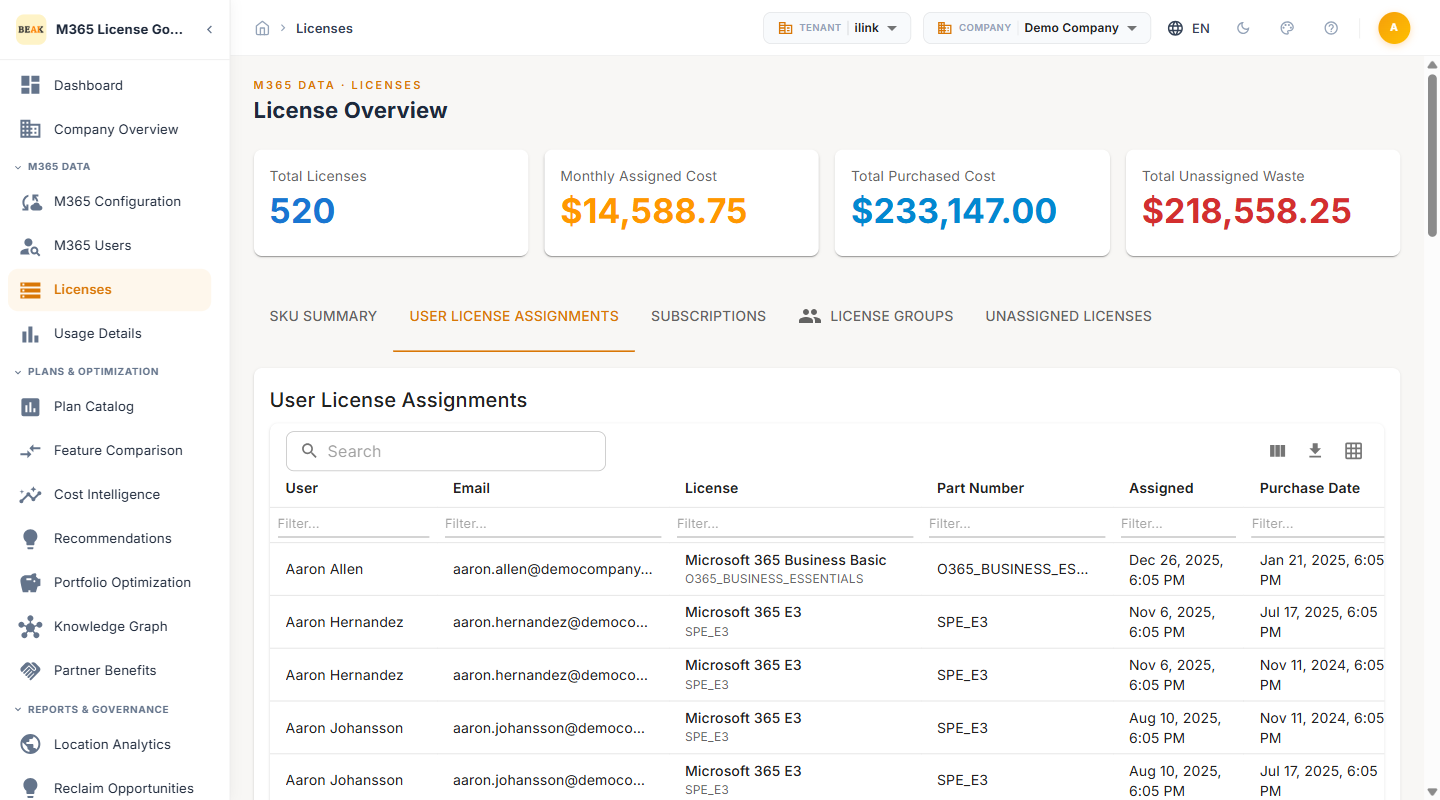
Table Columns
- User — The display name of the licensed user
- Email — The user's primary email address or UPN
- License — The specific M365 license SKU assigned to the user, with the Microsoft part number shown below
- Part Number — The Microsoft part number identifier for the license
- Assigned — The date the license was assigned to the user
- Purchase Date — The original purchase date of the license subscription
- Expiry Date — The date the license subscription expires or is scheduled to renew
- Source — How the license was sourced, displayed as a colored badge:
PurchasedorMPN Benefits - Status — The current state of the license assignment:
Enabled(active, can be used) orLockedOut(inactive, locked due to expiry or compliance)
Key Details
The User License Assignments tab allows administrators to drill down to individual license holders. The Source column distinguishes commercially purchased licenses from MPN benefit licenses, while the Status column surfaces locked-out assignments that may be disrupting user access.
Subscriptions
The Subscriptions tab tracks all M365 subscriptions with their lifecycle status, capacity, source, and monthly cost.
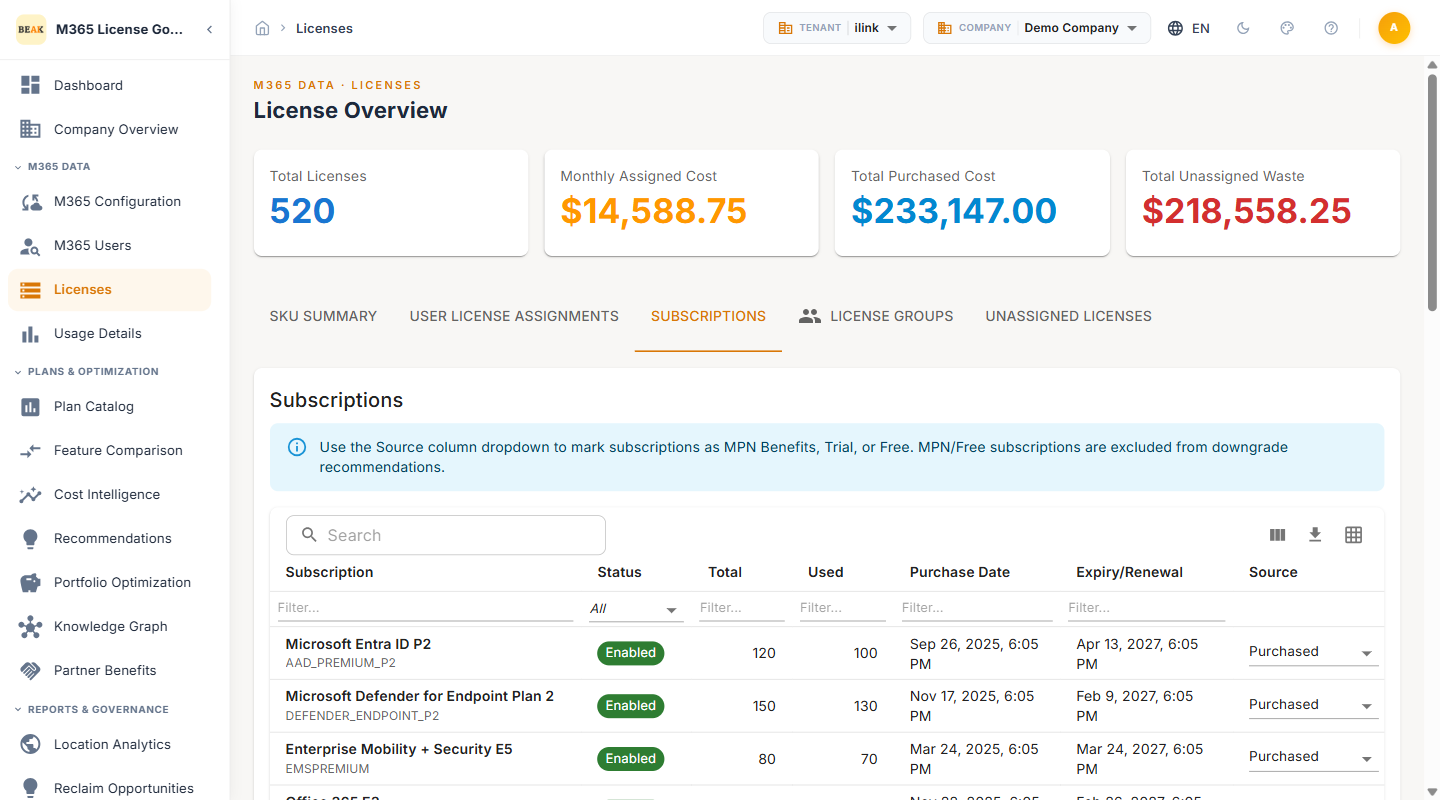
Note: Use the Source column dropdown to mark subscriptions as MPN Benefits, Trial, or Free. MPN and Free subscriptions are excluded from downgrade recommendations to avoid impacting complimentary or evaluation licenses.
Table Columns
- Subscription — The name of the M365 subscription, with the Microsoft SKU part number shown below
- Status — The current state of the subscription, displayed as
EnabledorDisabled - Total — The total number of seats included in the subscription
- Used — The number of seats currently assigned to users
- Purchase Date — The date the subscription was originally acquired
- Expiry/Renewal — The date the subscription expires or is scheduled to auto-renew
- Source — An editable dropdown per subscription that classifies it as
Purchased,MPN Benefits,Trial, orFree - Monthly Cost — The total monthly expenditure for the subscription based on seat count and per-seat pricing
Key Details
Use the Subscriptions tab to monitor upcoming renewals and expirations, verify seat utilization against purchased capacity, and classify subscriptions by source using the Source dropdown. Correctly classifying MPN and Free subscriptions ensures they are excluded from optimization recommendations that would otherwise incorrectly flag them.
License Groups
The License Groups tab displays group-based license assignments managed through Azure AD security groups.
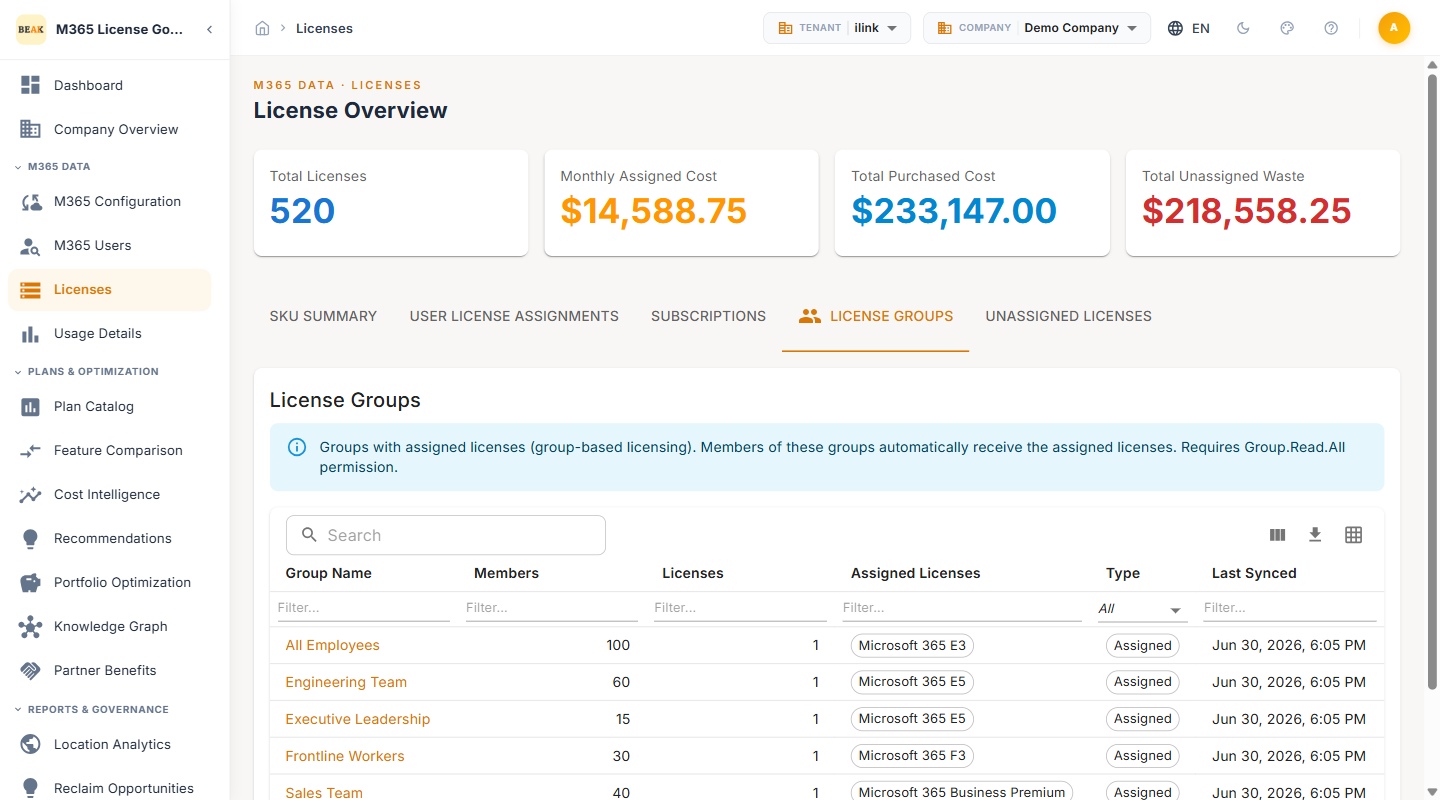
Note: Groups with assigned licenses automatically provision those licenses to all group members. This requires the
Group.Read.AllMicrosoft Graph API permission to be granted in your M365 Configuration for data to appear in this tab.
Table Columns
- Group Name — The name of the Azure AD security group with assigned licenses
- Members — The number of users in the group
- Licenses — The number of distinct license SKUs assigned to the group
- Assigned Licenses — The specific license SKUs attached to the group
- Type — The group type classification
- Last Synced — The date when group membership and license data was last synchronized
Key Details
Group-based licensing simplifies license management by automatically assigning licenses to users when they join a group and removing licenses when they leave. The License Groups tab allows administrators to review which groups are driving license assignments, verify membership counts, and confirm that sync operations are running on schedule.
Best Practices
- Compare Assigned vs Active counts in the SKU Summary to find underutilized license products
- Review the Subscriptions tab before renewal dates to right-size seat counts based on actual usage
- Monitor Trial and MPN Benefits subscriptions separately to avoid including them in cost optimization calculations
- Audit User Assignments periodically to remove duplicate or stale license assignments
- Ensure Group.Read.All permission is configured if you rely on group-based licensing to avoid missing data in the License Groups tab
- Track Monthly Cost trends over time to measure the impact of optimization actions