Audit Log
The Audit Log provides a comprehensive trail of all user actions performed within the Beak M365 License Optimizer platform. Every login, data export, sync operation, record creation, and configuration change is recorded with timestamps, user attribution, and contextual details — supporting compliance requirements, security auditing, and operational troubleshooting.
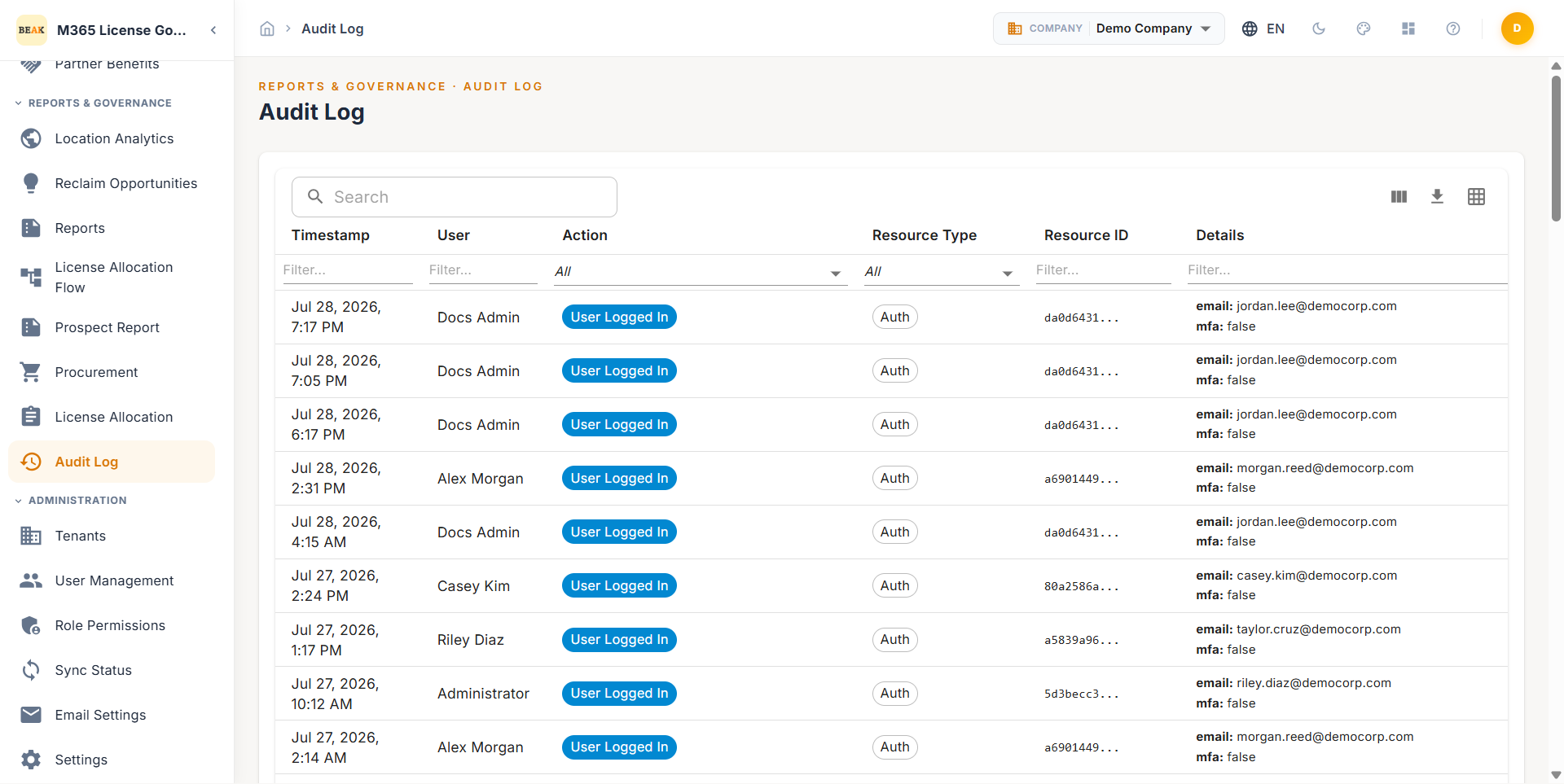
Audit Log Table
The Audit Log displays events in a searchable, chronologically ordered table with the following columns:
- Timestamp — The date and time the action was performed, displayed in the platform's configured timezone
- User — The platform user who initiated the action
- Action — The type of action performed, displayed as a color-coded badge for quick visual identification
- Resource Type — The category of resource affected by the action (e.g., User, License, Report, Configuration)
- Resource ID — The unique identifier of the specific resource that was acted upon
- Details — Additional context about the action, including before/after values for modifications and relevant metadata
Action Types
Actions are displayed as color-coded badges for rapid visual scanning:
- User Logged In — A platform user authenticated and accessed the application
- User Created — A new platform user account was provisioned
- Export — Data was exported from a module or report
- License Synced — A license synchronization job completed, showing users and licenses synced
- Usage Collected — A usage data collection job completed, showing metrics collected
- Recommendations Generated — The recommendations engine ran and produced a new set of recommendations, showing the count generated
- Company Created — A new company was registered in the platform
- Demo Data Loaded — Demo data was seeded into the platform (system-generated event)
- Create — A new record was created (e.g., procurement request, configuration entry)
- Update — An existing record was modified
- Delete — A record was removed from the platform
Note: Color-coded badges enable administrators to quickly identify specific action types when scanning large volumes of audit entries. The Details column shows structured key-value metadata for each event (e.g.,
email:,role:,count:,users_synced:).
Searching and Filtering
The search bar at the top of the Audit Log allows filtering entries by any combination of:
- User name or email — Locate all actions performed by a specific user
- Action type — Filter to only show specific action categories (e.g., all Export events)
- Resource type — Narrow results to actions affecting a particular resource category
- Resource ID — Find all actions related to a specific record
- Keyword search — Free-text search across the Details column
Note: Use the search bar to investigate specific events during incident response or to generate evidence for compliance audits.
Tracked Events
The Audit Log captures the following categories of platform activity:
Authentication Events
- User login and logout events
- Failed authentication attempts
- Session expiration events
Data Operations
- Report generation and viewing
- Data exports (CSV, PDF)
- Bulk operations and their individual child events
Sync Events
- Full sync initiation and completion
- Incremental sync events
- Sync failures with error details
Record Management
- Procurement request creation, approval, and rejection
- License allocation and removal
- Configuration changes (tenant settings, email settings, application settings)
- User management actions (user creation, role changes, status updates)
Best Practices
- Review the Audit Log after bulk operations — Verify that all intended changes from bulk allocation or bulk import operations completed successfully by filtering on the relevant Resource Type
- Monitor login events — Regularly review authentication entries to detect unauthorized access attempts or unusual login patterns
- Use for compliance audits — Export filtered Audit Log entries to satisfy SOC 2, ISO 27001, or internal audit requirements for change management documentation
- Investigate sync failures — When data discrepancies are detected, filter the Audit Log for Sync events to identify failed synchronizations and their error details
- Retain audit history — Establish a retention policy for audit log data that aligns with your organization's compliance and regulatory requirements