M365 Configuration
The M365 Configuration page manages the authentication credentials used to connect Beak M365 License Optimizer to your Microsoft 365 tenant via the Microsoft Graph API. Each configuration stores Azure AD app registration details required for data synchronization, license inventory, and usage reporting.
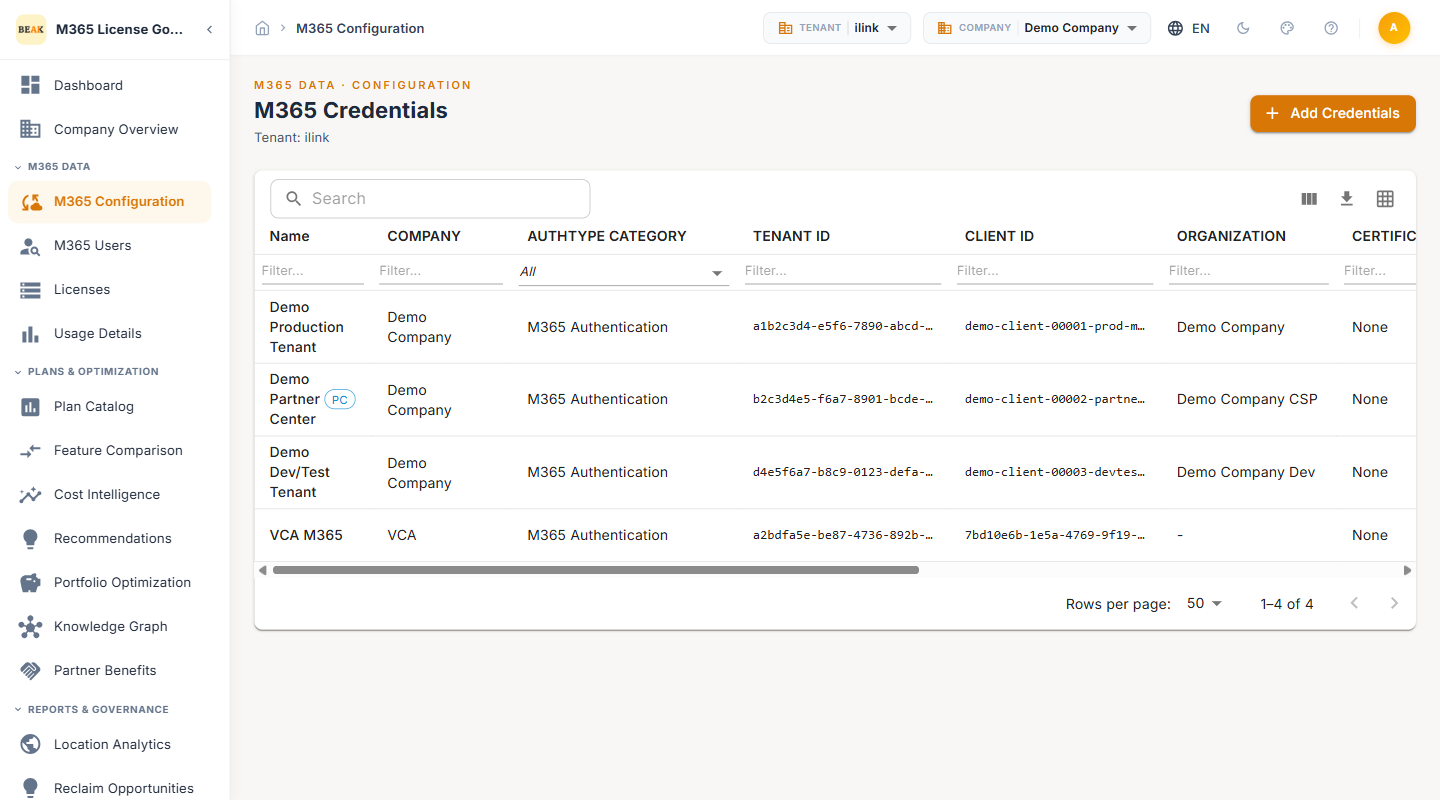
Configuration Overview
The M365 Credentials table displays all registered configurations under the current tenant. The table header shows the tenant name (e.g., "Tenant: iLink"). The following columns are available:
- Name — A descriptive label for the configuration entry. Entries may display a
PCbadge to indicate a Partner Center-sourced configuration. - Company — The organization associated with this M365 tenant connection
- Authtype Category — The authentication method used, displayed as
M365 Authentication - Tenant ID — The Azure AD tenant identifier for the connected Microsoft 365 environment
- Client ID — The application (client) ID from the Azure AD app registration
- Organization — The organizational unit or business entity tied to the configuration
- Certificate Thumbprint — The thumbprint of the certificate used for authentication, or
Noneif client secret authentication is used - Status — The current state of the configuration:
ActiveorInactive - Last Synced — The date and time of the most recent successful data sync for this configuration
- Modified By — The platform user who last modified this configuration
- Modified At — The date and time of the most recent modification
Adding a Configuration
To add a new M365 configuration:
- Click the Add Configuration button at the top of the credentials list
- Enter a descriptive Name for the configuration
- Select the Company associated with this tenant
- Choose the Auth Type as M365 Authentication
- Provide the Tenant ID from your Azure AD portal
- Enter the Client ID from your registered Azure AD application
- Select the Organization this configuration belongs to
- Upload a Certificate or provide a Client Secret depending on your preferred authentication method
- Save the configuration
Note: The Tenant ID and Client ID values are available in the Azure portal under App Registrations for your registered application.
Auth Type Options
The M365 Configuration supports the following authentication type:
- M365 Authentication — Connects using Azure AD app registration credentials with Microsoft Graph API permissions. This is the standard authentication method for accessing M365 tenant data including users, licenses, subscriptions, and usage reports.
Certificate vs Secret Authentication
Beak M365 License Optimizer supports two methods for authenticating with Microsoft Graph API:
Certificate-Based Authentication
- Recommended for production environments
- Upload a
.pfxor.cercertificate file during configuration - Provides stronger security with asymmetric key-based verification
- Certificates must be registered in the Azure AD app registration under Certificates & secrets
Client Secret Authentication
- Suitable for development or testing environments
- Uses a generated client secret string from Azure AD
- Secrets have configurable expiration periods (6 months, 12 months, 24 months, or custom)
- Requires periodic rotation before expiry to maintain uninterrupted sync
Note: Microsoft recommends certificate-based authentication for production workloads due to stronger security guarantees. Client secrets should be rotated regularly to reduce the risk of credential compromise.
Required Permissions
The Azure AD app registration used for the M365 configuration must have the following Microsoft Graph API permissions granted with admin consent:
- User.Read.All — Read all user profiles and account details
- Directory.Read.All — Read directory data including organizational structure
- Reports.Read.All — Access M365 usage reports for mailbox, OneDrive, and Teams activity
- Organization.Read.All — Read organization-level settings and subscription details
- LicenseAssignment.ReadWrite.All — Read and manage license assignments across the tenant
- Group.Read.All — Read group memberships for group-based licensing data
Note: All permissions listed above require Application-type permissions (not Delegated) and must have admin consent granted by a Global Administrator or Privileged Role Administrator.
Best Practices
- Use certificate authentication in production to meet security compliance requirements
- Limit permissions to only those required for the data you intend to sync
- Rotate client secrets well before their expiration date to prevent sync interruptions
- Create a dedicated app registration for Beak M365 License Optimizer rather than sharing one across multiple integrations
- Monitor configuration status regularly to ensure all tenant connections remain
Active - Document Tenant IDs and associated companies to simplify multi-tenant management