Reports
The Reports module provides a centralized hub to view, email, and schedule reports across your Microsoft 365 license estate. Nine pre-built report types cover license allocation, cost trends, usage analytics, optimization recommendations, and location-based summaries — available for on-demand viewing or automated recurring delivery.
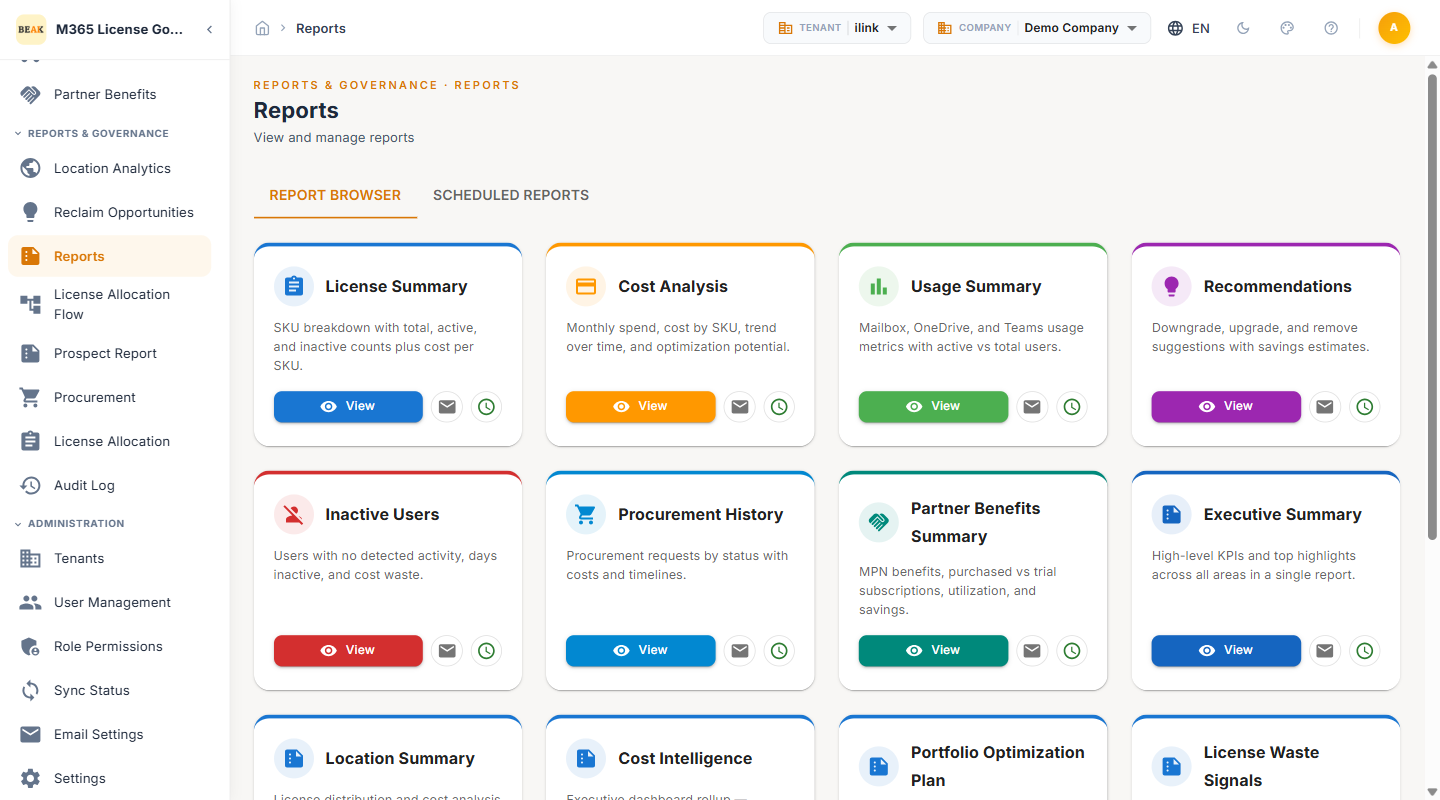
Navigation Tabs
Reports is organized into two tabs:
- REPORT BROWSER — Browse all available report types, view reports on demand, send via email, or configure scheduled delivery
- SCHEDULED REPORTS — Manage existing report schedules, view upcoming delivery dates, edit recipients, and enable or disable recurring reports
Report Types
The Report Browser displays nine report cards. Each card includes a View button to generate the report on demand, an email icon to send the report immediately, and a schedule icon to configure recurring delivery.
License Summary
SKU-level breakdown of your entire license inventory with total, active, and inactive counts plus cost per SKU. Use this report to understand the composition of your license estate and identify SKUs with high inactive ratios.
Cost Analysis
Monthly spend analysis with cost by SKU, trend over time, and optimization potential. The Cost Analysis report quantifies current expenditure alongside projected savings to support budget planning and executive reporting.
Usage Summary
Workload-level usage metrics across Exchange mailboxes, OneDrive storage, and Microsoft Teams activity. Displays active versus total user counts for each service to highlight underutilized workloads.
Recommendations
Consolidated view of all optimization recommendations including downgrades, upgrades, and removals with per-user savings estimates. Use this report to communicate optimization opportunities to stakeholders with quantified cost impact.
Inactive Users
Lists all users with no detected activity across M365 services, including days since last activity and associated cost waste. This report supports license reclamation workflows by identifying candidates for license removal.
Procurement History
Tracks all procurement requests by status with associated costs and timelines. Use this report to audit license purchasing activity, monitor approval workflows, and reconcile procurement against budget allocations.
Partner Benefits Summary
Microsoft Partner Network (MPN) benefit tracking including purchased versus trial subscriptions, benefit utilization rates, and realized savings from partner discounts. This report helps MPN-eligible organizations maximize their partner benefits.
Executive Summary
High-level KPI rollup and top highlights across all areas in a single report. Designed for leadership and finance stakeholders who need a concise overview of license health, spend, savings, and compliance status without navigating individual modules.
Location Summary
License distribution and cost analysis broken down by country, city, and department. This report aggregates the insights from the Location Analytics module into a shareable format for regional managers and business unit leaders.
Viewing a Report
To view a report on demand:
- Navigate to the REPORT BROWSER tab
- Locate the desired report card
- Click the View button on the report card
- The report renders in the browser with interactive charts and exportable tables
Note: On-demand reports reflect the most recent synced data. Ensure your data sync is up to date before generating reports for executive review.
Emailing a Report
To send a report via email:
- Click the email icon on the desired report card
- Enter the recipient email addresses
- Optionally customize the email subject and body
- Click Send
The report is generated and delivered as an attachment to the specified recipients.
Scheduling Reports
To configure recurring report delivery:
- Click the schedule icon on the desired report card
- Set the delivery frequency (daily, weekly, monthly)
- Enter the recipient email addresses
- Configure the preferred delivery time
- Click Save Schedule
Scheduled reports appear in the SCHEDULED REPORTS tab where they can be edited, enabled, or disabled.
Scheduled Reports Management
The SCHEDULED REPORTS tab displays all active and paused report schedules with the following details:
- Report Name — The report type configured for delivery
- Frequency — The recurring delivery interval (daily, weekly, monthly)
- Recipients — Email addresses receiving the report
- Next Delivery — The next scheduled send date and time
- Status —
ActiveorPaused - Actions — Edit schedule, toggle enable/disable, or delete the schedule
Best Practices
- Schedule Executive Summary weekly — Deliver the Executive Summary to leadership every Monday for ongoing visibility into license health and savings progress
- Use Inactive Users report for reclamation — Run the Inactive Users report monthly and feed results into your license reclamation workflow
- Combine Cost Analysis with procurement — Review the Cost Analysis report before submitting new procurement requests to ensure new purchases align with optimization opportunities
- Distribute Location Summary to regional leads — Schedule the Location Summary for department heads and regional managers to support chargeback and budget allocation
- Archive reports — Download and archive key reports quarterly for audit trail and compliance documentation