Company Overview
The Company Overview page provides a centralized view of all company entities registered within the current tenant. Companies represent distinct organizational units or customer accounts whose M365 license data is managed separately within the same Beak M365 License Optimizer instance. The Company selector in the top navigation bar determines which company's data is displayed across all modules.
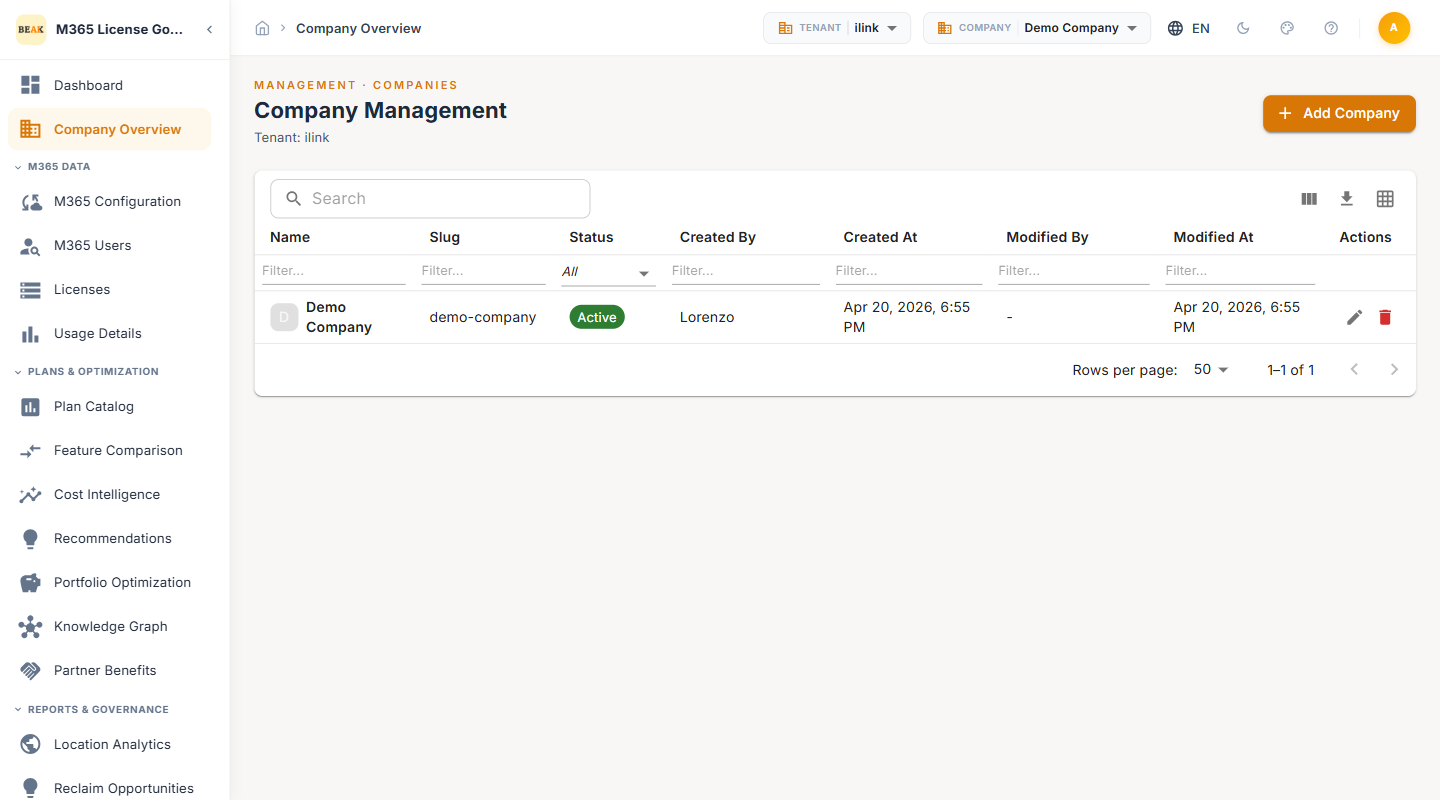
Company Management Table
The Company Management table displays all registered companies for the active tenant. The page header shows the current tenant context (e.g., "Tenant: iLink").
Table Columns
- Name — The display name of the company entity
- Slug — The URL-friendly identifier for the company, used in internal references (e.g.,
demo-company) - Status — The current state of the company:
ActiveorInactive - Created By — The platform user who registered the company
- Created At — The date and time the company was created
- Modified By — The last administrator to modify the company configuration
- Modified At — The date and time of the most recent modification
- Actions — Edit or delete the company record
Adding a Company
To register a new company within the current tenant:
- Click the + Add Company button at the top of the page
- Enter a descriptive Name for the company
- Provide or accept the auto-generated Slug
- Save the company configuration
Once created, the company appears in the Company selector dropdown in the top navigation bar and becomes available for M365 configuration, data sync, and reporting.
Switching Between Companies
Use the Company dropdown in the top-right navigation bar to switch between companies. All data across the platform — dashboards, licenses, users, recommendations, and reports — is filtered to reflect the selected company. Each company maintains its own independent:
- M365 tenant configurations and credentials
- License inventory and user data
- Optimization recommendations
- Procurement requests and license pools
- Report schedules and audit log entries
Best Practices
- Create one company per customer or business unit — Each company should map to a distinct Microsoft 365 tenant or organizational scope to maintain clean data separation
- Use meaningful slugs — Choose slugs that reflect the company name or customer abbreviation for easy identification in API references and logs
- Deactivate rather than delete — Set unused companies to
Inactivestatus rather than deleting them to preserve historical audit data - Review company access in User Management — Ensure platform users are granted access to the correct companies via their Company Access setting in Administration > User Management
Related Pages
- Administration — Tenant management, user roles, sync configuration
- M365 Configuration — Connect M365 tenant credentials to a company
- Dashboard — Company-scoped KPIs and optimization insights