Procurement
The Procurement module enables administrators to create, track, and manage license procurement requests alongside license pool inventories. Procurement requests follow an approval workflow with cost tracking, while License Pools maintain a centralized inventory of available licenses ready for allocation.
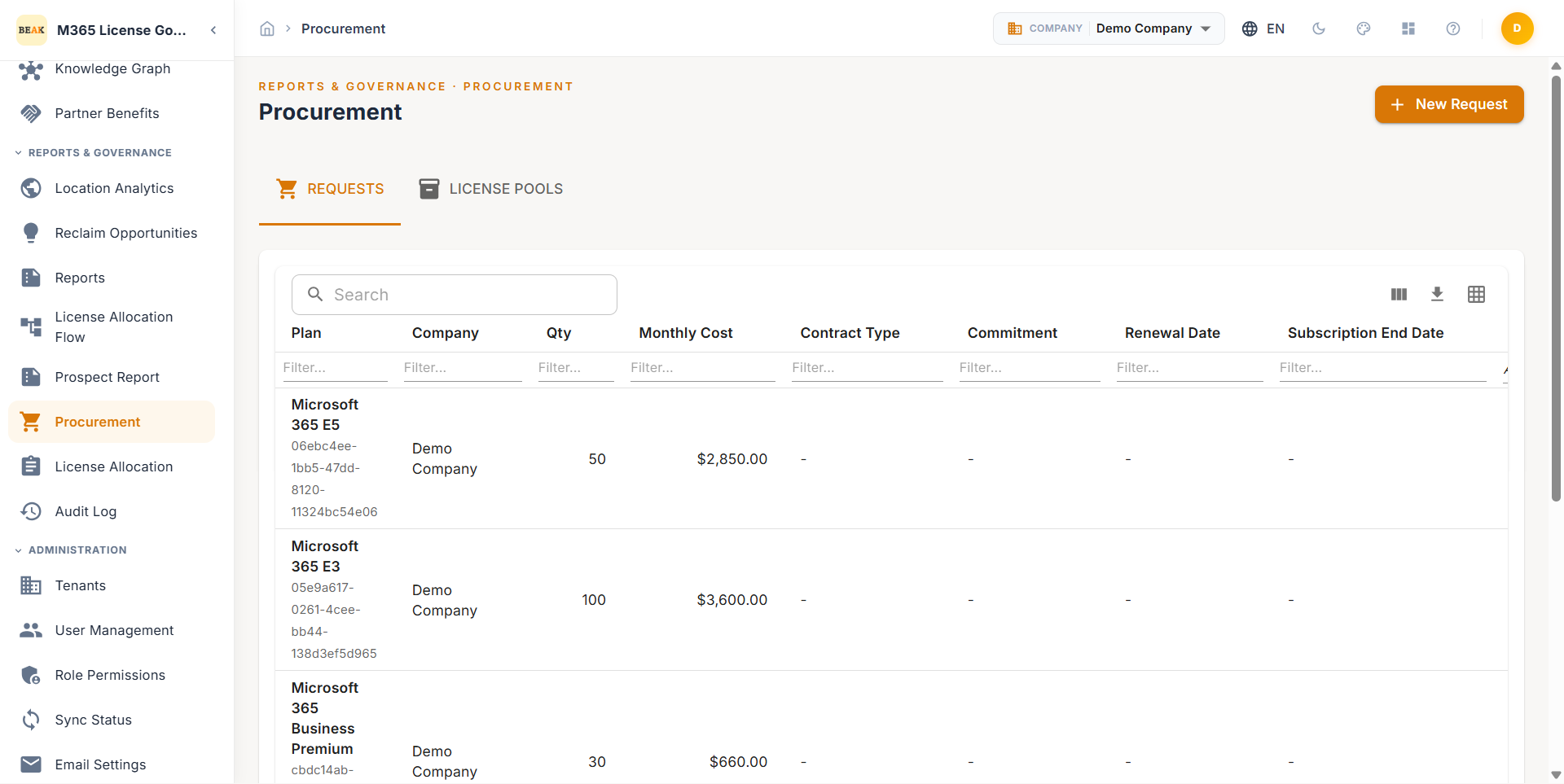
Navigation Tabs
Procurement is organized into two tabs:
- REQUESTS — Create and manage license procurement requests with approval workflows, cost tracking, and status monitoring
- LICENSE POOLS — Manage pools of available licenses for allocation to users across the organization
Requests Tab
The Requests tab displays all procurement requests in a table with the following columns:
- Plan — The M365 license plan being requested (e.g., Microsoft 365 E3, Office 365 E1)
- Company — The organizational entity submitting the request
- Qty — The number of license seats requested
- Monthly Cost — The estimated monthly expenditure for the requested licenses
- Status — The current workflow state of the request:
Pending,Approved,Rejected, orFulfilled - Requested By — The user who submitted the procurement request
- Created — The date and time the request was submitted
- Actions — Available actions including approve, reject, edit, or delete the request
Creating a Procurement Request
To submit a new license procurement request:
- Click the + New Request button at the top of the Requests tab
- Select the M365 Plan from the available plan catalog
- Choose the Company the licenses will be allocated to
- Enter the Quantity of license seats required
- Review the calculated Monthly Cost based on the selected plan and quantity
- Add any relevant notes or justification for the request
- Click Submit
The request enters the approval workflow and appears in the Requests table with a Pending status. Once approved and licenses are provisioned, the status updates to Fulfilled.
Note: Monthly cost is automatically calculated based on the per-seat pricing of the selected plan. Ensure the Plan Catalog is up to date to reflect accurate pricing.
Request Approval Workflow
Procurement requests follow a structured approval workflow:
- Submitted — The requester creates and submits the procurement request
- Pending Approval — The request is routed to the configured approver via email notification
- Approved / Rejected — The approver reviews the request and takes action
- Fulfilled — Approved requests are fulfilled and licenses are provisioned to the license pool
Note: Approval routing is configured in Administration > Email Settings. Ensure the Approver Email is set to the appropriate administrator or distribution list.
License Pools Tab
The License Pools tab provides a centralized view of available license inventories that can be drawn from when allocating licenses to users. License Pools help organizations pre-purchase and stage licenses for rapid deployment.
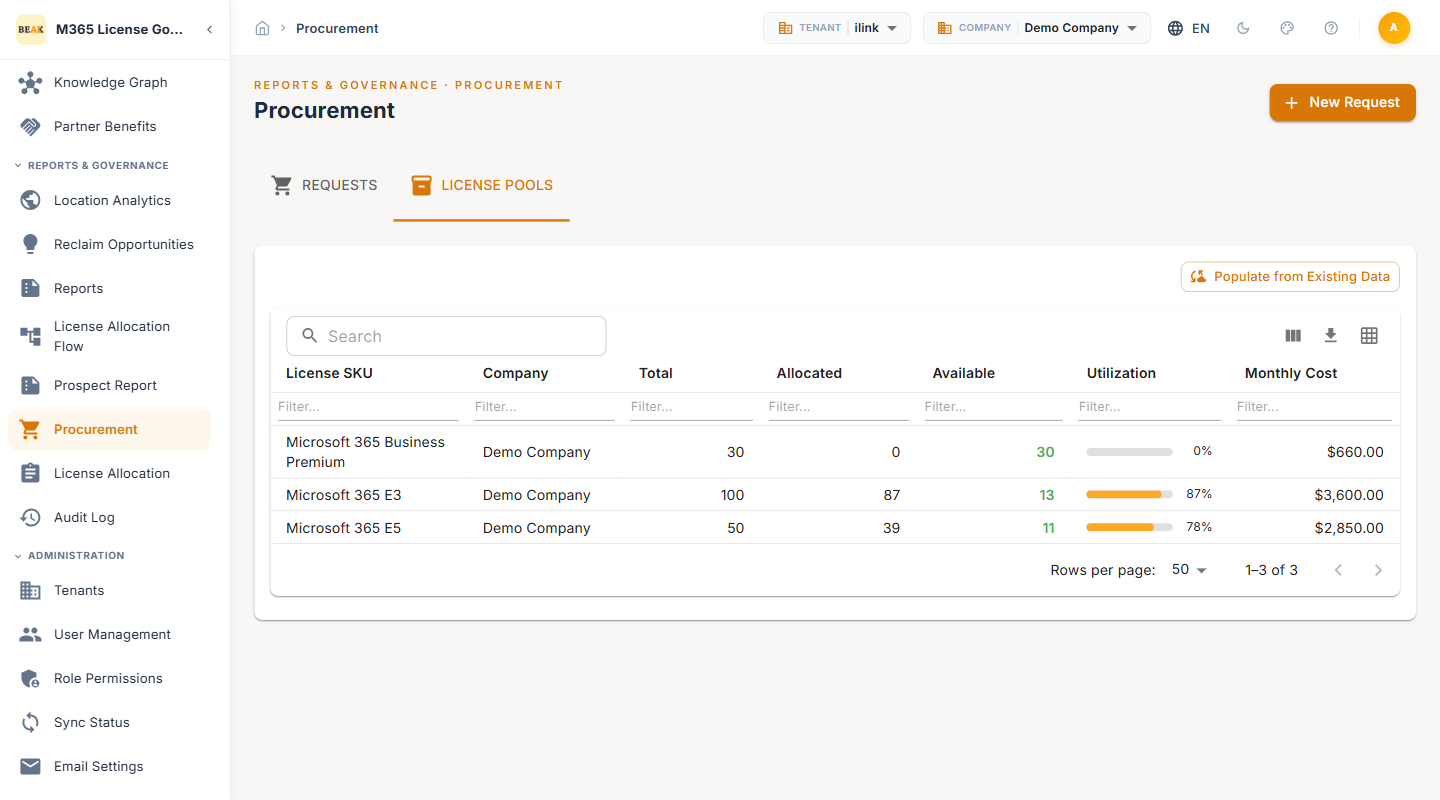
Key capabilities:
- View pool inventory — See the total available, allocated, and remaining seats for each license pool
- Create pools — Establish new license pools tied to specific M365 plans
- Manage allocations — Track how licenses from each pool have been distributed across the organization
- Monitor pool health — Identify pools that are approaching depletion and may require replenishment through new procurement requests
Best Practices
- Align procurement with recommendations — Review the Recommendations module before submitting procurement requests to ensure new purchases complement optimization efforts rather than adding to surplus inventory
- Use License Pools for rapid deployment — Pre-stage commonly requested license types in pools to reduce fulfillment time for new employee onboarding
- Set approval routing carefully — Configure the approver email in Administration > Email Settings to route requests to the appropriate budget owner or IT manager
- Track procurement history — Use the Procurement History report in the Reports module to audit purchasing activity against budget allocations
- Monitor pool depletion — Set a review cadence to check pool inventories and trigger replenishment requests before pools are exhausted