Administration
The Administration section provides platform-level configuration and management capabilities for Beak M365 License Optimizer. Administrators can manage multi-tenant connections, platform users and roles, data synchronization, email delivery settings, and global application configuration from a centralized interface.
Tenant Management
Tenant Management enables multi-tenant support for organizations managing multiple Microsoft 365 environments from a single Beak M365 License Optimizer instance. Each tenant represents an independent M365 environment with its own sync configuration, user population, and license inventory.
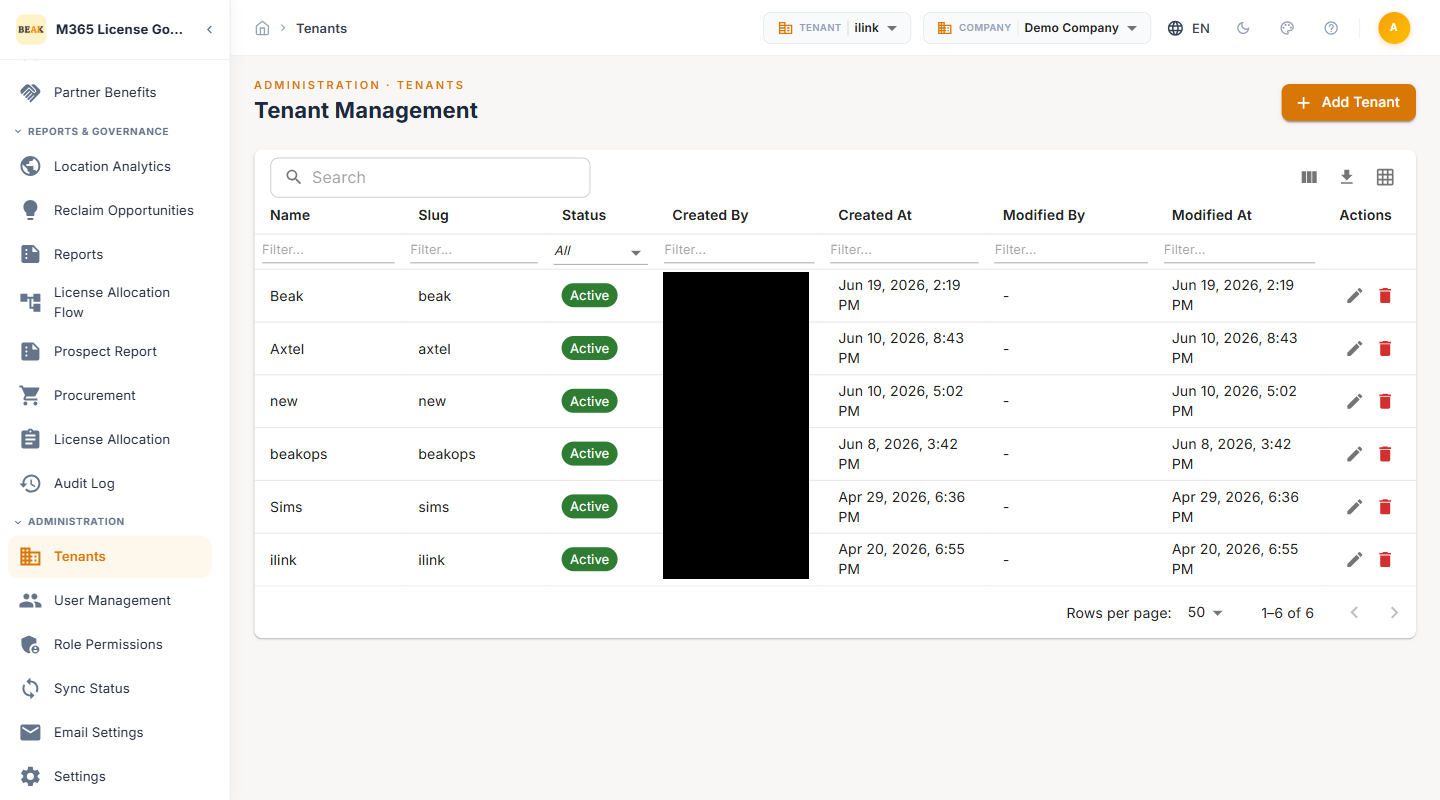
Tenant Table
The Tenants table displays all registered tenants with the following columns:
- Name — The descriptive name assigned to the tenant
- Slug — The URL-friendly identifier for the tenant, used in API calls and internal references
- Status — The current state of the tenant, such as
ActiveorInactive - Created By — The administrator who registered the tenant
- Created At — The date and time the tenant was registered
- Modified By — The last administrator to modify the tenant configuration
- Modified At — The date and time of the most recent modification
- Actions — Available operations including edit and delete
Adding a Tenant
To register a new tenant:
- Click the + Add Tenant button at the top of the Tenants page
- Enter a descriptive Name for the tenant
- Provide or accept the auto-generated Slug
- Configure the M365 connection credentials (Tenant ID, Client ID, authentication method)
- Save the tenant configuration
Note: Each tenant requires a separate Azure AD app registration with the appropriate Microsoft Graph API permissions. Refer to the M365 Configuration page for details on required permissions.
User Management
User Management controls access to the Beak M365 License Optimizer platform itself — these are platform users (Super Admins, Tenant Admins, Tenant Viewers), not the Microsoft 365 end users being managed.
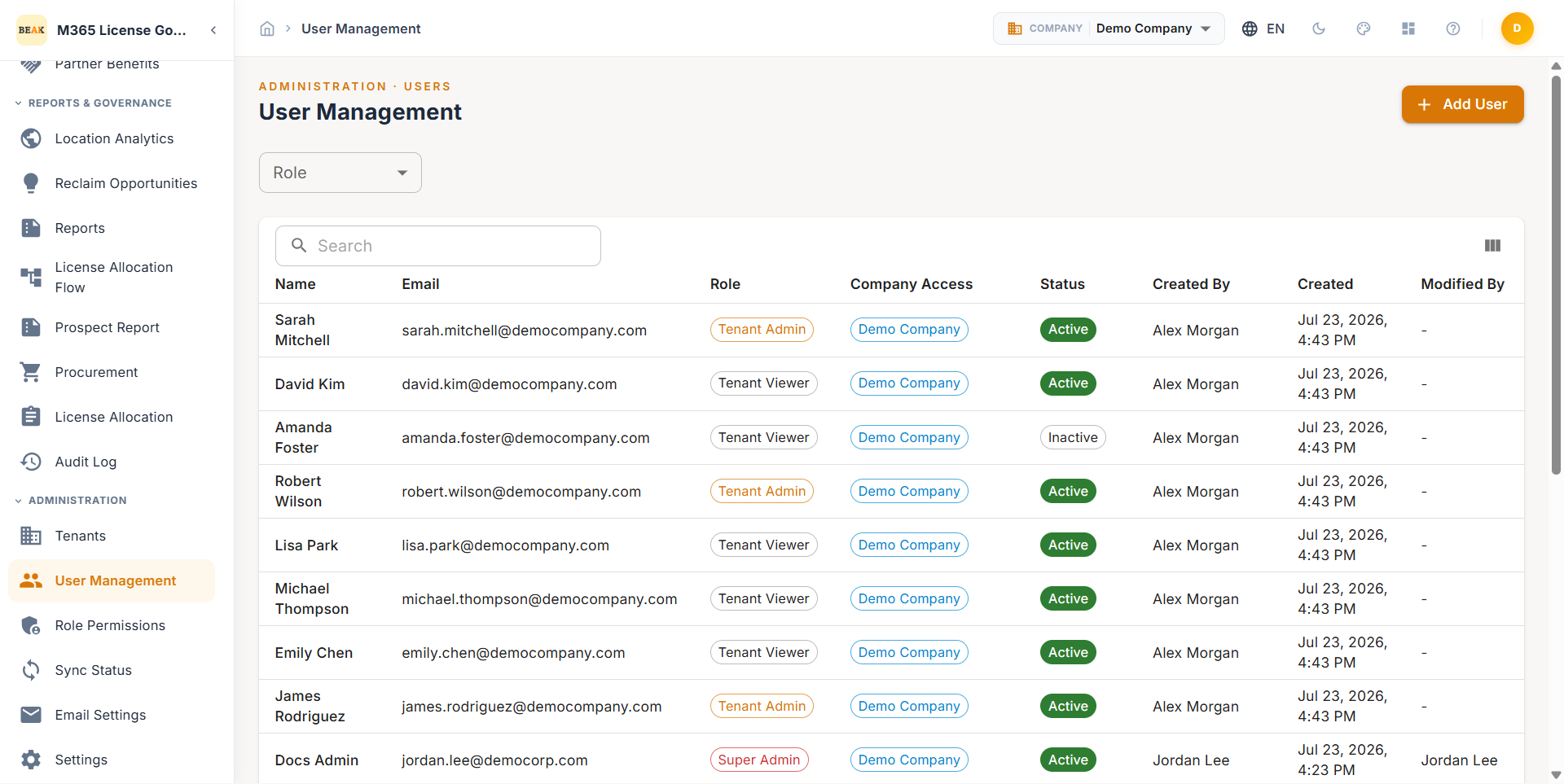
User Table
The User Management table supports search by name or email and filtering by role. Columns include:
- Name — The platform user's display name
- Email — The platform user's email address
- Role — The assigned role, displayed as a badge (e.g.,
Super Admin) - Company Access — The organizational scope of the user's access (e.g.,
All Companiesor a specific company) - Status — The account state, such as
ActiveorInactive - Created By — The administrator who created the user account
- Created — The date the account was created
- Modified By — The last administrator to modify the account
Managing Platform Users
- Add a user — Click the add user button, enter the user's details, assign a role, and configure company access scope
- Edit a user — Update the user's role, company access, or status from the Actions column
- Deactivate a user — Set the user's status to
Inactiveto revoke platform access without deleting the account - Filter by role — Use the Role filter dropdown to view only users with a specific role assignment
Note: Platform users are distinct from M365 users. Changes to platform user accounts do not affect Microsoft 365 license assignments or Azure AD accounts.
Role Permissions
Role Permissions defines the role-based access control (RBAC) model for the platform. Each role specifies which modules, actions, and data scopes a platform user can access.
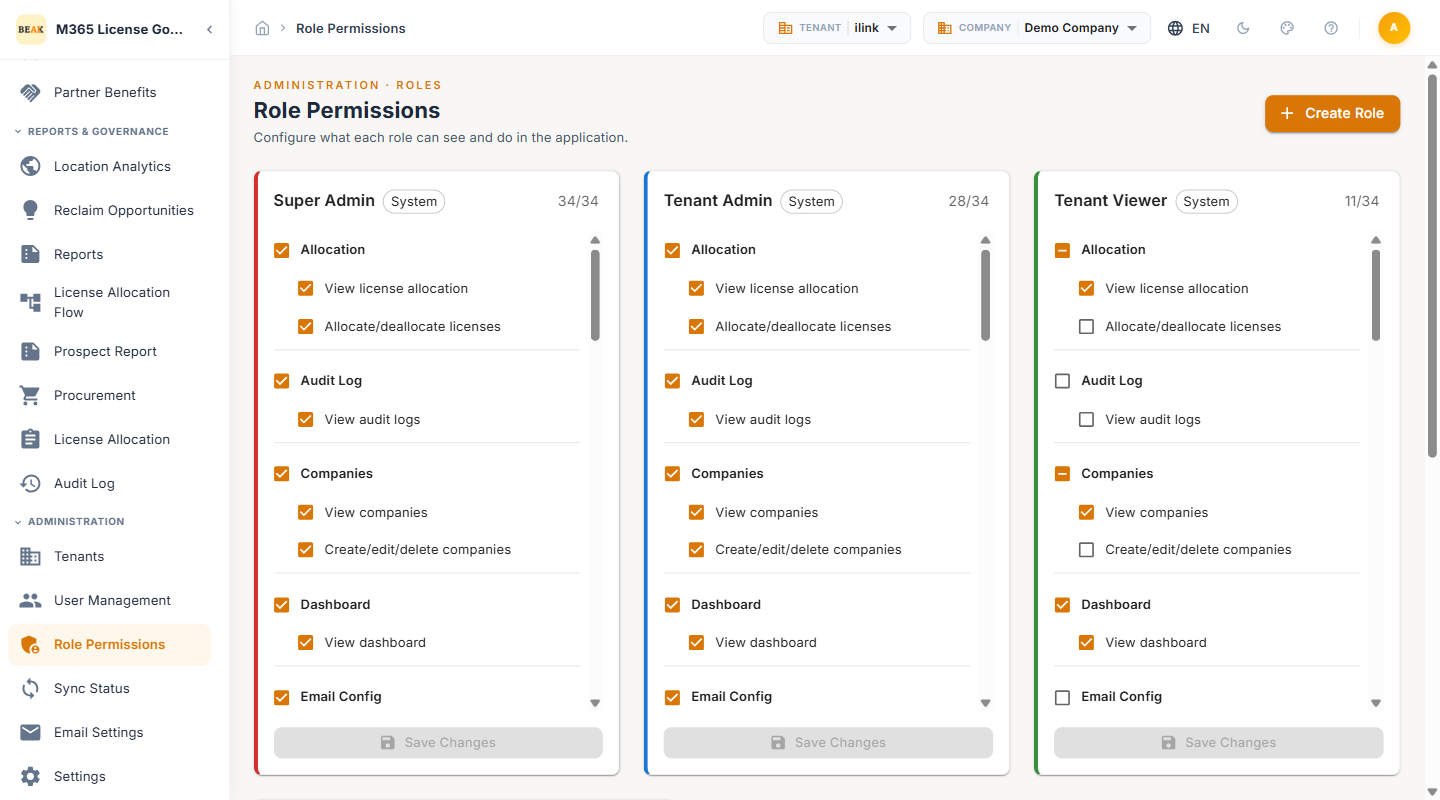
Permission Model
Roles control access at the module and action level:
- Module access — Which sections of the platform a role can view (e.g., Dashboard, Reports, Administration)
- Action permissions — What operations a role can perform within each module (e.g., view, create, edit, delete, export)
- Data scope — Whether the role has access to all companies or is restricted to specific organizational entities
Default Roles
Three roles exist in every tenant from the moment it is set up:
- Super Admin — Full access to all modules, actions, and tenants, with the ability to manage platform users and roles
- Tenant Admin — Administration of this tenant: its companies, users, connections and configuration
- Tenant Viewer — Read-only access to dashboards, licences, usage and recommendations
Anyone signing in for the first time through the platform arrives as a Tenant Viewer; an existing administrator changes that from the Users screen.
Note: Custom roles can be created to match your organization's access requirements. Contact your platform administrator to configure additional roles.
Sync Status
Sync Status monitors the data synchronization pipeline between your Microsoft 365 tenant and the Beak M365 License Optimizer platform. The sync process imports users, license assignments, subscriptions, and usage data from the Microsoft Graph API.
Success Banner
When the most recent sync completes successfully, a banner is displayed at the top of the page:
Last sync completed on [date] — 28,177 records synced in 1m 37s
Navigation Tabs
Sync Status is organized into two tabs:
- JOBS — View the history of all sync executions with status, duration, and record counts
- SCHEDULES — Configure automated sync schedules for recurring data imports
Jobs Table
The Jobs table tracks every sync execution with the following columns:
- Job Type — The type of synchronization performed (e.g.,
Full Sync,Incremental Sync) - Source — How the sync was initiated (e.g.,
Ad-hocfor manual triggers,Scheduledfor automated runs) - Config — The M365 configuration used for the sync
- Status — The outcome of the sync, displayed as
Completed,Failed,In Progress, orCancelled - Duration — The total execution time of the sync job
- Started — The date and time the sync began
- Completed — The date and time the sync finished
- Records — The total number of records imported during the sync
- Error — Error details if the sync failed, including the failure reason and affected data scope
- Created — The date and time the sync job was created/queued
- Actions — View the sync job details including per-entity record counts and any error messages
Triggering a Manual Sync
To initiate an ad-hoc sync:
- Navigate to the JOBS tab
- Click the Trigger Sync button in the top-right corner
- Select the sync type (Full Sync or Incremental Sync)
- Monitor the job progress in the Jobs table
Note: Full Sync reimports all data from the M365 tenant and should be used sparingly. Use Incremental Sync for routine updates to minimize API call volume and execution time.
Email Settings
Email Settings configures the Microsoft Graph API integration used to send procurement approval notifications, report deliveries, and platform alerts via email.
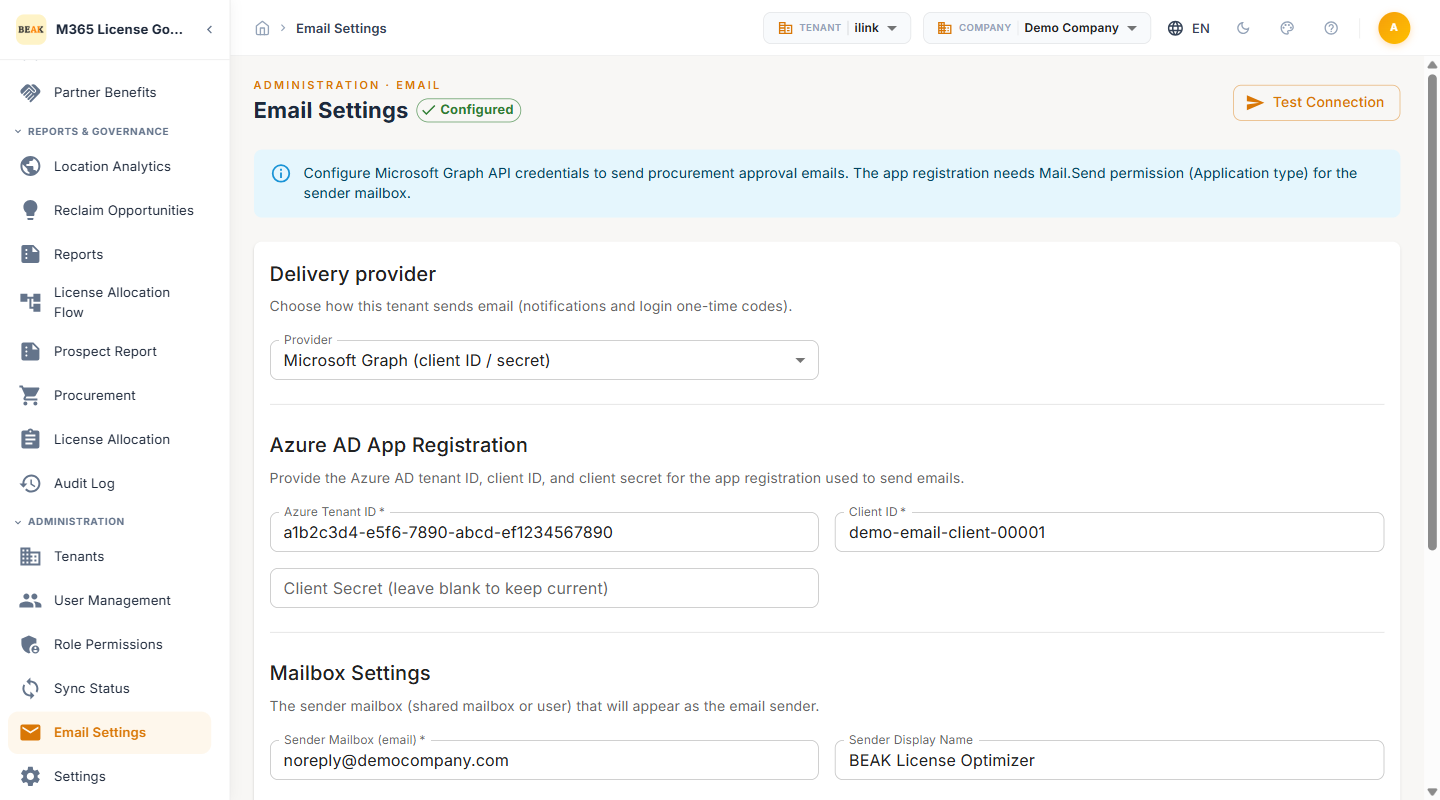
Azure AD App Registration
The email integration requires an Azure AD app registration with the Mail.Send permission. Configure the following credentials:
- Tenant ID — The Azure AD tenant identifier for the email-sending application
- Client ID — The application (client) ID from the Azure AD app registration
- Client Secret — The client secret or certificate for authenticating the application
Mailbox Settings
Configure the sender identity for outgoing emails:
- Sender Mailbox — The email address used as the sender for all platform-generated emails (e.g.,
noreply@yourcompany.com) - Sender Display Name — The display name shown in the email From field (e.g.,
Beak M365 License Optimizer)
Approval Routing
Configure where procurement approval requests are sent:
- Approver Email — The email address that receives procurement approval notifications. This can be an individual administrator or a distribution list
Note: The Azure AD app registration used for email must have the Mail.Send application permission with admin consent. This is a separate app registration from the one used for M365 data synchronization, though the same registration can be reused if both permission sets are granted.
Application Settings
Application Settings provides a key-value configuration interface for global platform parameters. Settings are organized into logical categories and control platform behavior, display defaults, alerting, optimization tuning, and API connection parameters.
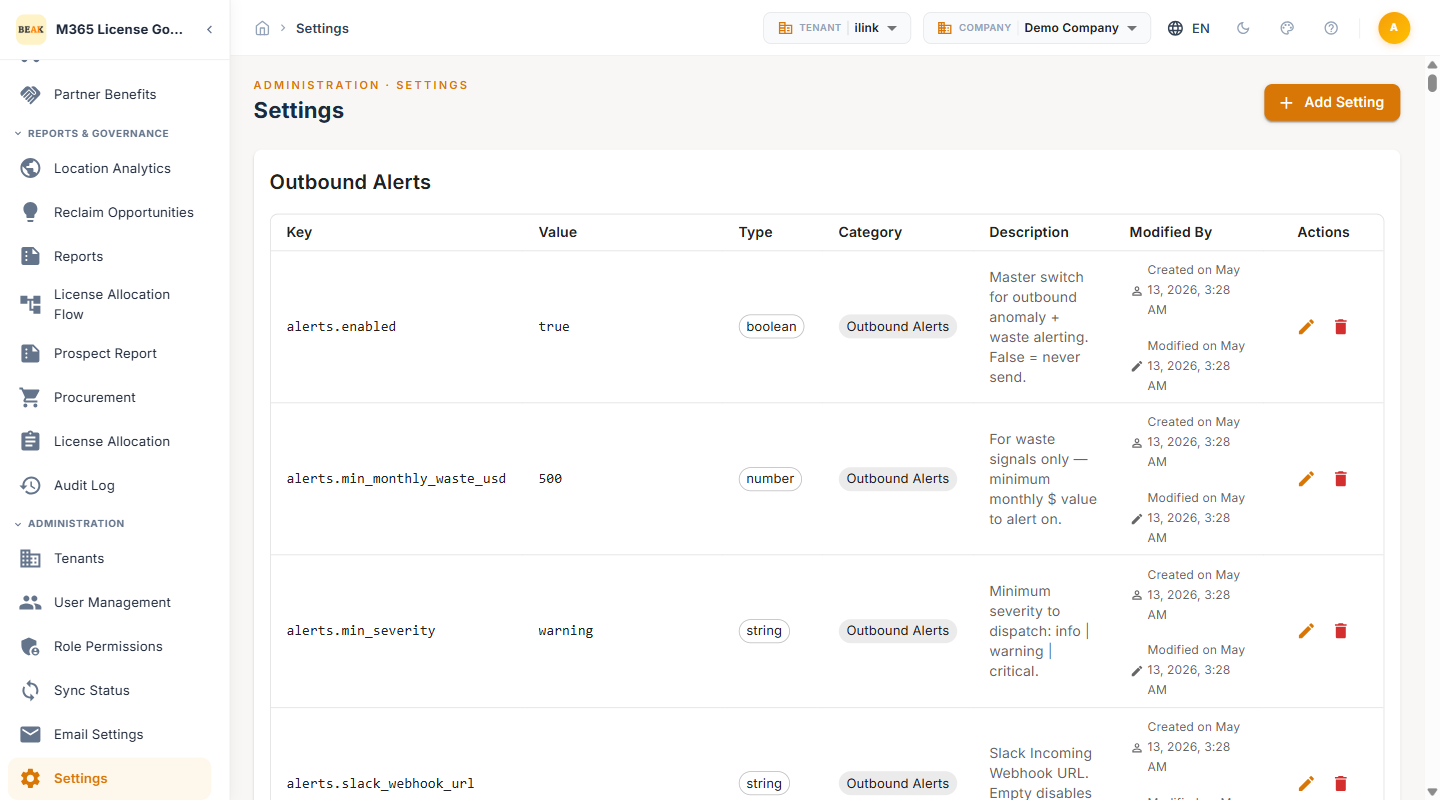
Each row in the settings table shows the Key (dot-notation identifier), Value, Type, Category, Description, and Modified By, with Actions to edit or remove the entry. The keys are grouped by the prefix of their dot-notation name.
General Settings
Display and logging defaults for the platform.
| Setting Key | Default Value | Description |
|---|---|---|
general.app_name | BEAK M365 License Governance & Optimizer | The application name displayed in the platform header and email notifications |
general.items_per_page | 50 | The default number of rows displayed per page in data tables |
general.log_level | INFO | The logging verbosity level for platform operations (DEBUG, INFO, WARN, ERROR) |
Alert Settings
Controls proactive alerting to Slack and Microsoft Teams when waste or anomalies cross a threshold.
alerts.enabled— Master switch that turns proactive alerting on or offalerts.min_severity— The minimum anomaly severity that triggers an alert (filters out low-severity noise)alerts.min_monthly_waste_usd— The minimum monthly wasted spend, in USD, required before an alert firesalerts.slack_webhook_url— The incoming-webhook URL that delivers alerts to a Slack channelalerts.teams_webhook_url— The incoming-webhook URL that delivers alerts to a Microsoft Teams channel
Note: Treat the Slack and Teams webhook URLs as secrets — anyone with the URL can post to the target channel. Rotate them if they are ever exposed.
Cost Intelligence Settings
Tuning parameters that shape how the optimizer and Cost Intelligence roll-up calculate opportunity.
cost_intelligence.tenant_segment— The tenant size/segment used to select the appropriate pricing and benchmark assumptionscost_intelligence.business_cap_users— The Microsoft 365 Business plan seat cap used in feasibility checks (Business plans are limited to 300 seats)cost_intelligence.plan_mix_cap_fraction— A guardrail limiting how aggressively the plan-mix optimizer may shift the license mix in a single passcost_intelligence.inventory_constrained— Whether the optimizer must honour existing purchased inventory rather than solving for a clean-slate optimumcost_intelligence.waste_inactive_days— The inactivity threshold, in days, after which a licensed user is counted as waste
Graph API Settings
Connection parameters for the Microsoft Graph API integration, governing timeouts and retry behaviour.
graph.timeout_seconds— The overall request timeout for Graph API callsgraph.connect_timeout_seconds— The connection-establishment timeoutgraph.max_retries— The maximum number of retry attempts for a failed Graph callgraph.retry_min_wait/graph.retry_max_wait— The lower and upper bounds of the backoff interval between retriesgraph.throttle_default_retry— The default wait applied when Microsoft Graph returns a throttling response without a Retry-After hint
Integration Settings
Credentials for server-to-server integration with other Beak services.
integration.beak_core_jwt_secret— The shared JWT signing secret used to authenticate integration with Beak Core. Treat this value as sensitive
Adding a Setting
To add a new configuration entry:
- Click the + Add Setting button
- Enter the Setting Key using the dot-notation format (e.g.,
general.timezone) - Provide the Setting Value
- Save the configuration
Note: Changes to application settings take effect immediately. Use caution when modifying settings in a production environment and document all changes in a change management record.
Best Practices
- Limit Super Admin access — Restrict the Super Admin role to a small number of trusted administrators. Give day-to-day administrators Tenant Admin, and Tenant Viewer for broader read-only access
- Schedule daily incremental syncs — Configure automated incremental syncs to run daily during off-peak hours to keep data current without excessive API usage
- Monitor sync failures — Review the Jobs table regularly and configure alerts for failed sync operations to prevent data staleness
- Use a dedicated mail-enabled account — Configure the Sender Mailbox with a dedicated service account rather than a personal mailbox
- Rotate client secrets proactively — Set calendar reminders to rotate Azure AD client secrets before expiration to prevent sync and email disruptions
- Audit role assignments quarterly — Review User Management and Role Permissions quarterly to ensure access levels align with current organizational responsibilities
- Document application settings changes — Maintain a change log for any modifications to Application Settings, particularly API connection parameters