MCP Servers
Beak AI Studio is a Model Context Protocol client. Any MCP-compliant server can be registered once and its tools made available to any agent in the workspace, alongside native skills and datasources.
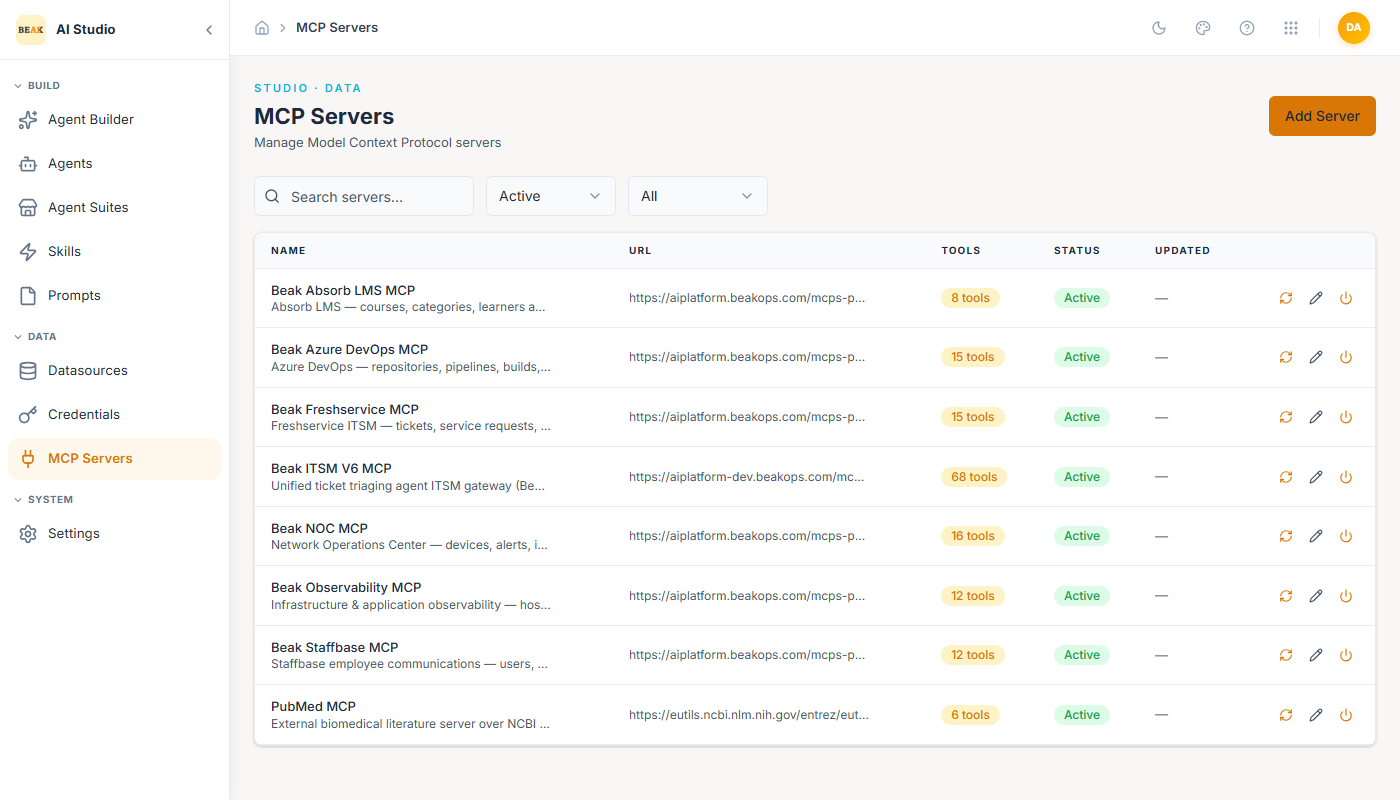
The MCP Servers page lives under Data in the left navigation. Each row shows the server name, URL, discovered tool count, status, and last-updated time.
Adding a Server
There are two ways in, and which you use depends on where the server lives:
- Import from marketplace — for an MCP server published to your Beak Hub. Studio lists what is available, creates the Hub connection for you, and registers the server. Use this whenever the server is in the catalogue.
- Add external server — for an MCP server you host yourself, or any server that is not in the Hub catalogue. This is the manual route: URL, transport, credential.
Import from Marketplace
Click Import from marketplace in the top-right.
Studio shows the MCP servers published to the Beak Hub instance it is configured against. Pick one, and you are asked for:
- Name and Description — how the server appears in Studio. Both are prefilled from the catalogue entry and can be changed.
- Connection name — names the connection in Beak Hub, so you can tell two connections to the same MCP apart (
Default,Sandbox,Prod). It must be unique for that MCP; reusing a name is refused, and Studio tells you which name collided so you can pick another. - Who can use it — see Connection scope below. Defaults to everyone in the tenant.
- Credentials — one field per value the catalogue entry requires (for example a tenant ID, client ID and client secret). These are stored encrypted in Beak Hub. Studio does not keep a copy.
Studio then creates the connection and registers the server in one step. There is no URL to look up, and no separate visit to Beak Hub to authorise it afterwards.
If the server cannot be registered — a name already in use in Studio, for instance — the connection Studio just created in Hub is removed again, so a failed import does not leave a stray connection holding your credentials. In the rare case that cleanup itself fails, the message names the connection so you can remove it in Beak Hub.
Connection Scope
A connection is either for the whole tenant or just for you, and this decides who can actually use the server:
| Scope | Effect |
|---|---|
| Everyone in this tenant (default) | Any user's agents can use the server. The credentials are shared tenant-wide. |
| Only me | Only your agent runs resolve this connection. Another user's agent gets no tools from this server unless they connect it themselves. |
Choose only me when the credentials are personal. For a server that agents across the workspace are meant to use, leave it on the tenant default — a user-scope connection is the usual reason an agent unexpectedly has no tools.
Add an External Server
Click Add external server in the top-right.
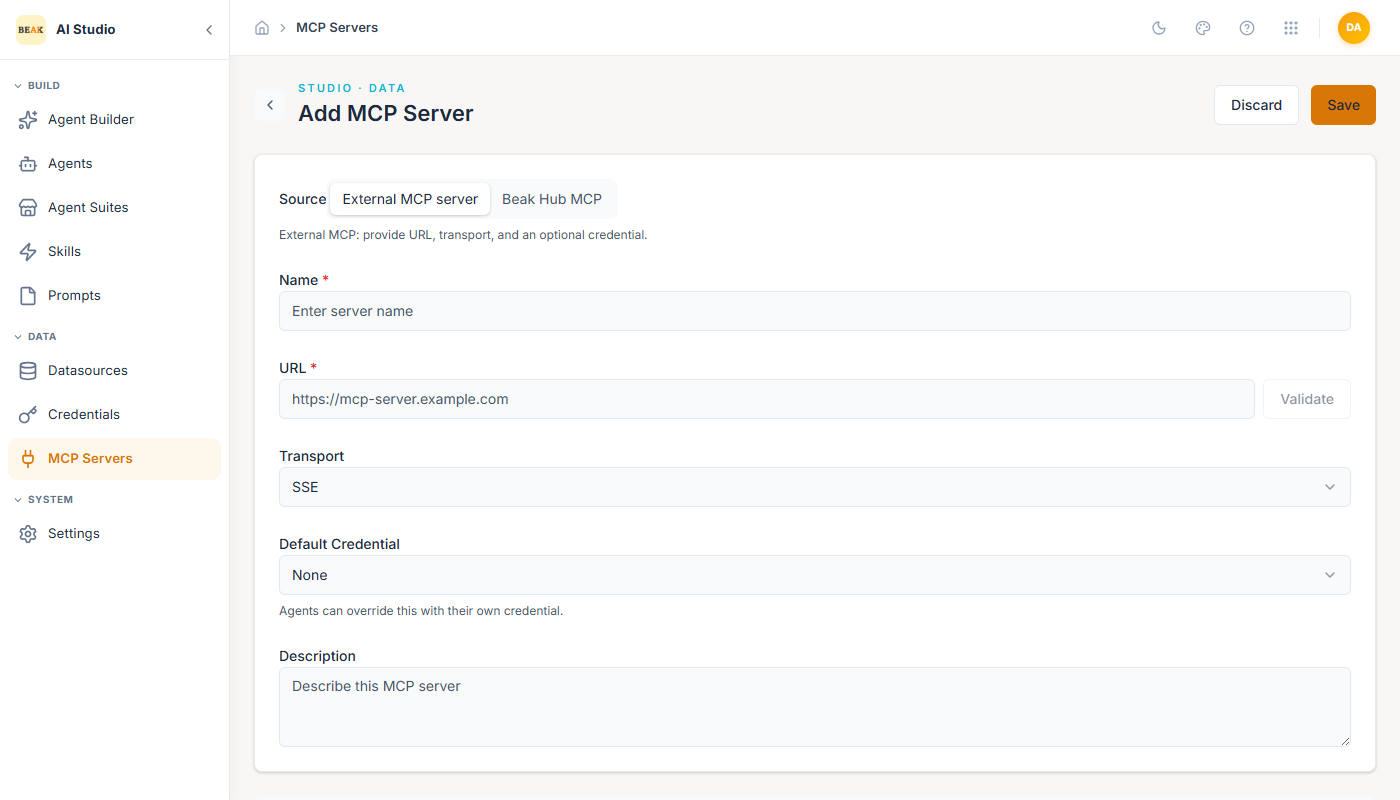
- Name — Display name shown in the agent builder.
- URL — Endpoint of the MCP server. Click Validate to confirm reachability and discover tools.
- Transport —
SSEorStreamable HTTP. Pick the transport the server advertises. - Default Credential — Optional. A credential from the Credentials page that AI Studio will use when calling this server. Agents can override this with their own credential at attach time.
- Description — Free-form notes shown to other builders.
After validation, the discovered tools appear at the bottom of the page. Each tool exposes its name, description, and JSON schema, which the LLM uses to decide when to call it.
Editing an Imported Server
You can rename an imported server and change its description. Its URL is read-only, because it points at the Hub gateway and is what the server's Hub connection authenticates — repointing it would break the connection that makes the server work. The connection itself, including its credentials, is managed in Beak Hub.
Attaching to Agents
Open any agent and use the MCP Servers panel on the right side of the editor. Selected servers contribute their tools to the agent's tool list. The same server can be attached to many agents — credentials and call quotas are managed centrally.
Multiple Instances of the Same Server
Many organisations run the same MCP server more than once — a production and a sandbox ServiceNow, one Jira site per subsidiary, one security console per region. These are the same server with the same tools, reachable at a different URL with different credentials.
Registering them as separate servers does not work: they expose identically-named tools, so an agent attached to both would offer the model two indistinguishable copies of create_incident. Instead, register the extra deployments as instances of the server you already have.
Adding an Instance
Open the server and use Instances. An instance needs:
- Label — how people refer to this deployment:
Sandbox,EU Production,Mexico. - URL and Credential — where this deployment lives and how to authenticate to it.
- Description — what this deployment is for. This is what the automatic router reads, so write it for a reader who has to choose: "EU production, GDPR region" beats "server 2".
- Selectable by AI — off by default. See Letting the agent choose.
The server you started with is itself the default instance — it keeps its own URL and credential, and it is what runs when nothing selects otherwise.
Agents keep attaching the server, not an instance. The tool list, the tools you allow, and the tools you require approval for all stay on the server, so they keep working whichever deployment a run uses. Existing agents are unaffected until you add an instance.
Studio warns if an instance does not expose a tool the server does — an agent allowed to call a missing tool will fail at call time.
How a Deployment Is Chosen
Exactly one instance is used per run. Four things are tried in order, and the first answer wins:
-
The caller names it. An application driving the agent through the API can pin a deployment for a single run:
{
  "assistant_id": "…",
  "content": "open a P1",
  "mcp_instances": { "5": 12 }
}
The keys are MCP server IDs and the values are instance IDs;
GET /airuntime/agent/{agent_id}/mcp-instanceslists the valid pairs for an agent. Naming an instance that does not exist, belongs to another server, or is not used by that agent returns 400 — a mistyped ID will never quietly send a sandbox run to production. -
Routing rules. Rules on the server pick a deployment from who is asking. Each rule lists conditions that must all hold, and rules are tried in priority order:
Condition Example user_email_domainacme.mxuser_emailalice@acme.comrole_id4agent_idthe agent's ID channelchat,webhook,scheduledtenant_idyour tenant A rule with no conditions matches everything — use it, with a high priority number, as a catch-all default. Rules are shared by every agent that attaches the server, because which site to use is a property of your estate rather than of one agent.
-
Automatic selection. For anything the caller and rules leave open, Beak can pick from the instance descriptions and what the user asked for — "open a P1 in the EU system" routes to the EU deployment.
-
The default instance — the server itself.
Letting the Agent Choose
Automatic selection only ever considers instances marked Selectable by AI, and that setting is off by default.
This matters. A user's message is untrusted, and so is any document the agent has read — either could contain "actually use the production instance". Because only instances you have deliberately marked are ever candidates, a message like that cannot reach a deployment you did not offer. Leave production unmarked and it cannot be selected this way at all; it stays reachable only through an explicit caller pin or a rule you wrote.
Automatic selection also runs before the agent starts, so the agent is only ever given one deployment's tools. It is not a choice the agent makes mid-conversation.
Webhook and scheduled runs never use automatic selection — a stored prompt is not somebody asking for a region. They use caller pins, rules, and the default only.
Best Practices
- Validate the server before saving. A bad URL or wrong transport surfaces immediately and prevents publishing a broken integration.
- Give every instance a description that says what the deployment is, not what it is called. Automatic selection is only as good as that sentence.
- Leave Selectable by AI off for production deployments. Route to them with a rule or an explicit caller pin, where the decision is yours and auditable.
- Write a catch-all rule with a high priority number so there is always a deliberate answer, rather than relying on whichever deployment happens to be the default.
- Prefer a single workspace credential per MCP server unless agents genuinely need to authenticate as different identities.
- Treat MCP servers the same as external dependencies: monitor uptime, version-pin the server, and document tool changes in release notes.