Playground
The Playground is the test bench for the agent you are editing. Open it from the ▷ Playground control in the top-right of the agent editor, start a conversation, and chat with the agent using the same runtime, model, skills, and datasources that production users would hit.
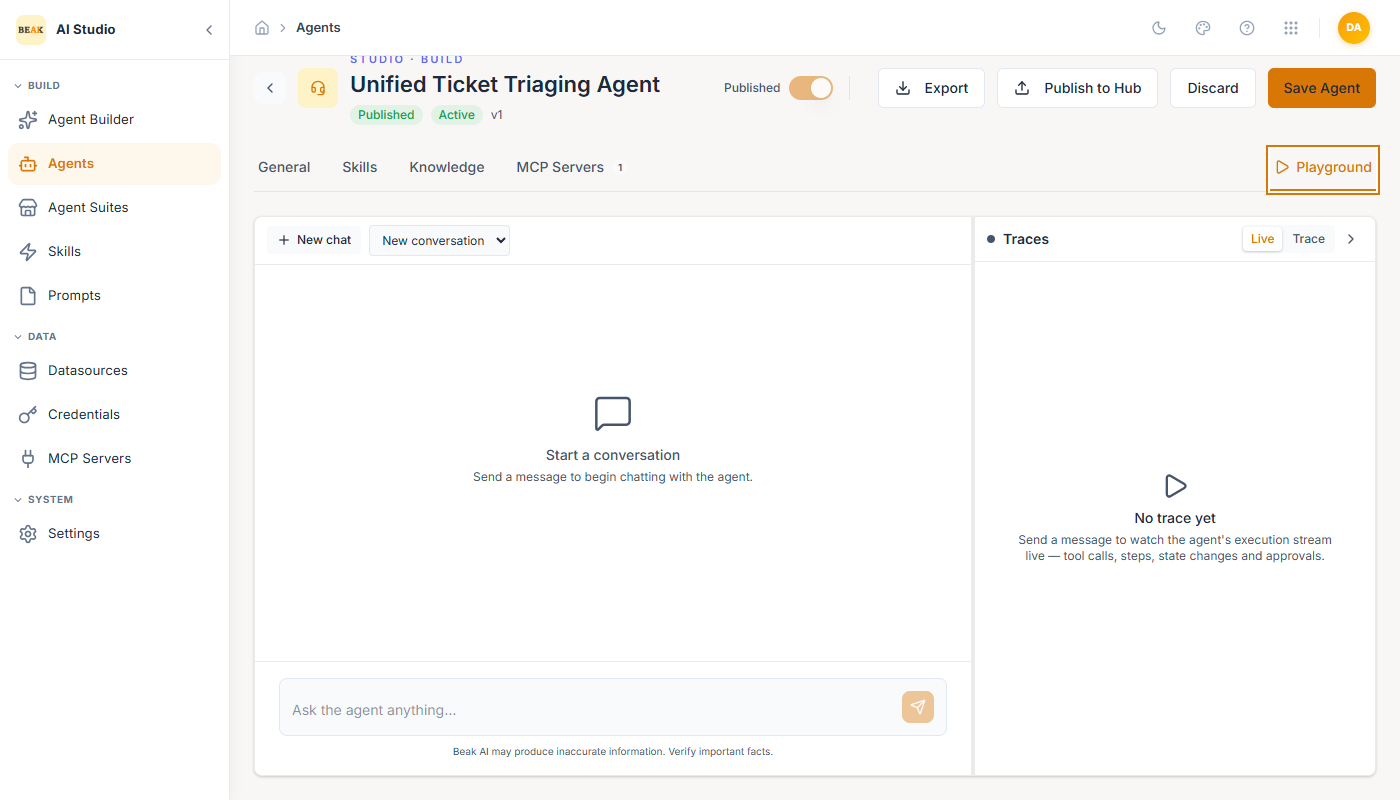
The page splits into two panels:
- Chat surface (left) — A New chat button and a conversation selector sit above a standard chat interface, with a message input (Ask the agent anything…), an attachment button, and per-turn rendering of the agent's response, tool calls, and citations.
- Traces (right) — A live execution panel with Live and Trace tabs. As the agent runs it streams every tool call, step, state change, and approval, so you can watch exactly how a response was produced. It reads No trace yet until you send the first message.
Starting a Conversation
- Click New chat to start a fresh conversation.
- Type a message in the Ask the agent anything… input and press Enter (or click the send icon).
- Watch the response stream in the chat surface and the execution unfold live in the Traces panel.
The agent's response streams back in the chat surface. Tool calls (skills, datasources, MCP servers) are rendered as inline cards showing the tool name, inputs, and result. Citations from datasources appear as numbered links beneath the response when the agent has Citations enabled.
Conversations
Conversations are persisted per agent and selectable from the dropdown above the chat surface. Use them to:
- Compare two prompt variants by running the same user message in separate conversations.
- Reproduce a bug report by starting a conversation that mirrors the original.
- Build up a long-running test scenario without losing earlier turns.
The conversation selector shows the first user message of each conversation as its title.
Attachments
The paperclip icon next to the message input attaches files to the user message. Attachments are processed by the agent's attached file-type datasources or by skills that accept file inputs. Attachments respect the agent's File Upload toggle — when the toggle is off, the icon is hidden.
What the Playground Sees
The Playground always uses the agent's latest saved version (draft or published). This is the difference from Runtime traffic, which only sees the published version. Use this gap deliberately:
- Iterate on a prompt or skill, hit Save, and the Playground picks up the change immediately.
- Validate the change in a thread.
- Flip Published in the agent editor only after the Playground confirms the behavior.
Note: The Playground bills the same as Runtime traffic for any LLM tokens consumed. Keep test threads short and avoid leaving them open against expensive models.
Best Practices
- Maintain a "regression" thread per agent that exercises the agent's most-used skills. Replay it after every significant change.
- Use one agent per thread. Switching agents mid-thread starts a new conversation under the hood.
- Treat the Playground as a debugging tool, not as a user-facing surface. End users should hit the Runtime UI in Beak AI Runtime.