Datasources Overview
Datasources expose knowledge, structured data, and SaaS application data to agents through a single retrieval interface. They are registered once, attached to any number of agents, and managed centrally with the same publish / activate lifecycle as agents and skills.
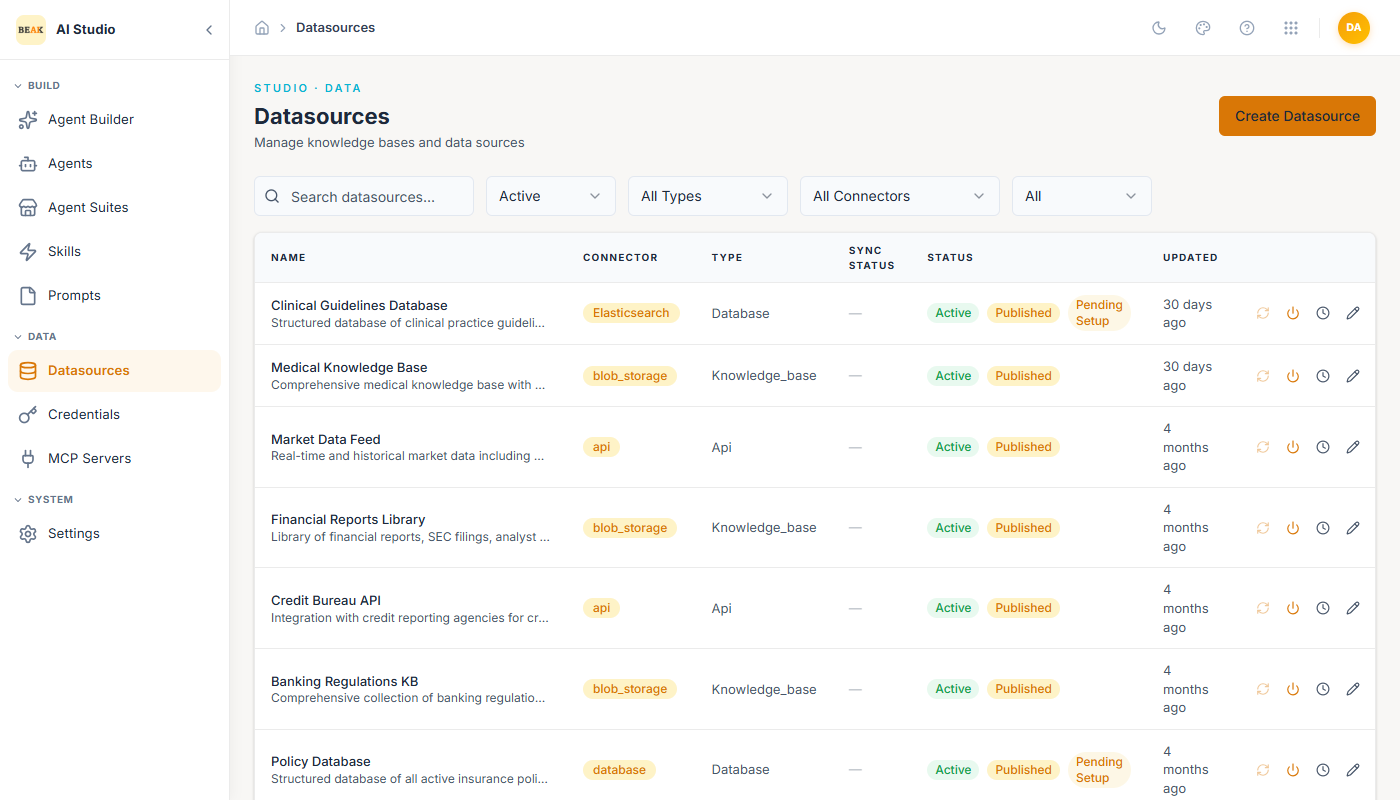
The list view groups datasources by Connector (e.g. blob_storage, database, api) and Type (Knowledge_base, Database, Api). Filters narrow by status, type, and connector. Datasources still pending configuration display a Pending Setup chip.
Creating a Datasource
Click Create Datasource in the top-right.
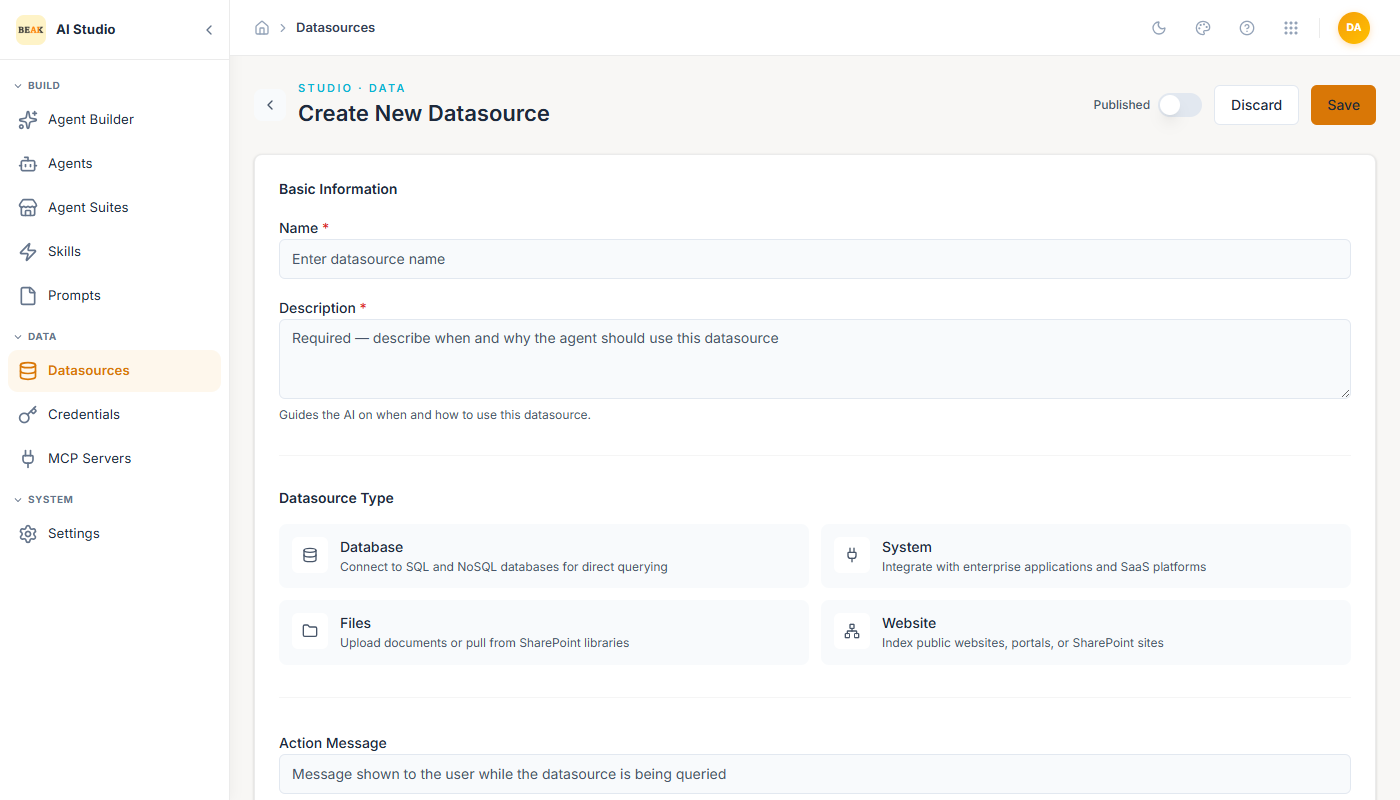
Every datasource shares the same metadata block before you pick a type:
- Name — Display name shown in agents and lists.
- Description — Becomes the instruction visible to the agent. Tells the LLM when to query this datasource.
- Action Message — Optional status string shown in the chat while the datasource is being queried.
Then pick one of four types. Each type swaps in its own Select connector grid and Configuration form.
Database
Direct connections to SQL and NoSQL stores. Supported connectors:
PostgreSQL · MySQL · SQL Server · MongoDB · Redis · Cassandra · Elasticsearch · OpenSearch · Oracle · Azure Log Analytics
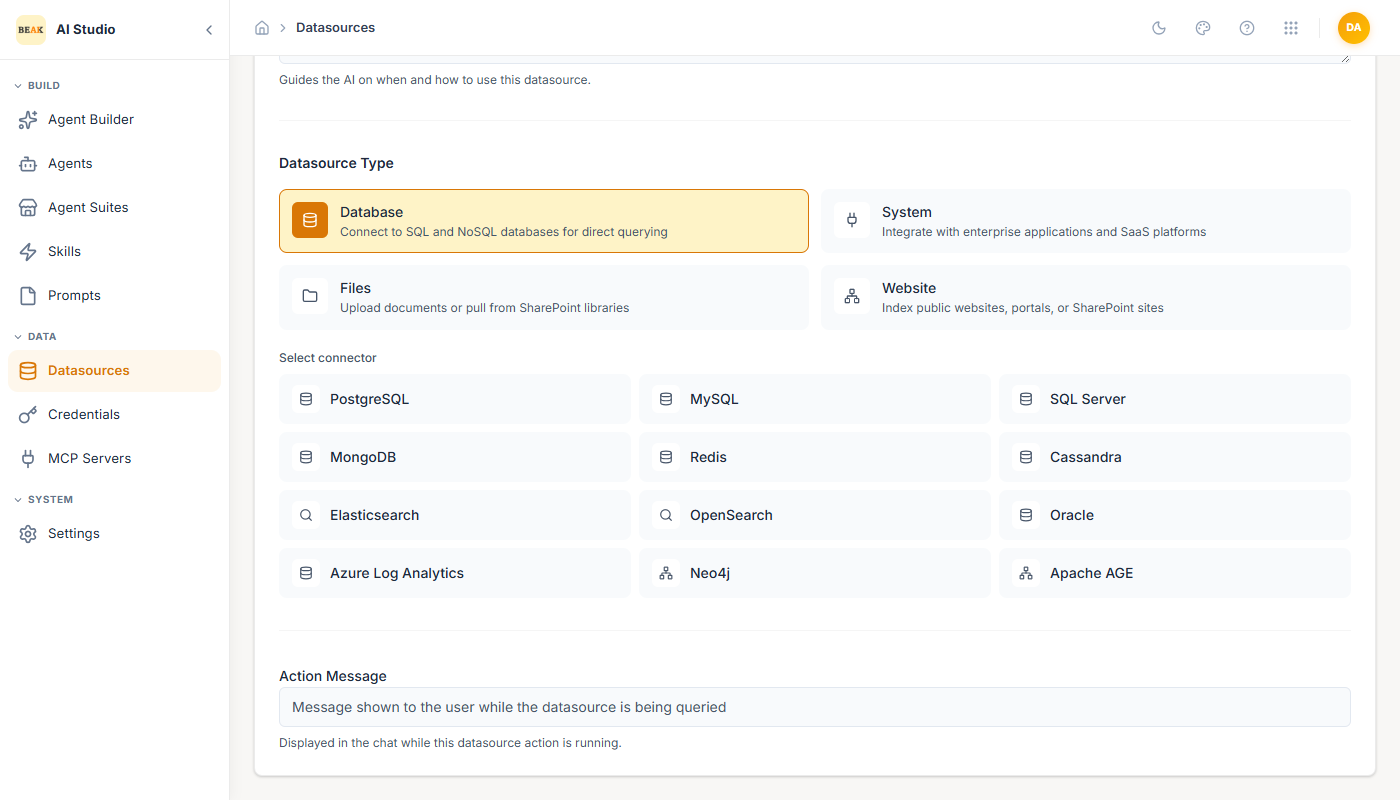
Each connector exposes the connection fields it needs (Host, Port, Database Name, etc.). After saving the connection, return to the datasource to configure the knowledge base schema and scheduler that govern indexing and refresh cadence.
System
Pre-built connectors for enterprise applications and SaaS platforms:
ServiceNow · Zendesk · ConnectWise Manage · SentinelOne · Azure DevOps · Microsoft Intune · N-Central · Beak RMM · Atlassian Jira · ManageEngine Endpoint Central · ManageEngine ServiceDesk Plus · Microsoft 365 · Microsoft Entra · Beak ITSM · NinjaOne · Plumsail · SolarWinds Service Desk · Zoho Desk
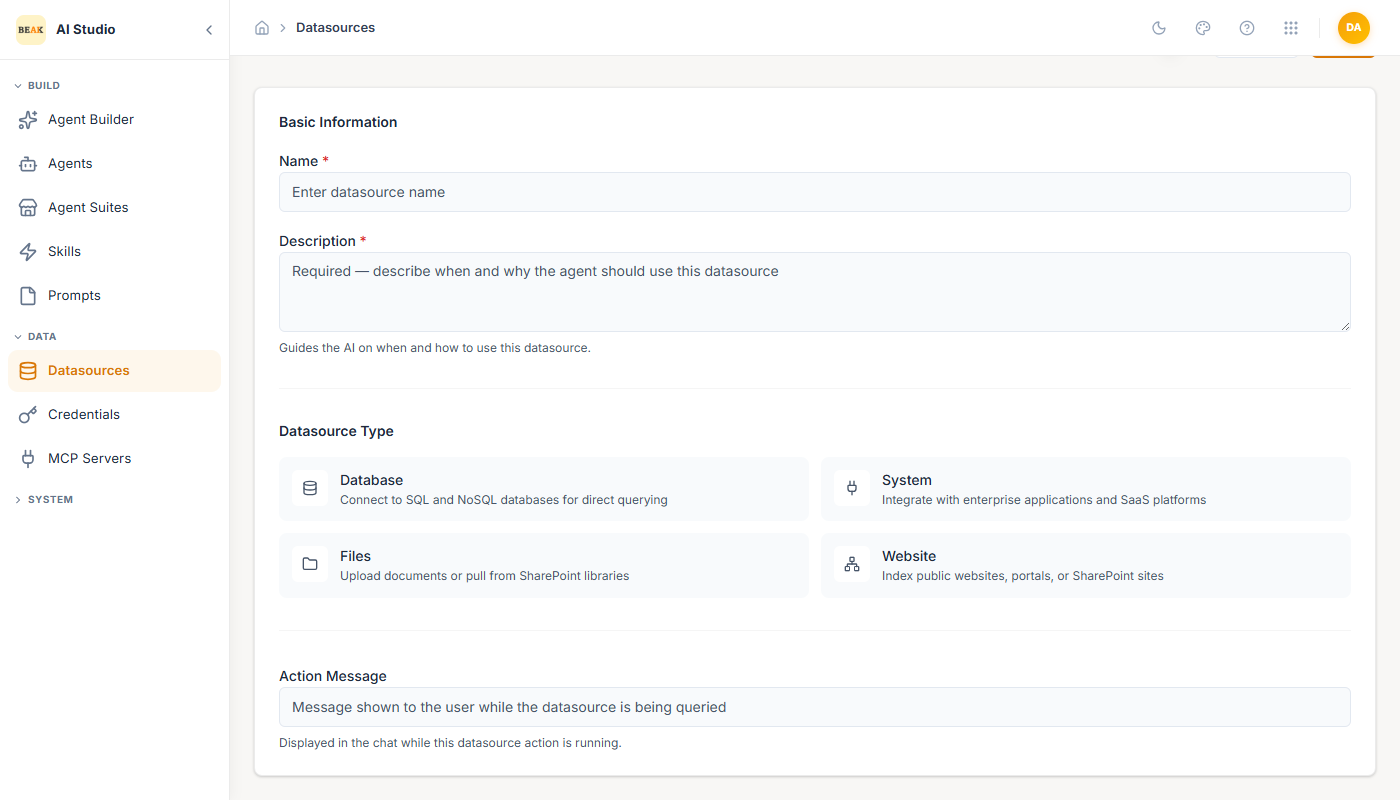
Each system connector asks for a Connector Name and the system-specific endpoint (e.g. ServiceNow Instance URL). Authentication is bound from a Credential at attach time.
Files
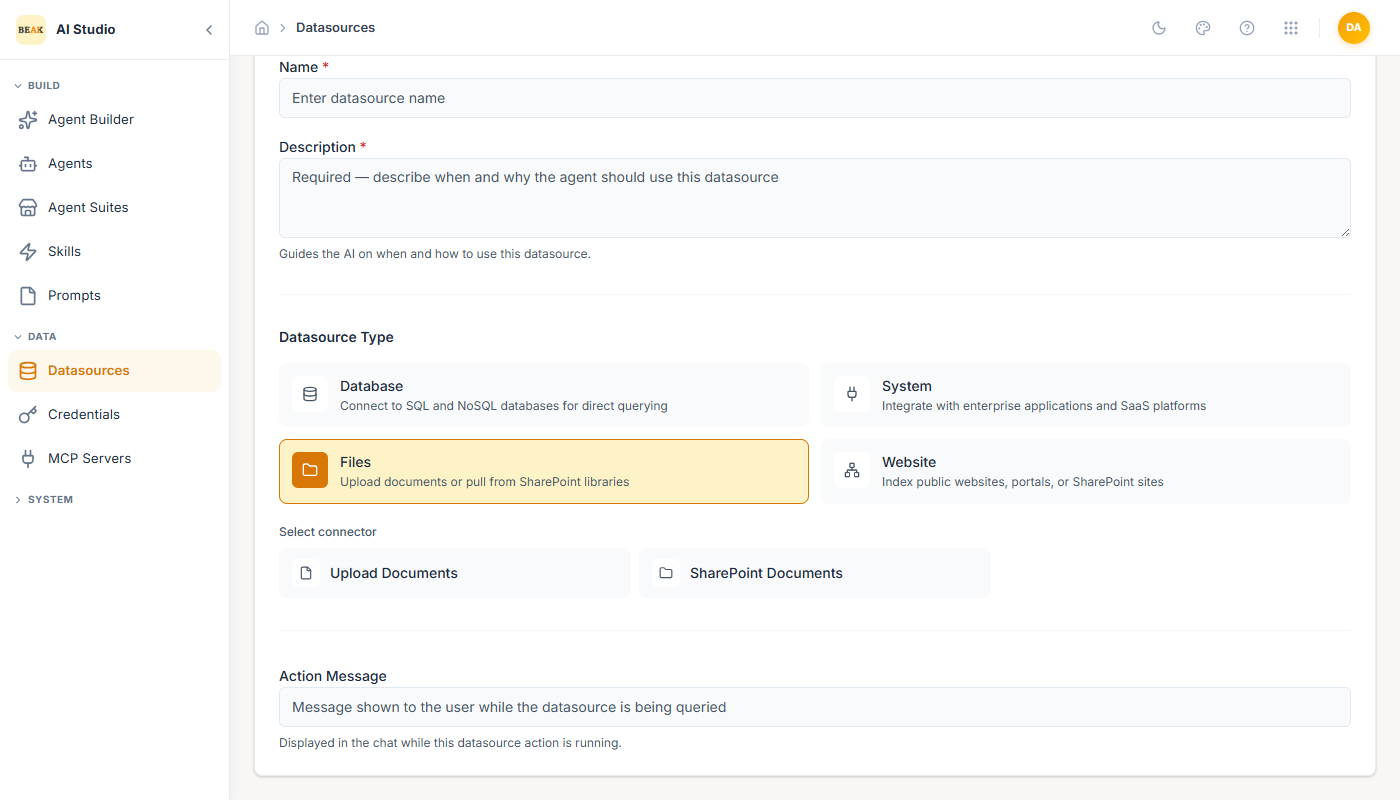
Two file sources are available:
- Upload Documents — Direct file upload after the datasource is saved. Supported formats include PDF, DOCX, XLSX, TXT, MD, HTML, and common image types.
- SharePoint Documents — Index a SharePoint document library by URL.
Note: For
Upload Documents, save the datasource first. The upload UI appears in the same form once a draft has been created.
Website
Three website sources are available:
- Public Website — A reachable URL that gets crawled and indexed.
- Web Portal — Authenticated portal indexed using a stored credential.
- SharePoint Sites — Full SharePoint site (not just a document library).
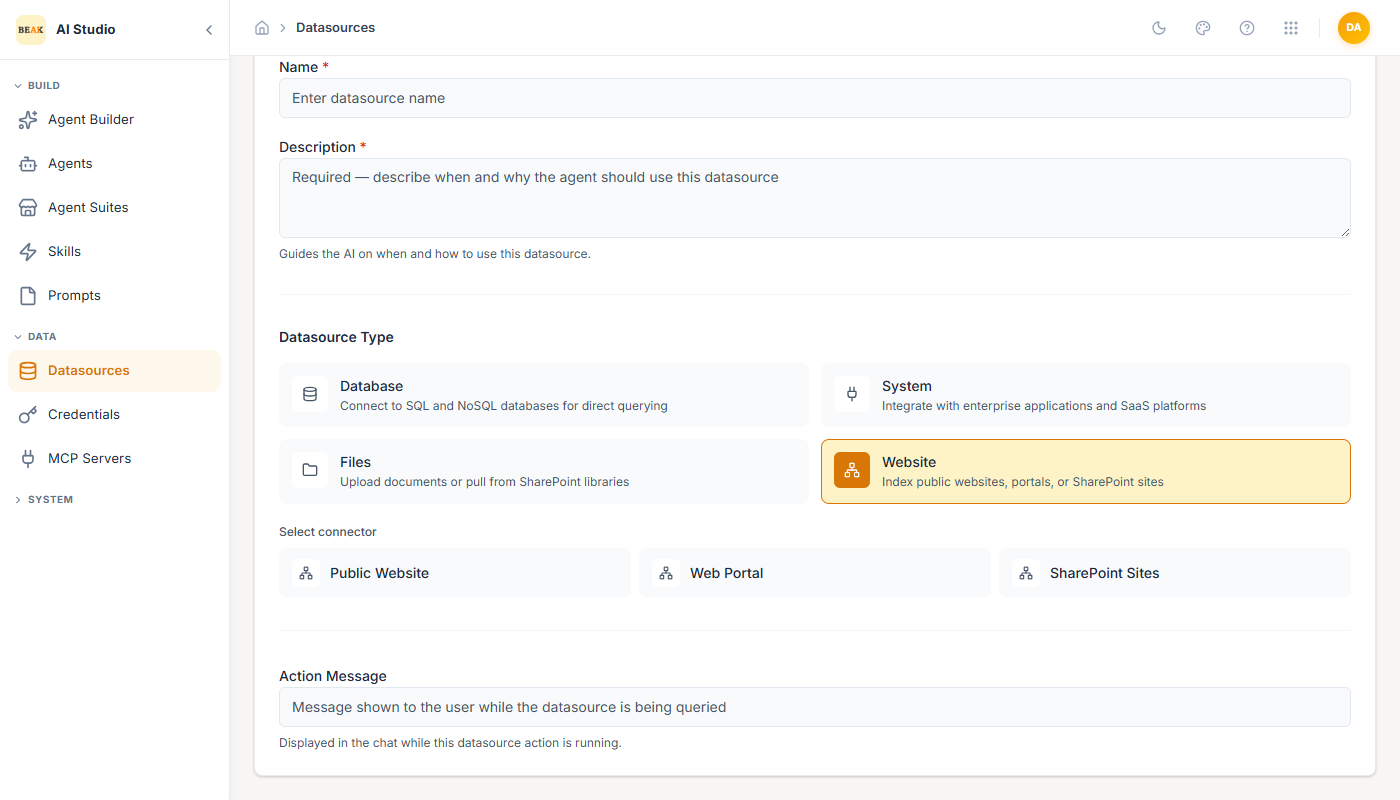
Public websites only need a Website URL and an optional Description. Web portals and SharePoint sites bind to a credential for authenticated access.
Lifecycle
Datasources follow the same draft → published → active → inactive pattern as agents and skills. The toolbar exposes Save, Published toggle, History, and Discard. The Pending Setup chip surfaces datasources that were saved but never finished their schema/scheduler step — agents cannot select these until they are completed.
Best Practices
- Set a strong Description on every datasource. The LLM uses it as the routing signal between competing knowledge sources.
- For databases, define a narrow schema (only the tables and columns the agent should see). Wide schemas confuse the LLM.
- Configure a refresh schedule that matches the underlying data's volatility — daily for runbooks, hourly for ticketing, real-time for live APIs.
- Keep file-based knowledge bases under one logical theme per datasource (e.g. one for HR policy, one for engineering runbooks). Mixed corpora reduce retrieval precision.