Settings
The Settings page has two sections. Connections configures the two upstream services AI Studio depends on — both expose verification actions before save, so a misconfigured URL is caught immediately rather than at runtime. Roles & Permissions controls who may use Studio and what they may do in it.
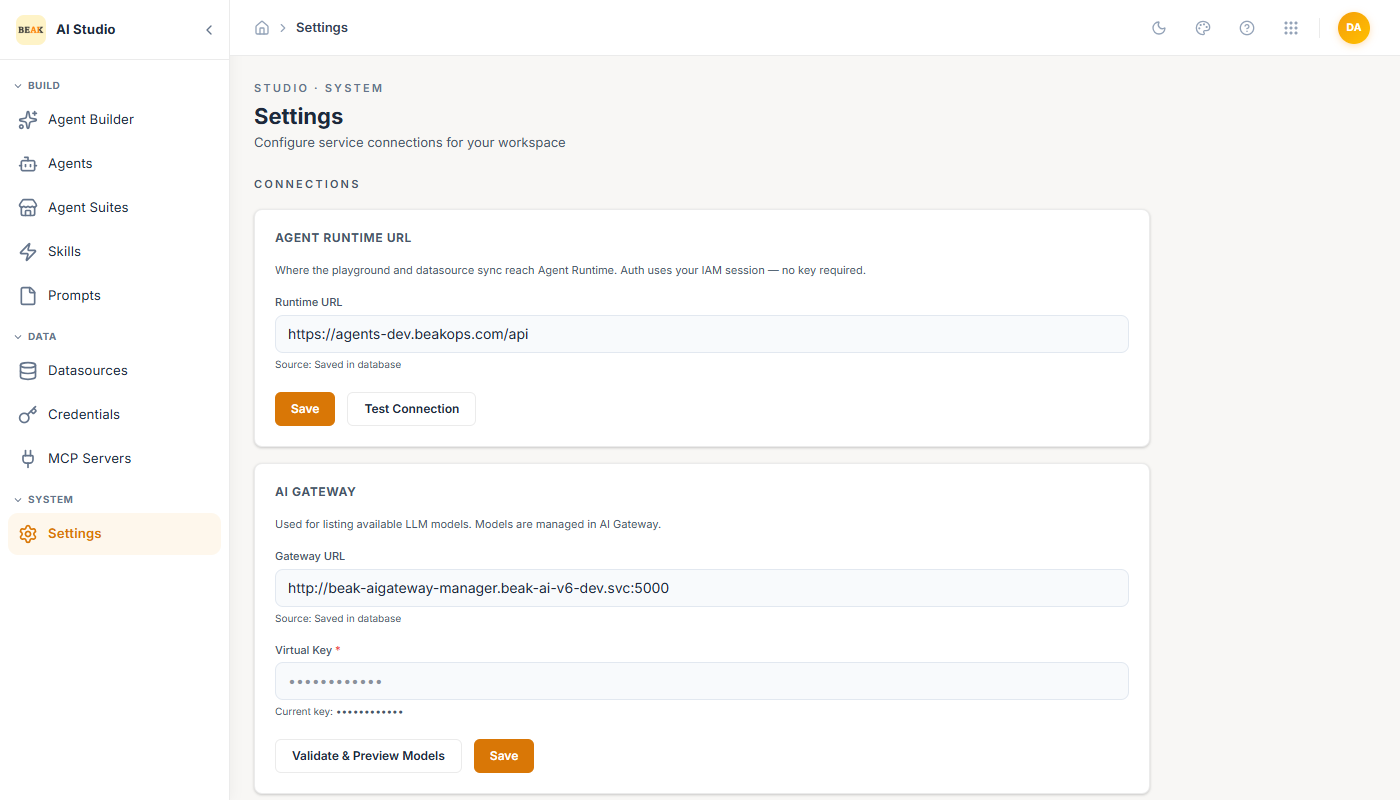
Agent Runtime
The Agent Runtime is the deployment target for every published agent. AI Studio writes its agent definitions, skill registrations, and datasource configurations to this runtime, and the runtime serves end-user traffic.
- Runtime URL — Base URL of the Beak AI Runtime instance (e.g.
https://demo-runtime-dev.beakops.com). The source label below the field shows whether the value came from the database or an environment variable default. - API Key — Optional. Required when the runtime is configured to authenticate Studio writes.
- Test Connection — Probes the runtime's health endpoint with the configured URL and key.
Click Save to persist. Changes take effect immediately for any new publish.
AI Gateway
The AI Gateway is the source of LLM model availability. The gateway is where models are registered, projects are scoped, and routing is governed; AI Studio consumes the gateway's model list to populate the Model picker in the agent editor.
- Gateway URL — Internal or public URL of the Beak AI Gateway (e.g.
http://beak-aigateway-manager.beak-ai-v6.svc:5000). - Project Name — Optional. Filters the model list to a specific gateway project. Leave blank to expose every model the gateway lists.
- Virtual Key — Optional. Required when the gateway enforces virtual-key auth on the model-list endpoint.
- Validate & Preview Models — Calls the gateway with the configured filters and returns the model list that AI Studio would surface to builders. Use this before saving to confirm builders will see the expected providers.
Roles & Permissions
The second section of the page controls who may use AI Studio and what they may do. It covers four things:
- Roles — Named bundles of permissions. System roles are supplied by the platform and are read-only; custom roles can be created where a system role grants more than a person needs.
- Users — The people in the tenant and the Studio roles each one holds. Identity itself lives in Beak IAM — a person appears here once they exist as a platform user, so what is managed on this page is their access, not their account.
- Role editor — Where a role's permissions are set, including the agents scope picker described below.
- Audit — A record of recent authorization changes, so a change in someone's access can be traced to who made it.
Scoping a role to specific agents
This is the part specific to Studio. A role can be granted over particular agents rather than over every agent in the workspace, using a multi-select of the agents in this tenant.
That makes it possible to let a team build and publish their own agents without giving them edit rights over everyone else's — the common requirement once more than one team shares a Studio workspace.
Note: A role with no agent scope applies to all agents. Scoping is a narrowing, so adding a scope to an existing role reduces what its holders can reach — check who holds a role before scoping it.
Best Practices
- After every environment change (dev → qa → prod), validate both connections before publishing any agent. A wrong runtime URL silently writes to the wrong environment.
- Use Validate & Preview Models after any AI Gateway change. Builders will only see what the gateway exposes — a missing model in the picker is almost always a Settings issue.
- Keep the runtime API key in a workspace-scoped secret store. Rotate it when team membership changes.
- Scope builder roles to the agents a team owns once a workspace is shared. It is far easier to widen a scope later than to explain an accidental edit to another team's agent.
- Prefer a scoped custom role to a broad system role when someone needs one narrow capability — the audit trail is easier to read afterwards.