Prompts
The Prompt library stores reusable prompt templates that can be referenced from any agent (System Prompt → Library) and from prompt-based skills. Each prompt is independently versioned, so a single edit propagates to every agent or skill that points at it.
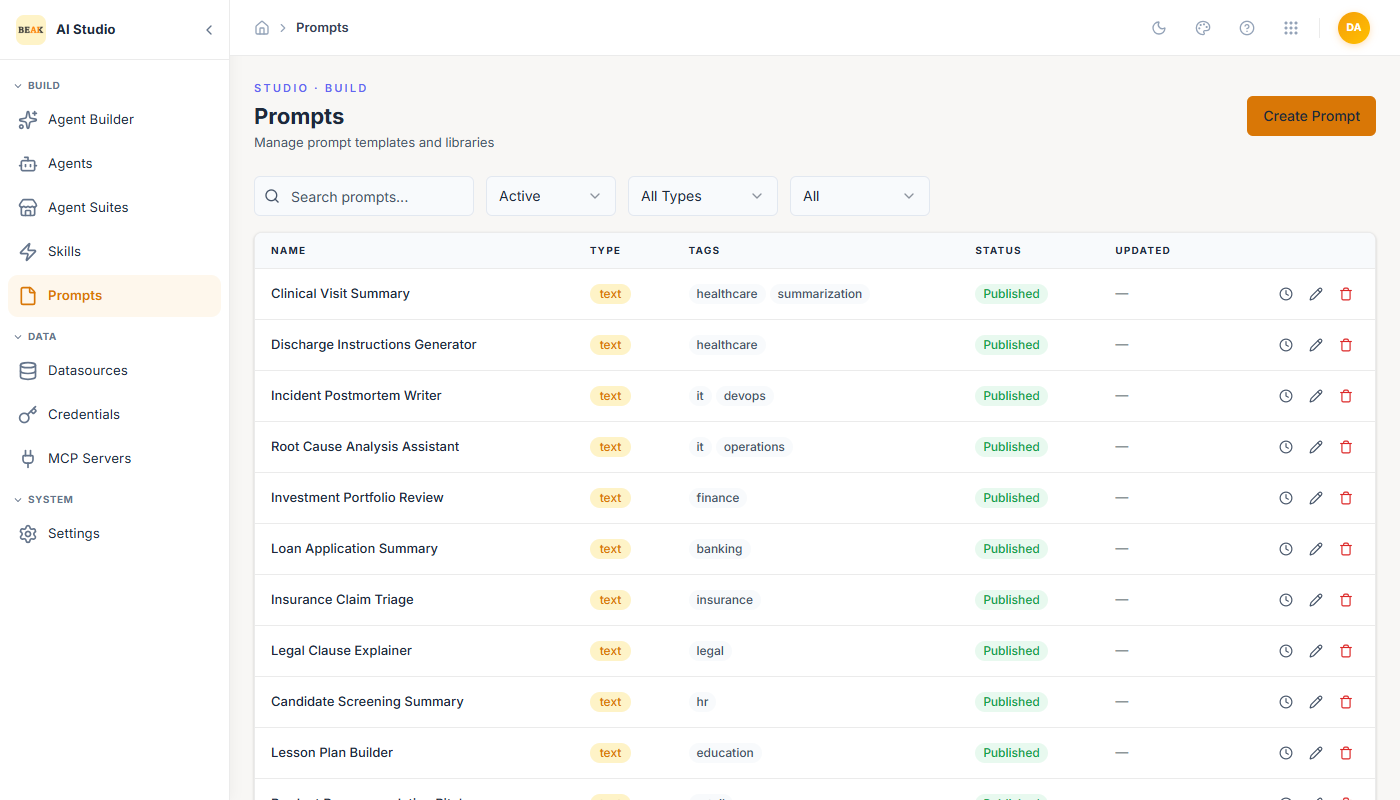
The list view shows the prompt name, type, tags, status, and last-updated time. Filters narrow by status, type, and category.
Creating a Prompt
Click Create Prompt in the top-right.
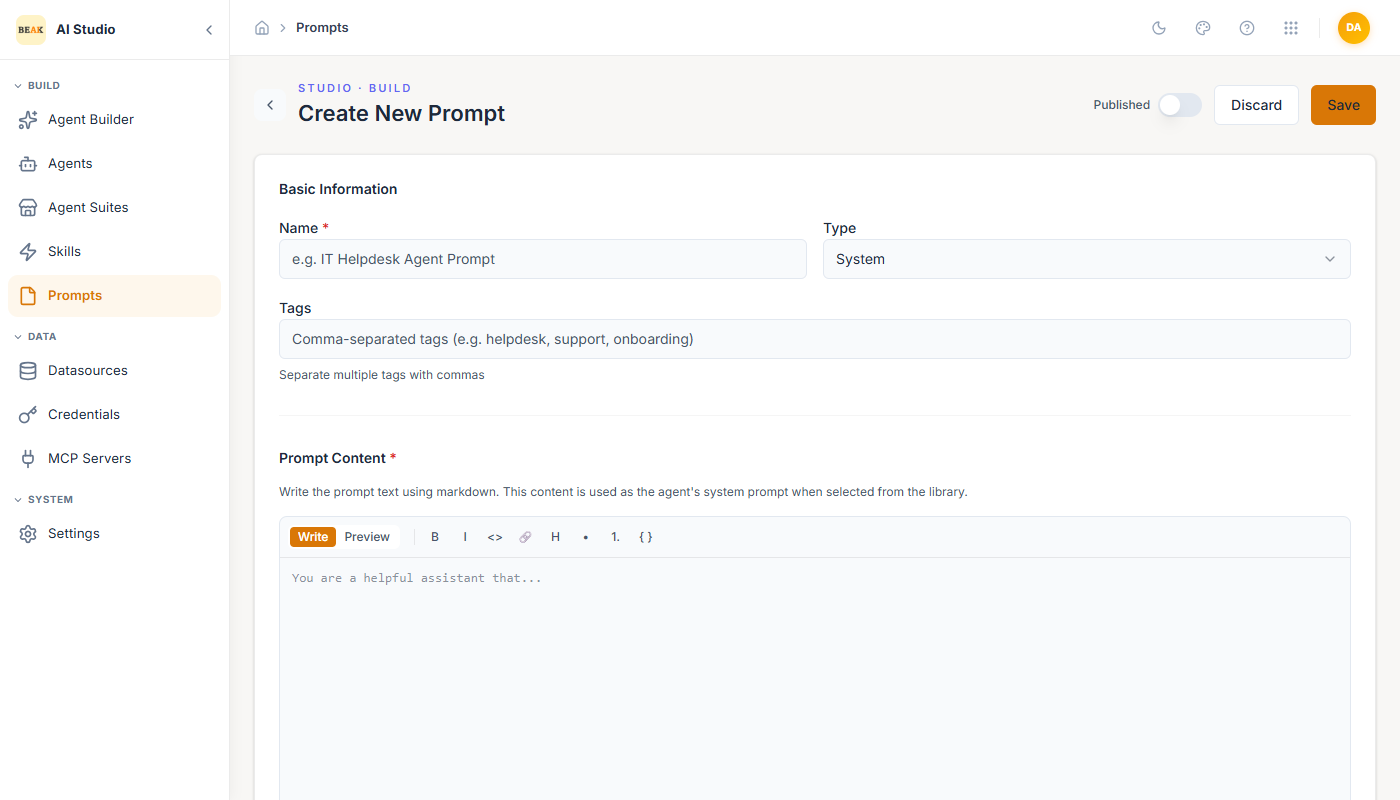
- Name — Identifier shown in the picker (e.g.
IT Helpdesk Agent Prompt). - Type — One of:
System— Persona / behavior prompt for an agent.User— Templated user message (used by skills that pre-format user input).Assistant— Pre-canned assistant response (few-shot examples).Template— Generic template referenced by other prompts or skills.
- Tags — Comma-separated labels for organization (e.g.
helpdesk, support, onboarding). - Prompt Content — Markdown editor with Write / Preview tabs. Supports bold, italic, code, links, headings, lists, and
{{ variable }}interpolation.
Lifecycle
Prompts use the same Save / Published / Discard toolbar as agents and skills. Only published prompts appear in the agent builder's Library picker.
Note: Editing a published prompt creates a new version. Agents and skills that reference the prompt automatically pick up the latest version on the next run.
Best Practices
- Keep persona prompts (
Systemtype) short and instruction-led. Long examples belong inAssistantfew-shots, not in the system prompt. - Use tags to mirror your team structure (e.g.
team:itsm,domain:finance). Tags double as the search filter on the list view. - When a prompt is referenced by multiple agents, treat edits as production changes — review them like code.