Creating Skills
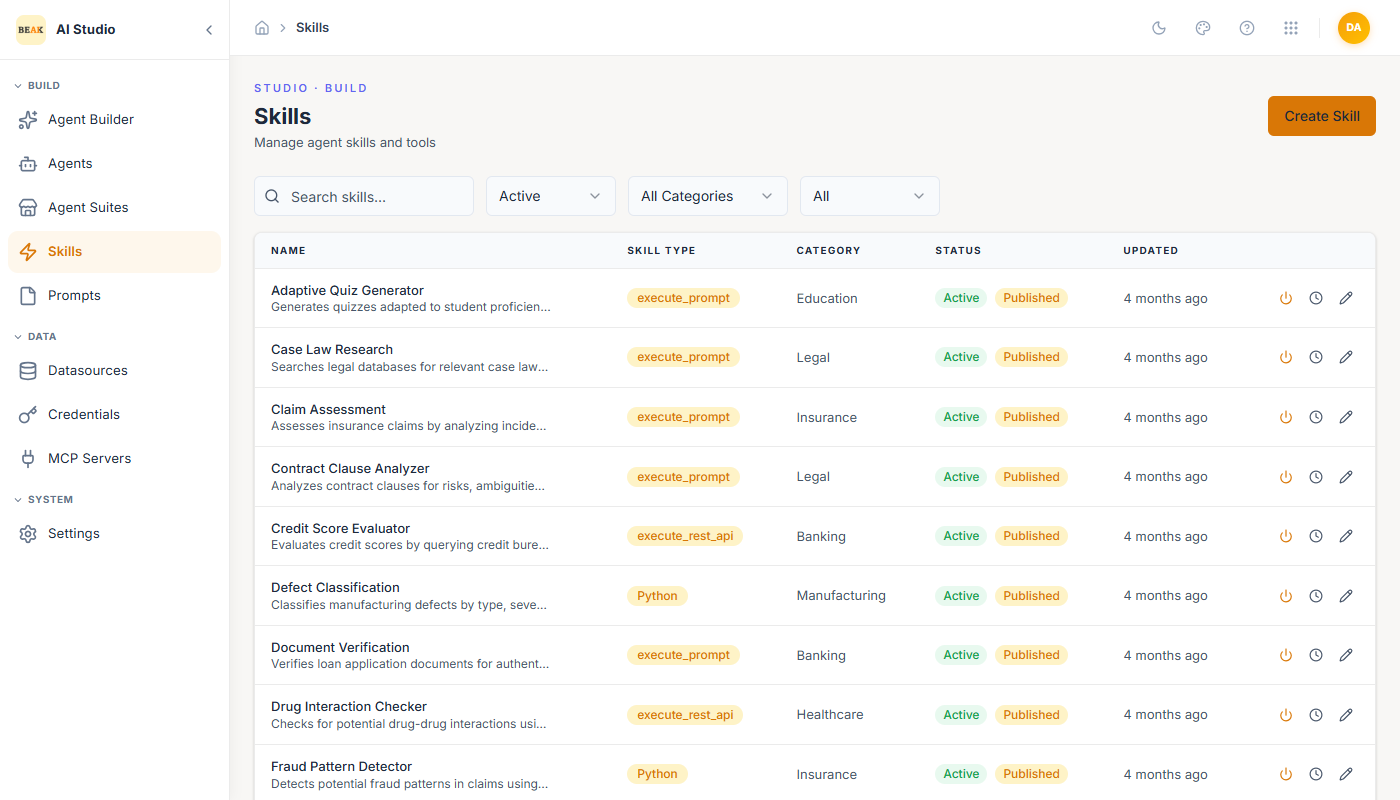
Skills are the reusable actions an agent can invoke. The Skills list shows every skill in the workspace with its Skill Type, Category, status, and last-updated time. Filters narrow by status, category, and type. The Create Skill button in the top-right opens the builder.
Basic Information
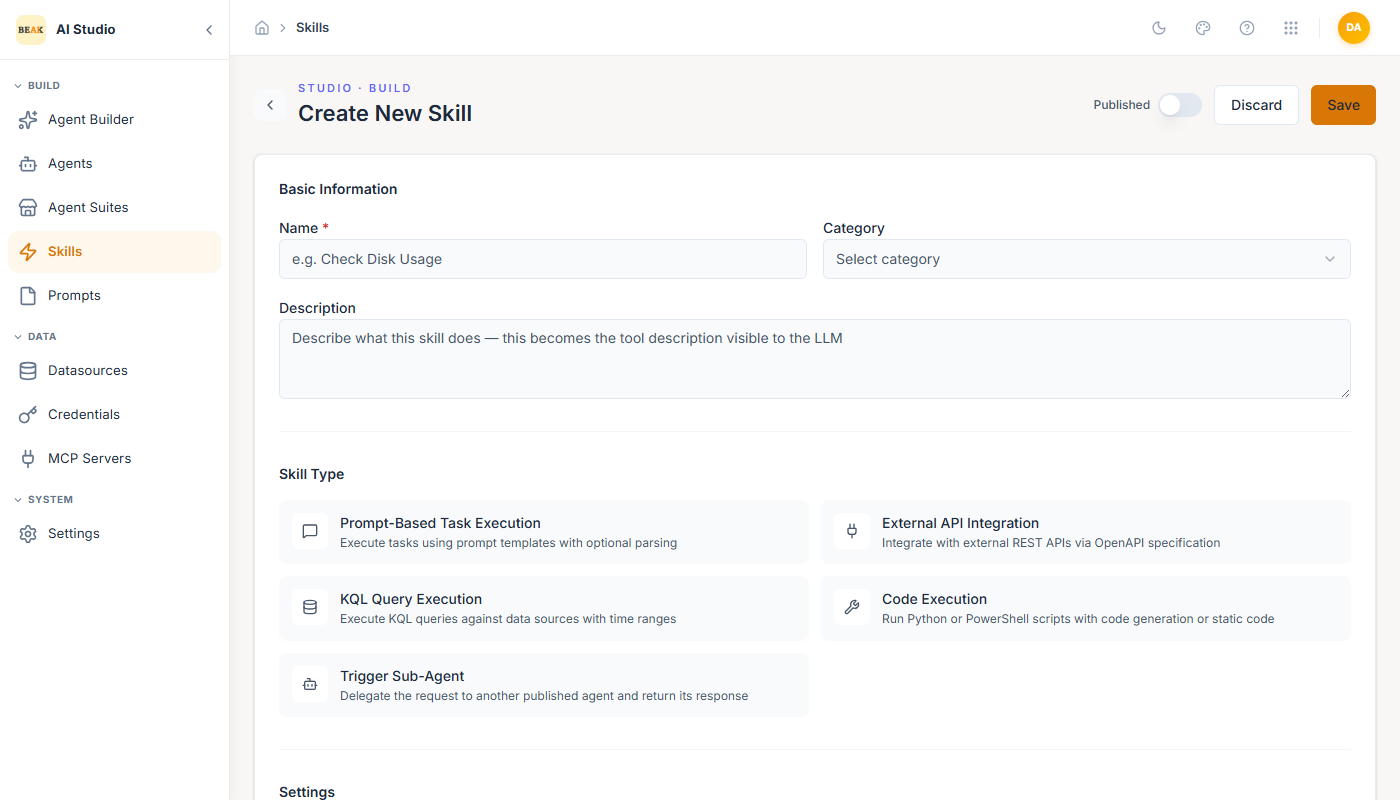
Every skill starts with the same metadata:
- Name — The handle the LLM sees (e.g.
Check Disk Usage). - Category — Free-form grouping shown in lists and filters.
- Description — Becomes the tool description visible to the LLM. The description is how the model decides whether to call the skill, so write it as a clear instruction, not marketing copy.
Skill Type
Pick one of five execution modes. Each type renders a distinct Configuration section below.
Prompt-Based Task Execution
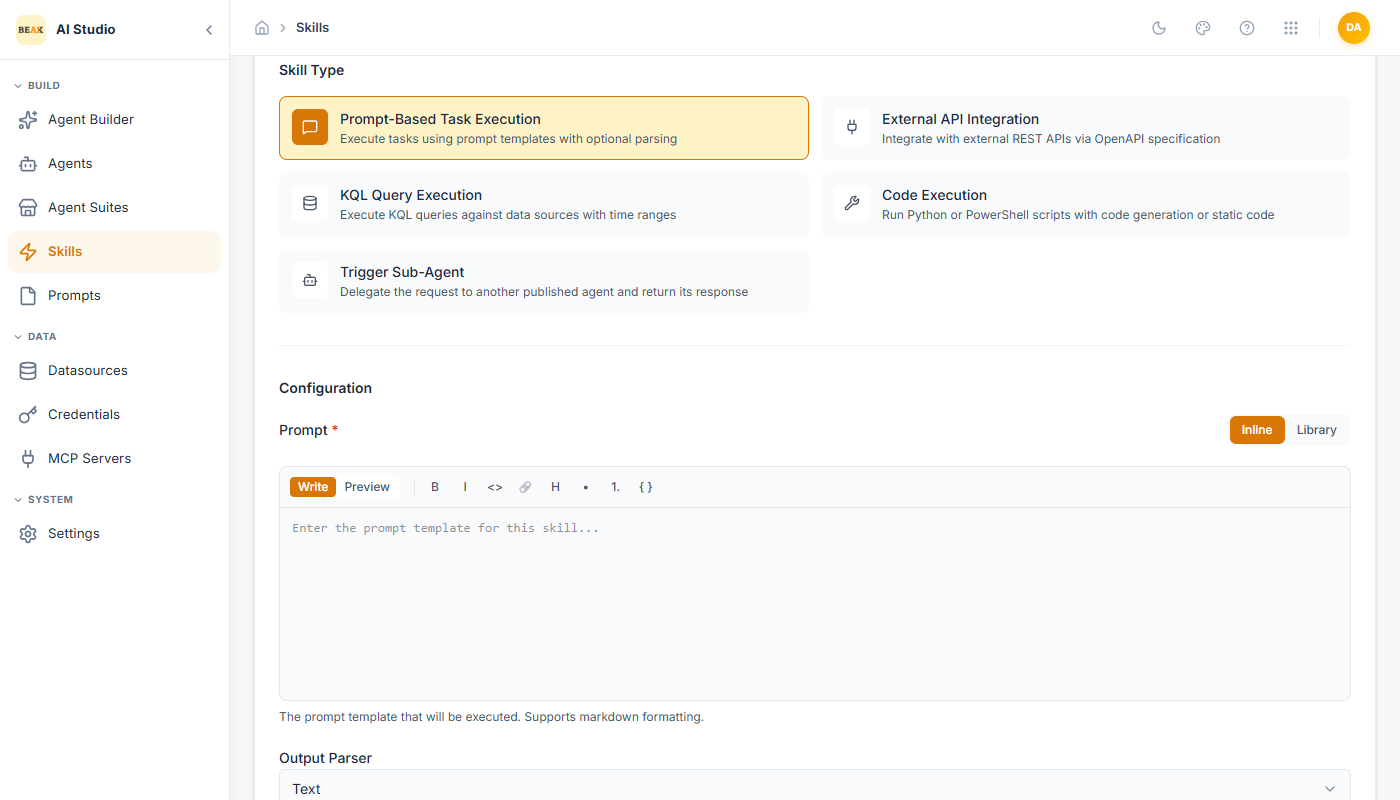
Run a prompt template against the workspace LLM and return the result. Best for classification, extraction, summarization, and generation tasks that do not need external tools.
- Prompt — Inline markdown editor or a reference into the Prompt library. Supports
{{ variable }}interpolation from inputs. - Output Parser —
Text(default) returns the raw response;JSONparses the response as JSON before returning to the agent.
External API Integration
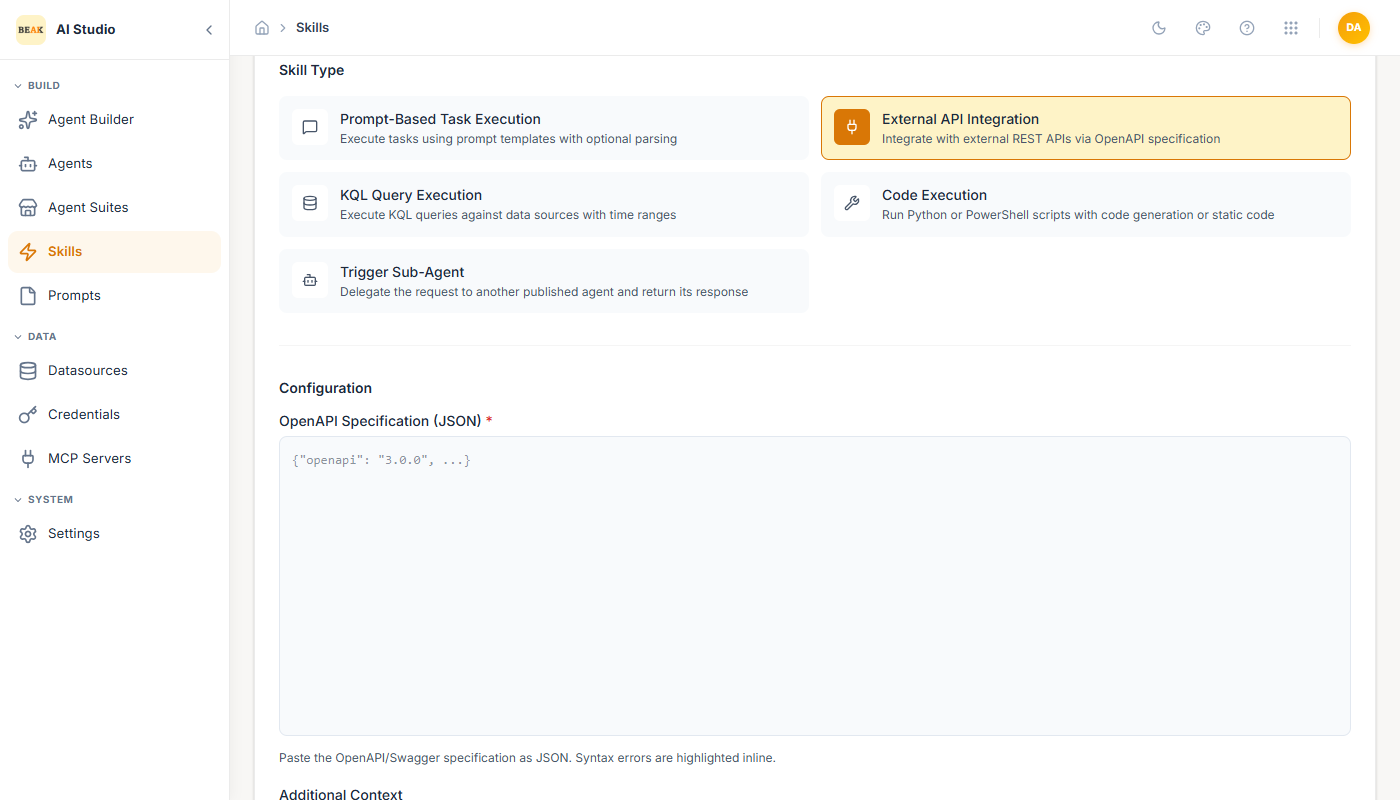
Call any REST endpoint described by an OpenAPI 3.0 spec. The Studio uses the spec to build the tool schema and route calls.
- OpenAPI Specification (JSON) — Paste the spec or upload it. Inputs are auto-extracted from the spec's parameters and request body.
- Additional Context — Free-form notes injected alongside the tool description.
- Requires Authentication — Toggle on to require a credential when the skill is attached to an agent. The credential is selected at agent-bind time, not at skill-create time, so the same skill can be reused across tenants and environments.
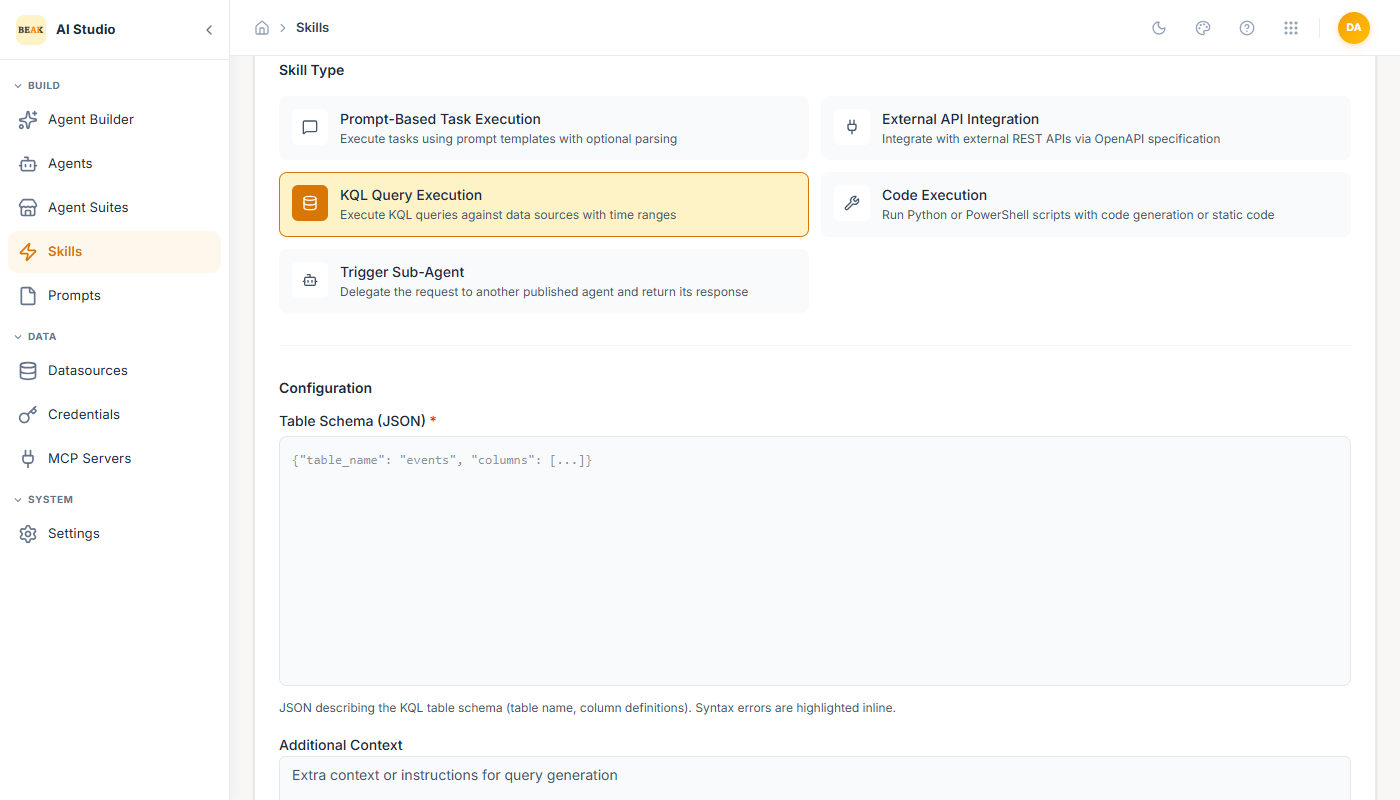
KQL Query Execution
Run a Kusto Query Language statement against a data source with a defined table schema and time range.
- Table Schema (JSON) — Defines the table name, columns, and types so the LLM can author valid KQL.
- Inputs — Time range and any additional parameters the LLM should extract.
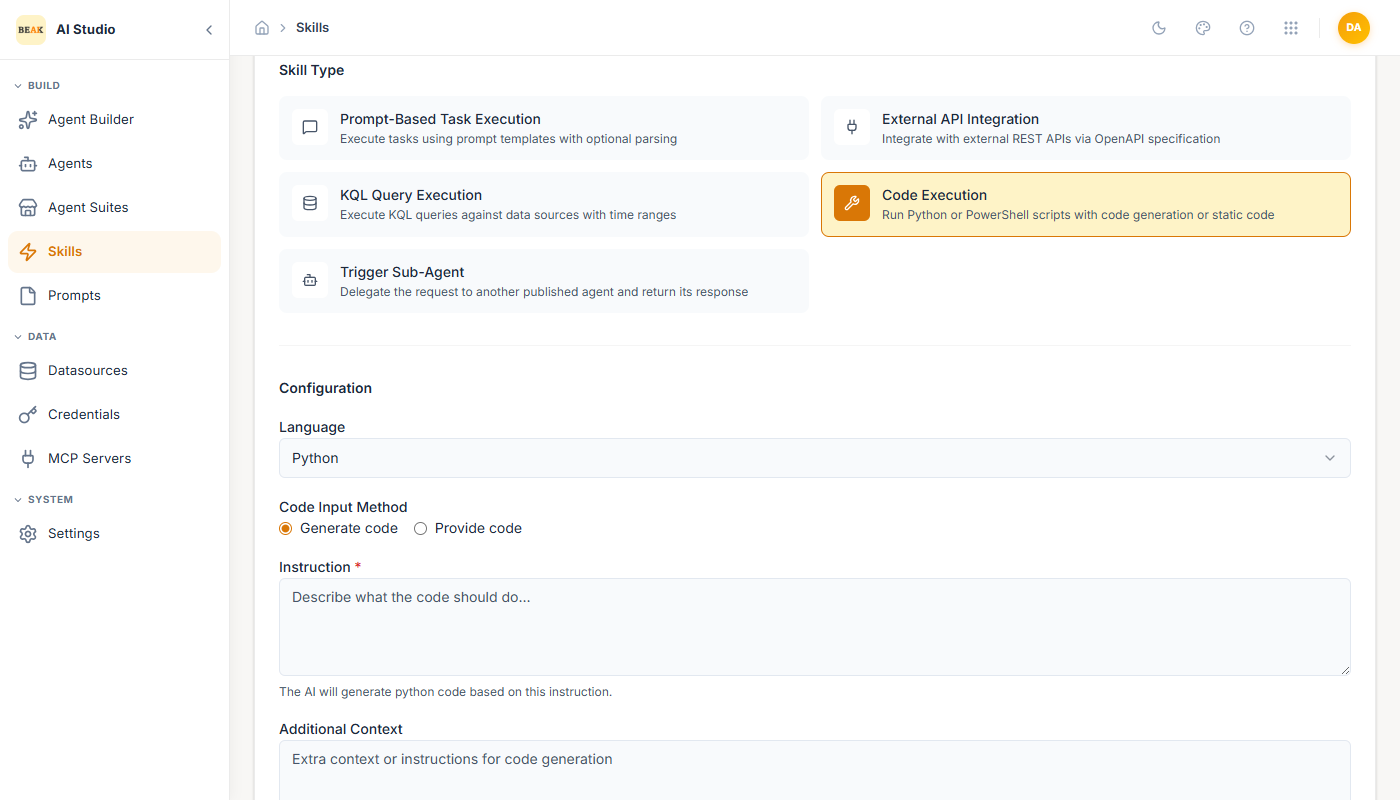
Code Execution
Run a Python or PowerShell script in a sandboxed environment.
- Language —
PythonorPowerShell. - Code Input Method —
Generate codelets the LLM write the script from your Instruction;Provide coderuns a static script you paste in. The latter exposes a Variables field forkey=valuepairs injected as inputs. - Additional Context — Constraints or libraries the LLM should respect.
Trigger Sub-Agent
Delegate the request to another published agent and return its response — a lightweight way to compose agents without building a full orchestrator.
- Target agent — The published agent this skill invokes. The sub-agent runs with its own model, skills, and datasources, and hands its response back to the calling agent.
Inputs
Inputs are the parameters the LLM extracts from the user message at runtime. Every skill type has an Inputs section with an Add Input button. Each input has a name, type, description, and required flag. For Code Execution, inputs are also surfaced as environment variables in the sandbox.
Note: If a skill has no inputs defined, the LLM still passes the conversation context (when Include Conversation Context is on) — but for anything stateful, prefer explicit inputs over relying on conversation parsing.
Settings
- Audit — Log every skill execution to the audit trail. Required for skills with side effects.
- Approval — Require human approval before the skill executes. The planned call is held and routed to an approver, who sees the exact tool arguments before deciding. See Choosing who approves below.
- Include Conversation Context — Pass the recent conversation history to the skill alongside the explicit inputs. On by default.
Choosing who approves
Turning Approval on decides that a call pauses. Who approves it is decided by an approval policy on the tenant, not on the skill — so a rule such as "anything that spends money needs finance sign-off" is stated once and applies everywhere, instead of being repeated on every skill of every agent.
The order of precedence for a single gated call is:
- The skill's approval override on the agent, if one is set — see below.
- The highest-priority matching approval policy for the tenant.
- The tenant's fallback approver.
- Refusal. A call that requires approval and resolves to nobody is not executed, and the agent is told why.
That last step is deliberate: an approval nobody can act on is not an approval, so the platform declines rather than proceeding.
Capability tags
A policy usually matches on what a skill does rather than naming it. Tag the skill with any of sends_communication, writes_external, spends_money, deletes_data, touches_pii, grants_access, executes_code, modifies_config, and a policy written against that tag covers it automatically — including skills added later.
Overriding for one skill
The per-skill control sits in the Workflow section of the skill's configuration on the agent, and is deliberately secondary to policy:
- Follow policy — The default. The tenant's policies decide.
- Always require — This skill always pauses, whatever the policies say.
- Never require — This skill never pauses.
An override may also name its own approver, which takes precedence over the matching policy for that skill only.
Note: Every approval request records which policy matched it and why. That reasoning is shown to the approver on the request, so a decision is never made blind.
Approvals in scheduled and webhook runs
An agent run started by a schedule or a webhook has no one waiting in the chat. When such a run reaches an approval-gated skill, the run stops and is marked failed, and the approval request remains pending in the Approvals inbox for an approver to action. The skill does not execute until it is approved and the agent is run again.
Because these runs are unattended, a policy can target them specifically — requiring approval for an action when it runs on a schedule while allowing it in an interactive chat.
Note: Make sure a policy or the tenant fallback names an approver for any skill a scheduled agent uses. With nobody to ask, the call is refused rather than held.
Action Message
A short status string shown to the user in the chat while the skill is running (e.g. Running disk-usage check…). Optional but recommended for any skill that takes more than a second.
Lifecycle
The Skill editor toolbar mirrors the Agent editor: Save, Published toggle, Discard, and a History view. Only published skills appear in the agent builder's Skills picker. See Skill Lifecycle Management.