Alerting
Alerting tells you a budget is being consumed before it runs out. A channel describes where a message goes, a budget rule describes when one is sent, and the events log records every delivery attempt with its outcome. Rules and channels are independent, so one channel can serve many rules and one rule can fan out to several channels at once.
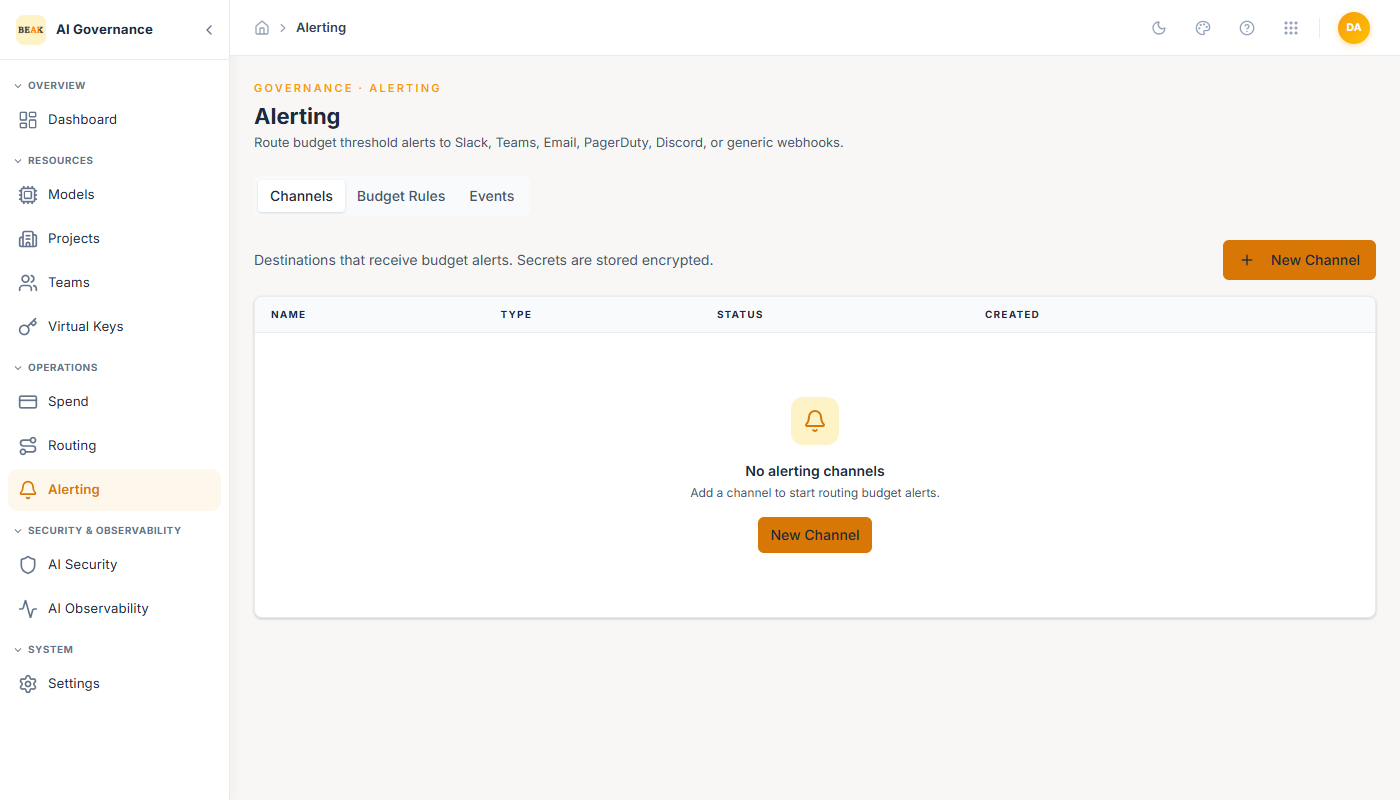
The page is organised into three tabs — Channels, Budget Rules, and Events — which map to those three concerns in order.
Channels
A channel is a named delivery destination. The table lists each channel's name, type, status, and creation date, with per-row actions to send a test, edit, activate or deactivate, and delete.
Six channel types are supported:
- Slack — Posts to a Slack incoming webhook. Takes the webhook URL, plus an optional channel override (e.g.
#alerts) and display username. - Microsoft Teams — Posts to a Teams incoming webhook URL.
- Email — Sends to a list of recipients, with an optional subject prefix and an optional per-channel from-address override. Delivery uses the tenant SMTP relay configured in Settings.
- PagerDuty — Triggers a PagerDuty Events API v2 incident using a routing key, at one of four severities —
critical,error,warning, orinfo. - Webhook — Sends JSON to any HTTPS endpoint by
POSTorPUT, with an optional custom auth header name and value for bearer or shared-secret schemes. - Discord — Posts to a Discord webhook URL, with an optional display username.
Select Add Channel to create one. The form asks for a name and type first, then renders only the fields that type needs. The channel type is fixed once saved — to change it, create a new channel and repoint the rules.
Testing a Channel
Each row carries a Send test alert action. It dispatches a real message through the channel's live configuration and reports Test alert sent on success, or the delivery error on failure. Use it after creating a channel and after any credential rotation — a mistyped webhook URL is otherwise invisible until a genuine budget breach fails to reach anyone.
Note: Secrets — webhook URLs, PagerDuty routing keys, and webhook auth header values — are encrypted at rest and stripped from every API response. The form shows the stored value's presence, never the value.
Deactivating and Deleting
Deactivating a channel keeps it and its rule references intact but stops delivery. Deleting one is permanent, and any alert rule still referencing it simply skips that channel at dispatch time — the rule itself keeps working through its remaining channels, so a rule can quietly lose its only destination. Check which rules use a channel before deleting it.
Budget Rules
A rule fires when a scope's spend crosses a percentage of its budget cap. The table shows each rule's name, scope, scope ID, threshold, channel count, and status.
Scope
Four scopes are available, and they determine what budget the threshold is measured against:
- Project — Spend for one project. Requires the project's ID.
- Team — Spend for one team. Requires the team's ID.
- Virtual Key — Spend for a single issued key. Requires the key's ID or hash.
- Tenant (all) — Aggregate spend across the whole tenant. Takes no ID.
Every scope except Tenant (all) requires a scope ID, and the scope and its ID are both fixed after creation — the threshold, name, channels, and active state stay editable.
Threshold
The threshold is a percentage of the scope's budget, valid from 1 to 200. Presets for 50, 75, 80, 90, 100, and 110 are offered, and the slider accepts any value in range. Values above 100 are deliberately allowed so a rule can catch overspend that has already passed the cap.
Channels
A rule must name at least one channel and accepts up to twenty. Every selected channel receives the alert when the rule fires, which is how a single threshold reaches both a Slack channel and an on-call PagerDuty service.
Events
The Events tab is the delivery log — proof of what was actually sent. Each row records:
- When — Timestamp the alert fired.
- Scope and Scope ID — Which entity breached its threshold.
- Threshold — The percentage that triggered the rule.
- Spend / Budget — Observed spend against the budget cap at the moment the rule fired.
- Channel — The channel type the delivery was attempted on.
- Status — The outcome of the delivery attempt.
- Error — The failure detail when a delivery did not succeed.
The tab refreshes automatically every 30 seconds and carries a manual Refresh control. This log is the place to confirm an alert genuinely reached its destination — a rule can fire correctly and still fail to deliver if a webhook URL has expired or the SMTP relay is misconfigured.
Permissions
Alerting actions are gated individually: alerts:read to view channels, rules, and events; alerts:create, alerts:update, and alerts:delete for the corresponding changes; and alerts:test to send a test alert. Assign them through Users & Roles.
Best Practices
- Configure the SMTP relay before creating Email channels — Email channels save without a relay but have nowhere to send. See Settings.
- Send a test on every new channel — It is the only way to prove the destination is reachable before a real breach depends on it.
- Stage thresholds rather than relying on one — A rule at
80gives time to react and a second at100confirms the cap was reached; a single rule at100only ever reports the problem after it has happened. - Match the channel to the urgency — Route project and team budget warnings to a FinOps or platform channel, and reserve PagerDuty for tenant-level thresholds that genuinely warrant waking someone.
- Check Events after changing any destination — Rotating a webhook URL or SMTP password is the most common cause of alerts that fire correctly but never arrive.
- Review rules after deleting a channel — Dispatch skips missing channels silently, so a rule can survive with no working destination.
- Pair alerting with Spend for investigation — Alerts say something happened; Spend shows exactly what consumed the budget.
Related Pages
- Settings — The tenant SMTP relay every Email channel sends through.
- Spend — Per-request analytics for investigating what drove a threshold breach.
- Teams — Where team budgets and rate limits are set.
- Projects — Where project budgets are set.
- Virtual Keys — Per-key budgets that a
Virtual Keyscoped rule measures against. - Users & Roles — Grants the
alerts:*permissions.