Settings
Note: Now a tab on the console's Settings page
Since AI Governance became part of the AI Security & Governance console, the SMTP relay lives on System → Settings → Notifications, beside the security settings, rather than on a Settings page of its own. The relay itself is unchanged and is still configured once per tenant.
The Settings page holds the tenant-wide notification infrastructure the rest of the Gateway depends on. Today that is a single item — the SMTP relay every Email alerting channel sends through. It is configured once per tenant rather than once per channel, so adding a new Email channel later needs only a recipient list.
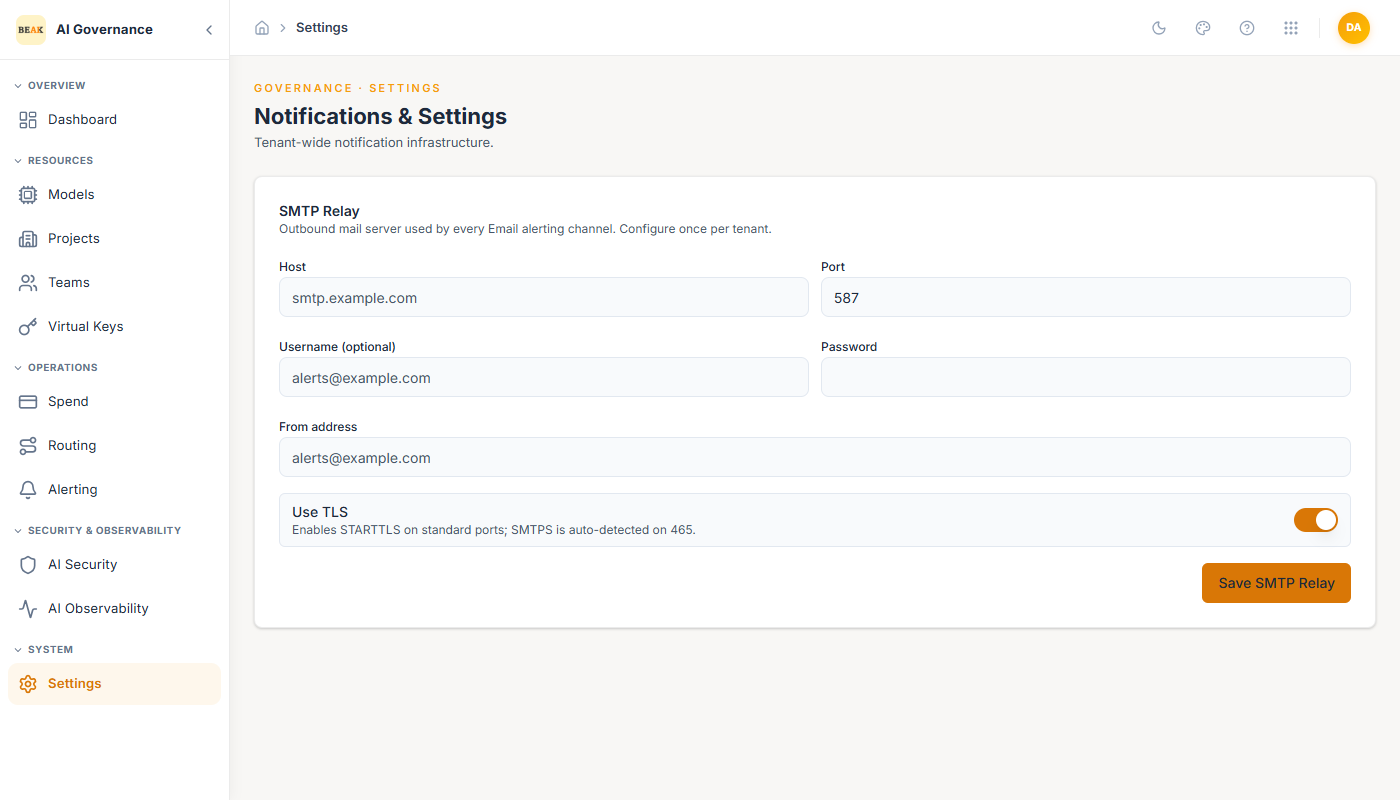
Every other operationally meaningful setting lives on its own page: Routing, Alerting, AI Security, and Observability.
SMTP Relay
The relay is the outbound mail server Beak AI Gateway uses whenever an alert fires on an Email channel. Without it, Email channels are created successfully but cannot deliver — configure the relay before relying on email for budget alerts.
- Host — Hostname of the outbound mail server, for example
smtp.example.com. Required. - Port — TCP port,
1–65535. Defaults to587, the standard submission port. - Username — Optional. Leave blank for relays that accept unauthenticated submission from inside the network.
- Password — Credential for the username above. Encrypted at rest and never returned by the API; see Password Handling.
- From address — Envelope sender applied to every alert email. Required. An individual channel may override it, but this value is the tenant default.
- Use TLS — Enables STARTTLS on standard ports. SMTPS is auto-detected on port
465, so leaving this on is correct for both conventions.
Host and From address are the only mandatory fields; saving without either is rejected before the request leaves the browser. Select Save SMTP Relay to persist — a SMTP relay saved toast confirms the write.
Password Handling
The relay password is encrypted at rest and is never sent back to the browser. That produces two behaviours worth knowing:
- A
Password setbadge appears beside the section heading once a password is stored. This badge is the only indication that a credential exists — the field itself always renders empty. - When a password is already stored, the field is labelled
New password (leave blank to keep). Submitting the form with the field empty preserves the existing password; any other value replaces it.
Note: Because the stored password is never displayed, there is no way to read back the current value. If it is lost, set a new one rather than trying to recover it.
Permissions
- Viewing the relay configuration requires
alerts:read. - Saving changes requires
alerts:update.
Both are granted through Users & Roles.
Best Practices
- Configure the relay before creating Email channels — An Email channel saves without a relay but silently has nowhere to send; configuring the relay first means the channel's Send test succeeds the first time.
- Use a dedicated sender address — A sender such as
alerts@example.comkeeps Gateway alerts filterable and prevents them from being lost in an individual's mailbox rules. - Prefer port 587 with TLS — STARTTLS on
587is accepted by every major relay; reserve465for providers that require implicit SMTPS. - Re-test after rotating the password — Use Send test on any Email channel from the Alerting page to confirm the new credential works, rather than waiting for a real budget breach to reveal a broken relay.
Related Pages
- Alerting — Channels, budget rules, and the delivery event log that consume this relay.
- Users & Roles — Grants the
alerts:readandalerts:updatepermissions. - Routing — Model selection, cooldown, fallback, and retry configuration.
- AI Security — Per-team security policy enrollment.
- Observability — Per-team tracing enrollment.