License Recommendations
The Recommendations page delivers actionable, AI-driven optimization suggestions for your Microsoft 365 license estate. Each recommendation identifies a specific user and proposes a license change — downgrade, removal, or upgrade — based on usage analysis, category-based policies, and seat-limit compliance. Implementing these recommendations reduces M365 spend while ensuring users retain access to the services they actively consume.
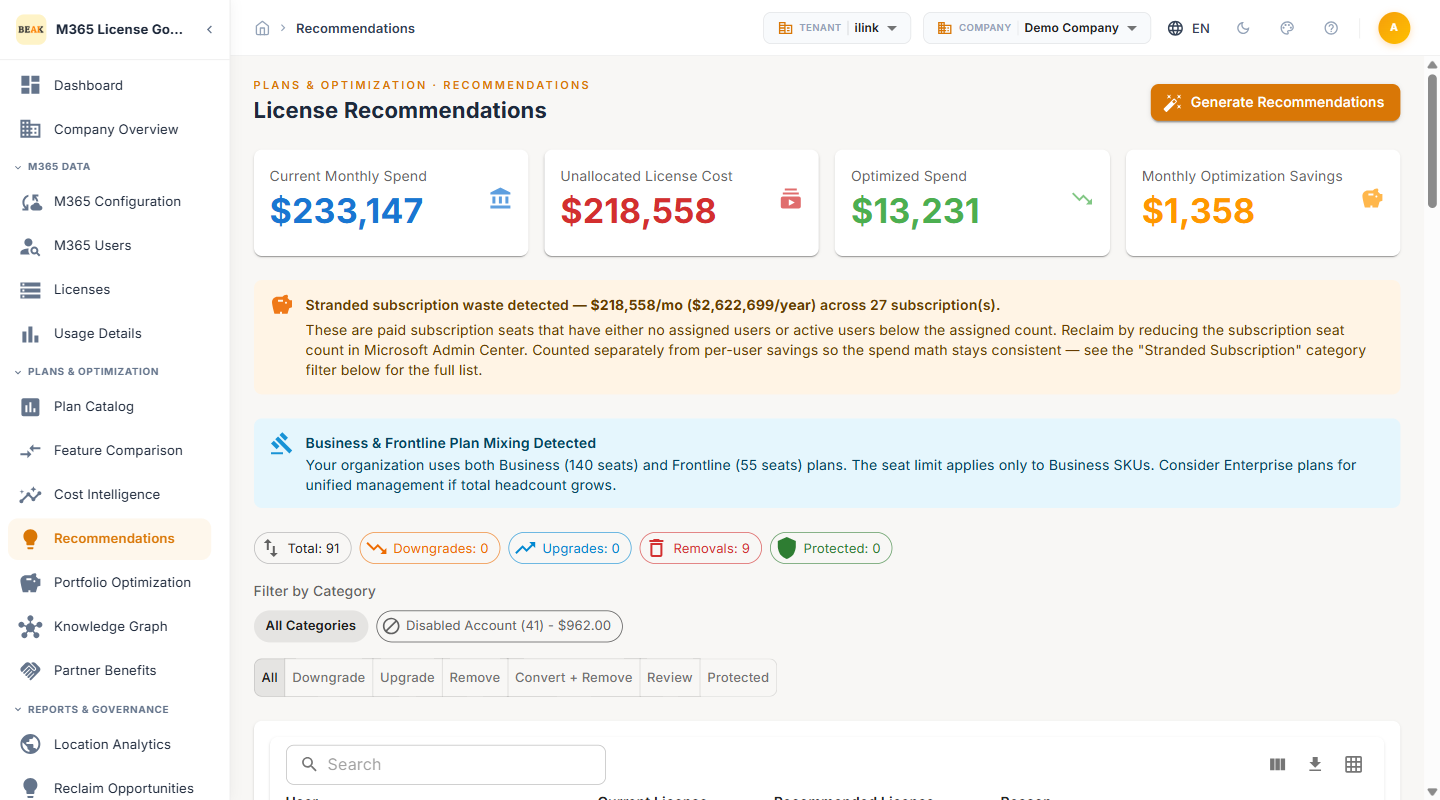
KPI Summary Cards
Four KPI cards at the top of the page provide an at-a-glance view of current spend and optimization potential:
- Current Monthly Spend — Total monthly expenditure across all active M365 licenses
- Unallocated License Cost — Monthly cost of purchased seats that are not assigned to any user, surfaced separately so unassigned spend is not mistaken for optimization savings
- Optimized Spend — Projected monthly cost after implementing all recommendations
- Monthly Optimization Savings — Dollar amount saved per month by executing all recommendations
Generate Recommendations
Click the Generate Recommendations button in the top-right corner to trigger a fresh analysis of your license estate. The engine re-evaluates usage data, inactivity thresholds, and category policies to produce an updated set of recommendations. Run this after a data sync to ensure recommendations reflect the latest usage patterns.
Compliance Warnings
The Recommendations page surfaces compliance alerts when license assignments exceed Microsoft-enforced plan limits or when plan mixing introduces risk.
Business License Limit Exceeded
Microsoft 365 Business plans enforce a maximum seat limit of 300 users per tenant. When this threshold is exceeded, a warning banner is displayed:
- Warning — Business License Limit Exceeded
- Detail — Displays the count of Business plan licenses that exceed the 300-seat limit and by how many seats
- Resolution — Migrate excess users to Enterprise plans (E1/E3/E5) which do not carry seat-count restrictions
Business & Frontline Plan Mixing Detected
When a tenant uses both Business SKUs and Frontline (F1/F3) SKUs simultaneously, a warning is displayed:
- Warning — Business & Frontline Plan Mixing Detected
- Detail — Shows the seat counts for each plan type in use
- Impact — The 300-seat limit applies only to Business SKUs. Consider migrating to Enterprise plans for unified management as headcount grows
Business Downgrade Recommendations May Be Infeasible
When the optimization engine suggests downgrading users to Business plans but the tenant is already at or near the Business plan seat limit:
- Warning — Business Downgrade Recommendations May Be Infeasible
- Detail — Shows how many recommendations suggest downgrading to Business plans and the current Business seat count
- Resolution — Consider standalone plans or Enterprise alternatives instead of Business plan downgrades
Note: Address compliance warnings promptly. Microsoft reserves the right to enforce seat caps at renewal, which can cause service interruption for affected users.
Recommendation Counts
Below the compliance warnings, a row of count badges shows the distribution of recommendations at a glance:
- Total — The total number of pending recommendations
- Downgrades — Count of downgrade recommendations
- Upgrades — Count of upgrade recommendations
- Removals — Count of removal recommendations
Filter by Category
The category filter row allows administrators to focus on a specific recommendation category. Each pill displays the category name, the number of recommendations, and the total monthly savings for that category:
- All Categories — Displays all recommendations regardless of category
- Desktop Apps — Users with licenses that include desktop Office applications but show no Office app activity
- License Policy — Recommendations driven by compliance rules and seat-limit policies
- Inactive User — Users with no M365 activity beyond the configured inactivity threshold
- Security & Compliance — Users with advanced security or compliance licenses that are underutilized
- Apps Usage — Users whose actual application usage does not justify their current license tier
Filter Tabs
Below the category filters, action-type tabs narrow the recommendations list:
- All — Displays every recommendation across all action types
- Downgrade — Users who can be moved to a lower-cost plan based on their feature consumption
- Upgrade — Users who require a higher-tier plan to access services they need
- Remove — Users whose licenses can be fully removed due to inactivity or account status
Recommendations Table
The main table displays individual user-level recommendations with the following columns:
- User — The display name and email address of the affected user, with a tooltip showing the reason for the recommendation
- Current License — The M365 plan currently assigned to the user
- Recommended License — The target plan for downgrades or upgrades; shown as
—for removals - Reason — A plain-language explanation of why the recommendation was made (e.g., no Office app activity, inactive beyond threshold, redundant assignment)
- Type — The recommendation action type, displayed as a color-coded badge:
Downgrade(orange) — Move the user to a lower-cost planRemove(red) — Remove the license assignment entirelyUpgrade(green) — Move the user to a higher-tier plan
- Category — The category badge that explains the reason for the recommendation (e.g.,
Inactive User,Desktop Apps,Security & Compliance,Apps Usage,License Policy) - Usage Score — A visual progress bar showing the user's utilization score (0–100%) reflecting actual consumption of licensed services
- Monthly Savings — The estimated monthly cost savings for implementing this specific recommendation
- KG — A Knowledge Graph indicator showing whether the recommendation was validated against the semantic plan catalog. See Knowledge Graph for how catalog-backed validation works
- Actions — Controls to act on or dismiss the individual recommendation
Recommendation Types
Downgrades
Downgrade recommendations identify users assigned to premium-tier plans whose actual usage only requires features available in lower-cost plans. Common downgrade paths include:
- E5 to E3 — Users not consuming advanced security, compliance, or analytics features
- E5/E3 to Exchange Online Plan 1 — Users who only use email and calendar, without Teams or Office desktop apps
- Business Premium to Business Basic — Users who do not require desktop Office applications or advanced security
Removals
Removal recommendations flag users whose licenses can be fully deallocated:
- Dormant accounts — Users with no sign-in activity beyond the configured inactivity threshold
- Offboarded users — Former employees whose accounts remain licensed after departure
- Duplicate assignments — Users with redundant license assignments across overlapping plans
Upgrades
Upgrade recommendations identify users who need a higher-tier plan:
- Feature access requirements — Users attempting to access features not included in their current plan
- Compliance needs — Users who require advanced compliance or security features mandated by policy
- Productivity gains — Users whose workflow would benefit from capabilities in a higher-tier plan
Taking Action on Recommendations
- Review the KPI cards — Assess the total savings opportunity before diving into individual recommendations
- Address compliance warnings first — Resolve Business License Limit and other compliance alerts to prevent Microsoft enforcement
- Filter by category — Use the category pills to focus on a specific type such as Inactive User for immediate, low-risk savings
- Filter by action type — Use the action tabs (Downgrade, Remove, Upgrade) to group by the type of change required
- Validate with Feature Comparison — Before executing a downgrade, use Feature Comparison to confirm the target plan meets the user's needs
- Apply changes — Execute approved recommendations through your M365 admin workflow or bulk action tools
Best Practices
- Prioritize Inactive User recommendations — These carry zero risk of disrupting active users and deliver immediate savings.
- Use category filters to segment work — Assign Desktop Apps recommendations to productivity teams and Security & Compliance recommendations to the security team for specialized review.
- Generate recommendations after every sync — Click Generate Recommendations after a data sync to ensure you are acting on fresh usage data.
- Review removals carefully — Verify that flagged accounts are genuinely inactive and not service accounts, shared mailboxes, or seasonal users before removing licenses.
- Monitor compliance warnings continuously — Business License Limit warnings grow over time as users are added. Check this section weekly.
- Cross-reference with usage data — Combine recommendation data with workload-level usage from the Users and Usage Details modules for a complete picture before making changes.
Related Pages
- Feature Comparison — Side-by-side plan feature comparison for validating recommendations
- Plan Catalog — Full M365 plan inventory with pricing and categories
- Partner Benefits — Microsoft Partner Network benefit tracking
- Beak M365 License Optimizer Overview — Platform overview and navigation structure