Feature Comparison
The Feature Comparison tool enables side-by-side evaluation of Microsoft 365 plans by displaying feature-level differences between two to four selected plans. Use this tool to validate right-sizing decisions before implementing downgrades or upgrades, ensuring that users retain access to the services they actively consume.
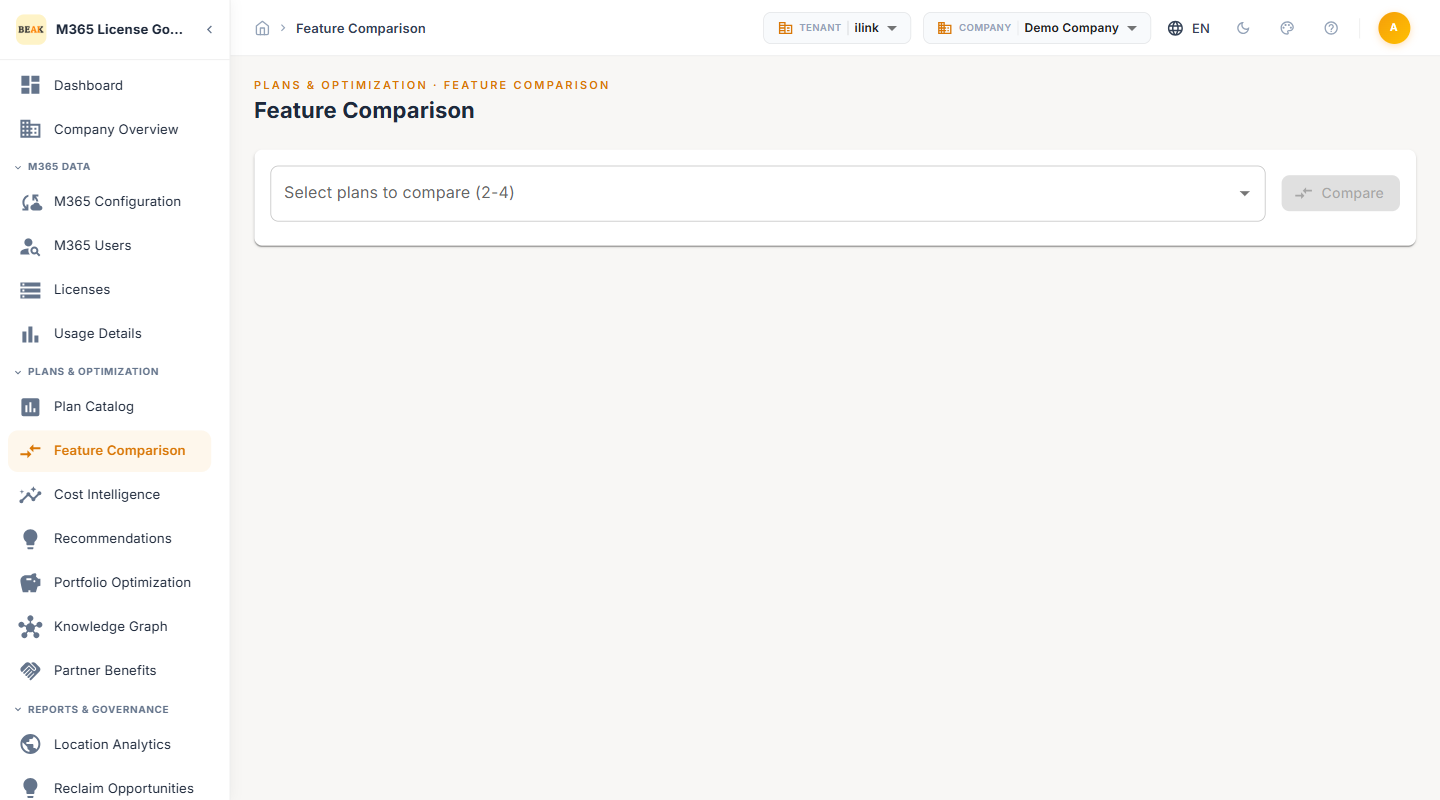
Selecting Plans for Comparison
The comparison interface provides a dropdown selector where you choose between two and four M365 plans to compare. The selector lists all plans available in the Plan Catalog, including base licenses and add-ons.
How to Compare Plans
- Open the Feature Comparison page from the Plans and Optimization section in the left sidebar
- Use the dropdown selector to choose the first plan
- Add additional plans using the subsequent dropdown fields — a minimum of 2 and a maximum of 4 plans can be selected
- Click the Compare button to generate the side-by-side comparison view
Note: Plans from different categories (e.g., Business vs. Enterprise) can be compared together, which is useful when evaluating cross-tier migration paths.
Comparison View
Once the comparison is initiated, the tool displays a feature matrix organized by service category. Each row represents a specific feature or capability, and each column represents one of the selected plans.
Feature Matrix Layout
- Feature Name — The specific capability or service being compared (e.g., Exchange Online, Microsoft Teams, SharePoint Online)
- Plan Columns — One column per selected plan, showing whether the feature is included, not included, or partially included
- Inclusion Indicators — Visual indicators denote full inclusion, partial inclusion, or absence of each feature within a plan
Service Categories
The comparison groups features by the following M365 service areas:
- Email and Calendar — Exchange Online mailbox size, archiving, and calendar features
- Office Applications — Desktop and web versions of Word, Excel, PowerPoint, Outlook, and OneNote
- Communication and Collaboration — Microsoft Teams meetings, messaging, calling, and channels
- Cloud Storage — OneDrive for Business storage allocation and sharing capabilities
- Security and Compliance — Microsoft Defender, data loss prevention, information protection, and compliance tools
- Identity and Access — Azure AD features, conditional access, and multi-factor authentication
- Device Management — Intune enrollment, app protection, and device compliance policies
- Analytics and Reporting — Viva Insights, Power BI, and usage analytics capabilities
Evaluating Downgrade Paths
Feature Comparison is most effective when used alongside the Recommendations module. When a recommendation suggests downgrading a user from a higher-tier plan to a lower-tier plan, the comparison tool allows you to verify that:
- Critical features are retained — Confirm that the target plan includes the specific services the user actively consumes
- Feature gaps are identified — Surface any capabilities lost in the downgrade so administrators can make informed decisions
- Cost savings are justified — Validate that the feature trade-off warrants the projected cost reduction
Common Comparison Scenarios
| Scenario | Source Plan | Target Plan | Key Evaluation |
|---|---|---|---|
| Enterprise to mid-tier | Microsoft 365 E5 | Microsoft 365 E3 | Security and compliance feature retention |
| Enterprise to basic | Microsoft 365 E3 | Exchange Online Plan 1 | Office app and Teams access requirements |
| Business right-sizing | Microsoft 365 Business Premium | Microsoft 365 Business Basic | Desktop app vs. web-only usage |
| Add-on evaluation | Base plan + add-ons | Higher-tier plan | Consolidated cost vs. a la carte pricing |
Evaluating Upgrade Paths
Feature Comparison also supports upgrade evaluation when users require capabilities not included in their current plan:
- Identify missing features — Determine which higher-tier plan provides the specific features a user or team needs
- Compare upgrade costs — Evaluate the incremental cost of moving to a higher-tier plan against purchasing individual add-ons
- Plan consolidation — Assess whether upgrading to an all-inclusive plan is more cost-effective than maintaining a base plan with multiple add-ons
Best Practices
- Always compare before acting on recommendations — Use Feature Comparison to validate downgrade and upgrade suggestions before implementing changes to user license assignments.
- Include the user's current plan in the comparison — When evaluating a recommended change, select both the current and target plans to see the exact feature delta.
- Consider workload-specific needs — A user may not need every feature in a plan, but losing access to a single critical service can impact productivity. Cross-reference with usage data from the Users module.
- Document comparison results — Export or screenshot comparison views to include in change approval workflows and audit documentation.
Related Pages
- Plan Catalog — Full M365 plan inventory with pricing and categories
- Recommendations — Optimization recommendations with per-user cost impact
- Beak M365 License Optimizer Overview — Platform overview and navigation structure