Support Mailbox Access – Configuration Guide
This guide outlines the access configuration needed for BEAK to securely read from and send emails using a designated Support Mailbox. Permissions must be applied to an existing Azure AD App Registration.
1. Azure AD App Registration Details
Ensure you have the following values for the existing app registration:
ℹ️ The values below are sample placeholders. Replace them with your actual Azure AD App details.
| Field | Value |
|---|---|
| Tenant ID (Directory ID) | 91e8a4ab-1234-4cfe-9999-d8d8d8d8d8d8 |
| Client ID (Application ID) | 29f7be13-5678-4bcd-bbbb-c7c7c7c7c7c7 |
| Client Secret (Value) | xxxxxxxxxxxxxxxxxxxxxxxxxxxxxxxxx |
| App Registration Name | beak-support-mailbox-app |
2. Required Microsoft Graph API Permissions
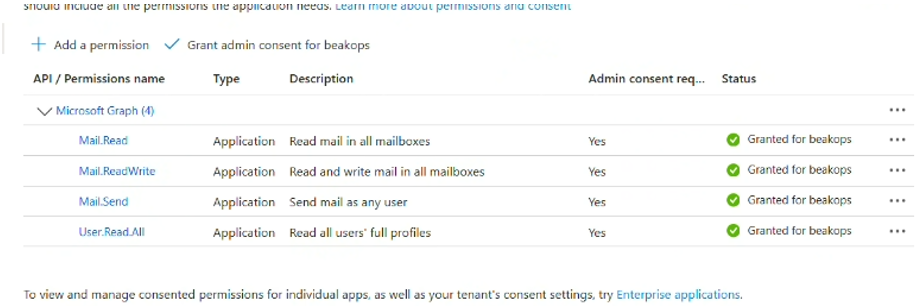
Grant these Application-level permissions to allow mailbox read/write access:
| Permission | Purpose |
|---|---|
| Mail.Read | Read mail in all mailboxes |
| Mail.ReadWrite | Read and write mail in all mailboxes |
| Mail.Send | Send mail as any user |
| User.Read.All | Read all users’ full profiles |
⚠️ Make sure to Grant admin consent for the above permissions.
3. Restrict Access to Specific Mailbox
To restrict mailbox access to the Support mailbox only:
a. Assign Mail.Read.All Permission
| Permission | Purpose |
|---|---|
| Mail.Read.All | Allows app to programmatically read support mailbox messages |
Then click Grant admin consent.
b. PowerShell Configuration
Open PowerShell as Administrator and run the following commands.
Note:
The commands below use placeholder values for illustration purposes only.
Replace the application ID, mailbox address, and admin user details with the actual values from your environment before executing them.
# Install module if not already present
Install-Module ExchangeOnlineManagement -Force

# Connect to Exchange Online
Connect-ExchangeOnline -UserPrincipalName youradmin@yourdomain.com

# Restrict access to a specific mailbox only
New-ApplicationAccessPolicy
  -AppId 29f7be13-5678-4bcd-bbbb-c7c7c7c7c7c7
  -PolicyScopeGroupId <your-support-mailbox@example.com>
  -AccessRight RestrictAccess
  -Description "Restrict BEAK app to Support mailbox only"

# Test the policy
Test-ApplicationAccessPolicy
  -Identity <your-support-mailbox@example.com>
  -AppId 29f7be13-5678-4bcd-bbbb-c7c7c7c7c7c7
Verification Required
✅ Share a screenshot of the Test-ApplicationAccessPolicy output to confirm setup is working.
Once this step is complete, the BEAK platform will be able to securely access and send emails from the configured support mailbox.
4. Additional Configuration
-
Support Mailbox Address:
Please share the full email address of the support mailbox to be accessed. -
App Password for Sending Emails:
To enable secure outbound emails from the support mailbox, an App Password will be required for the configured account. This password will be used by BEAK to authenticate when sending mail on behalf of the user.