Asset Management
What is Asset Management?
In the context of IT infrastructure, asset management refers to the systematic process of tracking, managing, and optimizing the use of hardware, software, and other IT assets within an organization.
IT assets can include:
- Computers
- Servers
- Networking equipment
- Software licenses
- Other technology resources essential for the organization's operations
Scenario
David, as an IT Admin, needs to check the hardware and software details of newly onboarded computers.
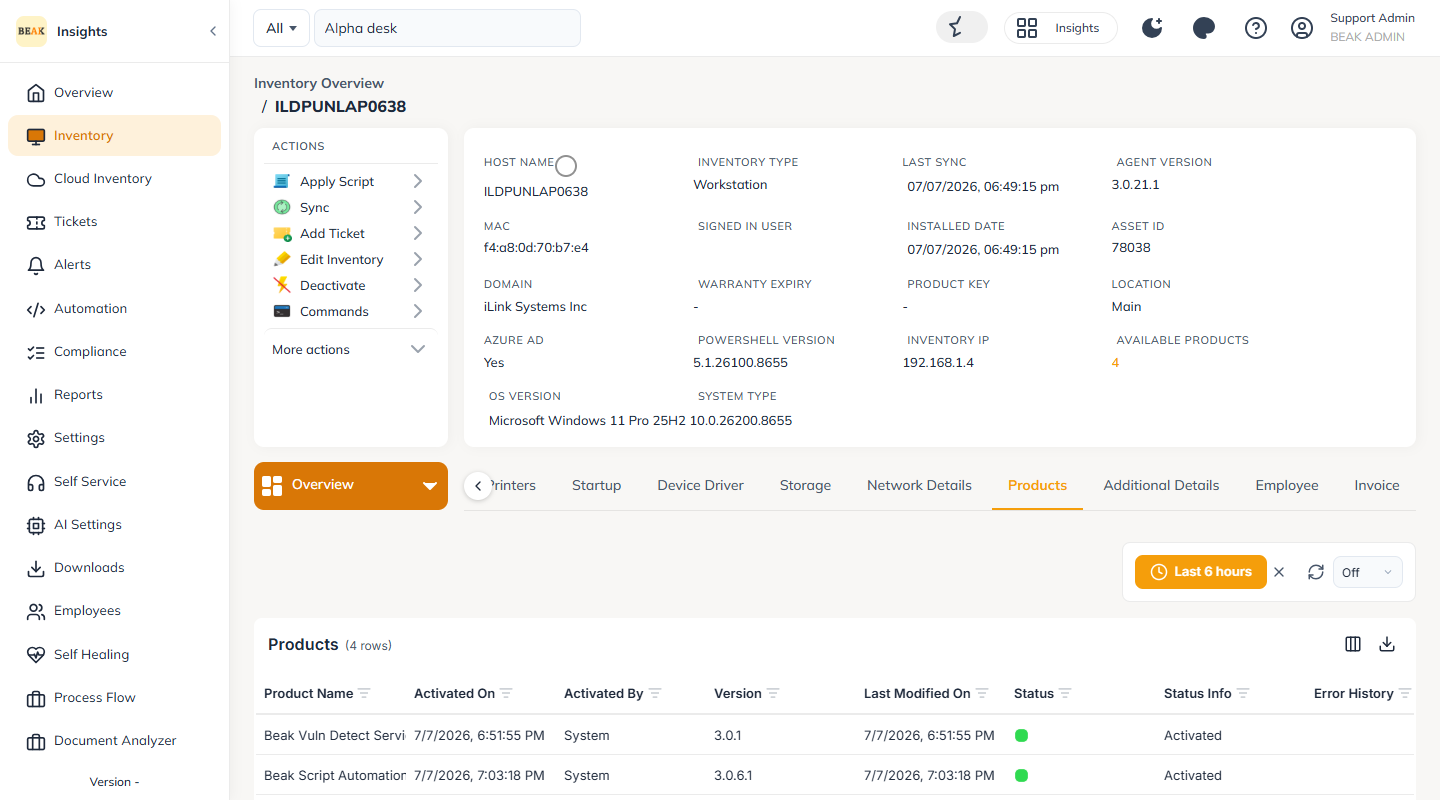
To open an asset, go to Sidebar > Inventory, open the Computers list and click the asset's Host Name. The asset detail page opens on the Overview view.
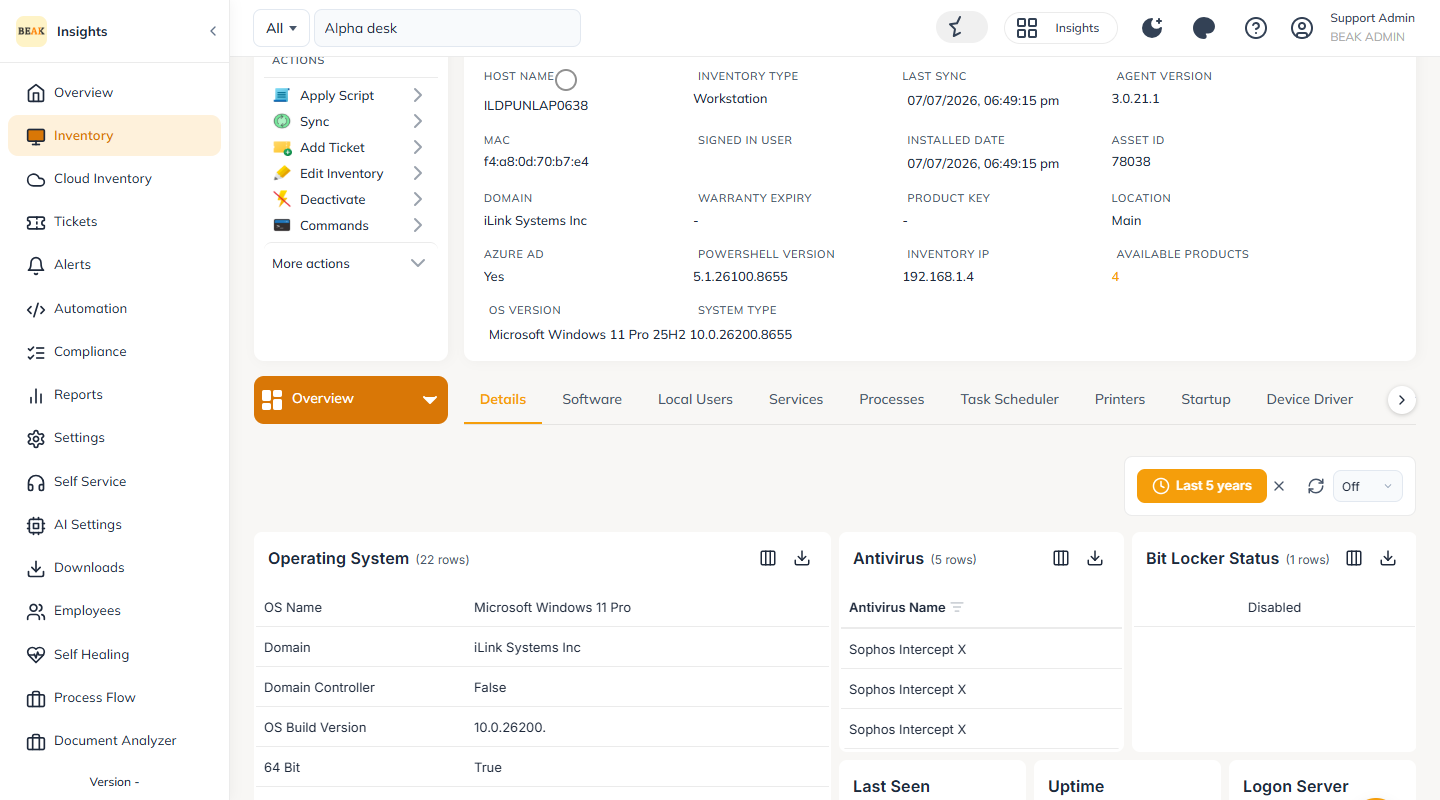
Asset Detail Page
The header summarises the asset at a glance:
- Host Name — the asset name, with a status indicator
- Inventory Type — Workstation or Server
- Last Sync — when the asset last reported in
- Agent Version — the BEAK Agent build installed on the asset
- MAC — the network adapter address
- Asset ID — the BEAK identifier for the asset
- Azure AD — whether the asset is Azure AD joined
- PowerShell Version — the PowerShell build available on the asset
- Inventory IP — the address the asset was inventoried on
- Location — the site the asset belongs to
- Available Products — the number of subscriptions active on the asset
- OS Version and System Type — operating system build and architecture
An Actions panel sits alongside the header with the operations you can run against the asset — Apply Script, Add Ticket, Deactivate, Sync, Edit Inventory and Commands.
Asset Tabs
Asset information is organized into tabs:
-
Details — hardware information: operating system, processor, baseboard, BIOS, disk and logical-disk details, network interfaces, device drivers, scheduled tasks and startup programs
-
Software — the software installed on the asset
-
Local Users — the local user accounts on the asset
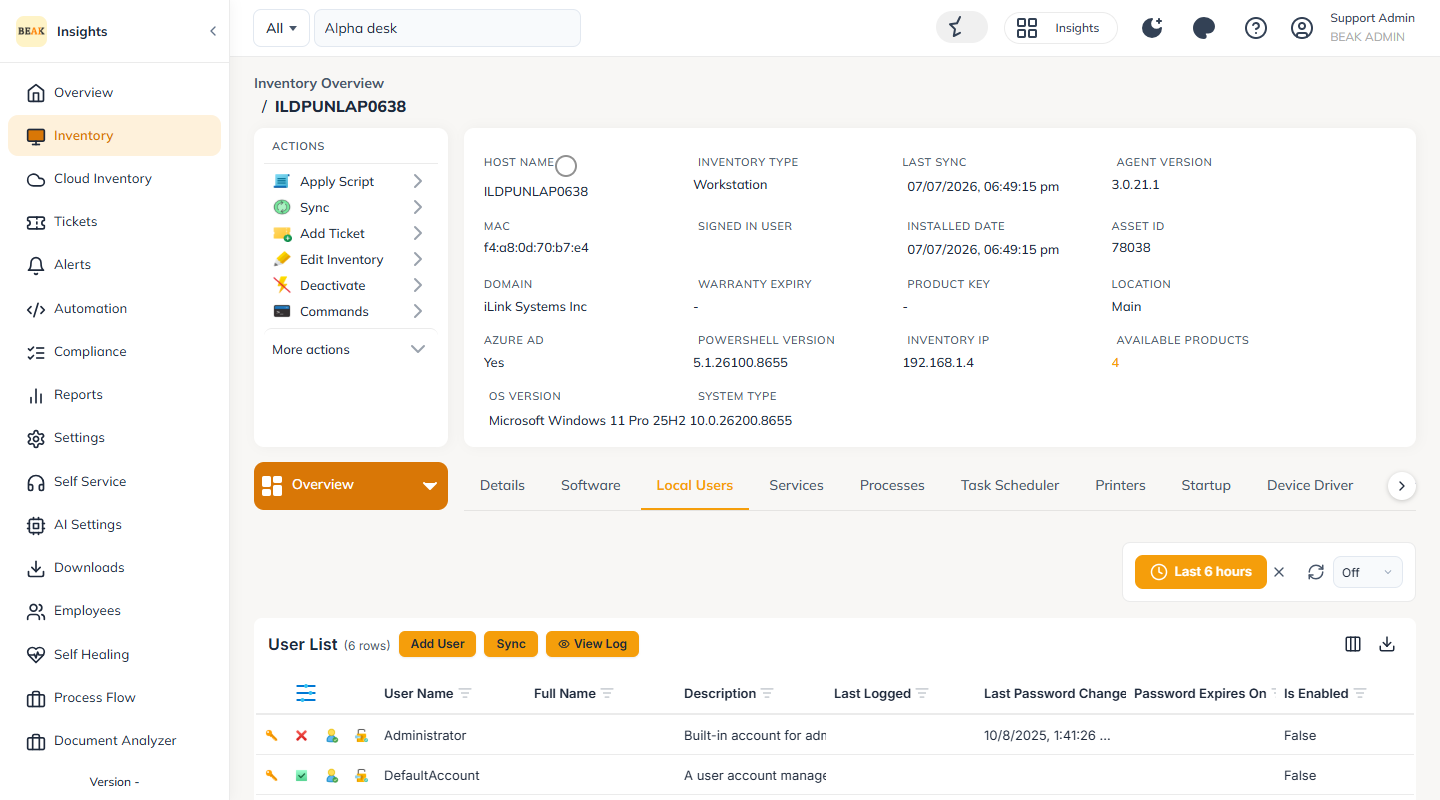
From the User List you can Add User and Sync, and per user Change User Password, Make as Admin, and enable or disable the account.
-
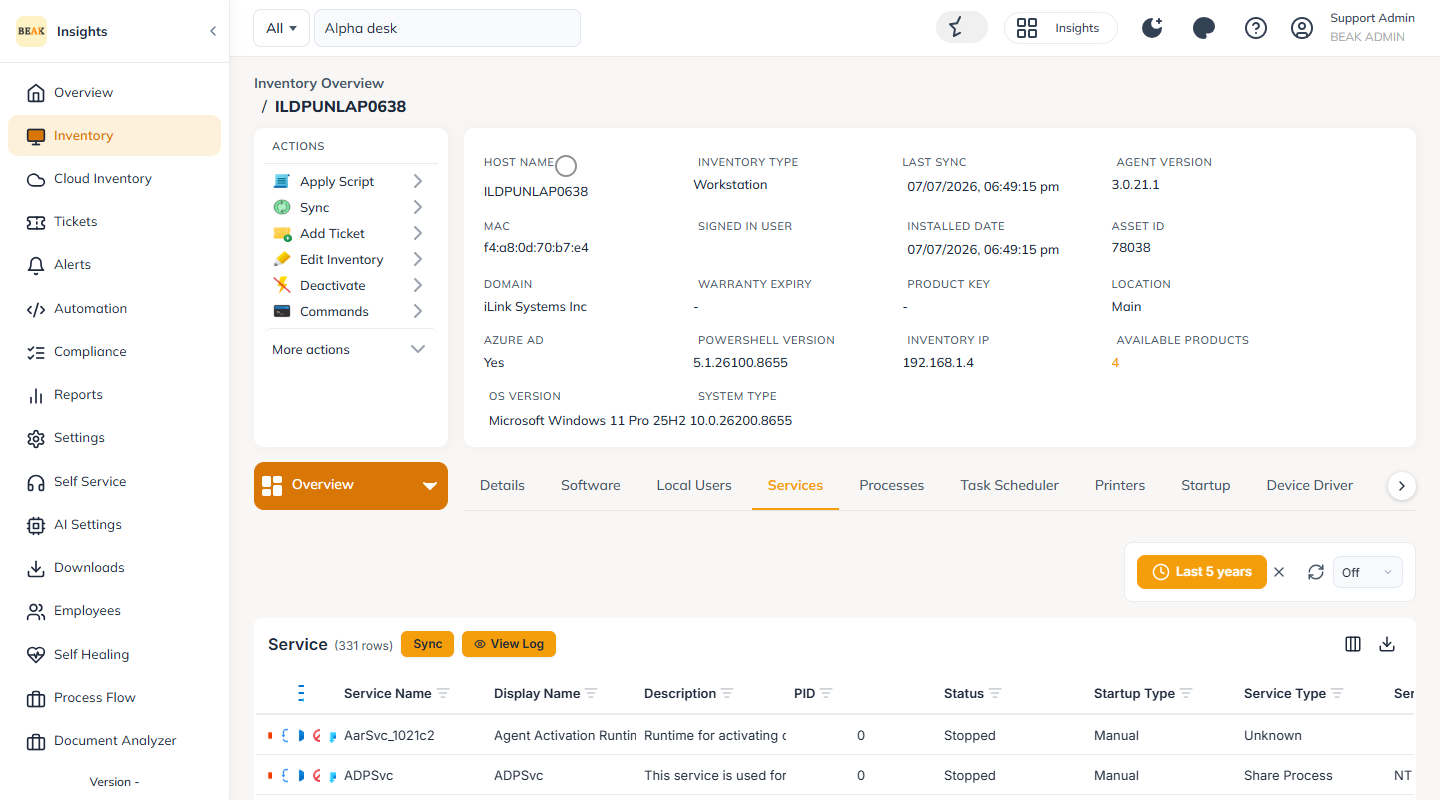
Services — start, stop, restart or disable the asset's services
-
Processes — the processes currently running on the asset
-
Task Scheduler — scheduled tasks on the asset
-
Printers — printers and queued print jobs
-
Startup — the startup applications
-
Device Driver — the installed device drivers
-
Storage — disk drives, including defragmentation
-
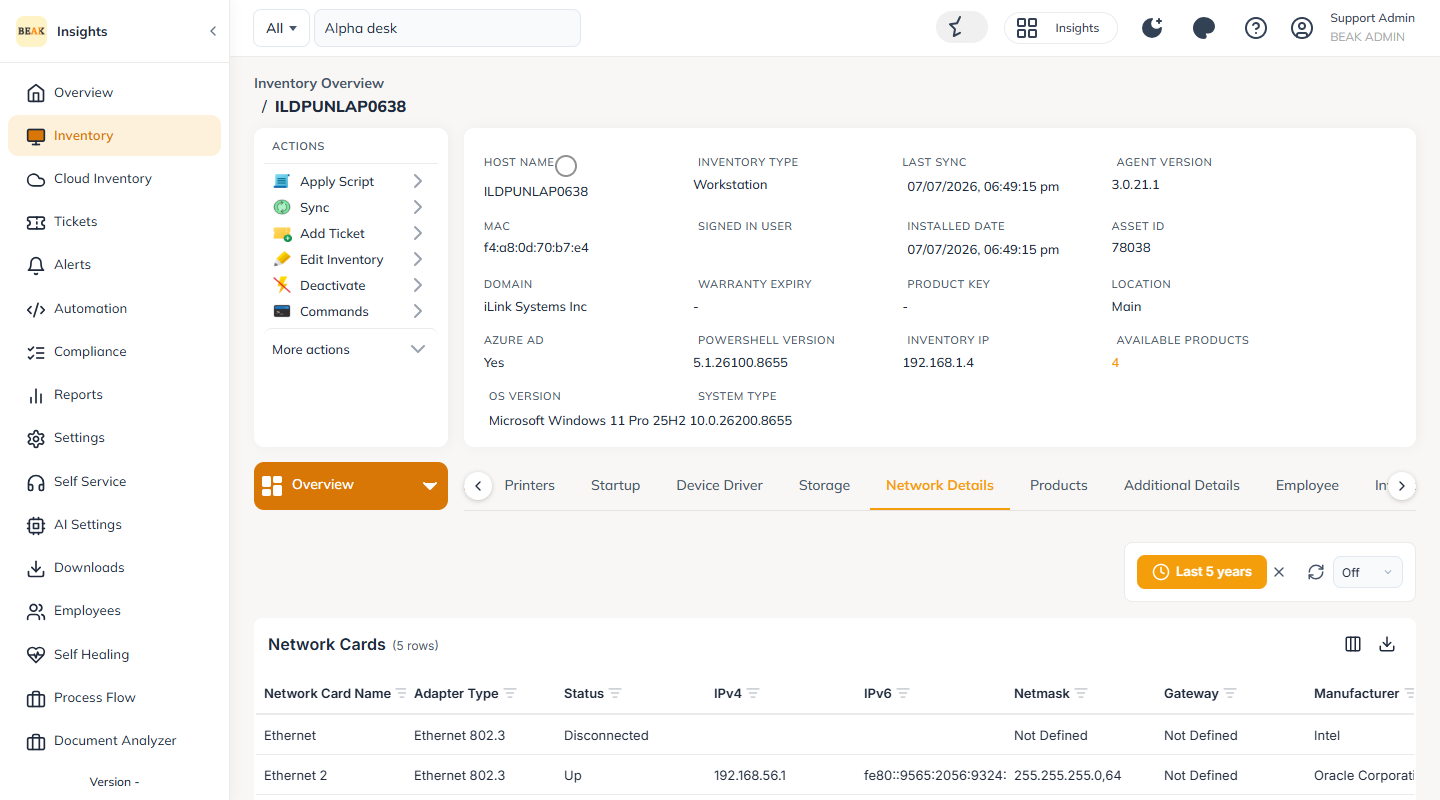
Network Details — the asset's network configuration
-
Products — the subscriptions (products) activated on the asset
-
Employee — the employee associated with the asset
-
Invoice — invoice and purchase details for the asset
Additional Asset Actions
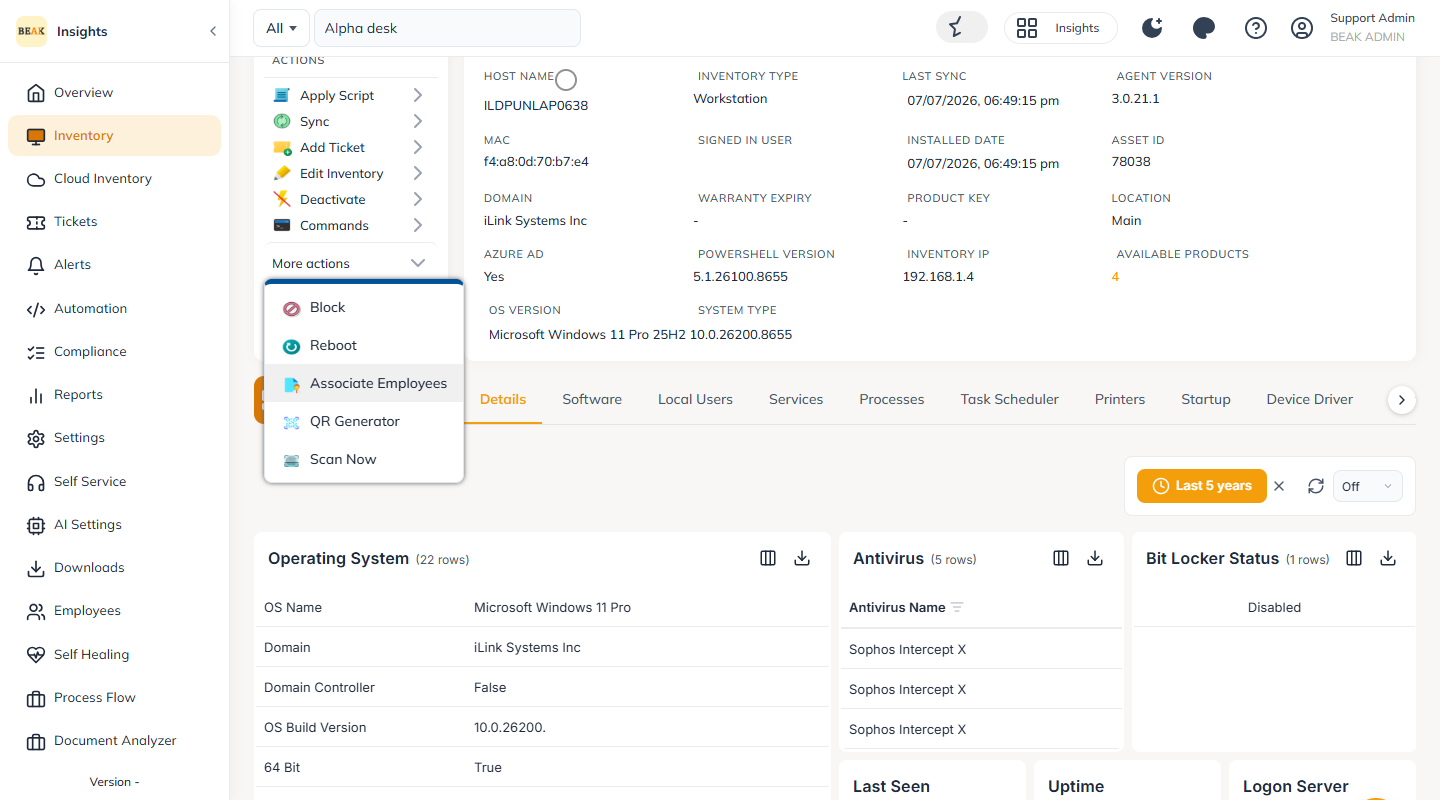
Further per-asset actions are available under the Actions panel's more menu — including Block, Reboot, Associate Employees, QR Generator and Scan Now.
Asset Classifier
An Asset Classifier is used in asset management to categorize and organize assets based on specific criteria or attributes.
The purpose of an Asset Classifier is to facilitate:
- Inventory management
- Tracking
- Decision-making related to assets within an organization
Scenario
David, as a Senior IT Admin, was demonstrating the use of Asset Classifiers to new joiners. He wanted to create a few classifiers to help them understand how classifiers can be used dynamically across different BEAK modules.
Asset Classifiers can be integrated across all modules of BEAK, for example:
-
Patch Management
Run a patch upgrade only for Windows computers by creating a classifier that fetches only Windows OS devices. -
Script Management
Run a PowerShell script for clearing temporary files on both Windows and Mac assets by creating a classifier that fetches only Windows and Mac OS computers. -
Scan
Use the same classifier created for patching to scan only Windows and Mac OS computers. -
Infrastructure Monitoring
Monitor CPU and Disk Utilization for servers based out of New Jersey and Brooklyn by creating a classifier that filters only the required servers.
Hence, multiple asset classifiers can be created, or the same classifier can be reused across other modules as needed.
Creating an Asset Classifier
Asset Classifiers can be created at:
- Global Level
- Company Level
For example, David (Senior IT Admin) can create a classifier named "Fetch all Windows Workstations" at the Global Level. This classifier can be reused by Junior IT Admins across all managed companies (as they won't have global access themselves).
Access and Visibility Comparison Table
| Classifier Level | Usable Across Companies | Modifiable at Global | Modifiable at Company | Visible at Global | Visible at Company |
|---|---|---|---|---|---|
| Global Level | ✅ Yes | ✅ Yes | ❌ No | ✅ Yes | ✅ Yes |
| Company Level | ❌ No | ✅ Yes | ✅ Yes | ✅ Yes | ℹ️ Visible only to that company |
Global Level Classifier
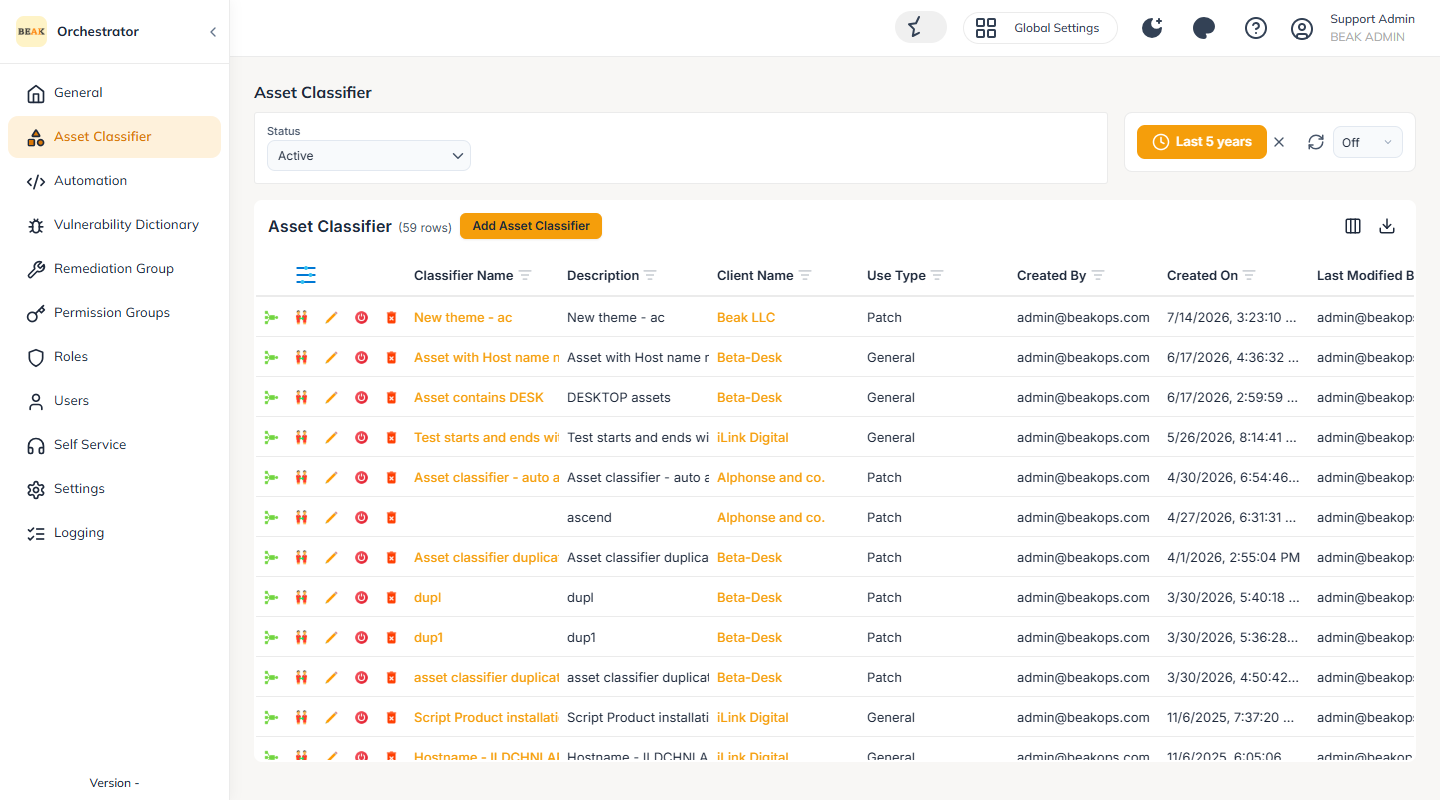
Switch the module selector at the top of the header to Global Settings, then open Asset Classifier in the sidebar. The list shows every classifier with a Client Name column. Click Add Asset Classifier to create one.
Company Level Classifier
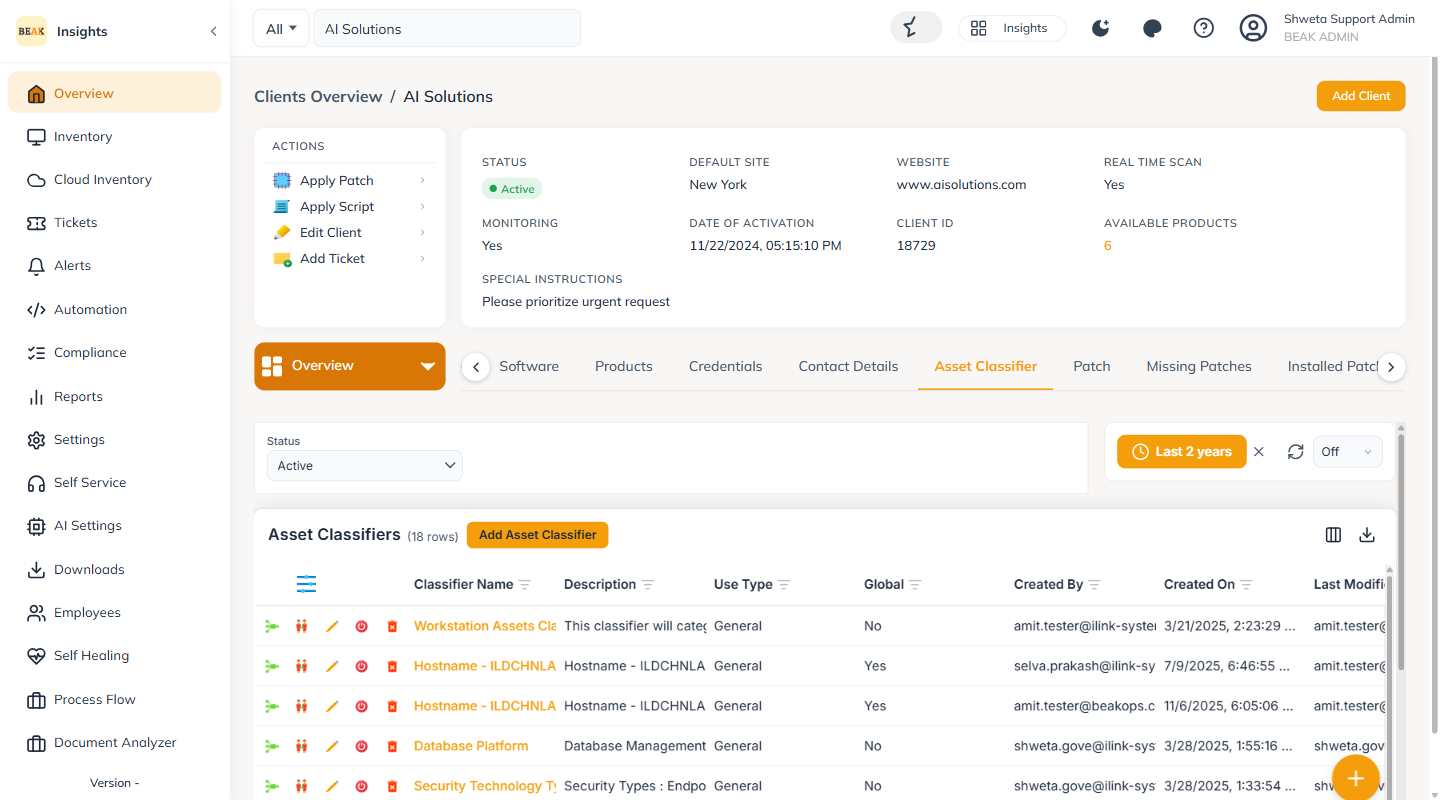
Open the client (Clients Overview > client name), go to the Overview page and select the Asset Classifier tab, then click Add Asset Classifier. Classifiers created here are company-specific.
Creating a New Classifier
On the Add Asset Classifier form:
-
Enter a clear Name and Description that matches the assets you are classifying, and choose a Use Type.
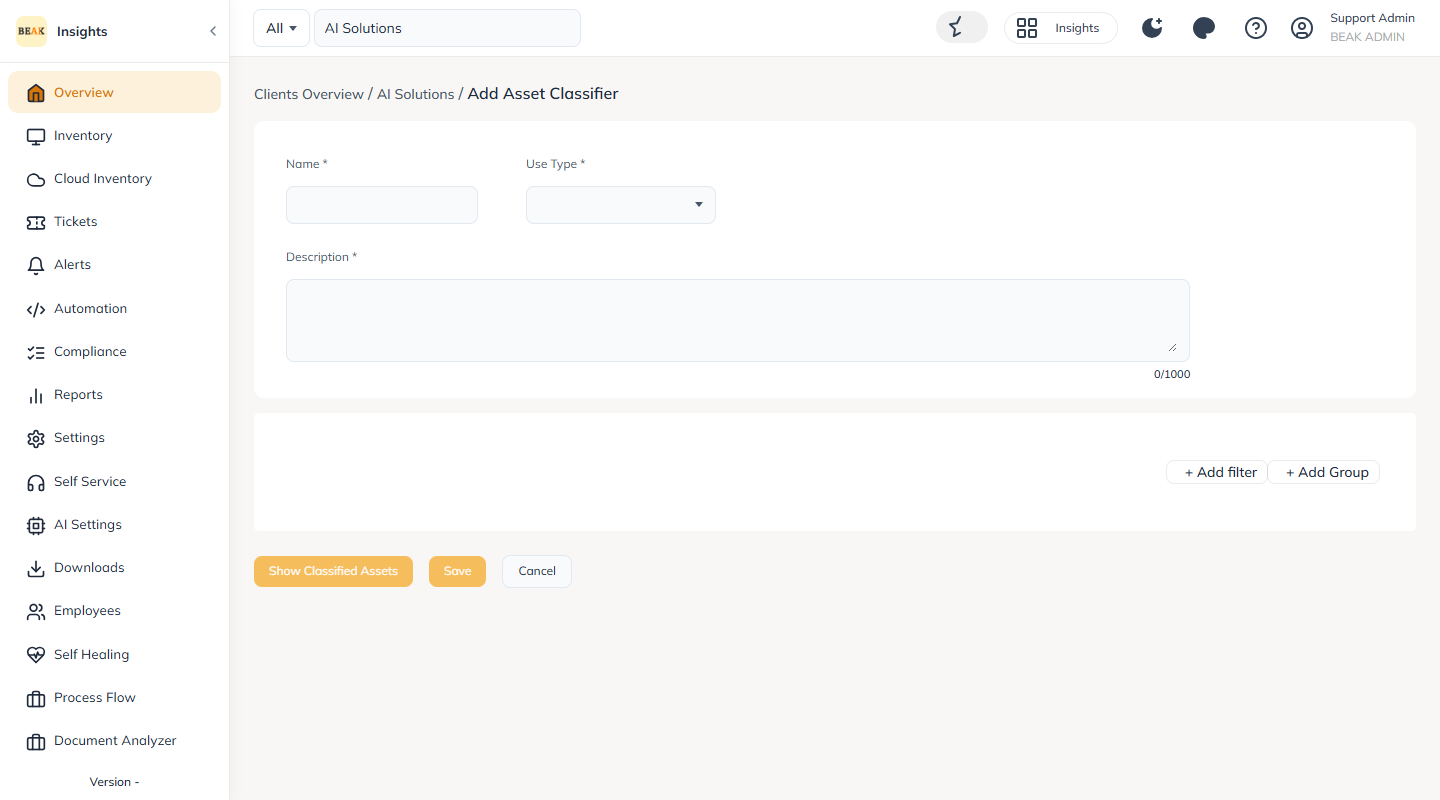
-
Build the rule using + Add filter and + Add Group, selecting the fields and values that organize the assets. More than one filter or group can be combined to refine the classification.
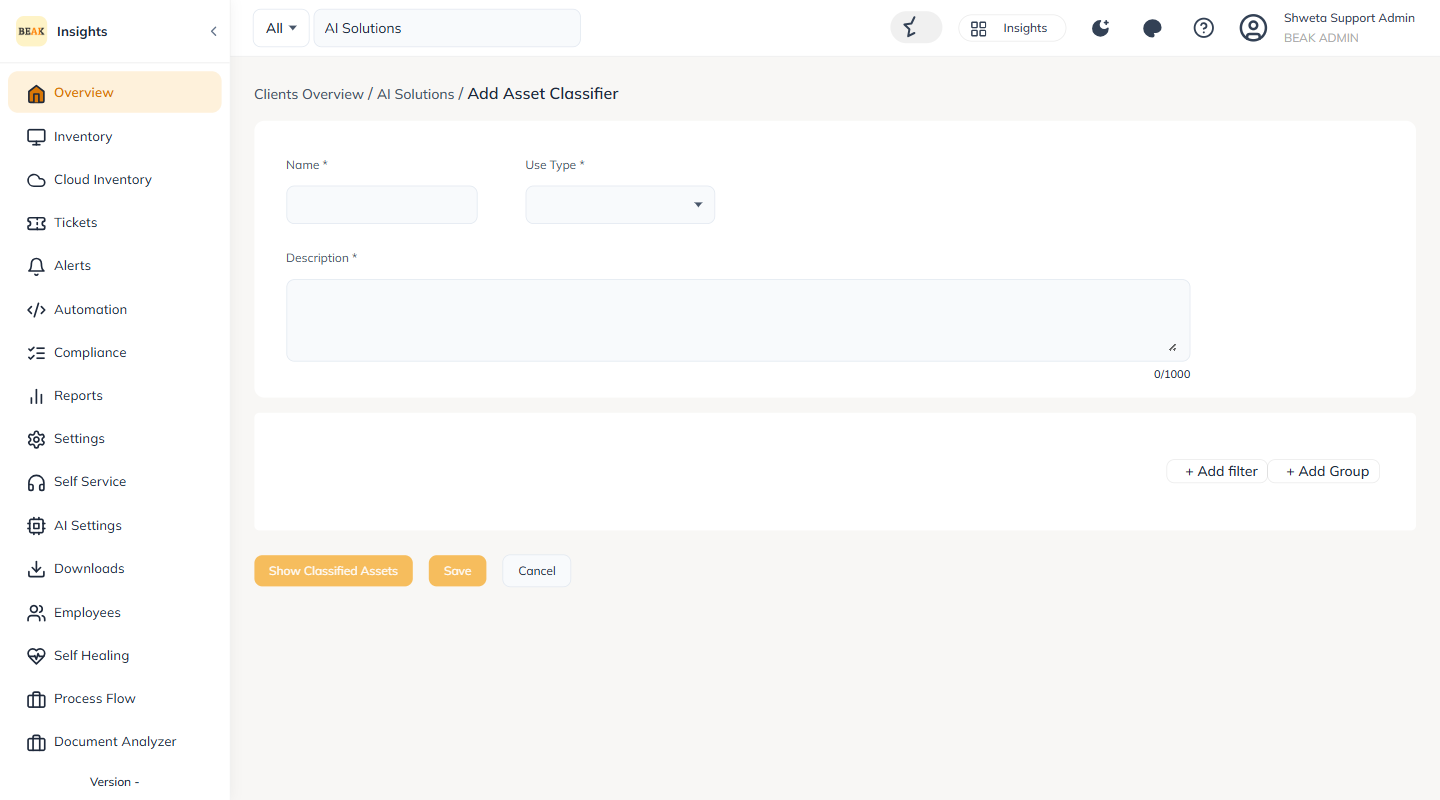
-
Use Show Classified Assets to preview the matching assets before saving.
Note:
Apart from the Global and Company Levels, BEAK also allows creating Asset Classifiers while creating jobs in other modules such as:
- Scan
- Patch
- Script
- Infrastructure Monitoring
Wherever a job asks you to Select Asset/Asset Classifier, you can pick an existing classifier or create a new one.