Asset Onboarding
Scenario
20 new employees have joined ABC Company. As an admin, David would need to onboard the laptops of the new joiners in BEAK.
How to Onboard the Assets
There are two ways of onboarding assets in BEAK:
- Agent Installation — Download and install the BEAK AIOps Agent on the computer, based on its operating system.
- Through a Gateway — Install a BEAK AIOps Gateway on any computer on the network (a server or a workstation), then trigger a Discovery Scan through that Gateway to find and remotely onboard the other devices.
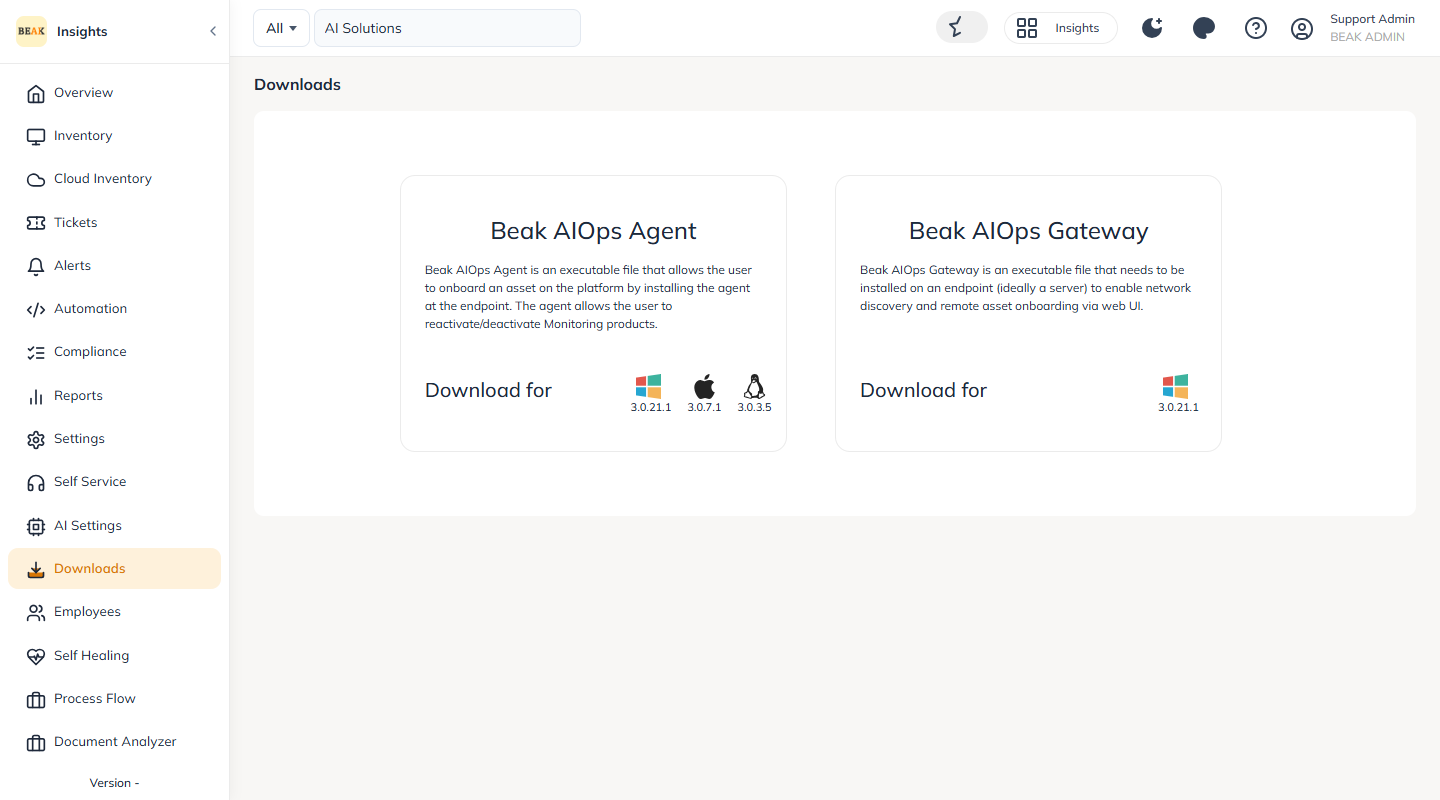
Both installers are downloaded from the same place. In the left sidebar, open Downloads. The screen presents two cards — Beak AIOps Agent and Beak AIOps Gateway — each with download buttons for Windows, MAC and Linux, with the current version below each icon. A QR code is also available to install on mobile.
Note:
The Gateway will only discover devices that are connected to the same network.
For example, if there are 20 computers in total—10 located in Brooklyn and 10 in New Jersey—then:
- One gateway is needed in Brooklyn to discover those 10.
- Another gateway is needed in New Jersey to discover the remaining 10.
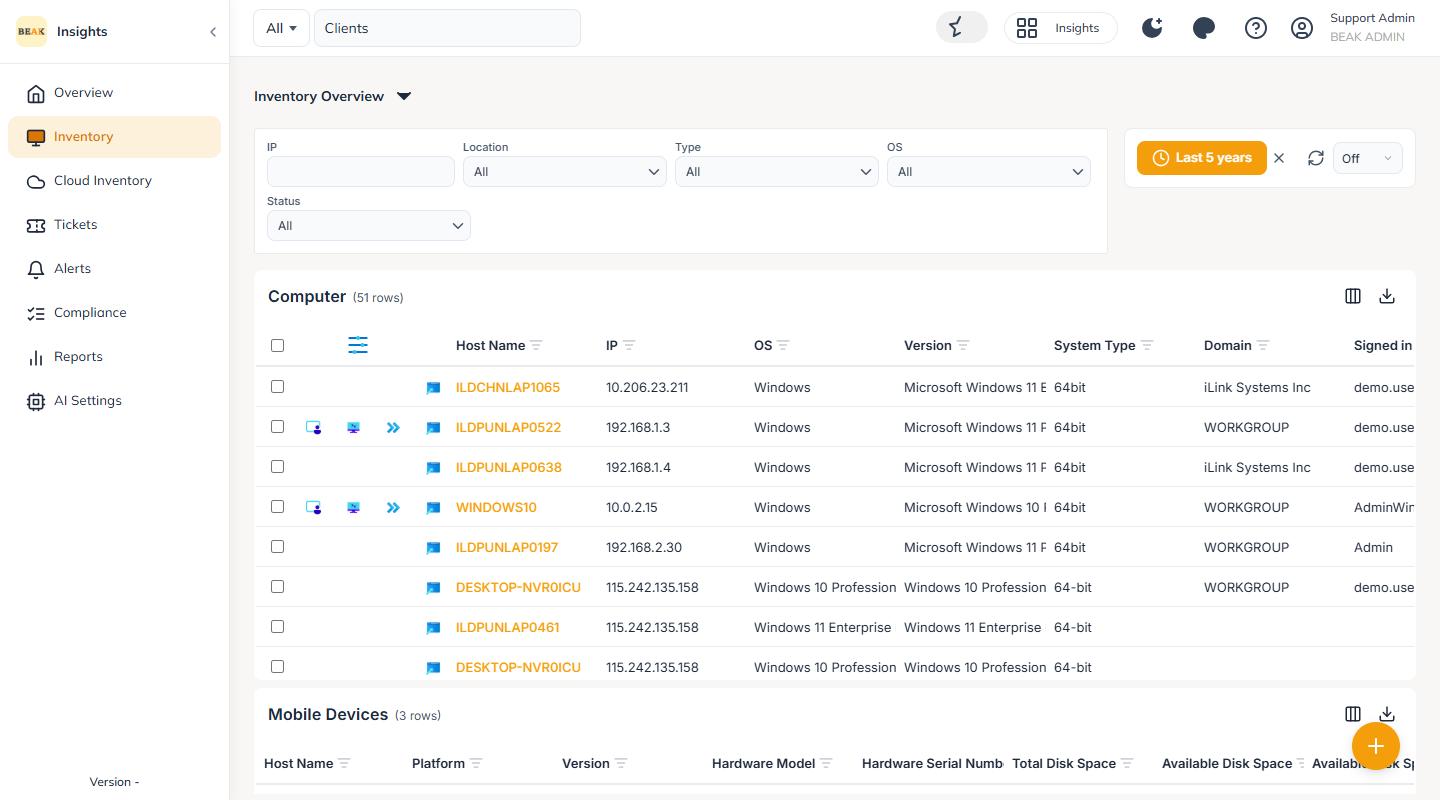
Once the assets have been discovered by the Discovery Scan, the BEAK Agent can be installed remotely on them. Once the Agent is installed, the asset becomes visible in the platform under the Inventory menu.
How to Create a Discovery Scan
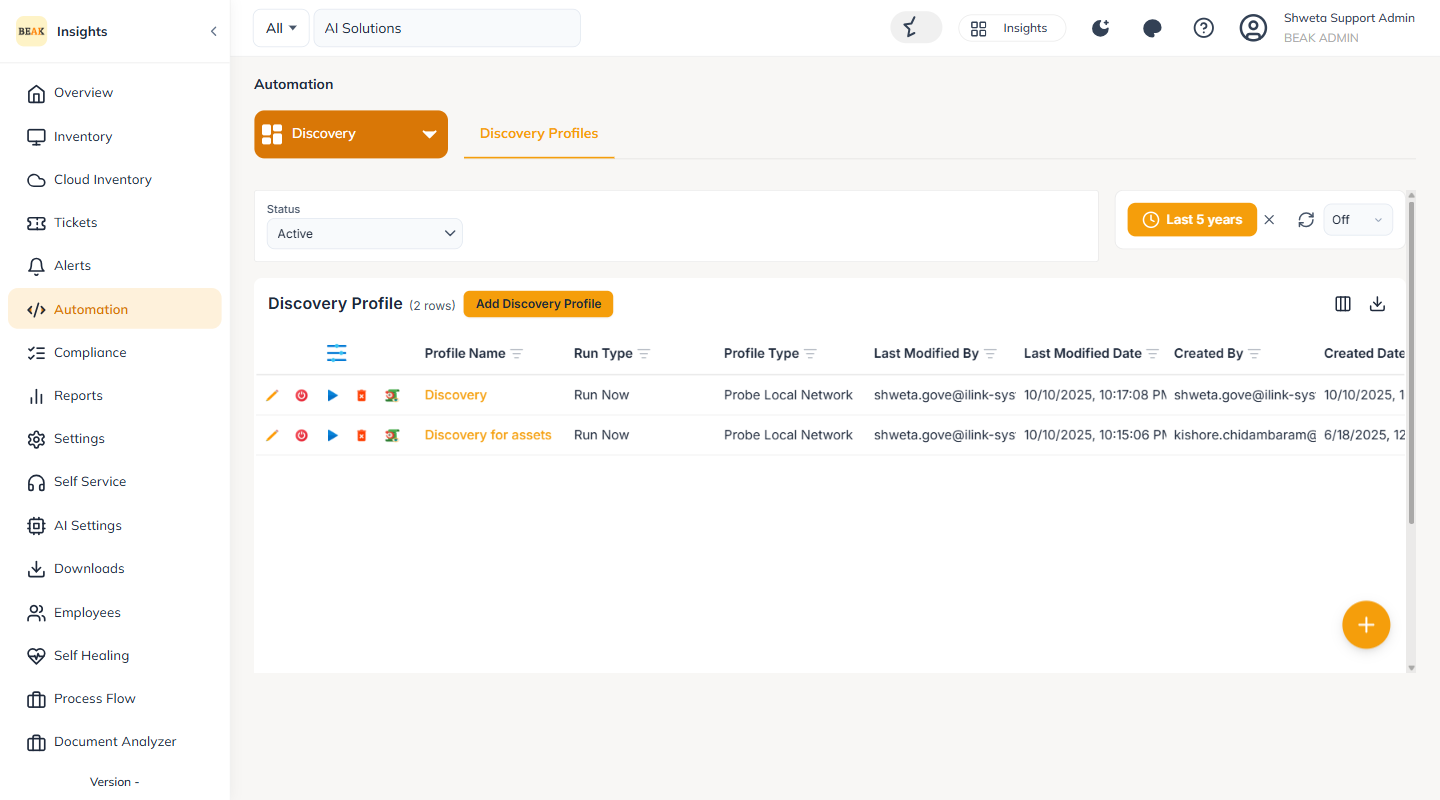
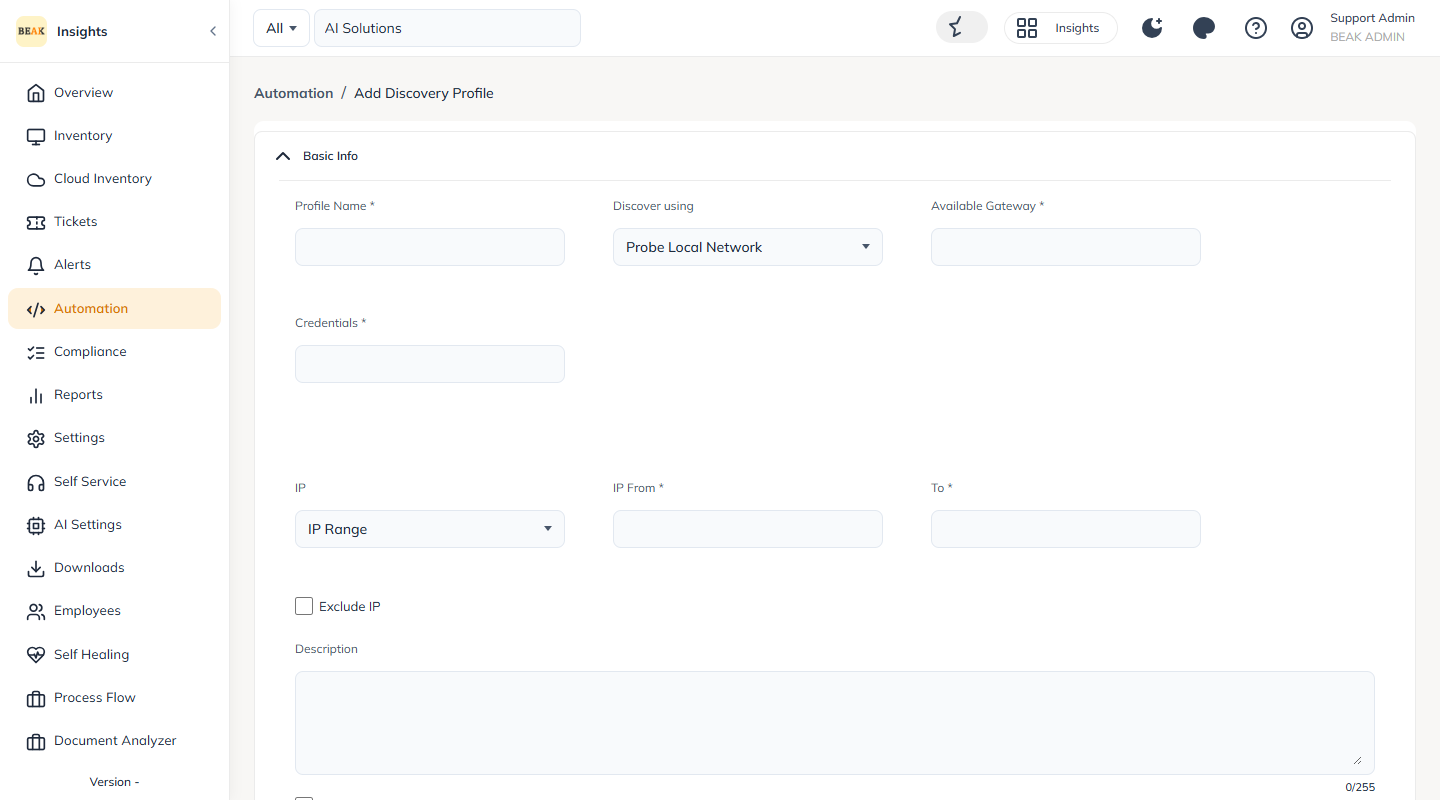
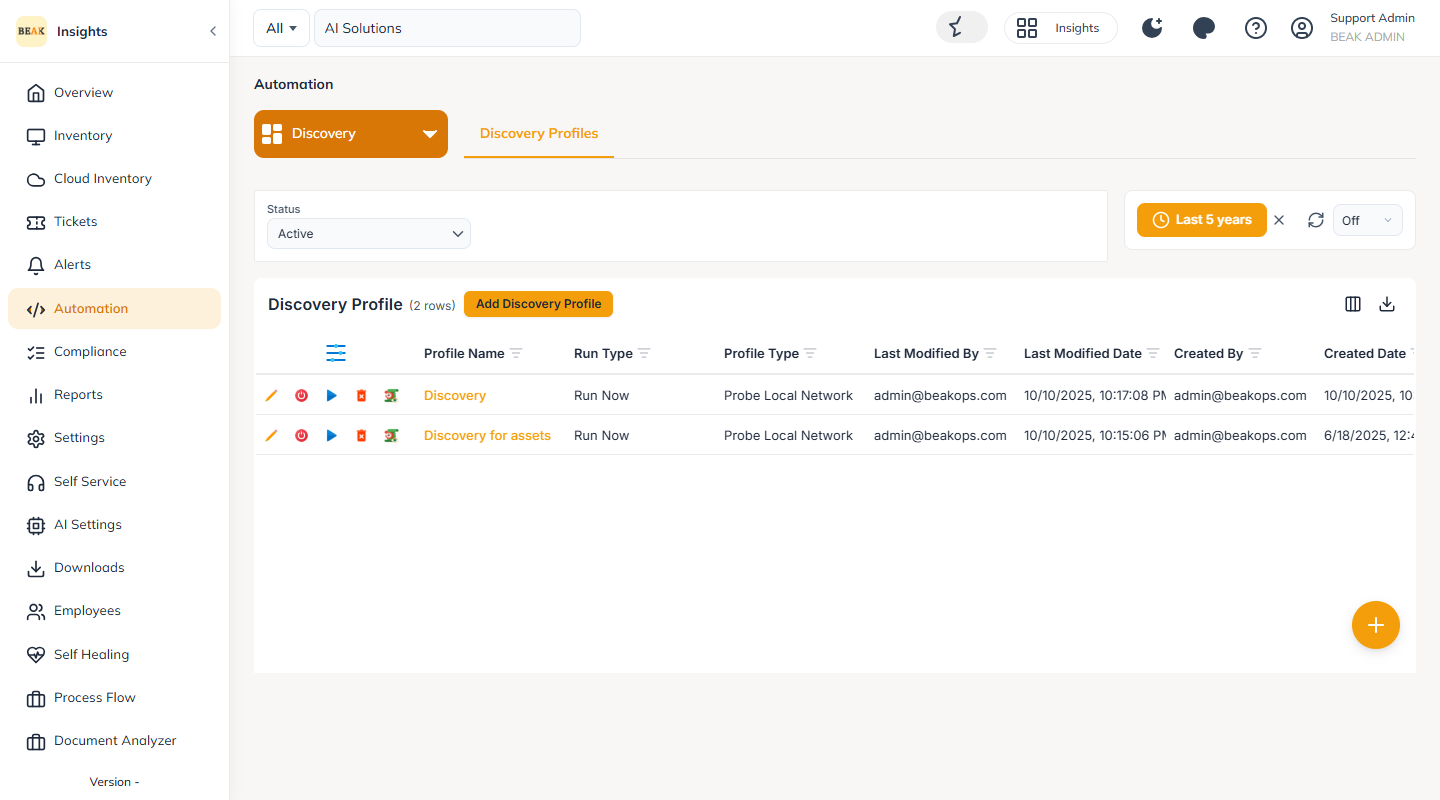
Discovery scans are created from the Automation page. In the left sidebar open Automation, switch the page-group selector to Discovery and open the Discovery Profiles tab, then click Add Discovery Profile.
Basic Info
On the Add Discovery Profile form, fill in the Basic Info section:
- Profile Name — A name for the discovery profile
- Discover using — The discovery method:
Probe Local Network,Azure AD ScanorLocal AD Scan - Available Gateway — The Gateway to run the scan through. A BEAK AIOps Gateway must already be installed on a workstation or server.
- Credentials — The credentials to use, registered at the client level
- IP / IP From / To / CIDR — The IP range or CIDR range to scan, with an optional Exclude IP list
The Discover using options:
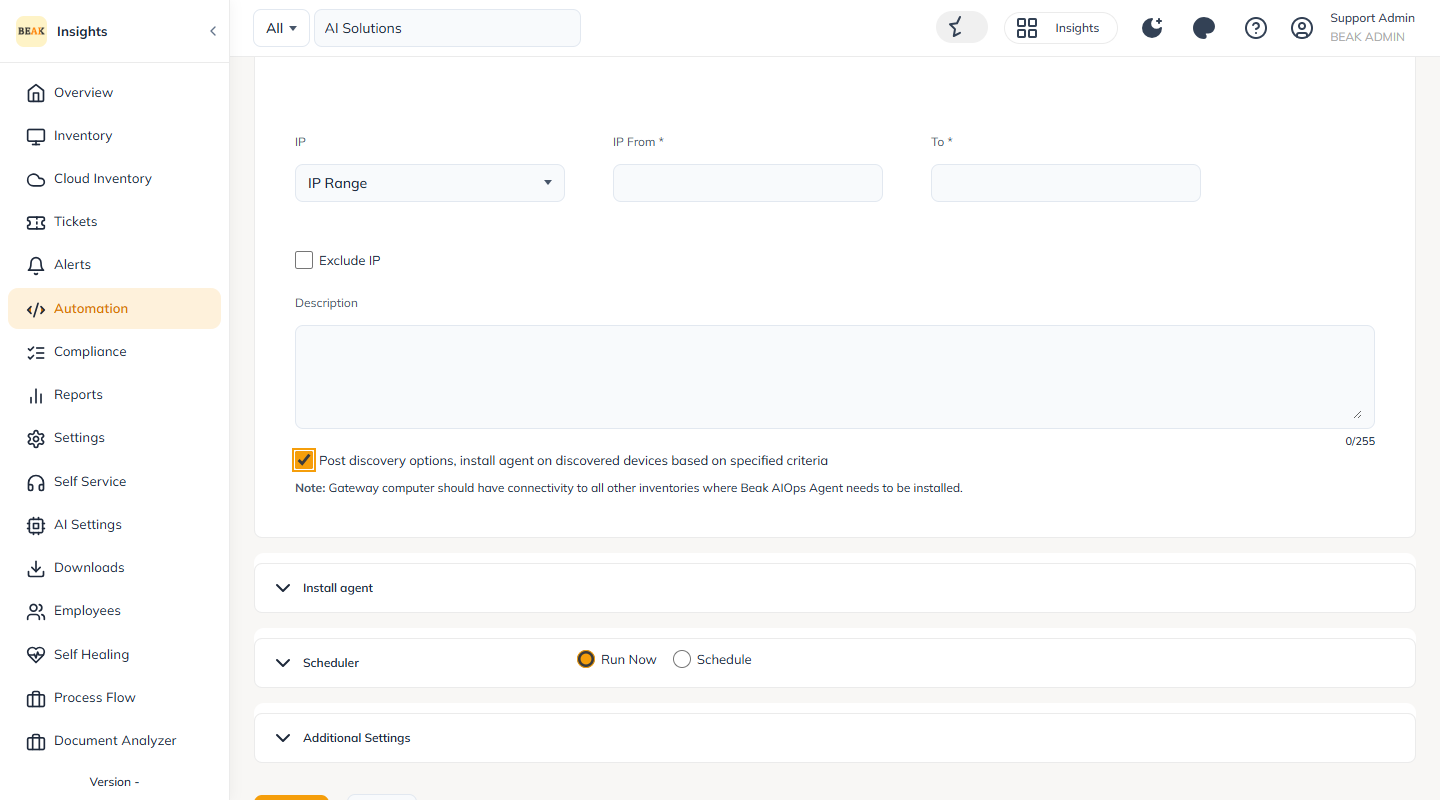
Post-Discovery Agent Installation
Select Post discovery options, install agent on discovered devices based on specified criteria to have BEAK install the Agent on the discovered devices automatically.
This opens the Install agent section, where you target a specific group of assets for Agent installation.
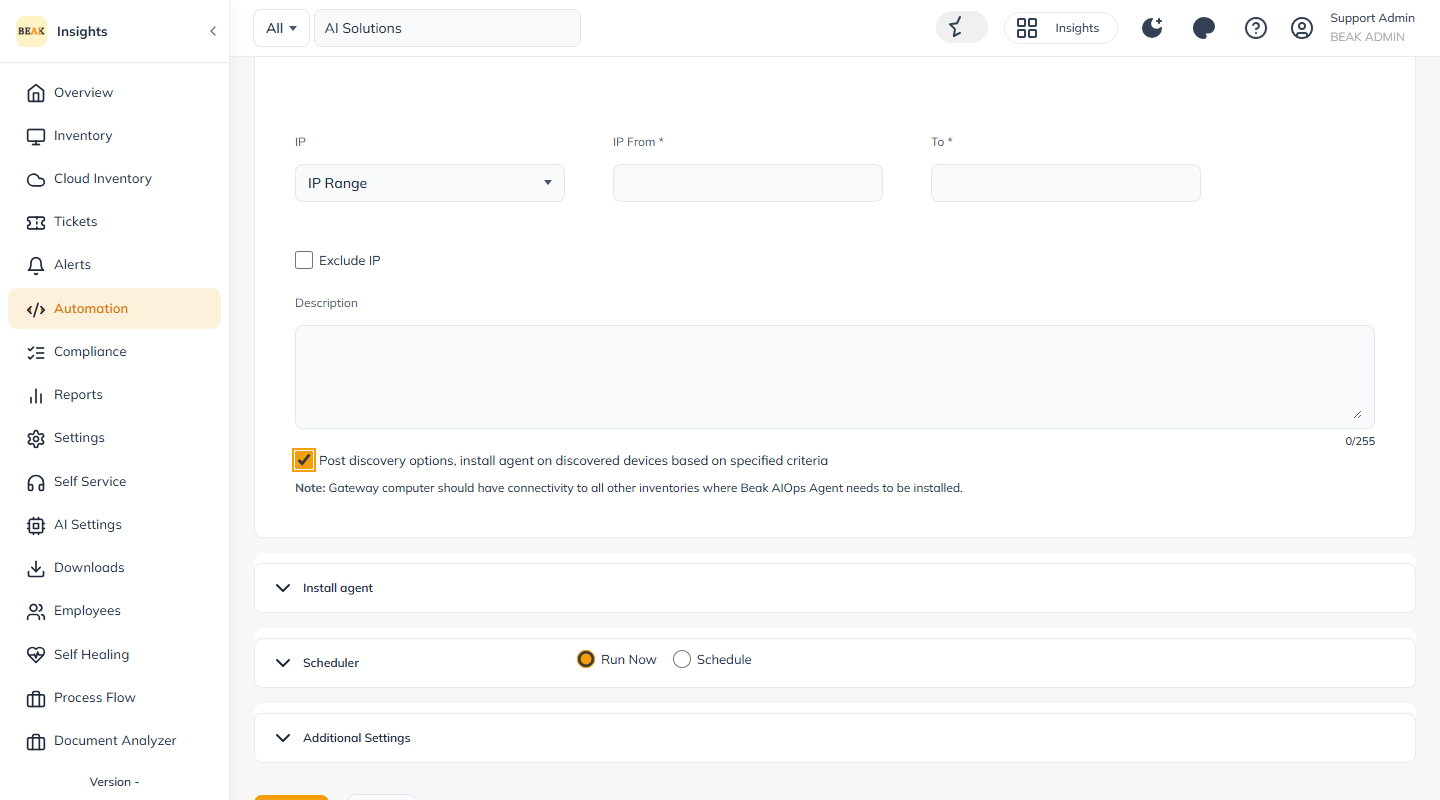
Scheduler and Additional Settings
Under the Scheduler section you can Run Now or Schedule the scan for later.
In Additional Settings, enable Generate Alert to receive alert mails on the Success, Failure and Terminated outcomes of the Discovery scan.
Click Add to save the profile.
Registering Credentials
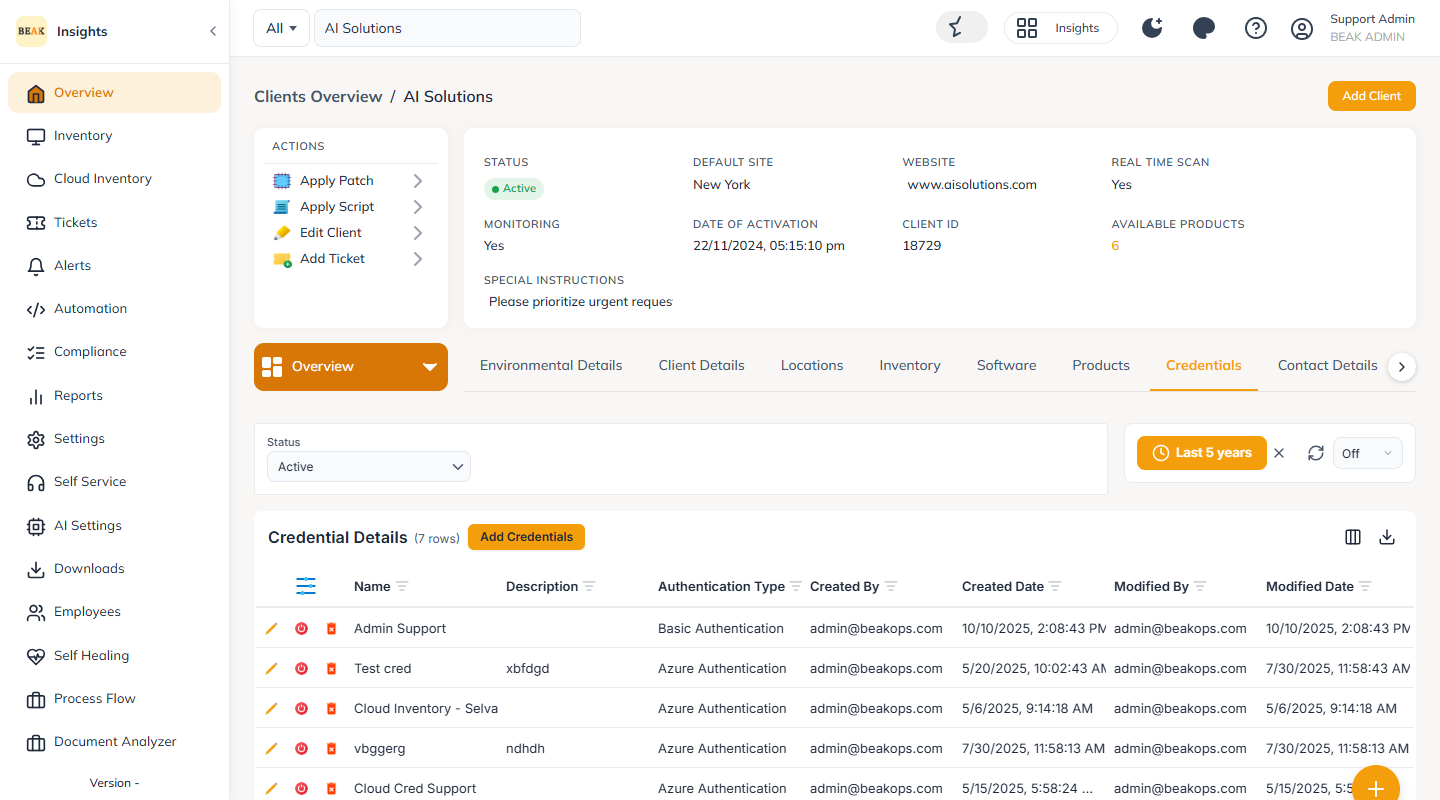
The credentials used by a discovery scan are registered at the client level.
Open the client (Clients Overview > client name), go to the Overview page and open the Credentials tab, then click Add Credentials and enter the Name, Username, Password, Confirm Password and Description.